- Select the “Telegram Chatbot” at platform selection. Then:
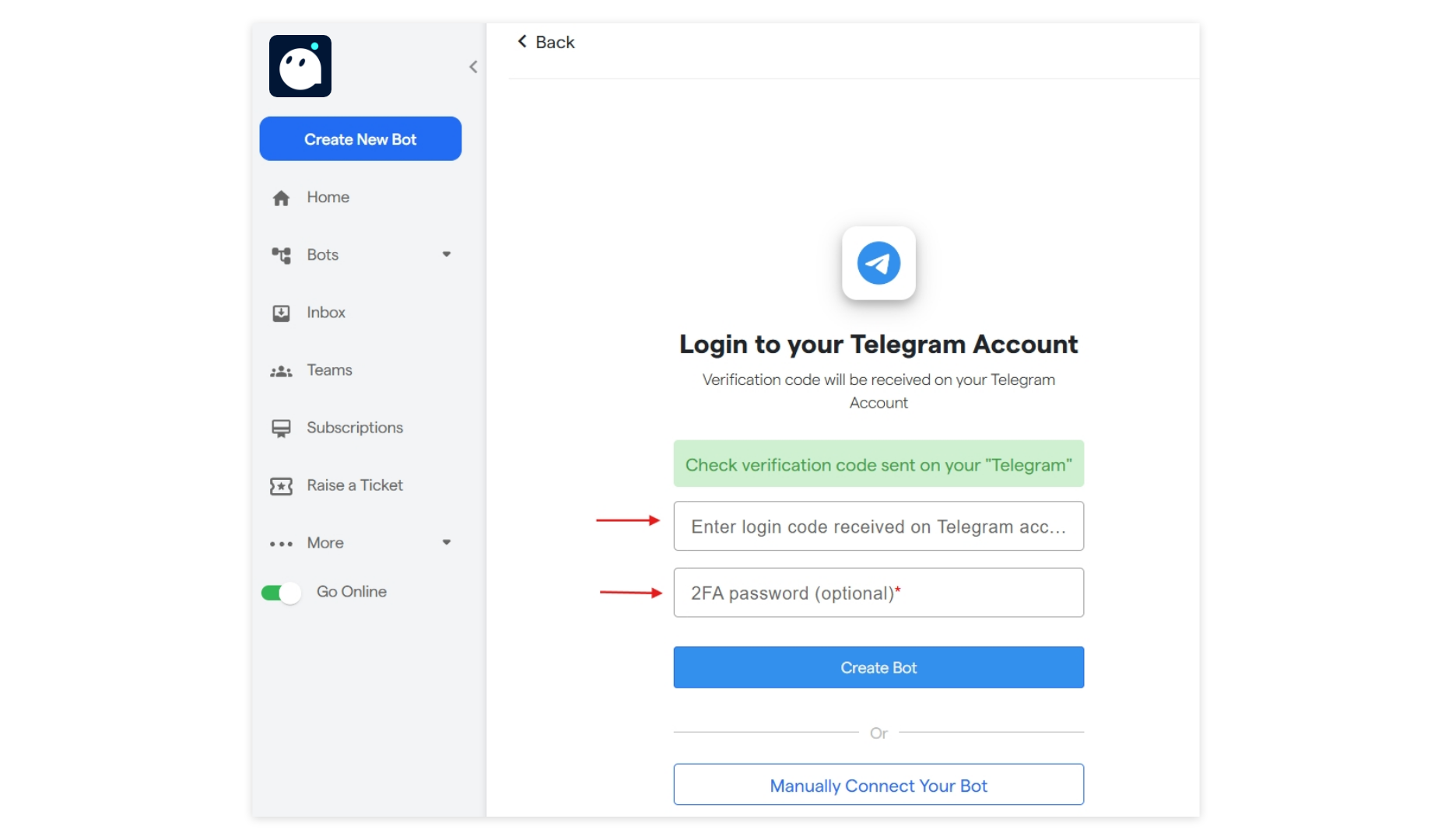
- You will be asked to enter your phone number which is connected with telegram.
- You will receive a
Login codein your Telegram account. Enter the Login Code here and click to login to your Telegram Account.
- You may click to
resendcode in case you haven`t received it. If still not received the login code, please verify the Telegram mobile number and re-enter it by clickingChange number.
Manually Connect Your Bot
- Enter the Bot name which you want to connect.
- Enter the Bot user name which you want to connect
- Enter the Bot Authentication Token recieved on telegram from “BotFather”.
- Click on Connect Bot.
Create Your Bot
-
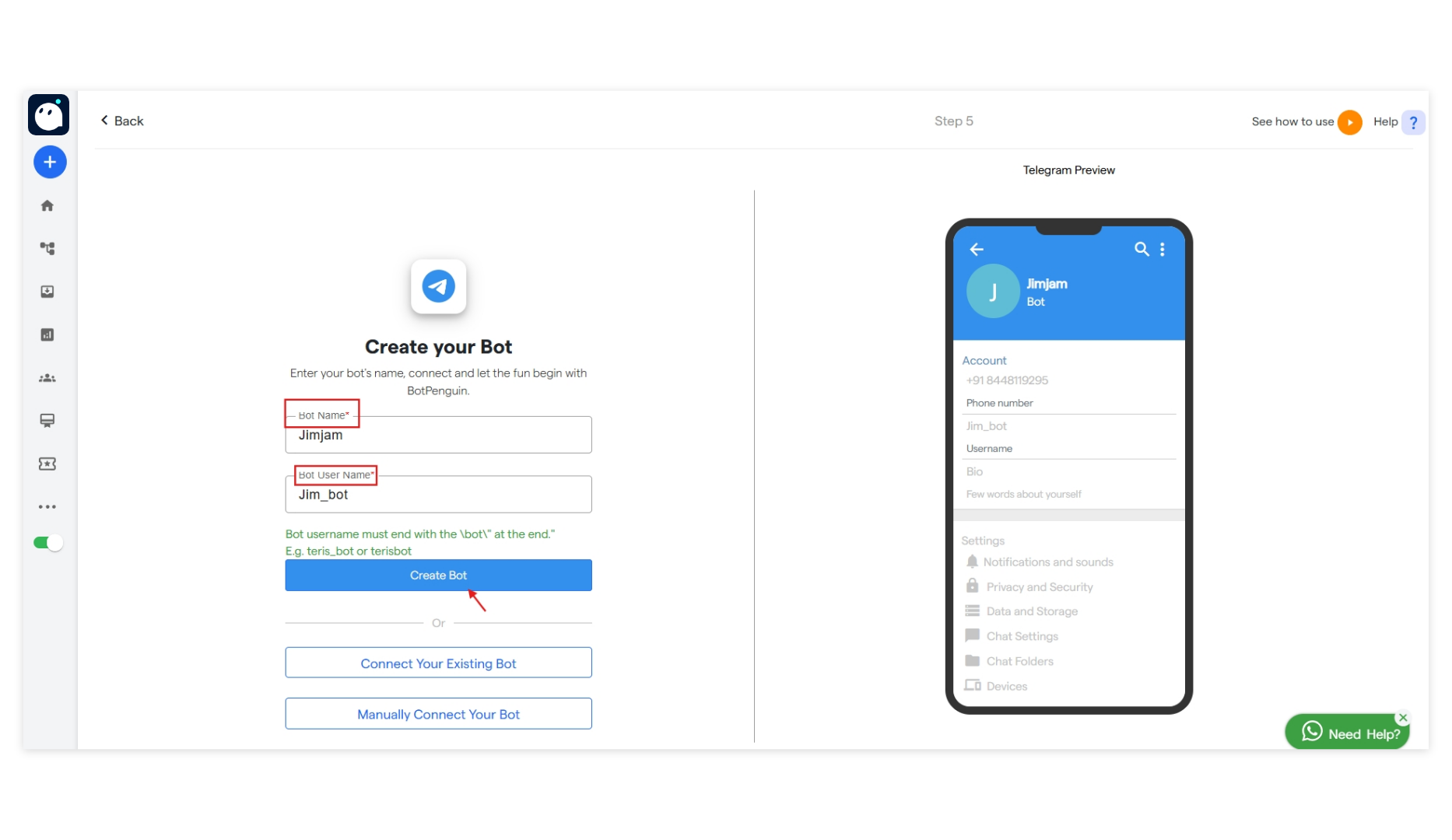
You may choose an existing Telegram bot to connect with Converse or you can select “manually connect to bot”. Then enter :
- Name of your new bot,
- Username. Username should end with
bot. example: abc_bot or abcbot.
-
Enter the details and click
Connectand you will be directed to the dashboard section where you canEdit your chat flowandTelegram Bot Settings.
Edit Your Chat Flow
- A chat flow is a structure of messages that determines how a conversation will take place between your chatbot and the user. Click on the
Edit Your Chat Flowtab to customize your chat flow.
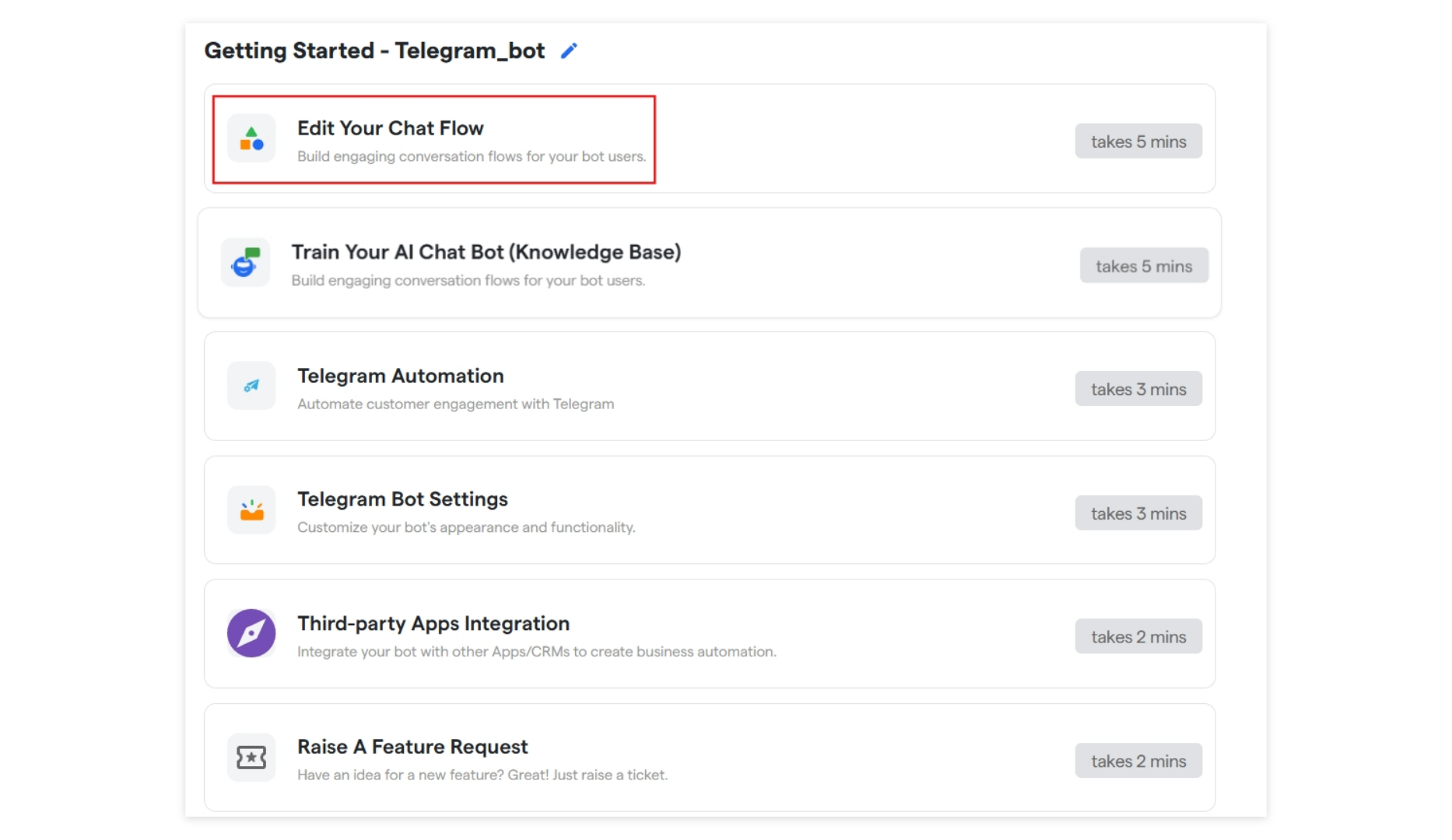
- Here, you will find a pre-created template of a chat flow that you can customize as per your business needs. It is very easy and quick to customize the chat flow.
Telegram Automation
Here you can configure automation settings for your telegram botChat Flows
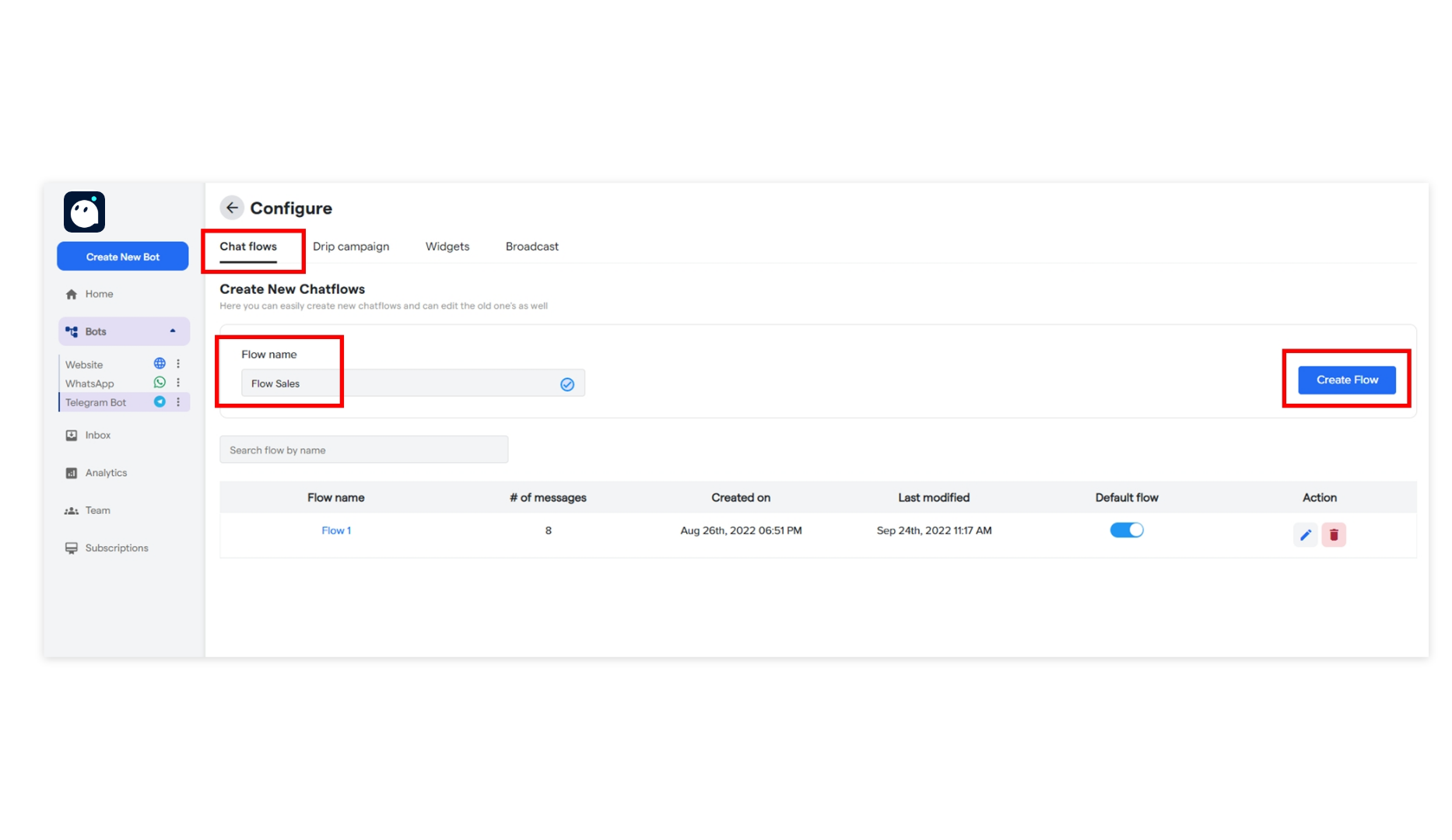
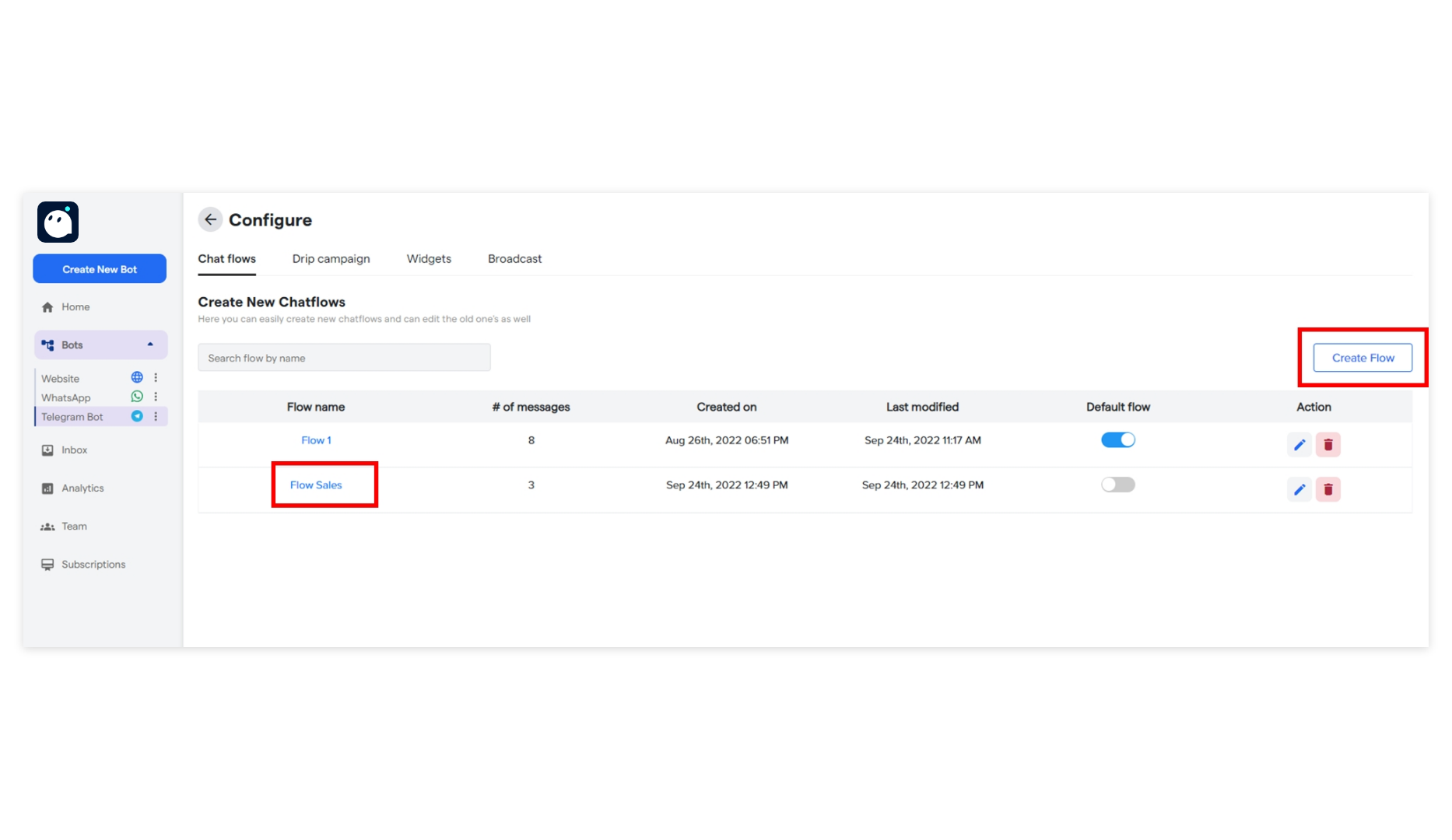
Here, you can also create multiple chat flows from theCreate flow option by adding the name of the flow. Once a flow is added, it will be listed under Flow name. This way you can add any number of flows.
Drip Campaigns
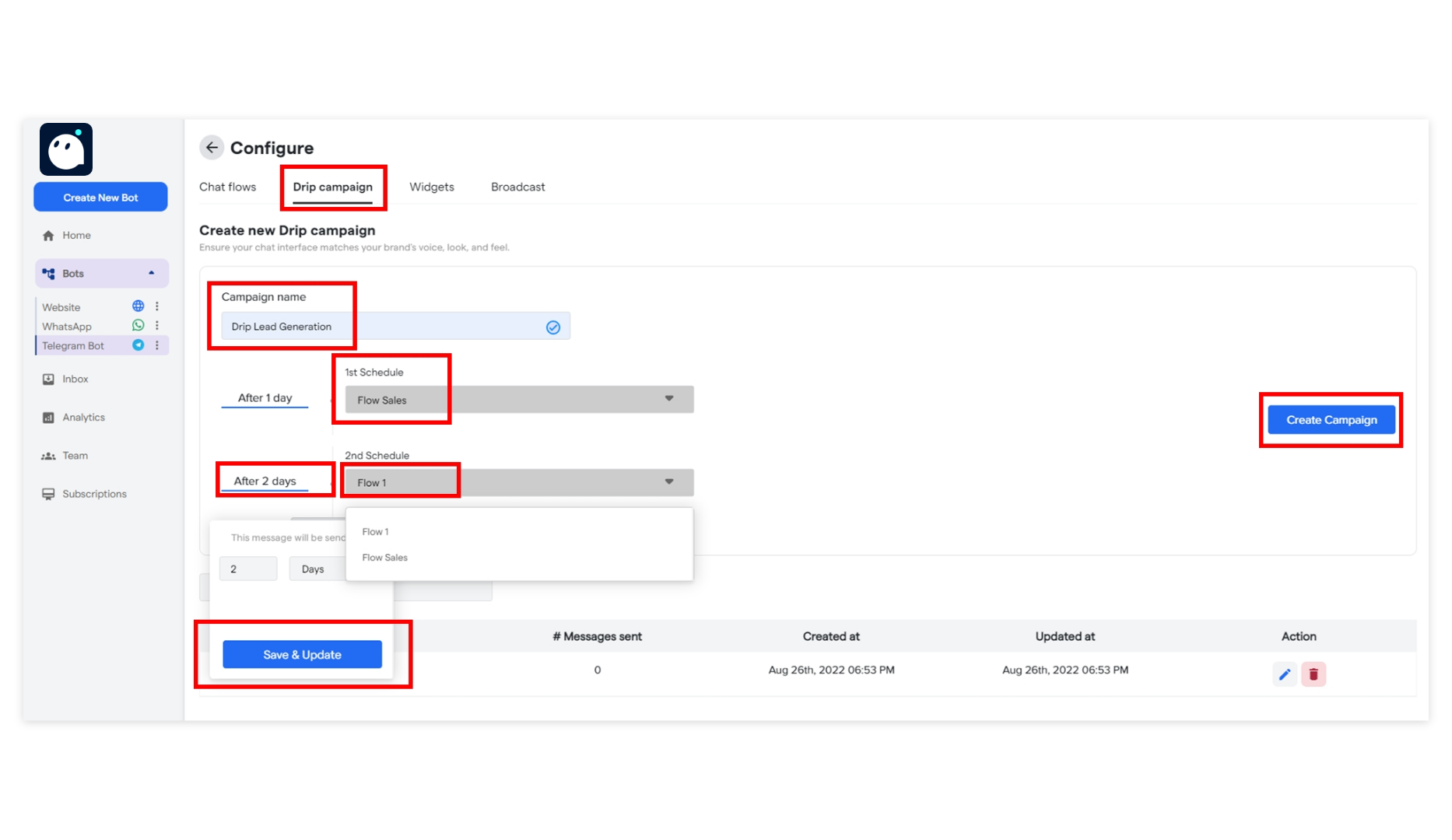
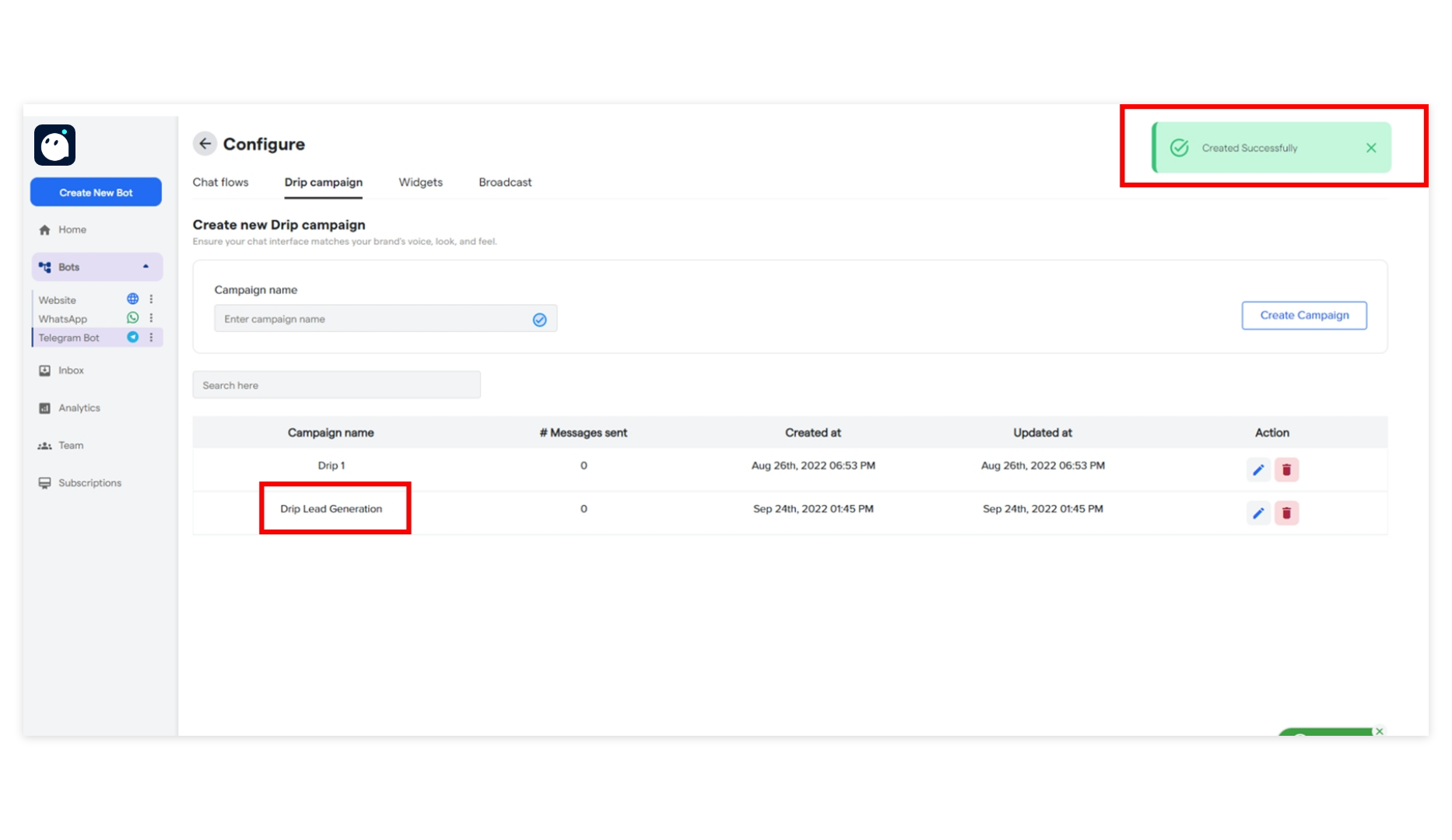
Drip Campaign is a scheduled and structured flow of messages created for customer onboarding journeys. To create one, go to theDrip Campaigns tab and click Create Campaign.
Widgets
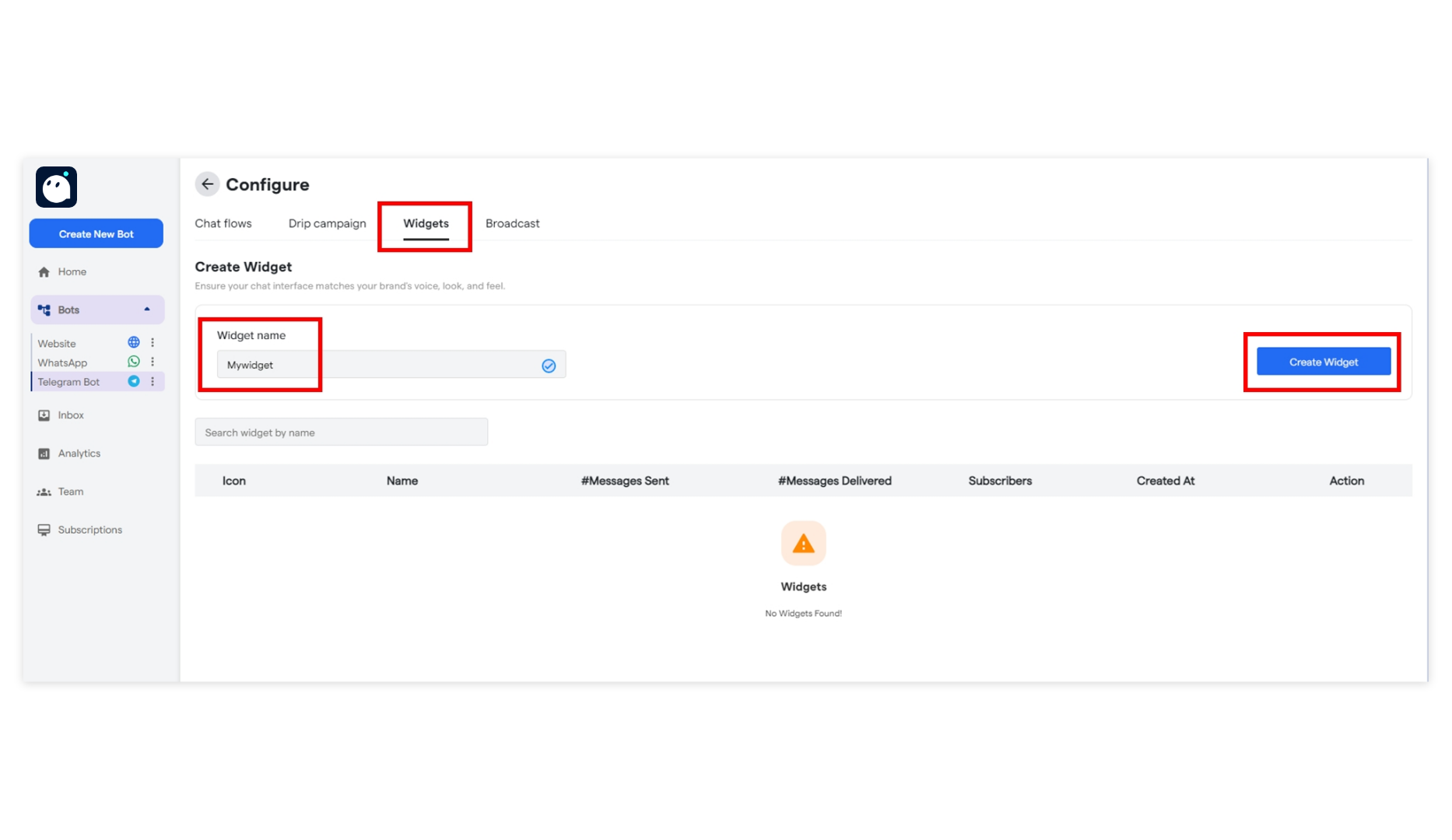
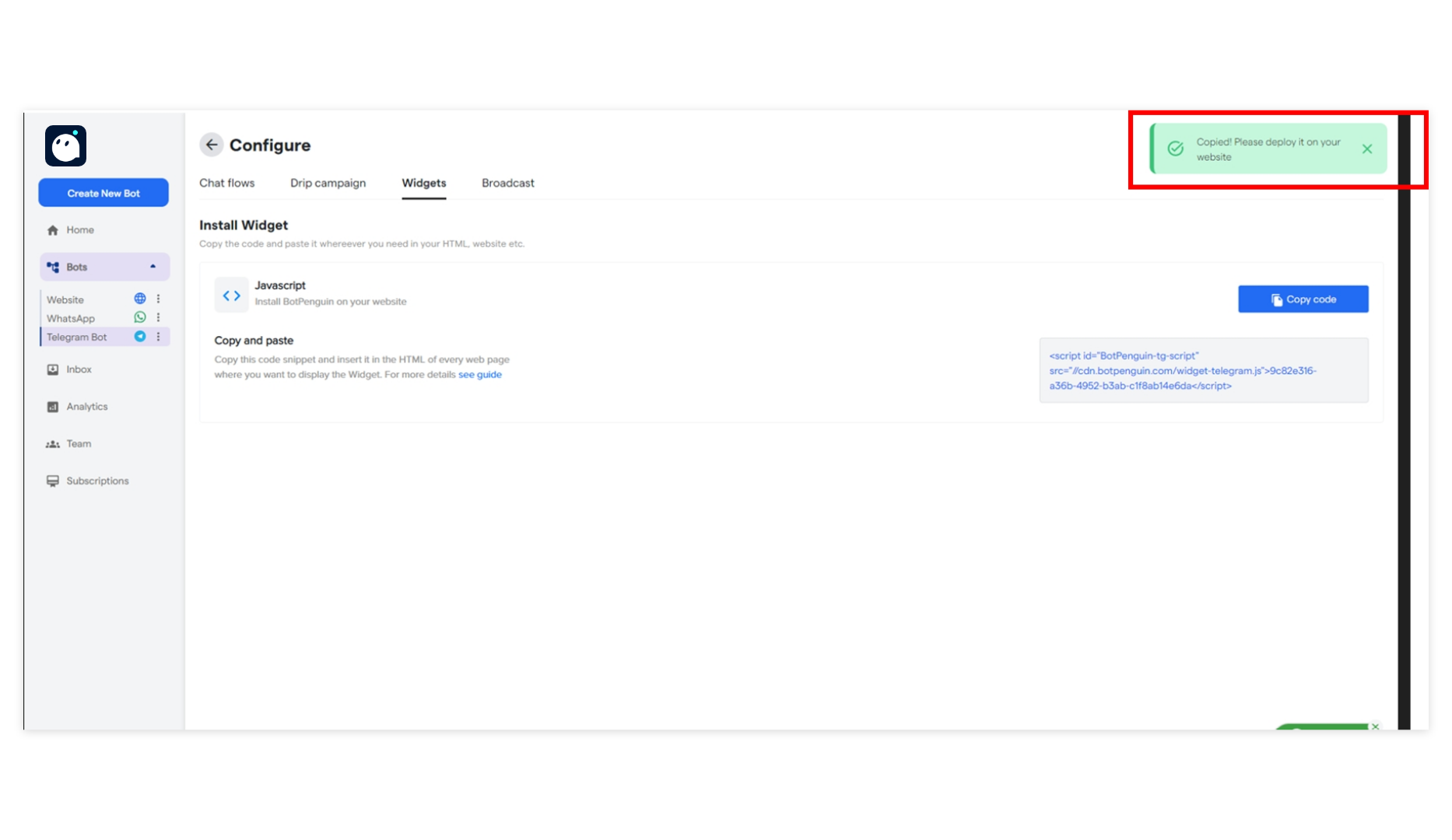
A Widget is a chat interface that can be installed in your website, ads, blogs or any promotional content to route subscribers to your Chatbot. You can create multiple widgets by following a few easy steps on the Converse dashboard. To create one, go to theWidgets tab in Bot Settings and click Create Widget on the extreme right.
Broadcast
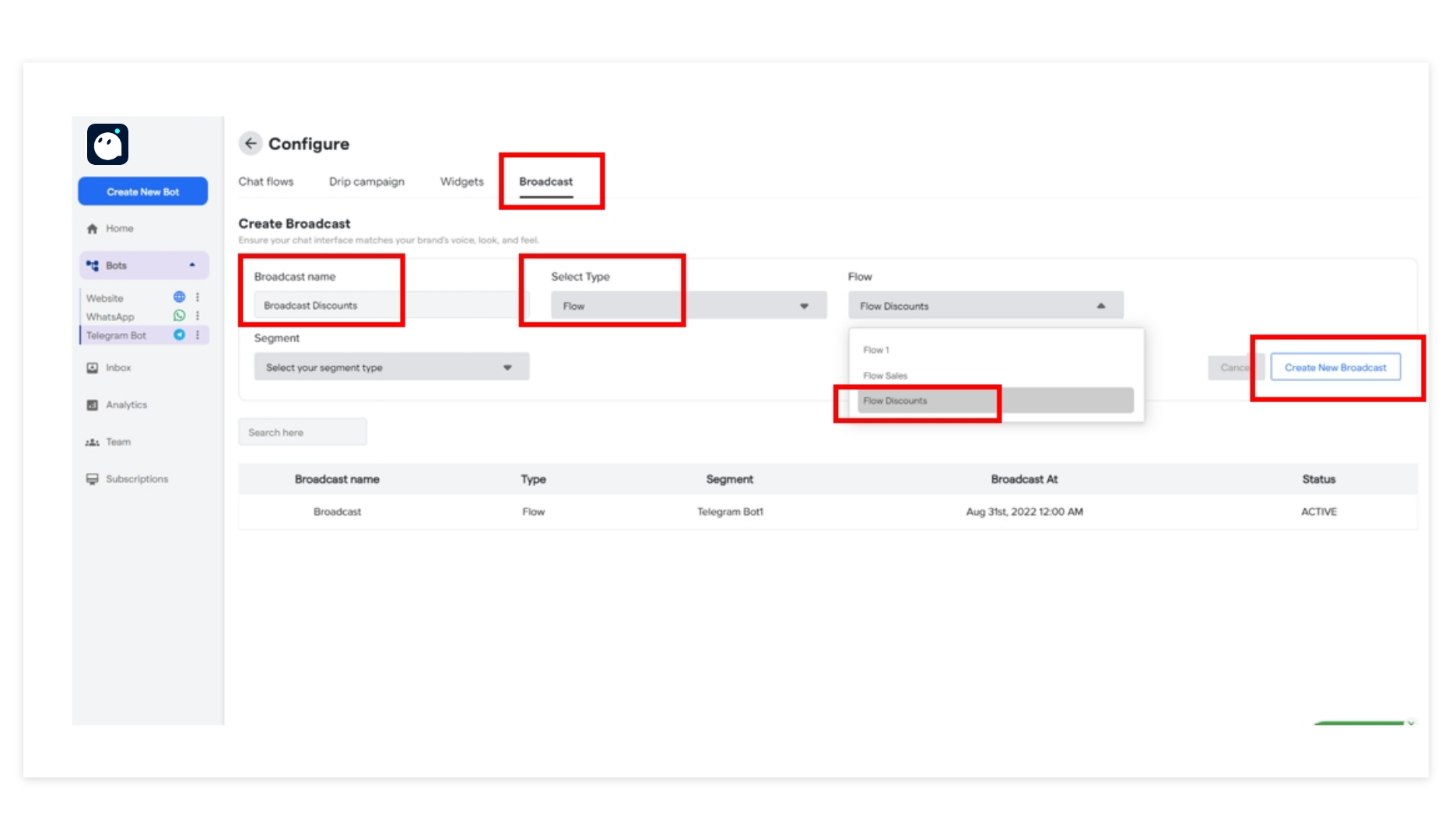
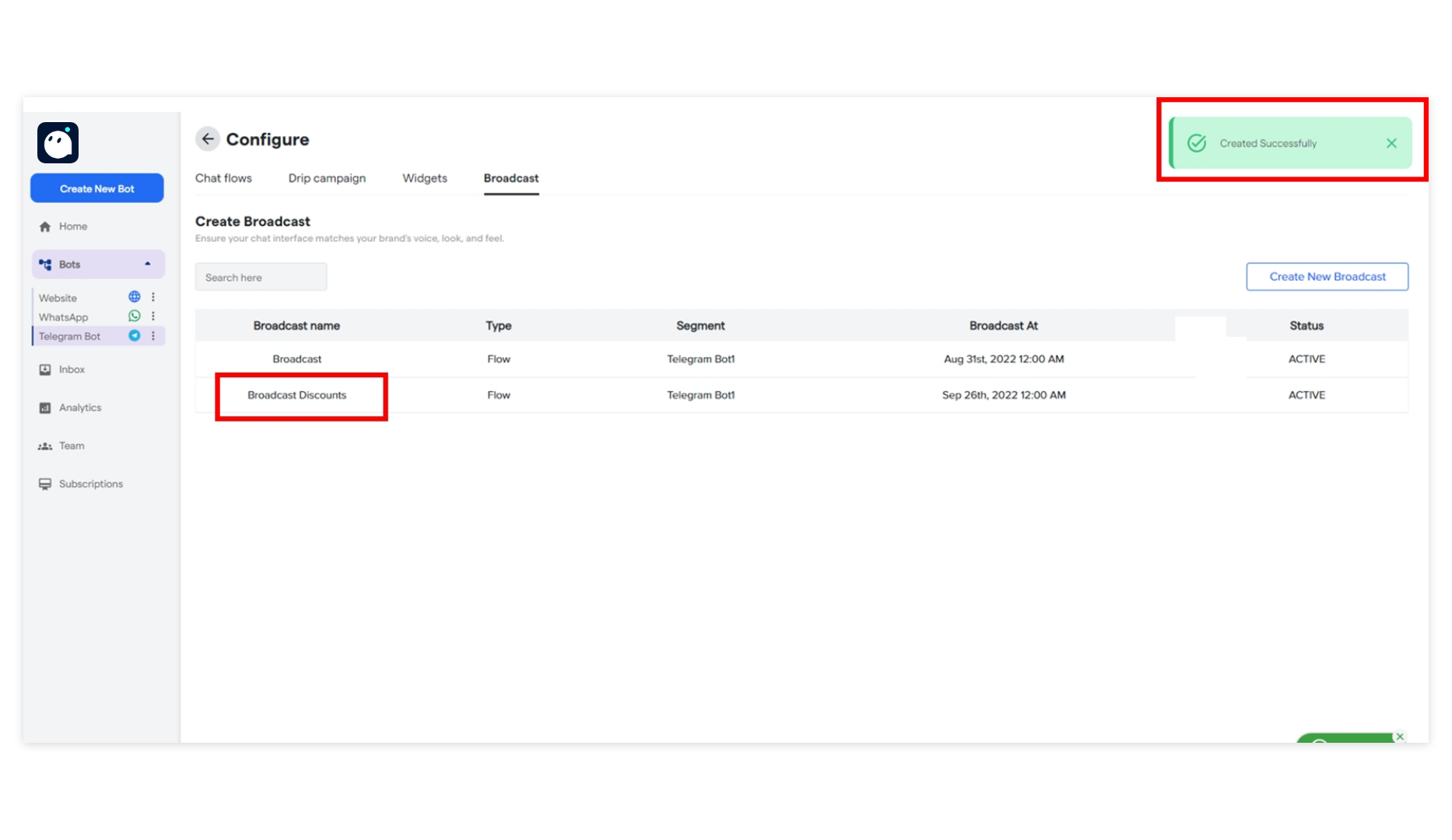
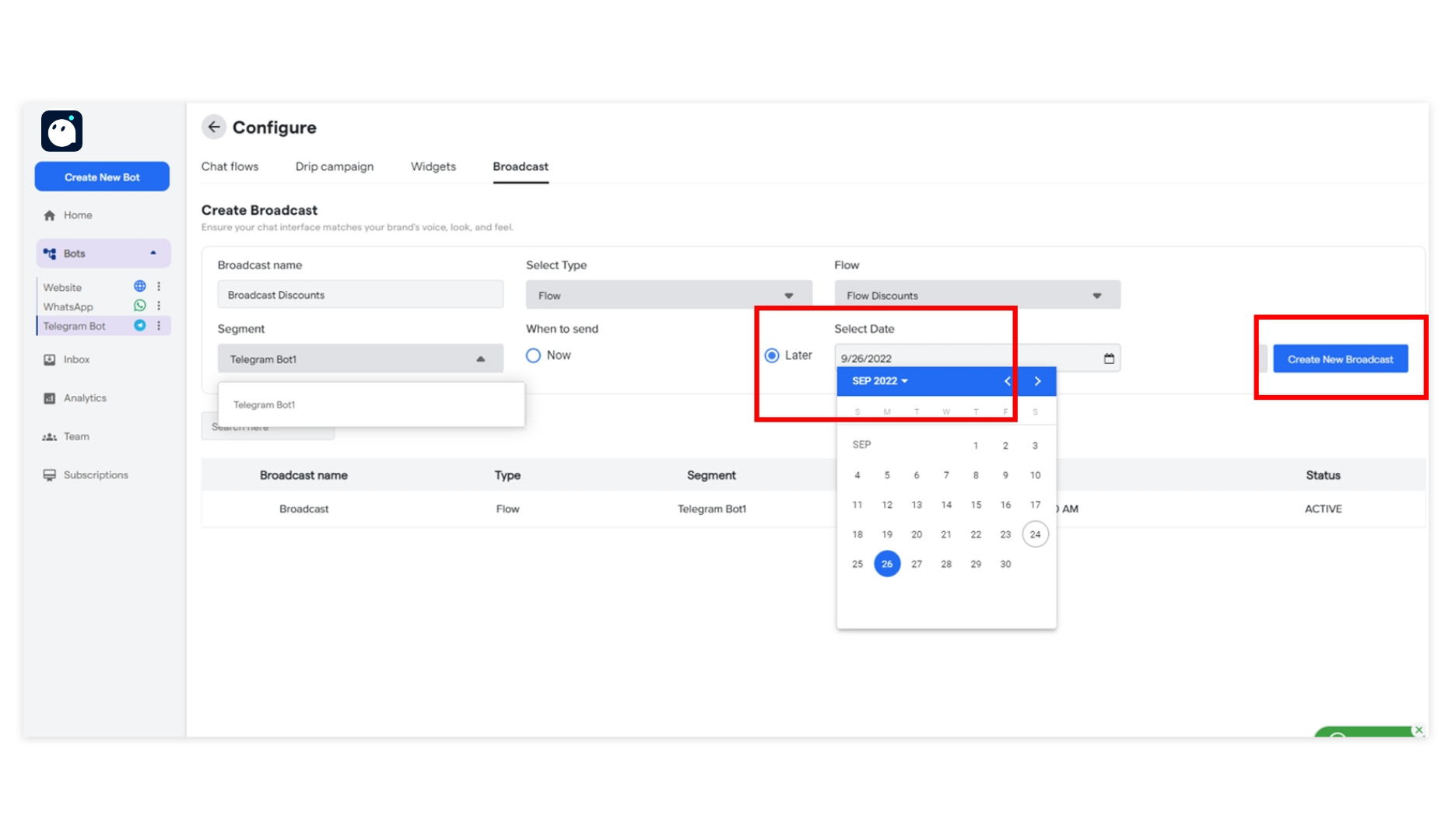
A Broadcast is a chat flow or a message that can be blasted in one click, to the targeted segment or group of contacts. To create one, go to theBroadcast tab in the Bot Settings and click the Create New Broadcast on the extreme right.