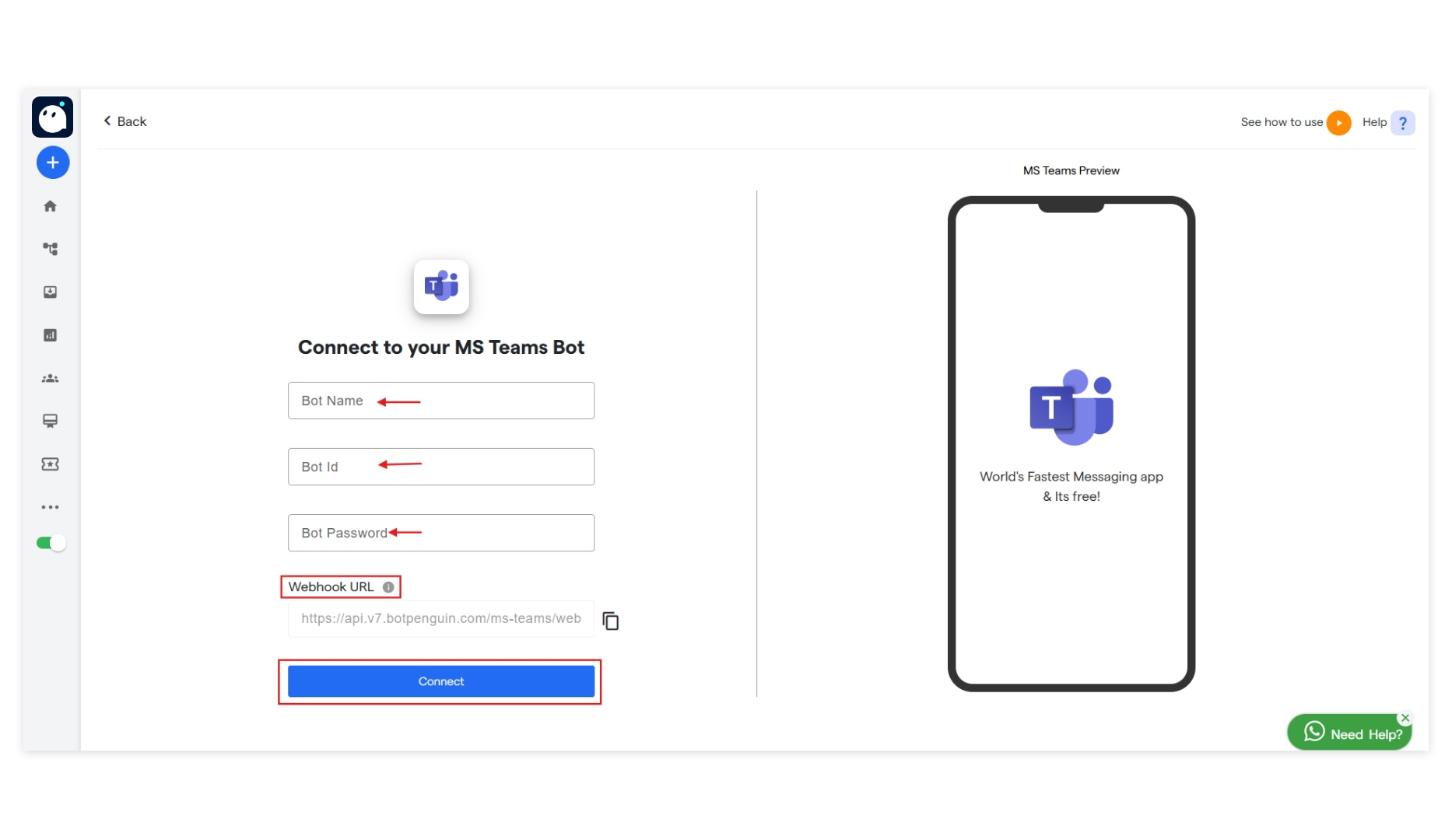
Required information for Creating MS Teams Chatbot
To do MS Teams integration, you will need the following details on your end.- Bot ID
- Bot Password
- Update the Webhook endpoint in the Bot Details
- Create and Publish an app for your organization
Steps to complete integration
Step 1: Setup MS Teams Bot
- Login to the MS Teams using the following URL https://teams.microsoft.com/v2/. If you do not have the MS Teams documentation, Create the one before proceeding.
-
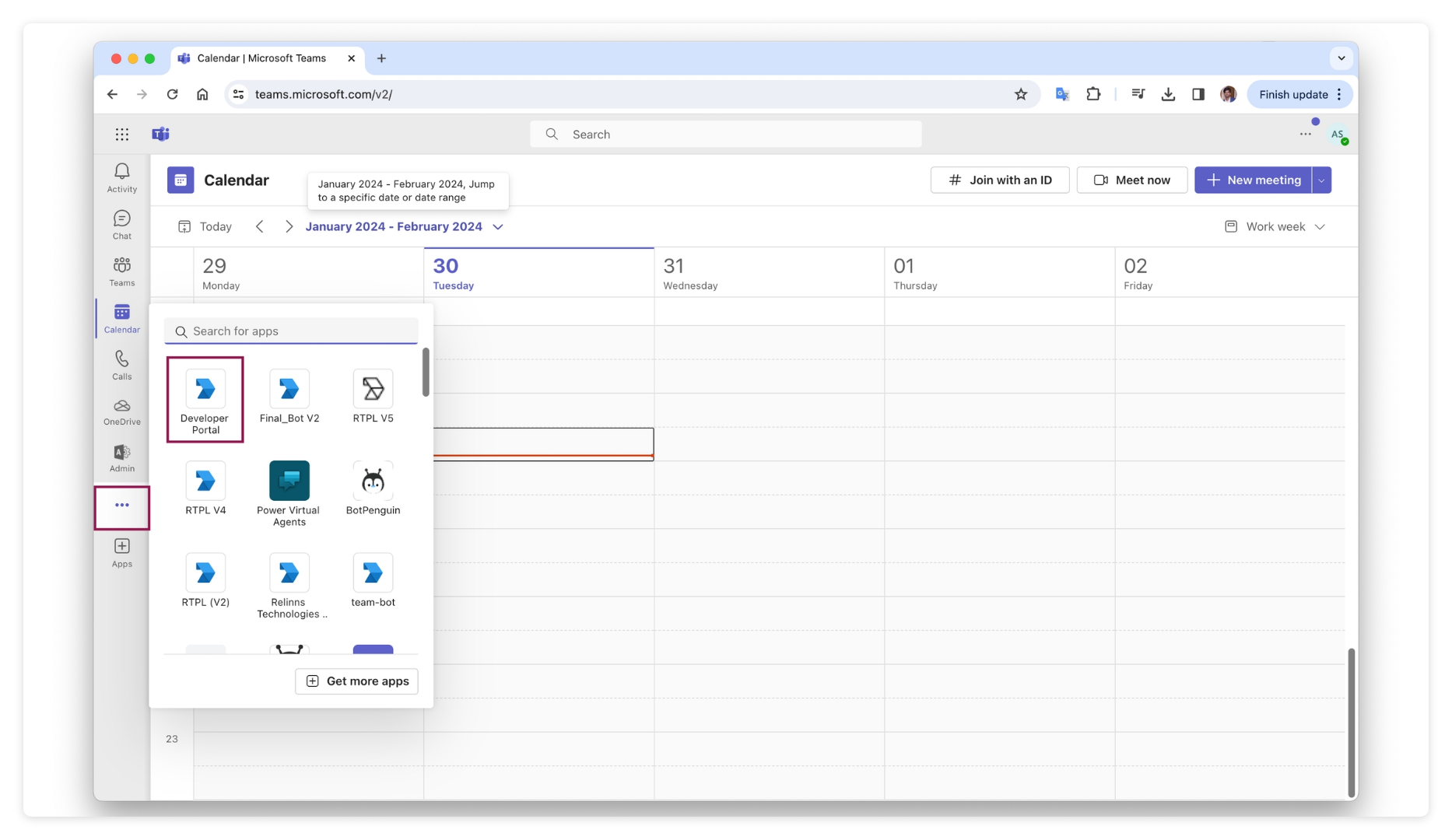
Once logged in, Navigate to the developer portal of MS Teams.
-
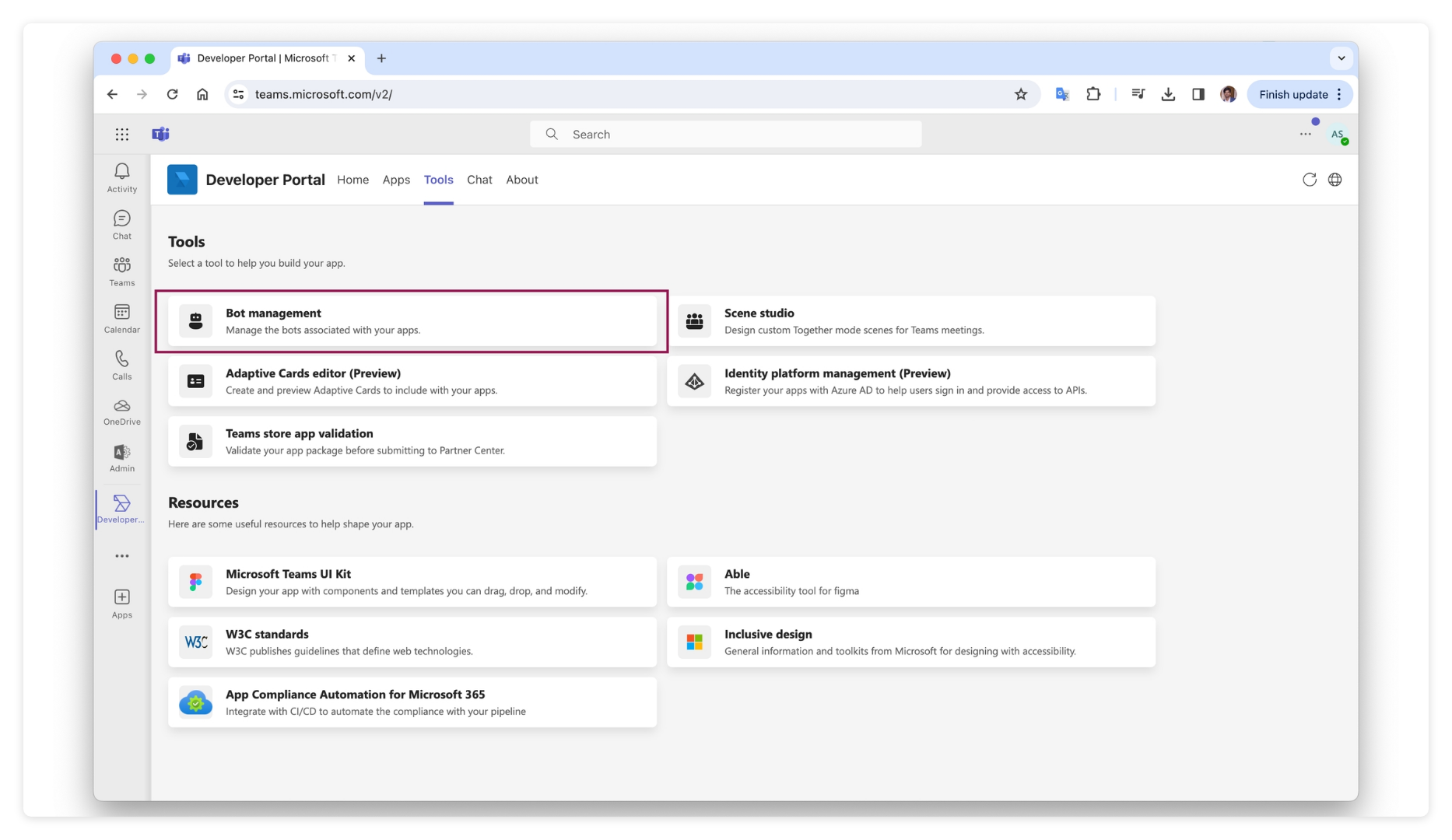
Choose the “Tools” tab and click on “Bot Management Option”
- On this Page, Locate the “New Bot” option and add the bot by giving it a name.
-
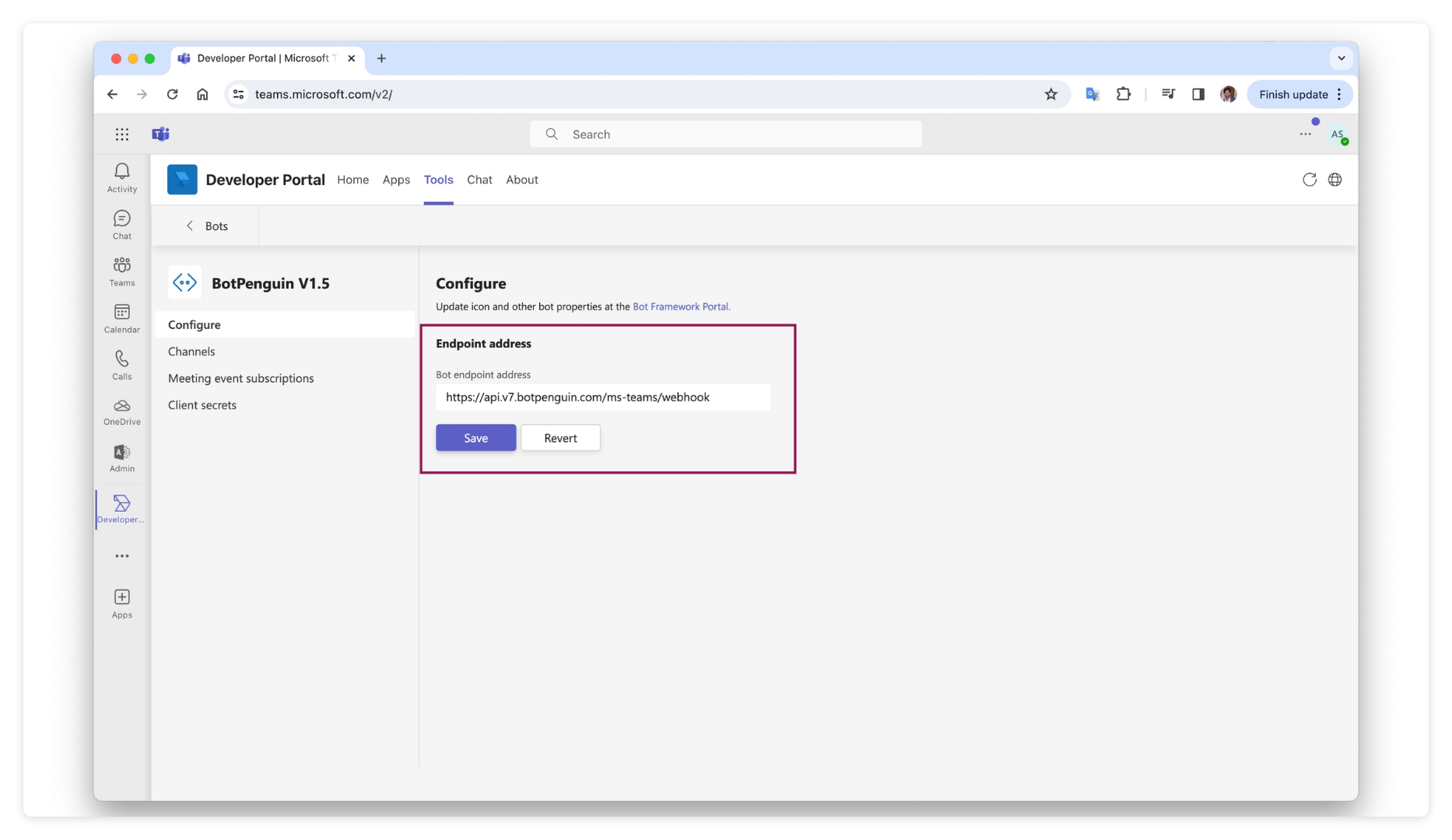
Once the bot is created, Enter the following Webhook endpoint address and click “save” to proceed. https://api.v7. Converse.com/ms-teams/webhook
-
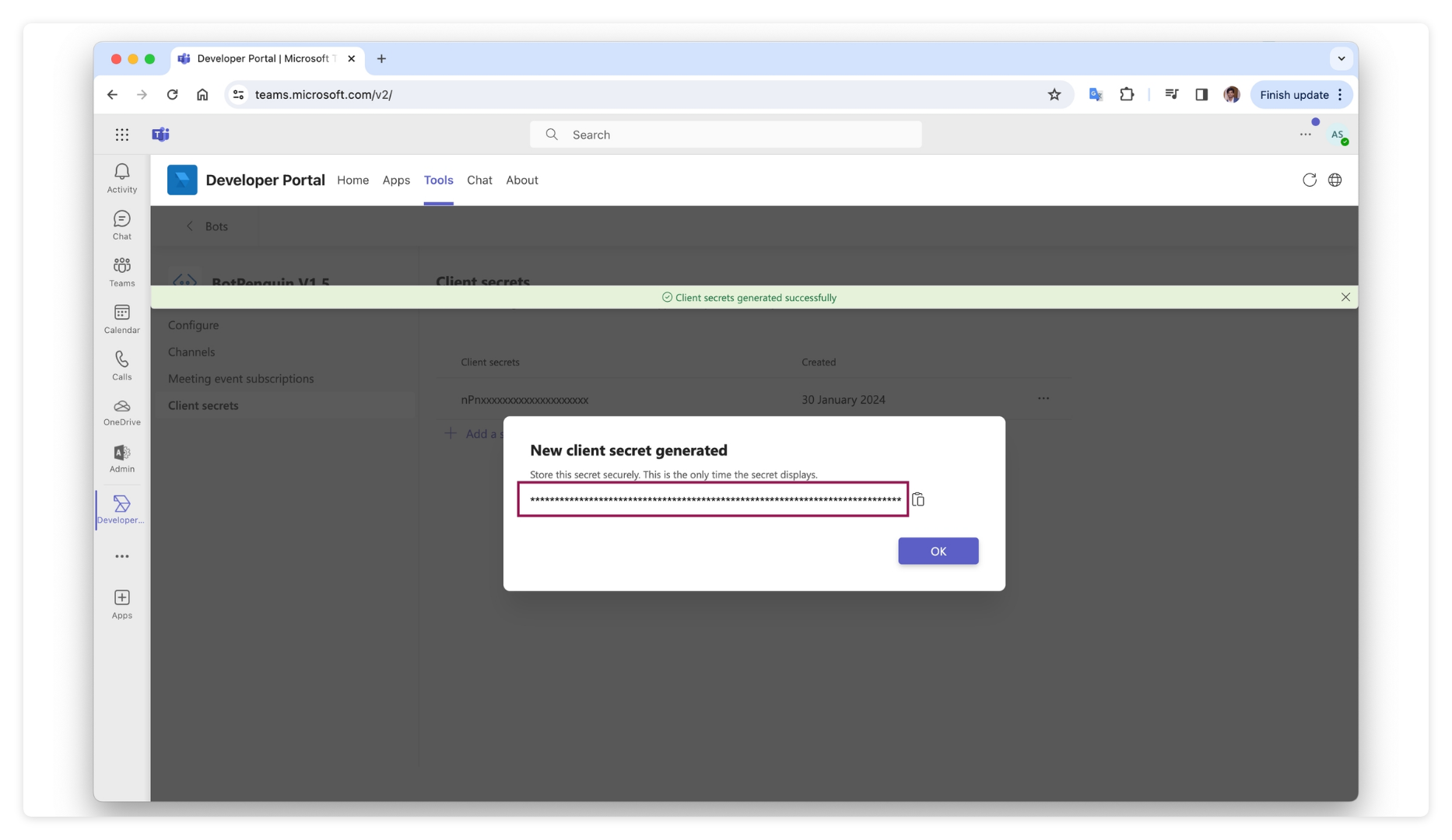
Navigate to “Client Secrets” and add new and Copy the Provide secret key. Keep this secret key safe. This will be used while creating the configuration on Converse.
-
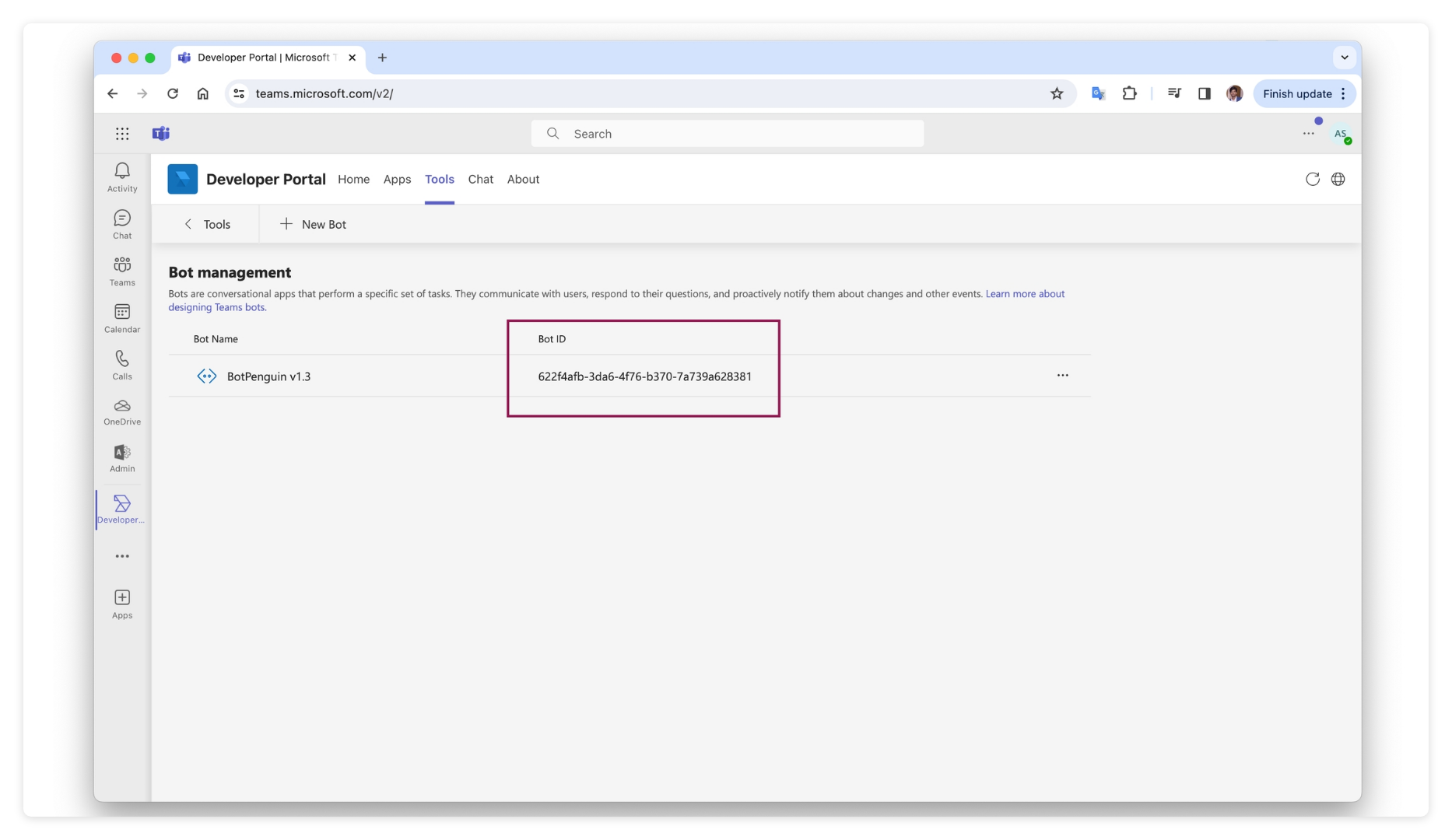
Return to the bot listing page and copy the “Bot ID”. Keep this key safe. This will be used while creating the configuration on Converse.
Step 2: Create the MS Teams App
- Navigate back to the “Apps” tab and click on “New App”.
- Create the new app by providing the name. (e.g Converse)
-
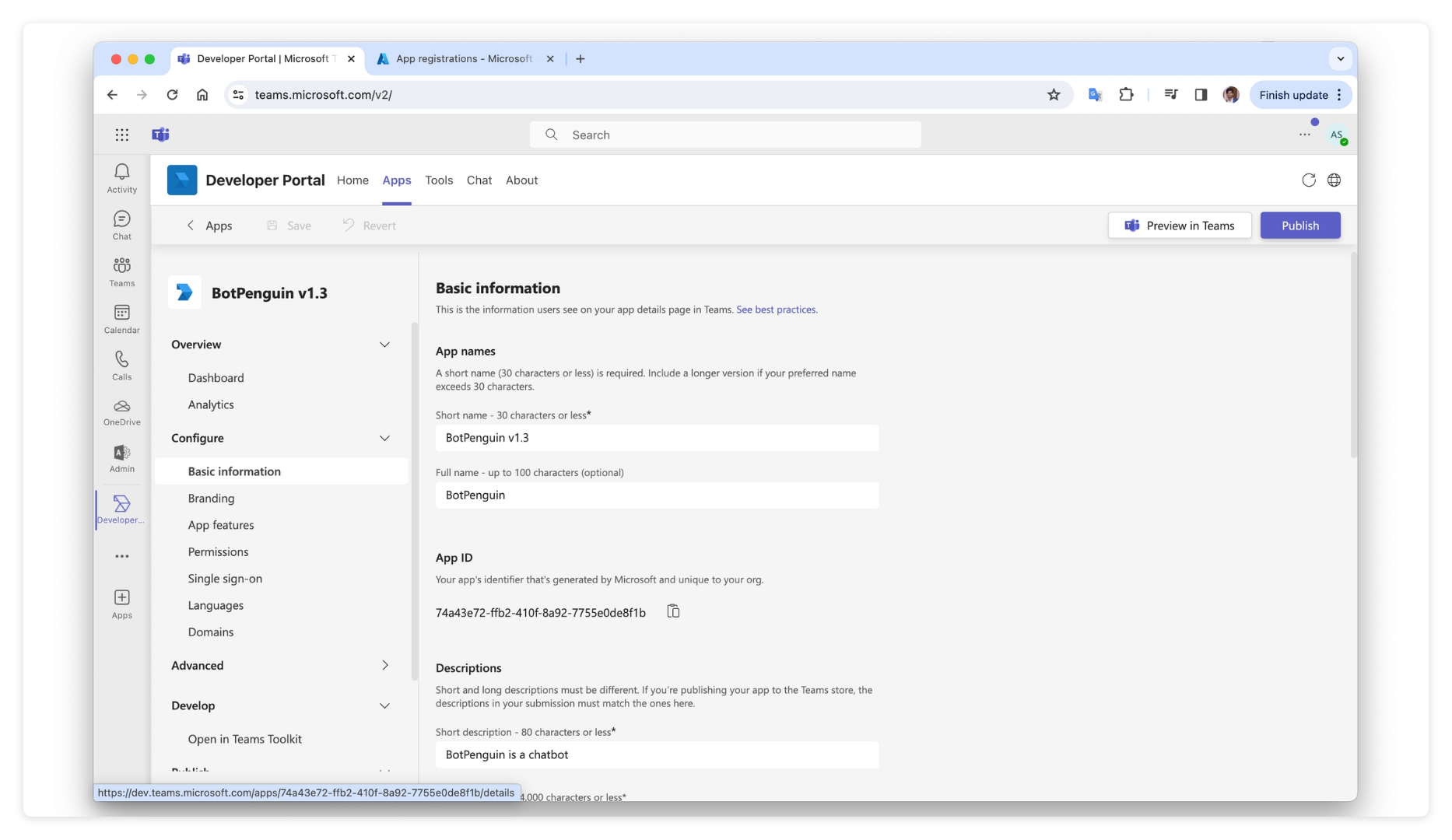
Fill in the basic information of the App. An example of the same is as follows
- Short Name - Converse
- Full name - Converse - The chatbot builder platform
- Short description- Converse is an omnichannel platform to automate your communications.
- Long description - Converse is an advanced chatbot platform designed to streamline and enhance conversational experiences for businesses across various industries. With a focus on user-friendly interactions, Converse leverages artificial intelligence and natural language processing to create intelligent chatbots that can efficiently handle customer queries, provide information, and engage in meaningful conversations.
- Version - 1.0.0
- Developer or company name - Converse
- Website (must be a valid HTTPS URL) - https:// Converse.com/
- Privacy policy- https:// Converse.com/privacy-policy
- Terms of use - https:// Converse.com/terms-and-conditions
-
App ID: Same as Bot ID
-
You can give your own branding to your app or leave as it is.
-
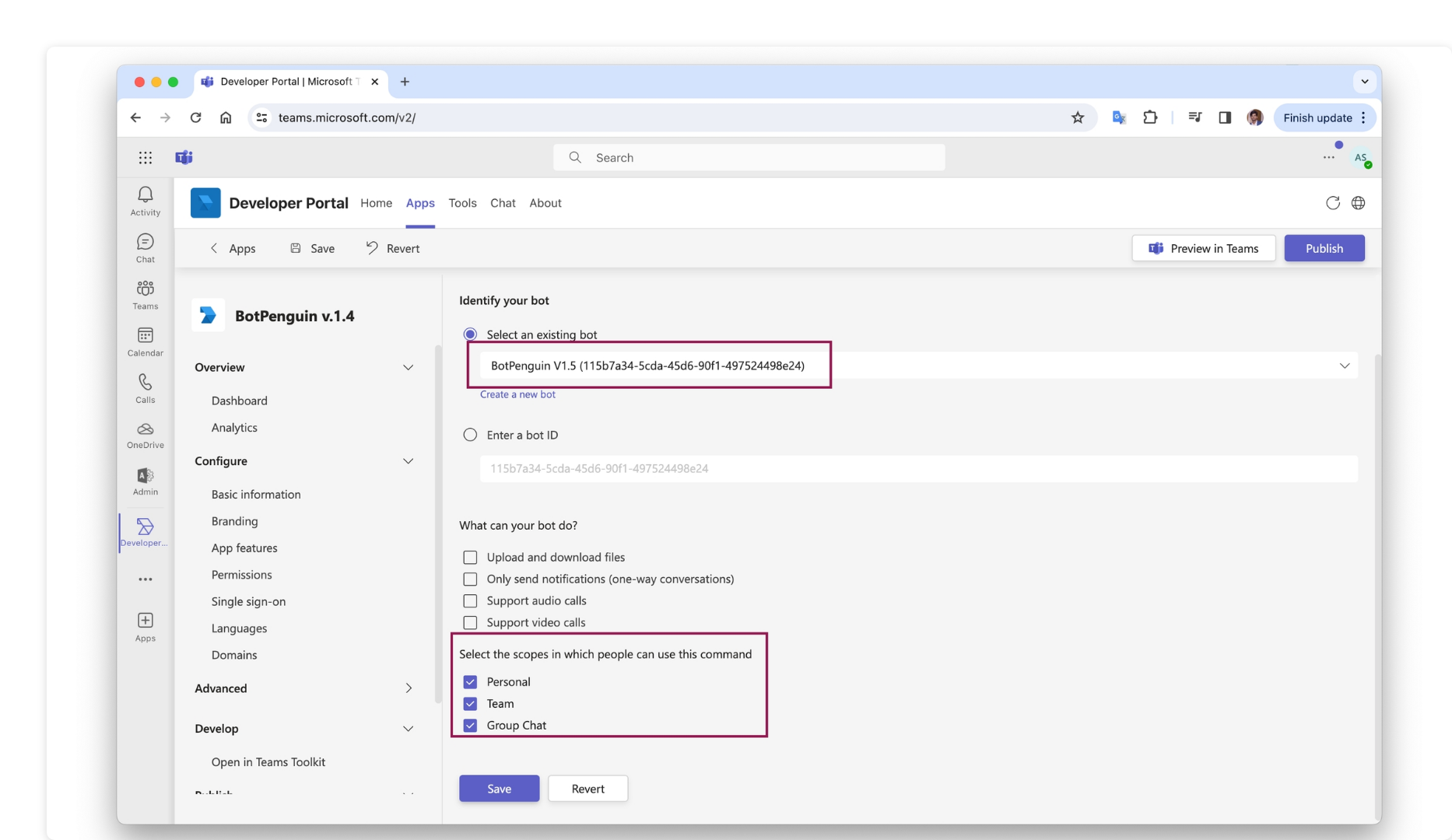
Navigate to the “App Features” tab and add the “Bot”. Once the next page opens, choose the relevant bot and assign the following scopes
- Personal
- Teams
- Group Chat
-
Upload and Download files
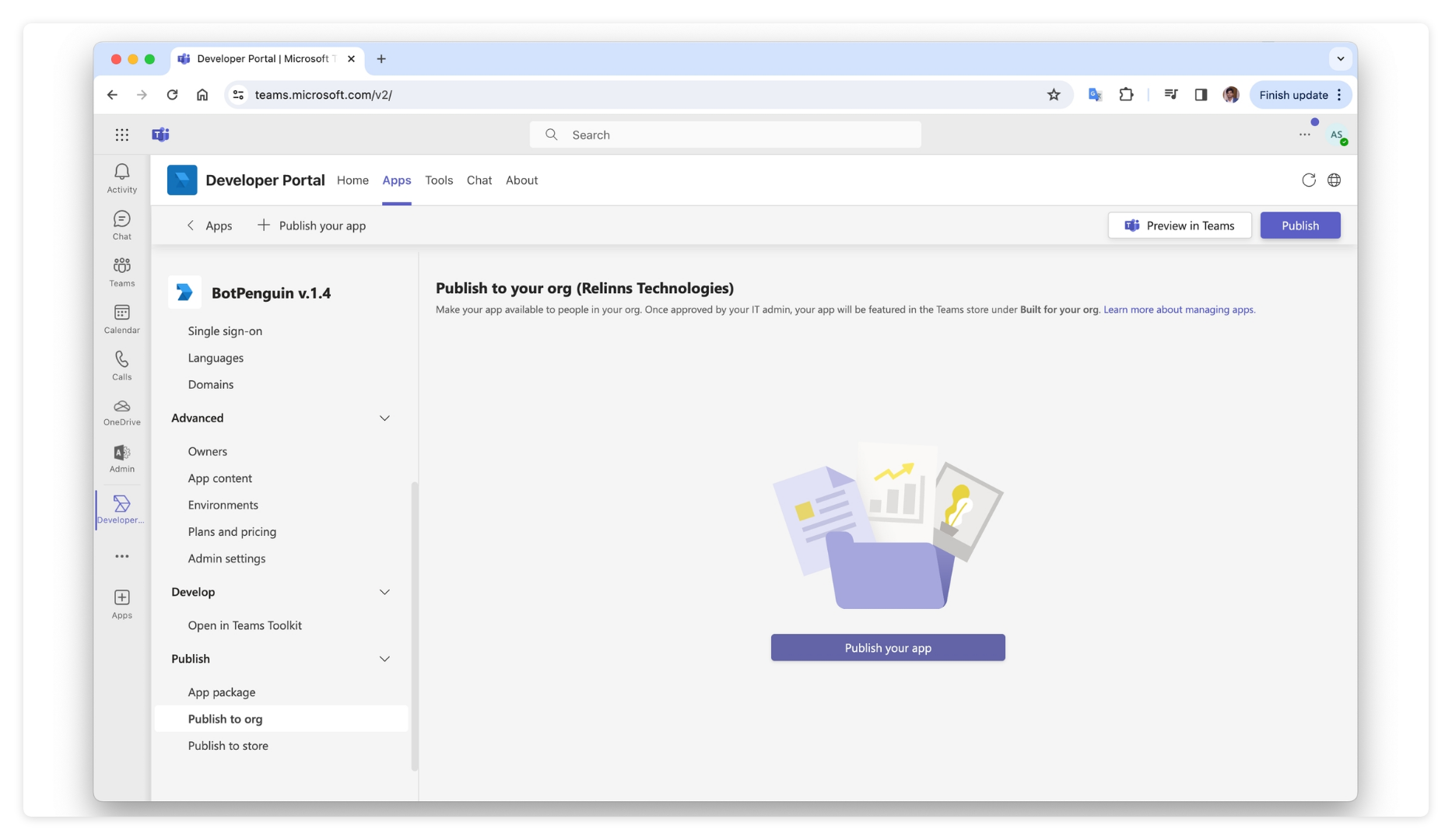
- Now, Move to the “Publish to Org” tab, and Submit your app for your organization.
Step 3: Approve your app as Admin
- Open the Teams admin portal using the following link https://admin.teams.microsoft.com/
-
Locate the “Manage Apps” options under the “Team Apps” Section. Search for your app and click on the same.
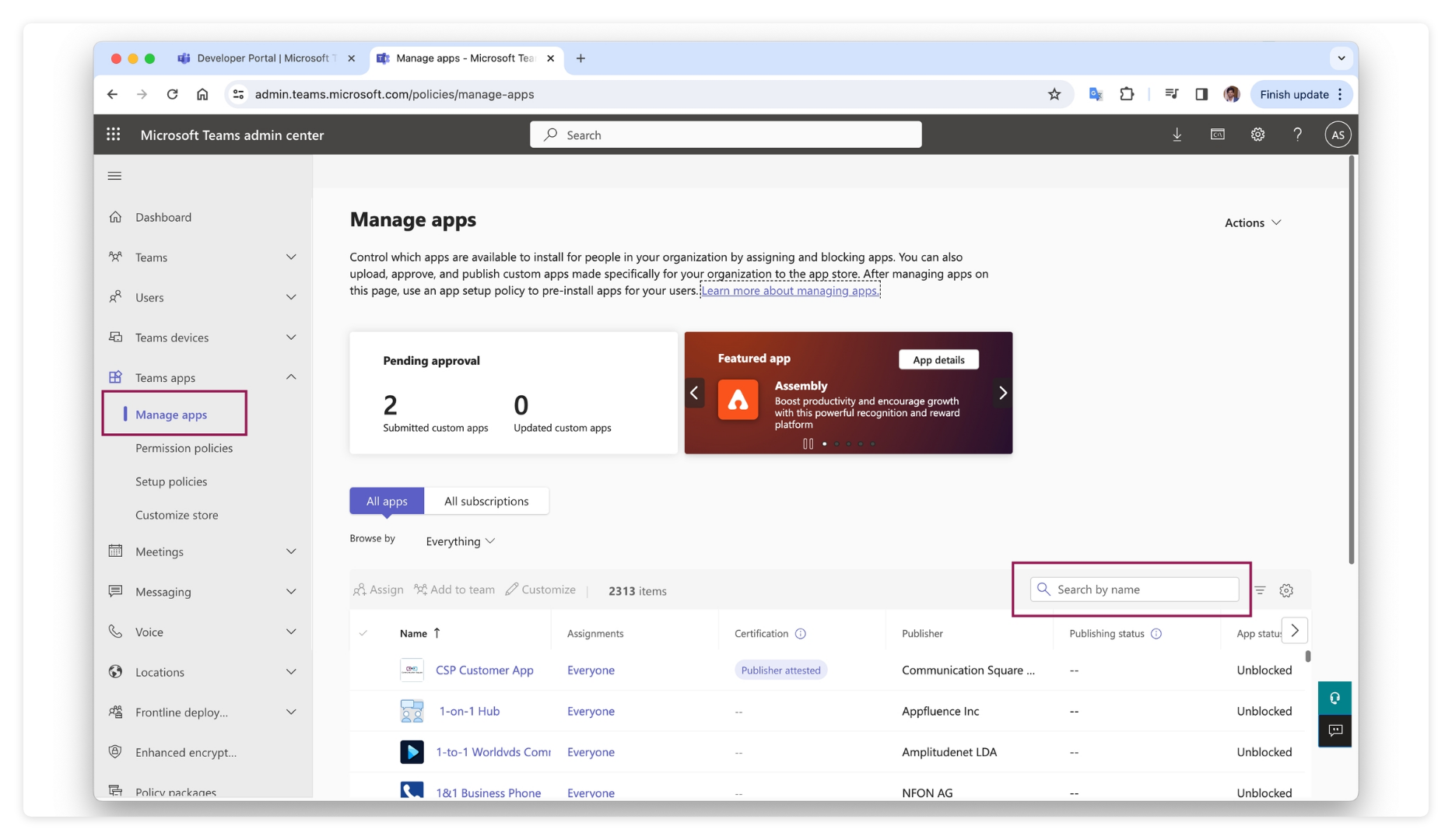
- Click on the App and Click “Publish”
- Once you have approved the apps, It takes some time to get listed for your users.
Step 4: Save the configuration on Converse
- Navigate to the Converse Dashboard.
- Click on “Create new bot” on the top left.
- Choose MS Teams as the channel.
-
Name your bot and Fill in the Bot ID and Bot Secret (Bot Password) which you copied in 1st step.