

You can migrate
- All message templates that were created on other platform
- All the catalogues that were created while using other platforms.
- All the Whatsapp forms that were created while using other platforms.
- Blue tick, verified name and conversation limit.
Steps to Migrate Whatsapp Account to Converse
- Login to your registered Meta Account.
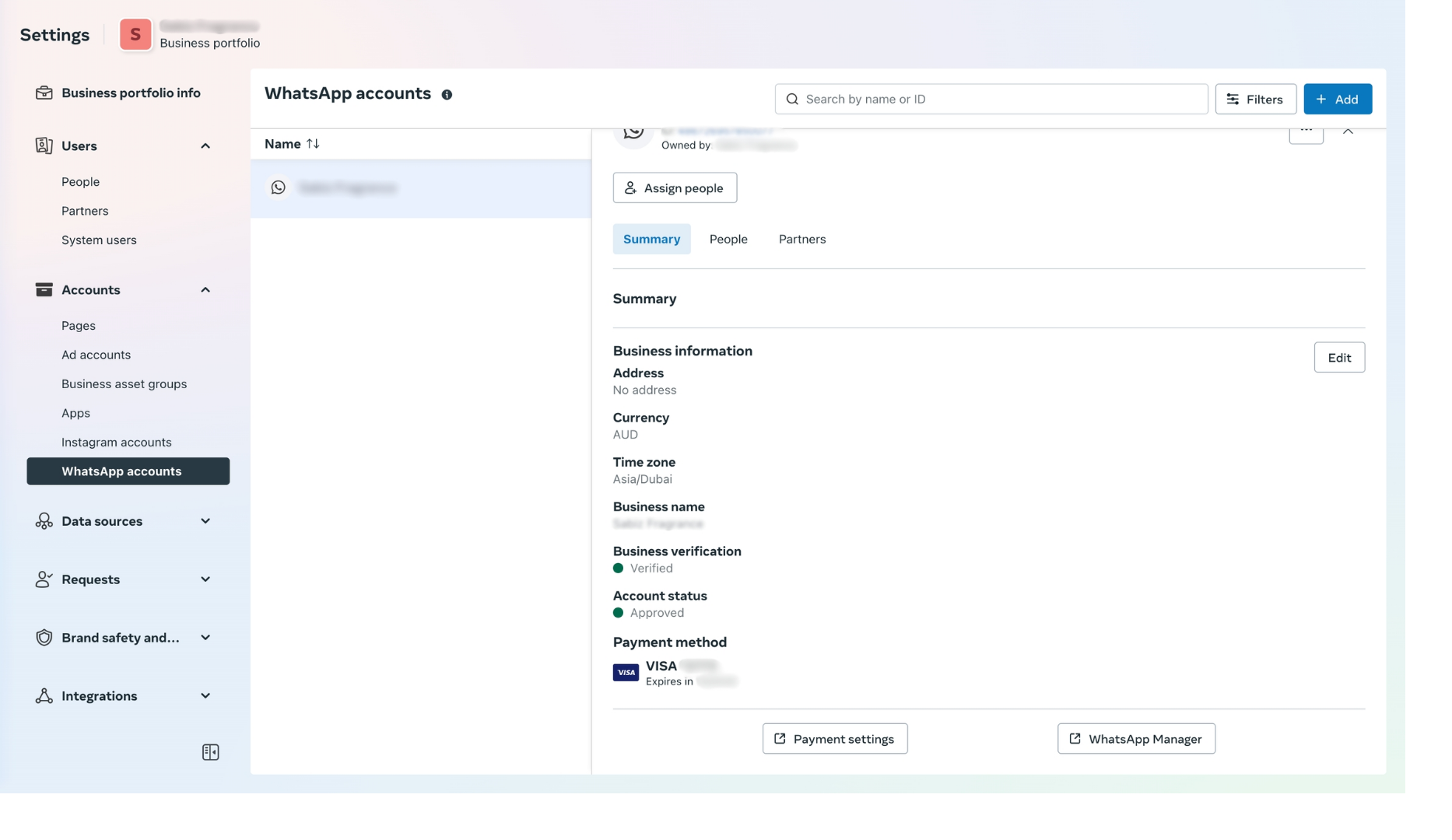
- Under “Accounts” click on “Whatsapp Accounts”.
- Select the Whatsapp account you want to migrate into Converse.
-
Then click on “Whatsapp Manager”. It will be available in the bottom of the account information.
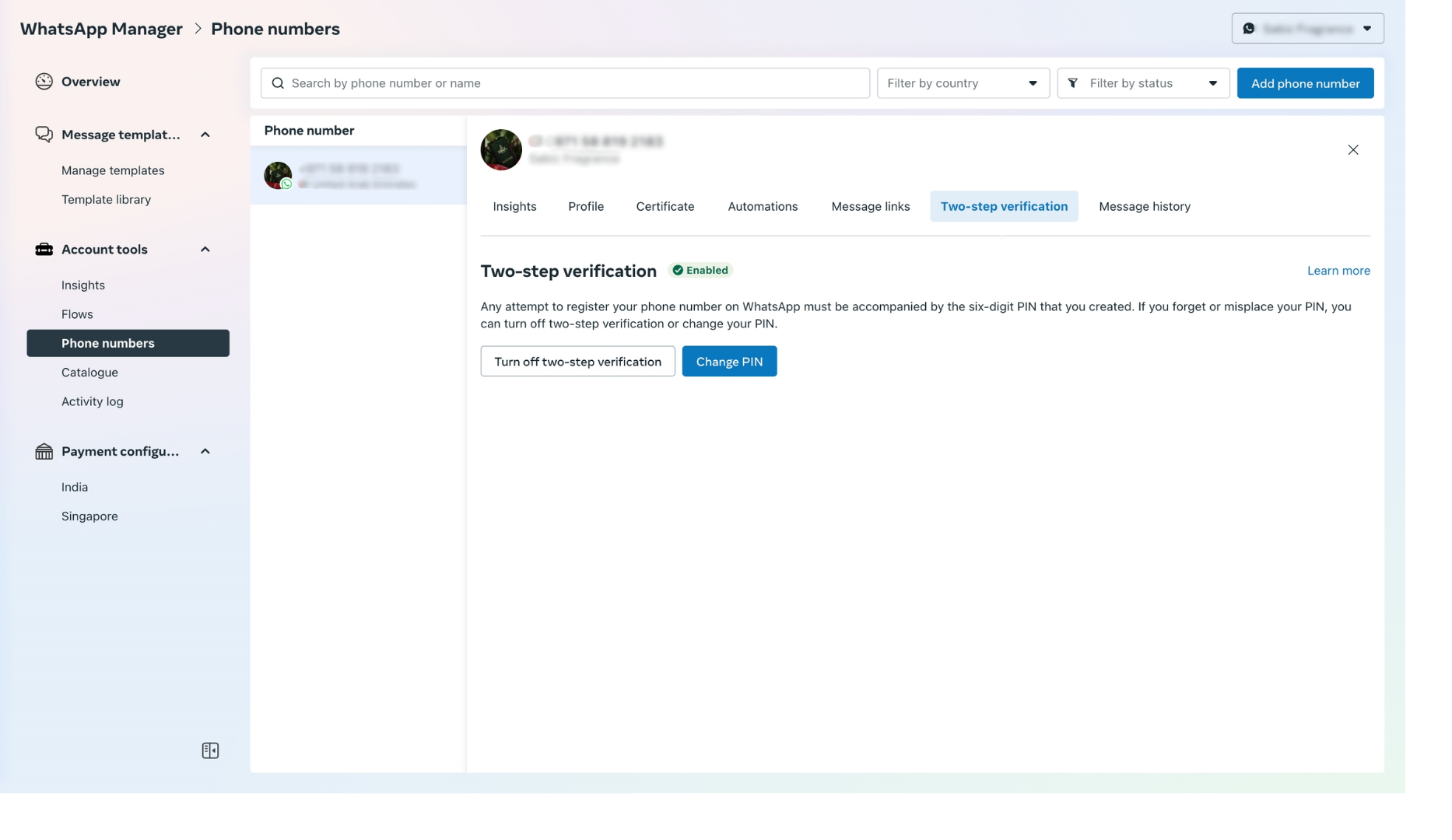
- Once clicked on “Whatsapp Manager”. Go to settings and then go to Account tools in it.
- In “Phone Numbers”, click on settings button for the phone number you want to migrate and select “Two-Step Verification”.
-
Now click on “Turn off two-step verification”. You will receive an email to disable two-factor authentication.
- Login to your Converse Portal and Click the “Create Bot” button on the top right.
-
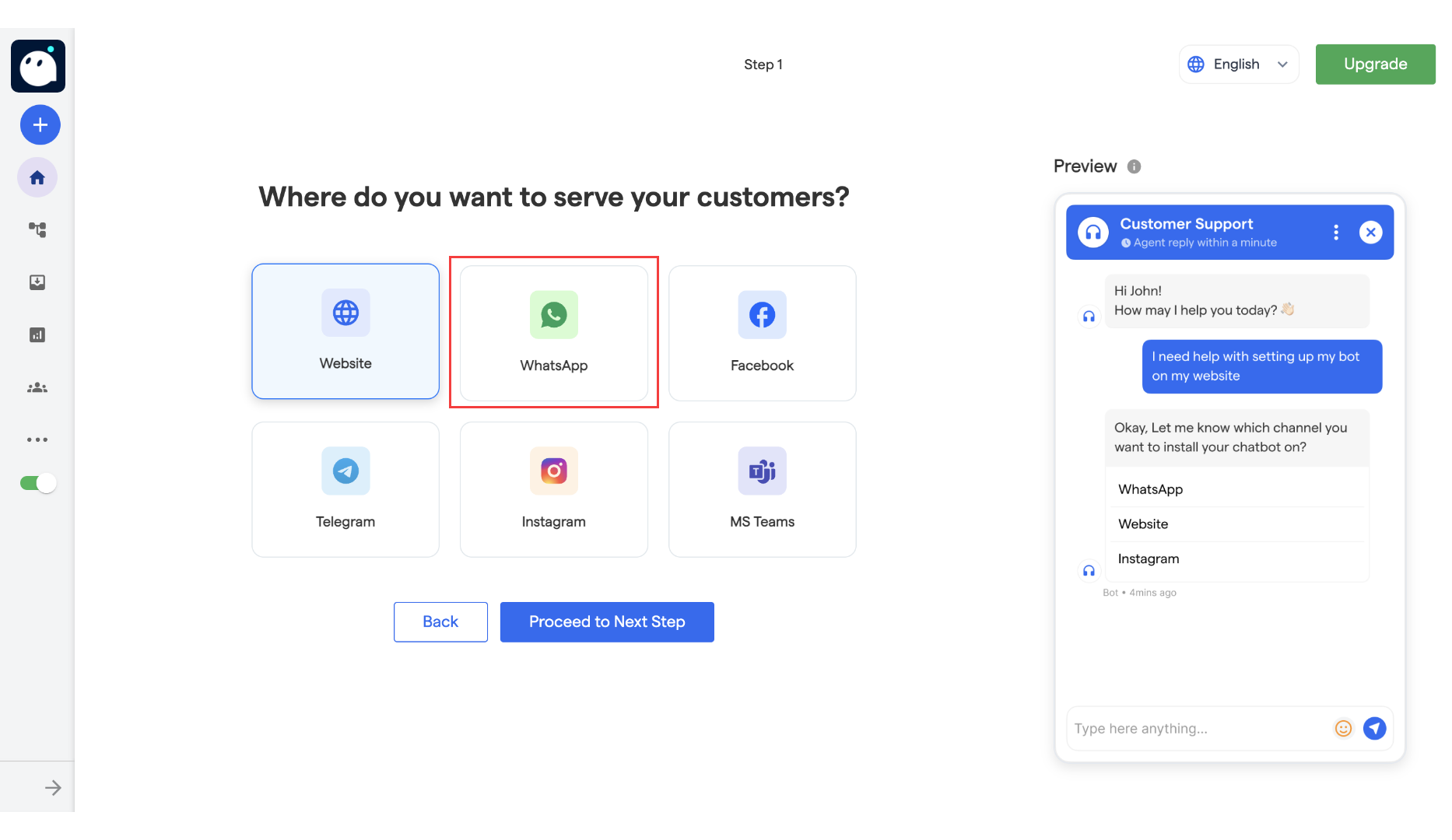
Select “WhatsApp” as the platform on the next page.
- Provide the required details and follow the bot creation process.
- Scan the QR Code and initiate a WhatsApp message to create the bot.
- Upon successful verification, Click “Connect to your WhatsApp number” to start the Automated onboarding.
- Select all the pre-requisite and click “Proceed”
- Choose Automated or Manual onboarding. In this document, We will talking about Automated onboard.
-
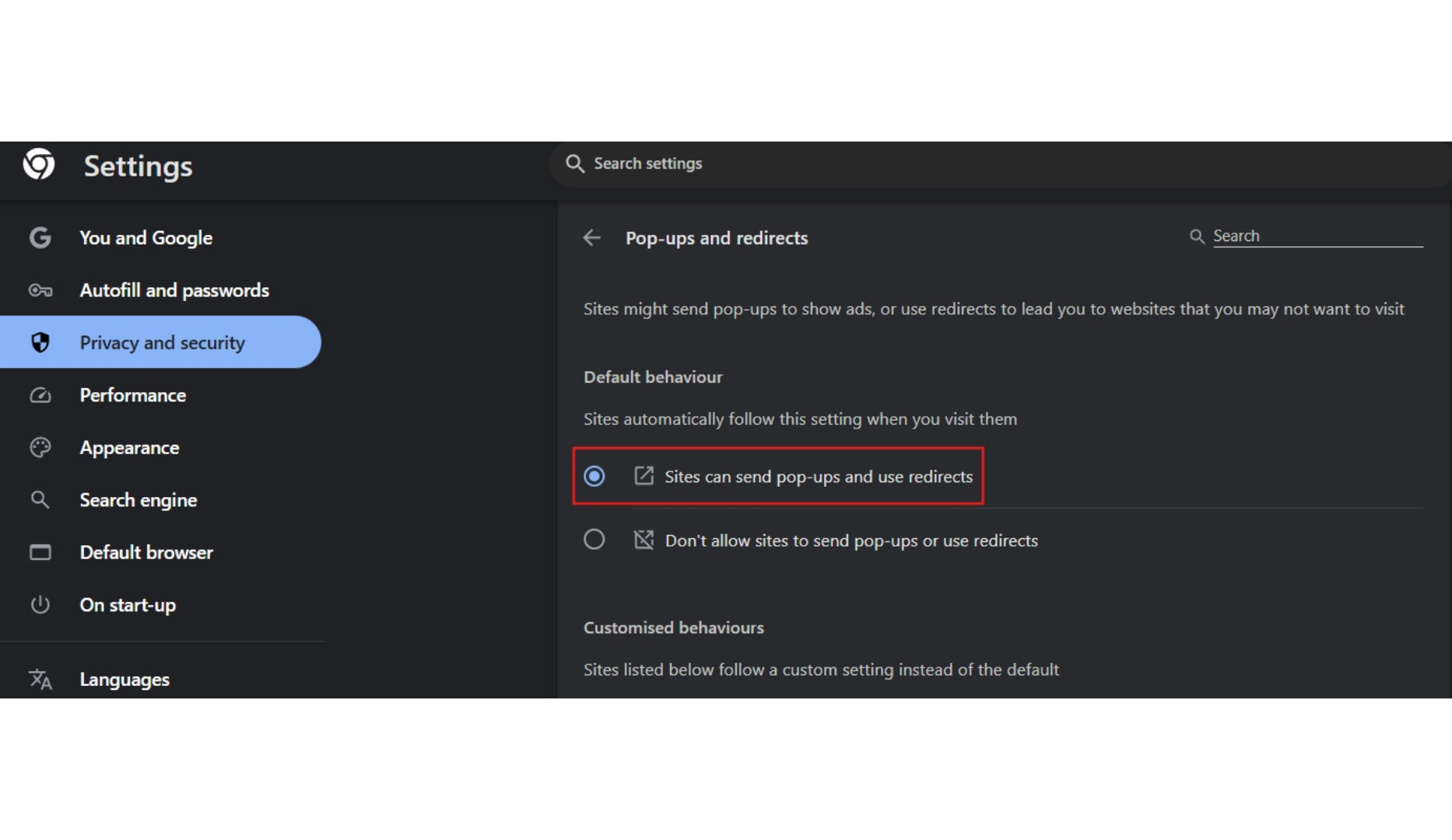
It will open up a new pop-up window where you have to complete the Meta onboarding.
Please make sure that you have not blocked the pop-up window in your browser. If yes, please enable the same.
-
Now click on “Get Started” to continue connecting your account to Converse.
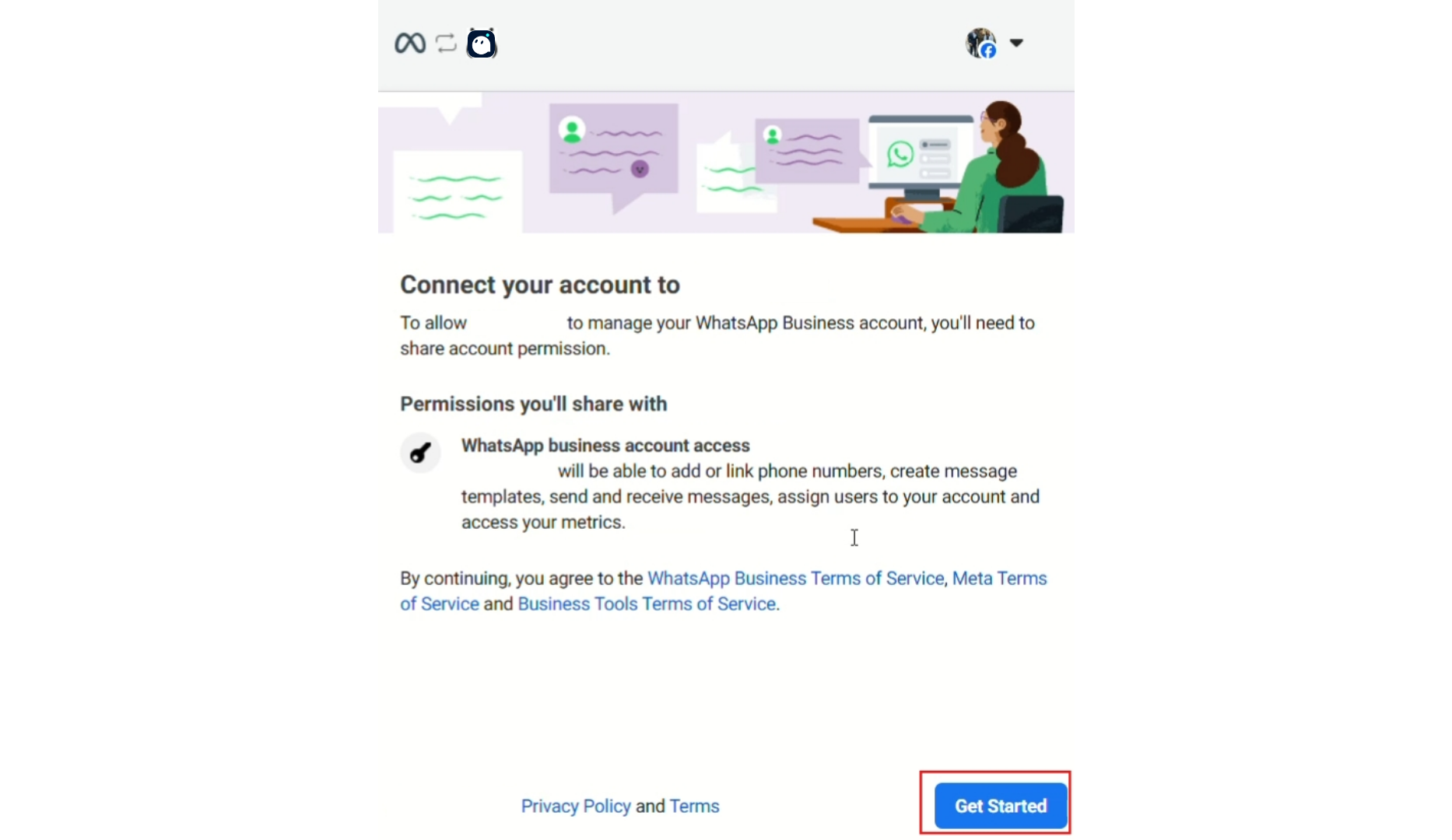
-
Now as a first step, fill your business information. Select the business portfolio which you want to connect with from the drop down. All your portfolios will be available in the drop down.
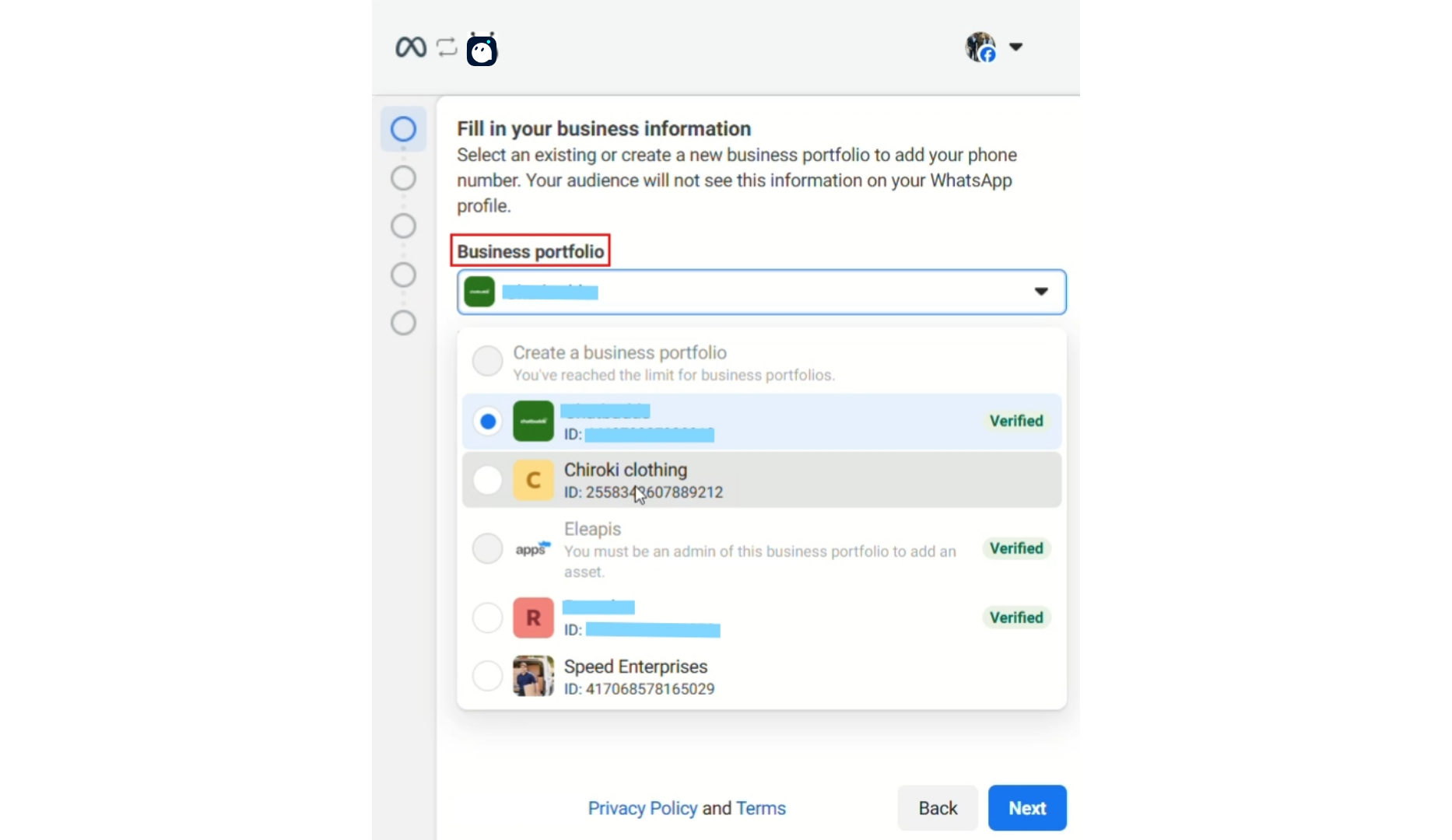
-
Then enter a business name, website or profile link and select a country. Then click on “Next”.
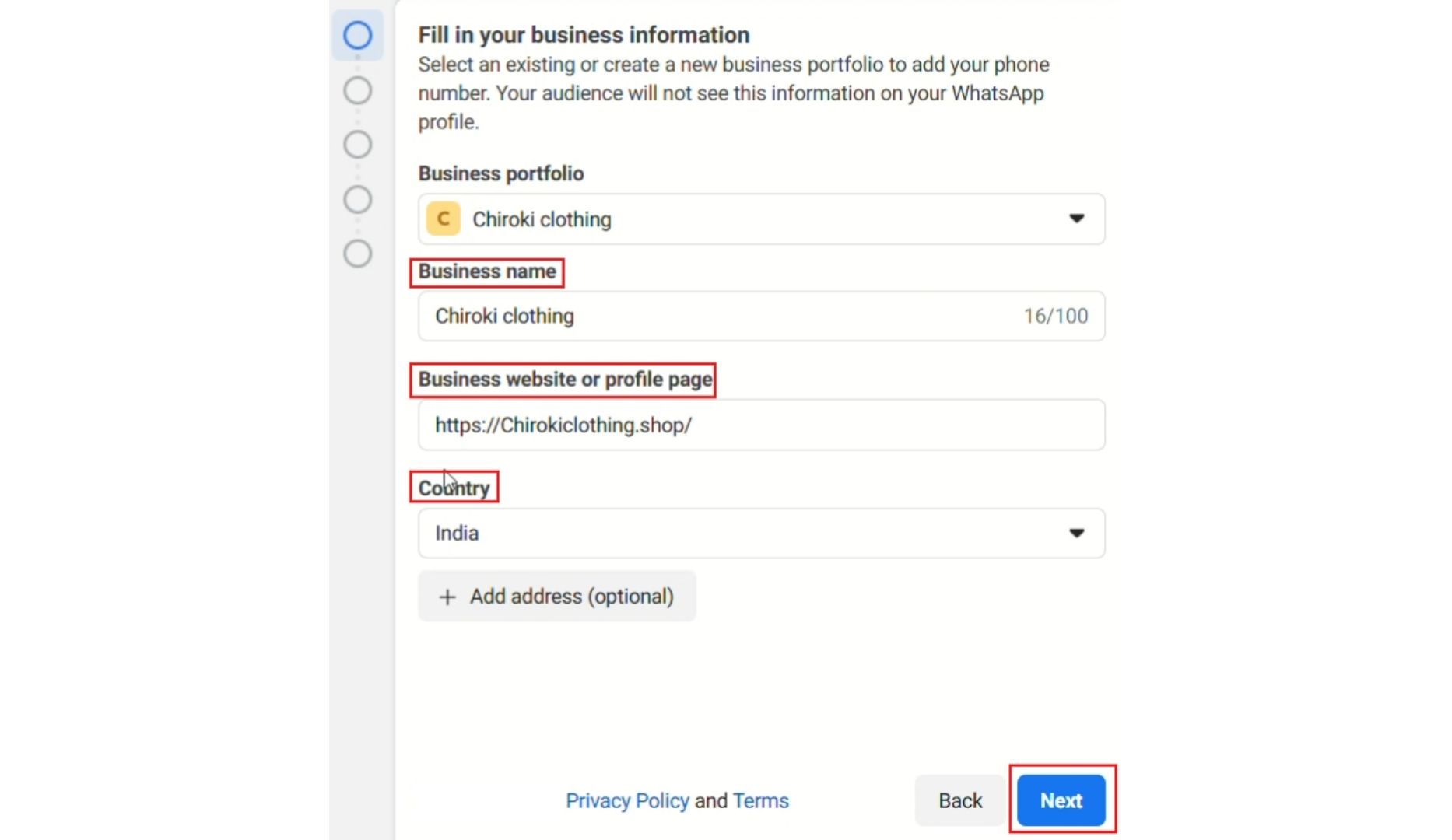
-
Now from the drop down to select a WA business account choose “Create a WhatsApp Business Account” and also select “Create a new WhatsApp Business profile”. And click on “Next”.
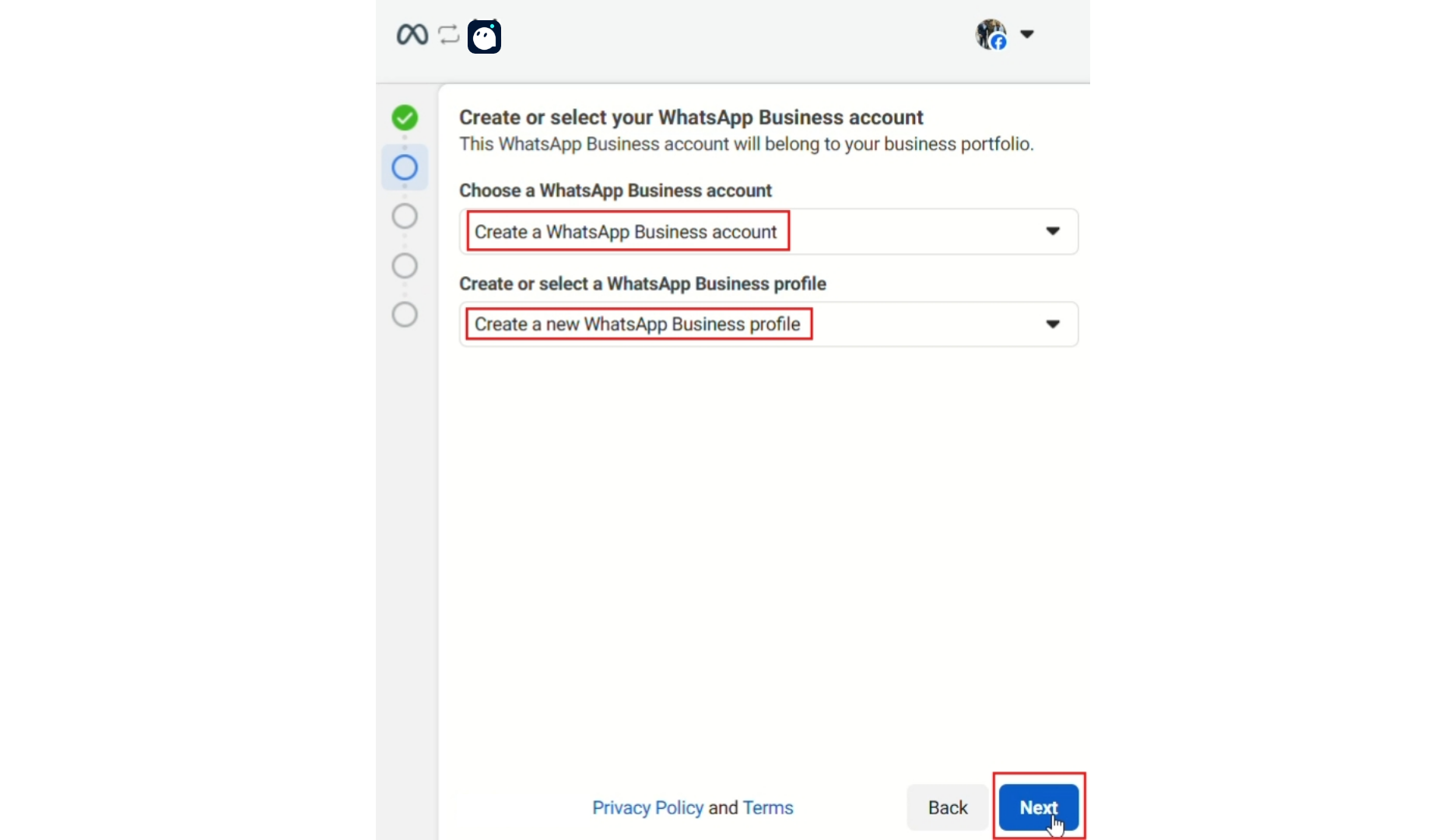
-
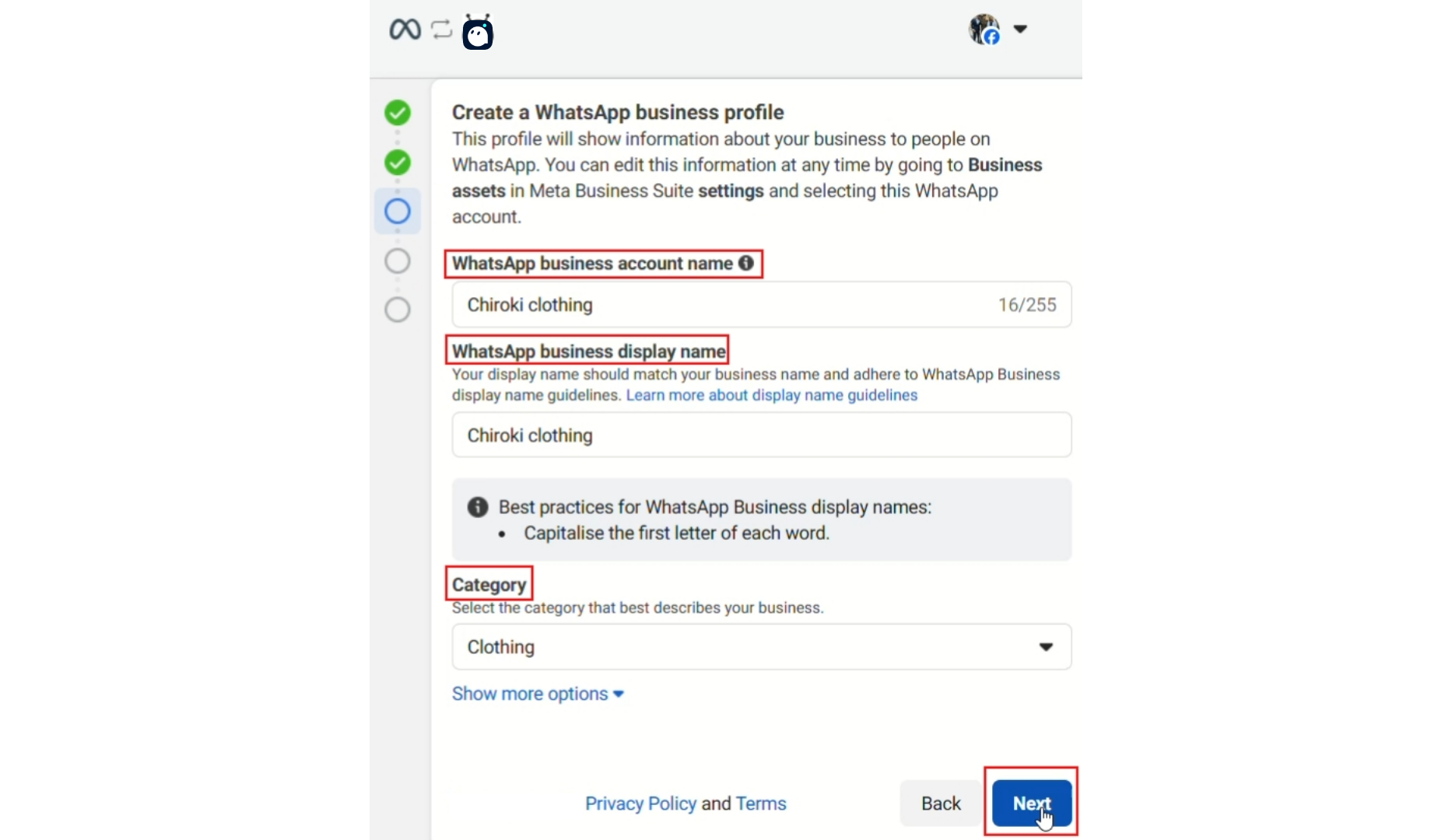
Now enter Whatsapp business account name and WA business display name. Then select the category of your business. And click on “Next”.
- Now enter the phone number with country code that you want to add for Whatsapp. After that select a method you want to use to verify your number. You will receive an OTP. Here we selected Text Message.
-
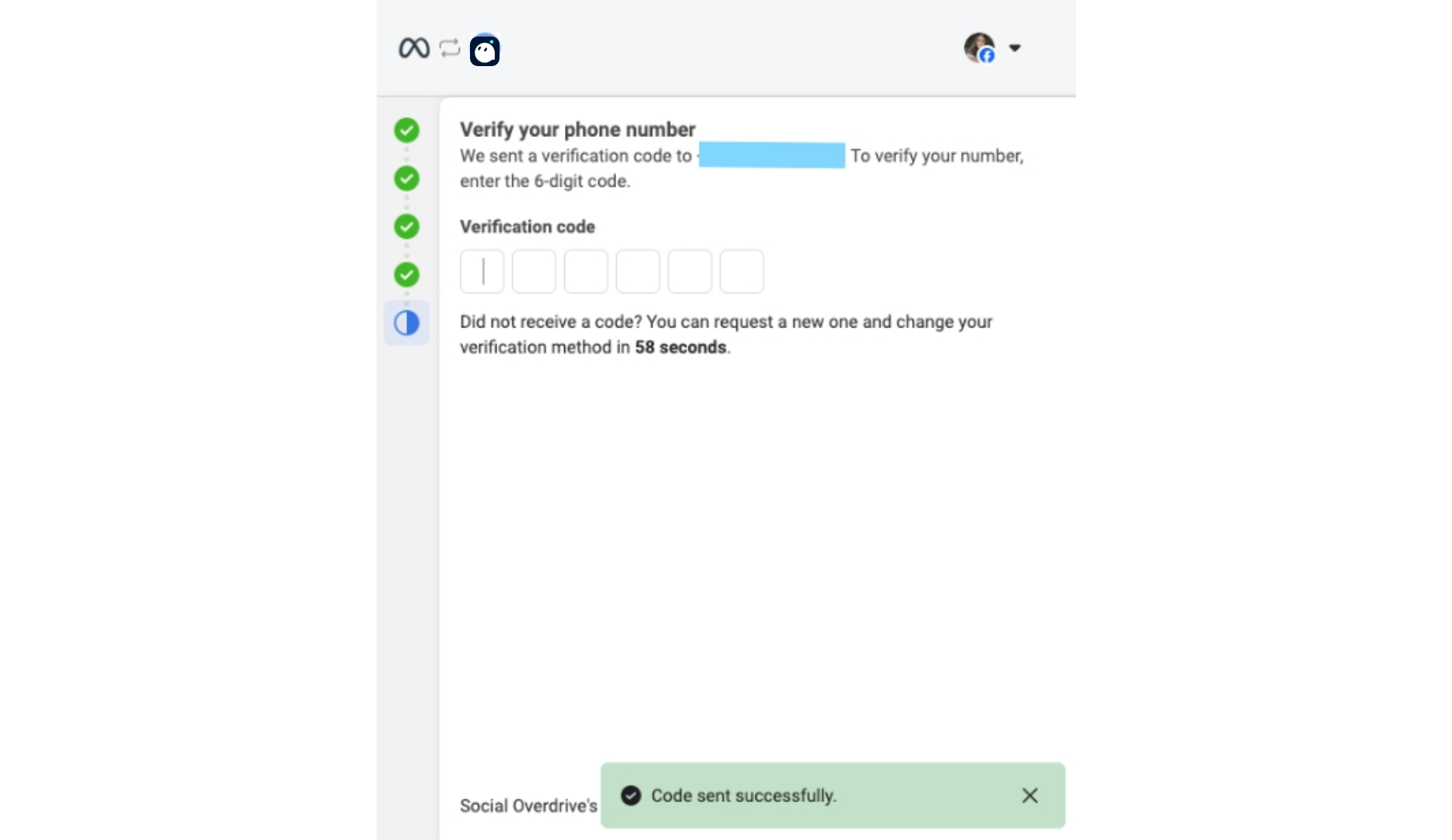
After clicking on “Next” a pop up will be opened to enter the OTP received.
 Once the OTP is entered and your number is verified your new whatsapp bot will be successfully created.Note: In this process you will be asked to enter the OTP received on your registered phone number. Remember not to enter the OTP and hold this process.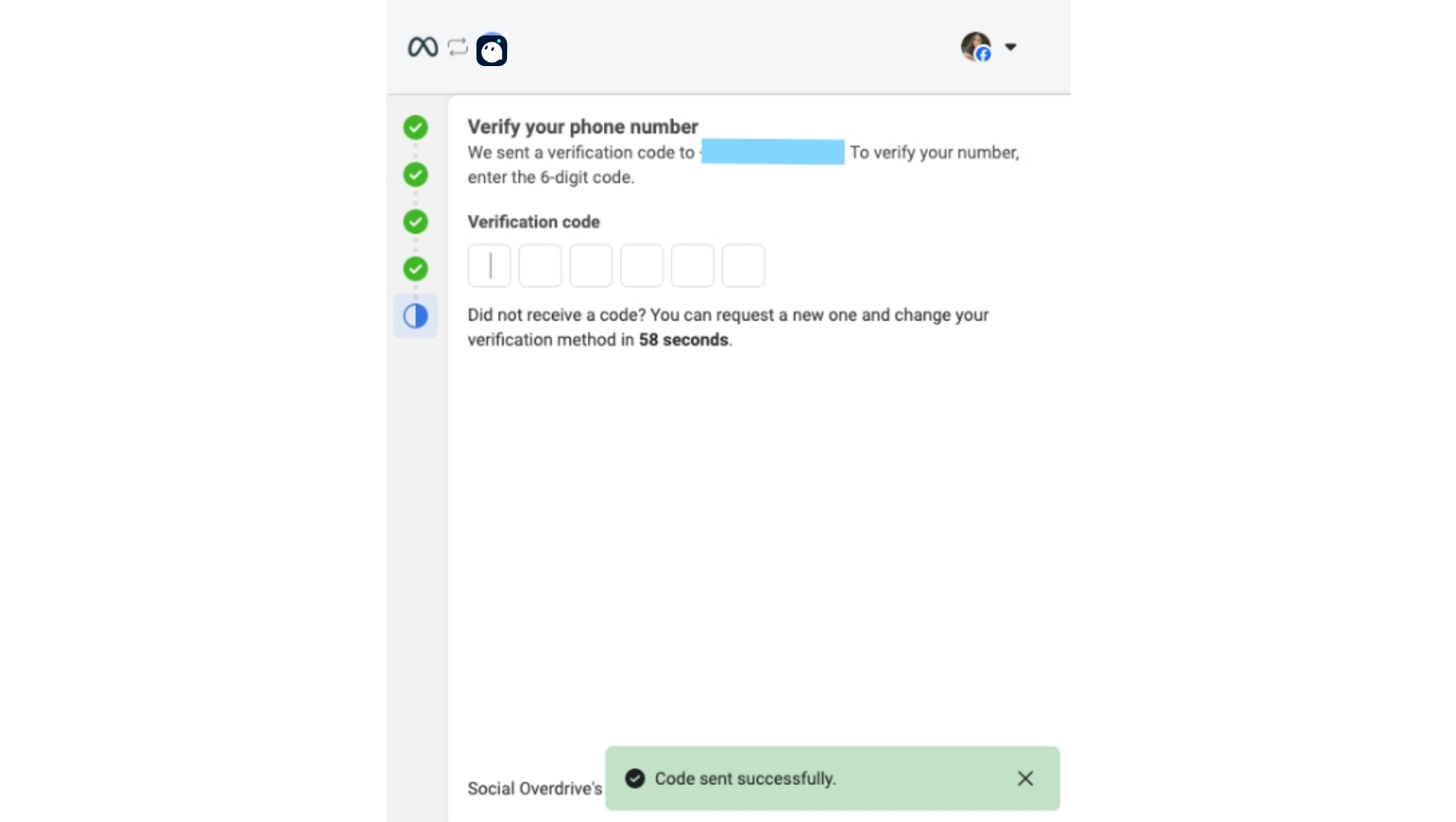
- Update Payment Method to WhatsApp
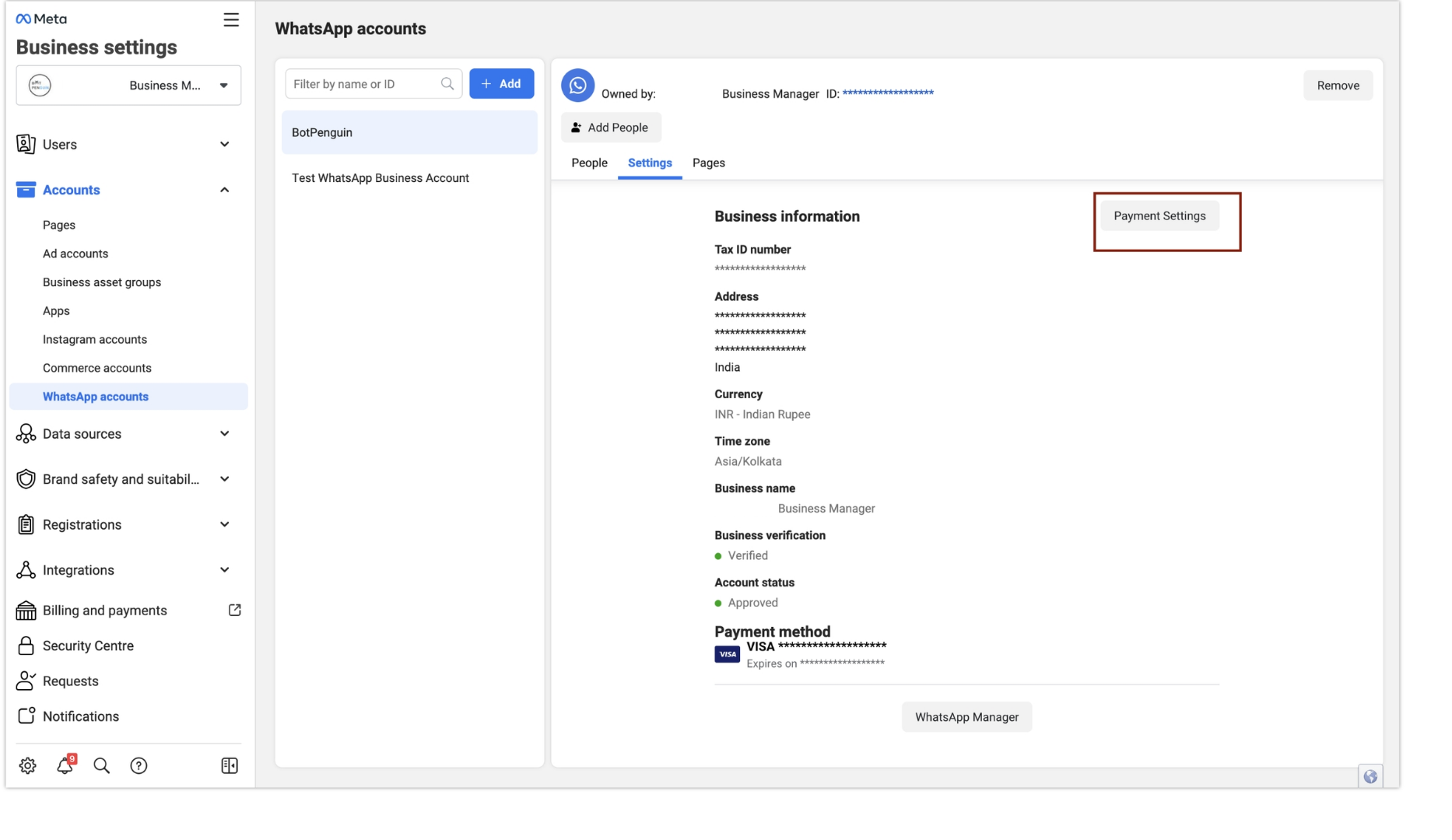
- Navigate to Billing and Payments Page
-
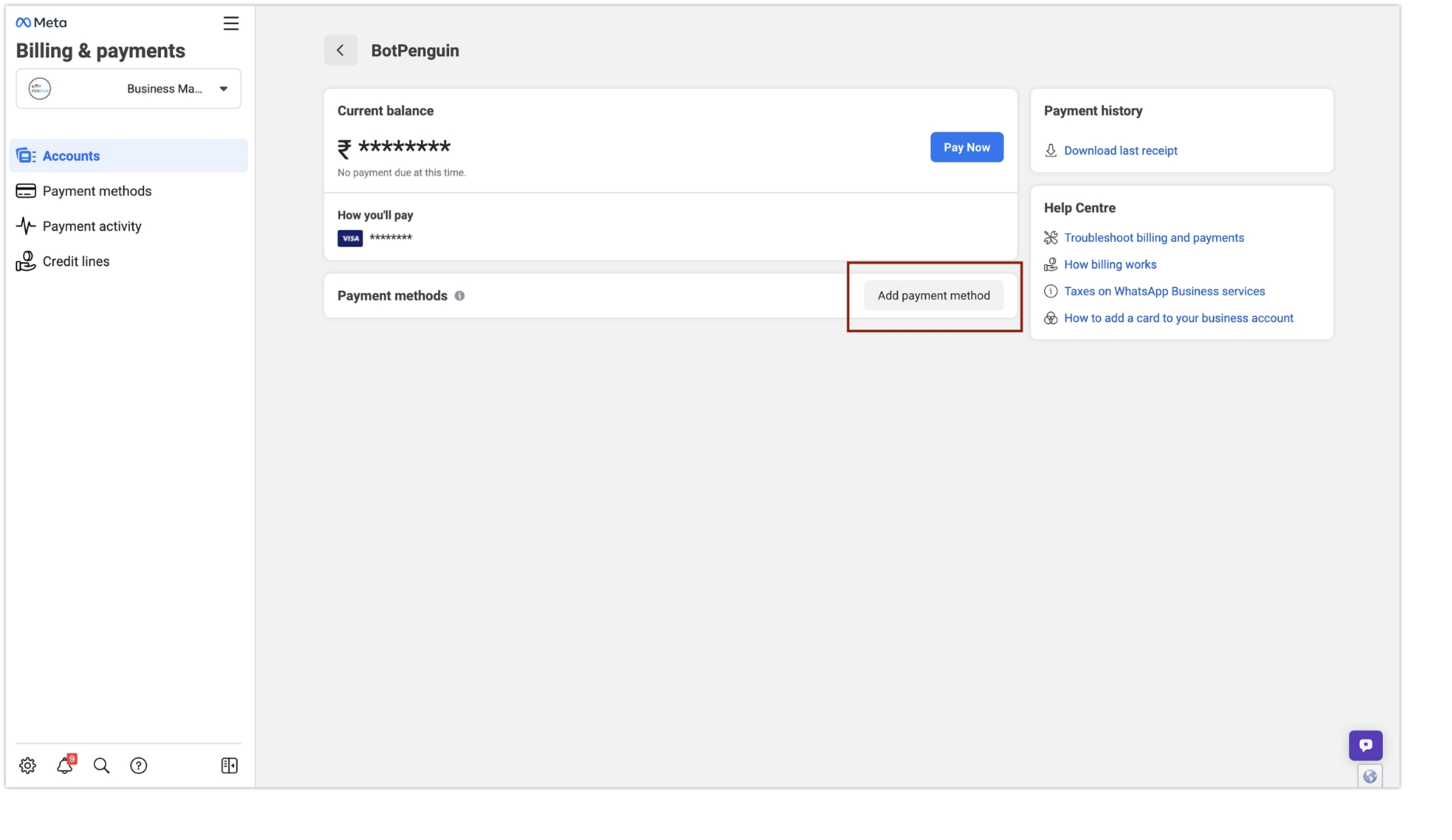
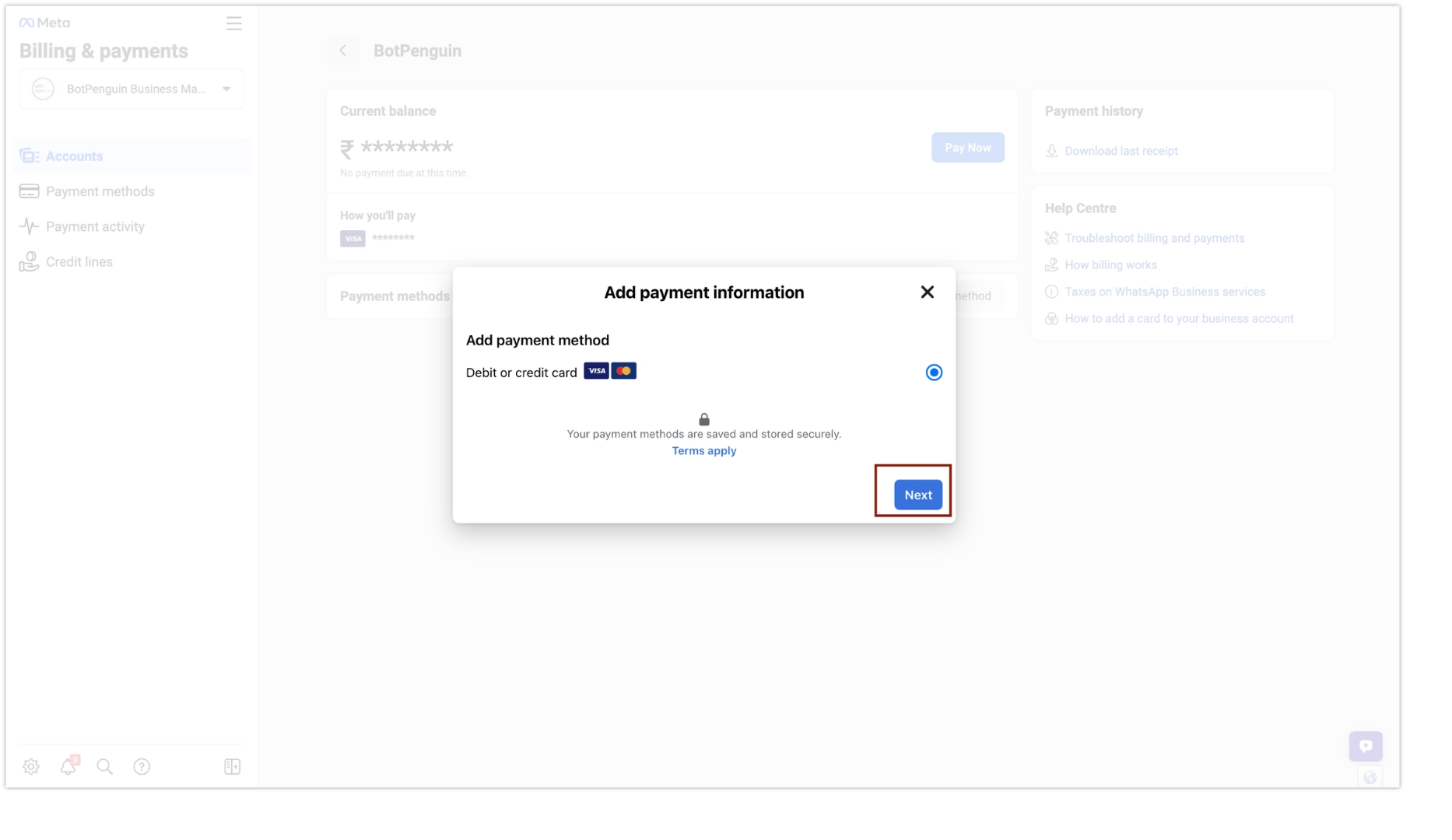
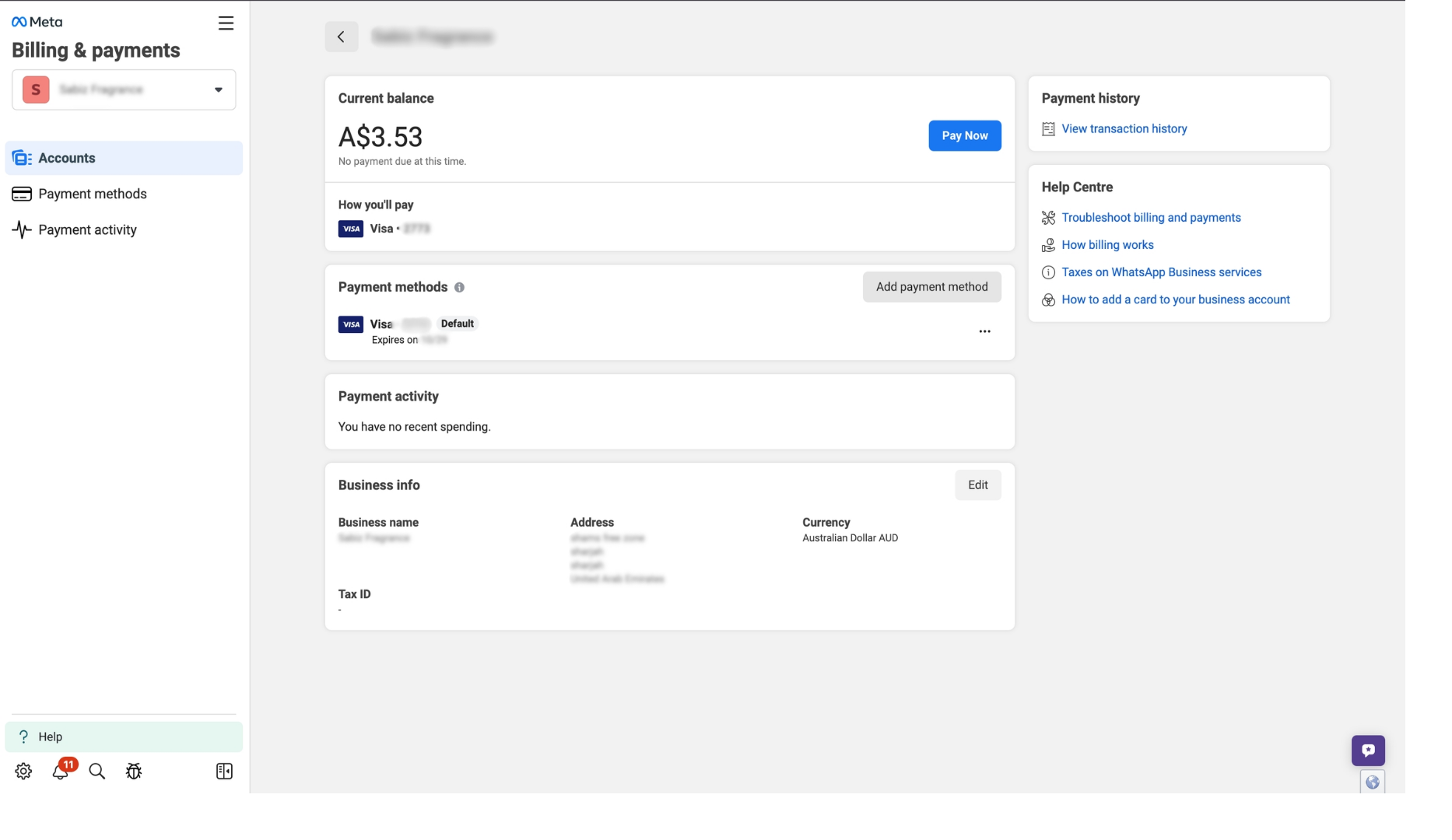
On the “Billing and Payments” page, click on the “Add Payment Method” option to add a new payment method.
-
Choose the payment method type that you want to use for your WhatsApp account.
-
Enter the necessary payment details based on the selected payment method.
-
After completing the payment details you can go back and enter the received OTP that was asked earlier.
-
Once you have entered the OTP. Click on Finish, and your bot will be migrated to Converse.
If OTP is expired and new OTP is not received, wait for 72 hrs before requesting a new OTP.