> ## Documentation Index
> Fetch the complete documentation index at: https://docs.converse.vitxi.ai/llms.txt
> Use this file to discover all available pages before exploring further.
# ♻️ Reconnect Whatsapp Bot
> This page contains the information for reconnecting your whatsapp bot with your registered number
### **You can Reconnect your Bot by following these easy steps.**
1. Login to Converse app and go on Home section.
2. Click on Bots section from the left panel.
3. Select the WhatsApp bot you want to reconnect with your whatsapp number.
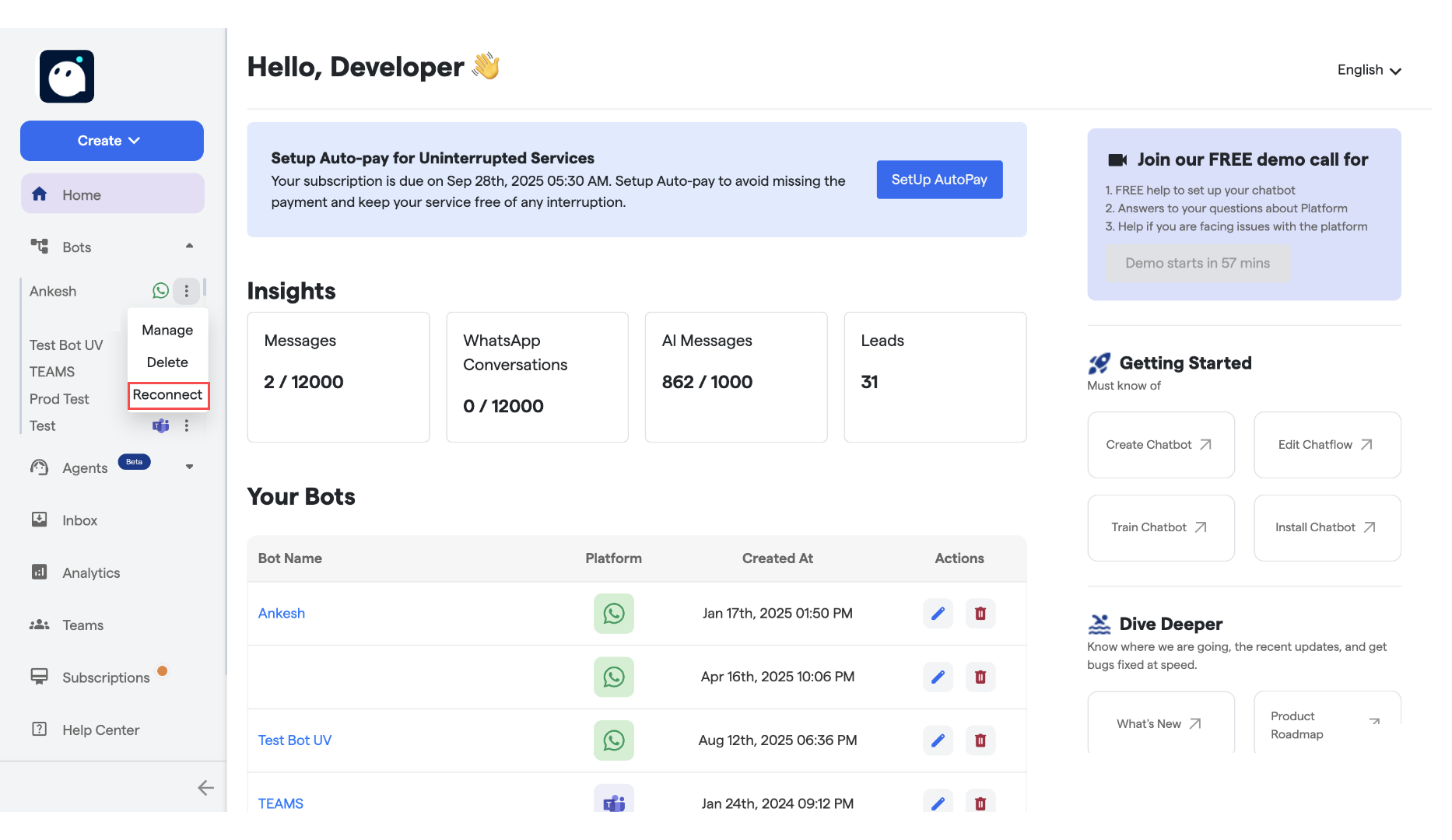
4. Click on the dots in front of the bot as shown in the image and then click on "Reconnect".
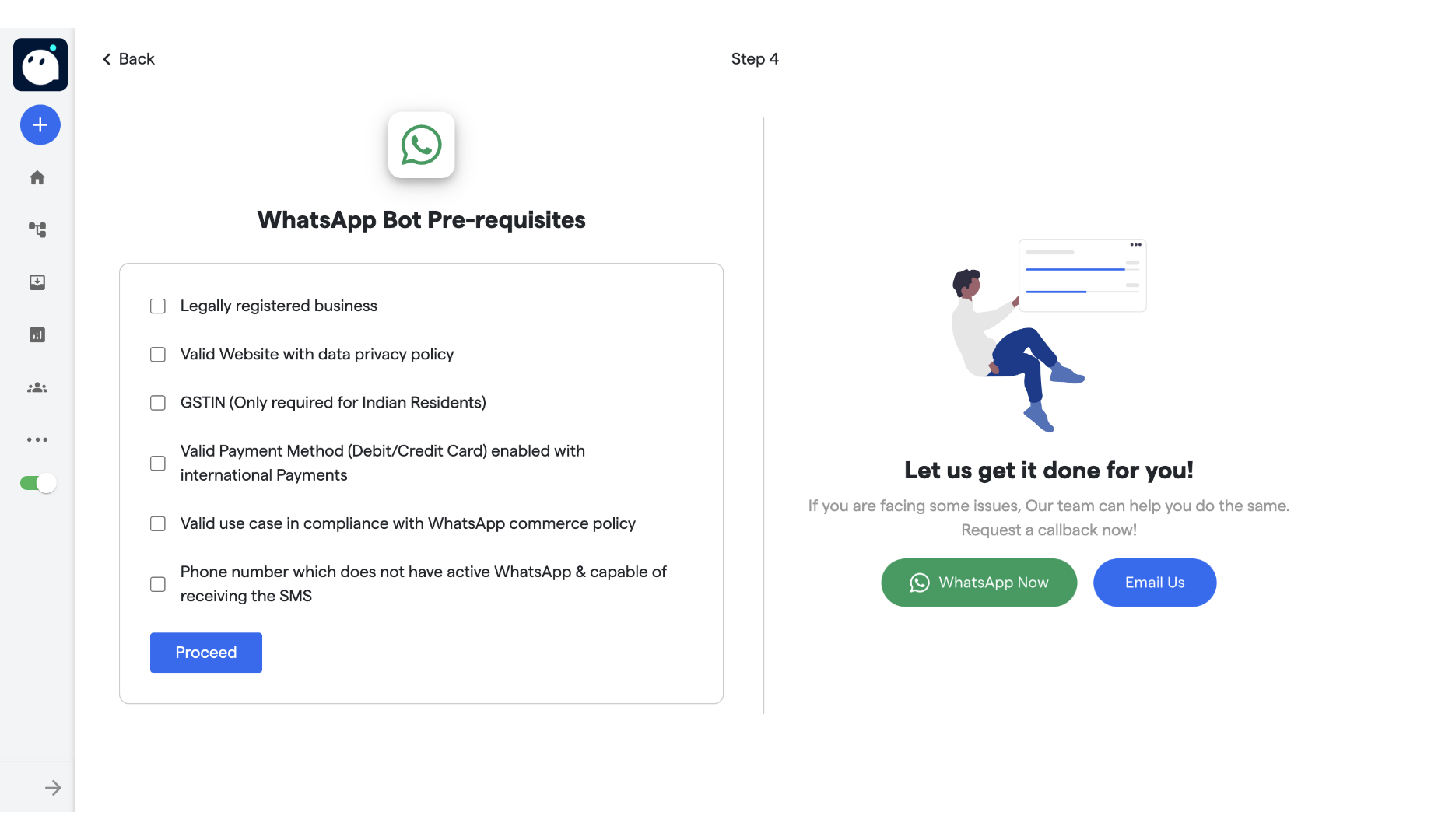
 5. You will be redirected on whatsapp bot pre-requisites page.
6. Check for all the requirements before proceeding.
7. Click on "Proceed".
5. You will be redirected on whatsapp bot pre-requisites page.
6. Check for all the requirements before proceeding.
7. Click on "Proceed".
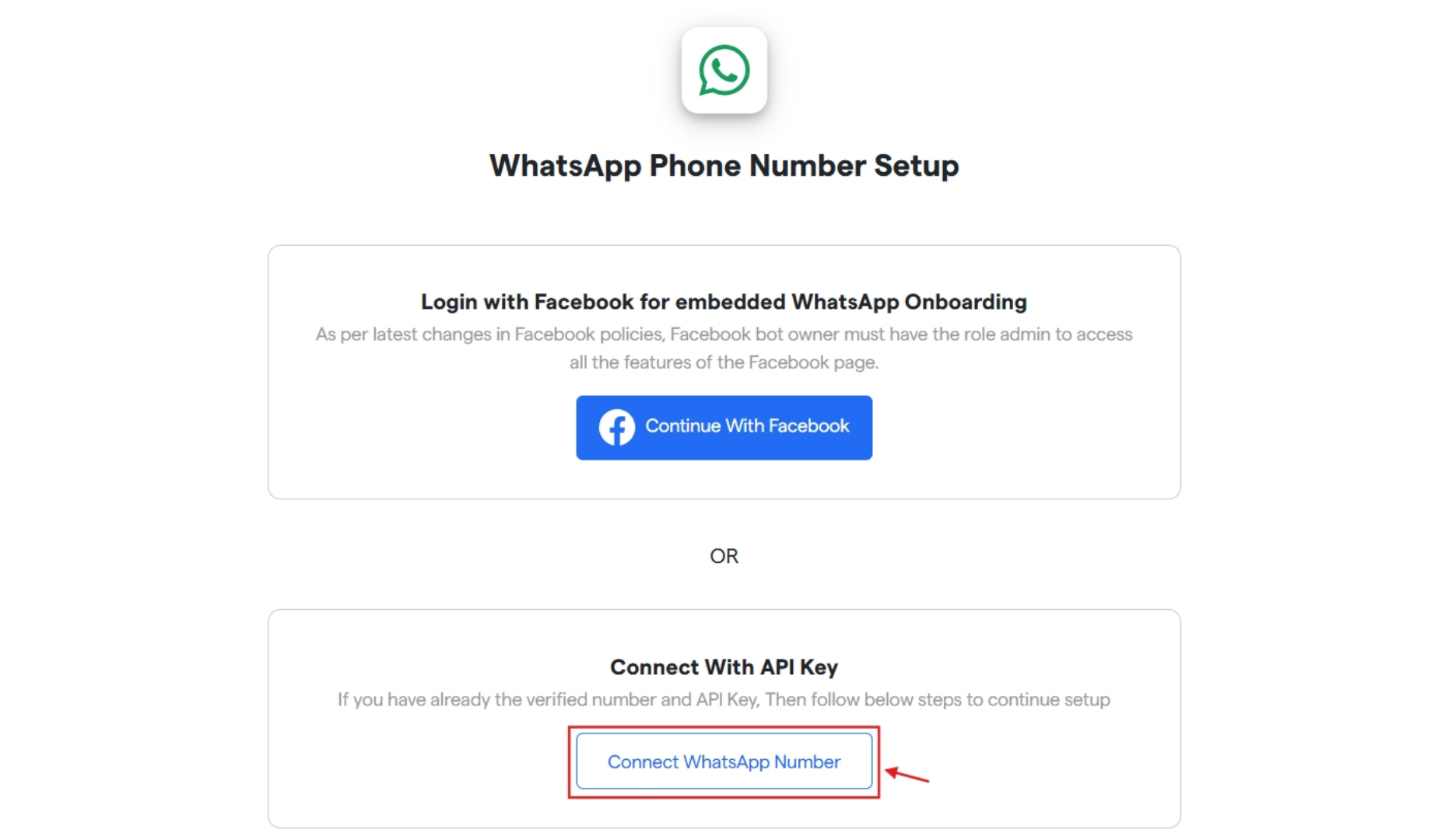
 8. Now select a method for setting up your phone number for whatsapp.
9. Here, we have explained using "Connect with API key". Click on the button below.
8. Now select a method for setting up your phone number for whatsapp.
9. Here, we have explained using "Connect with API key". Click on the button below.
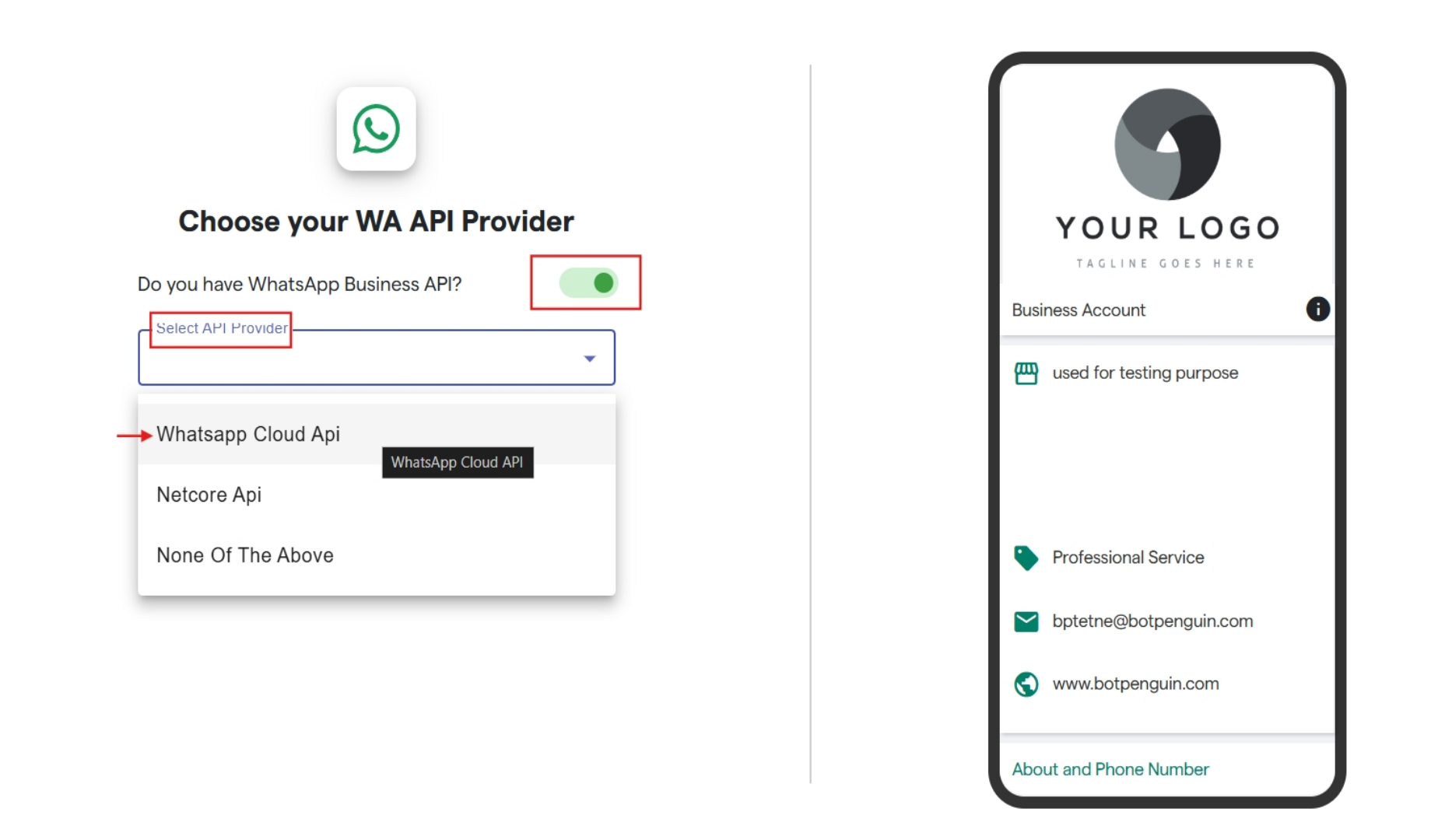
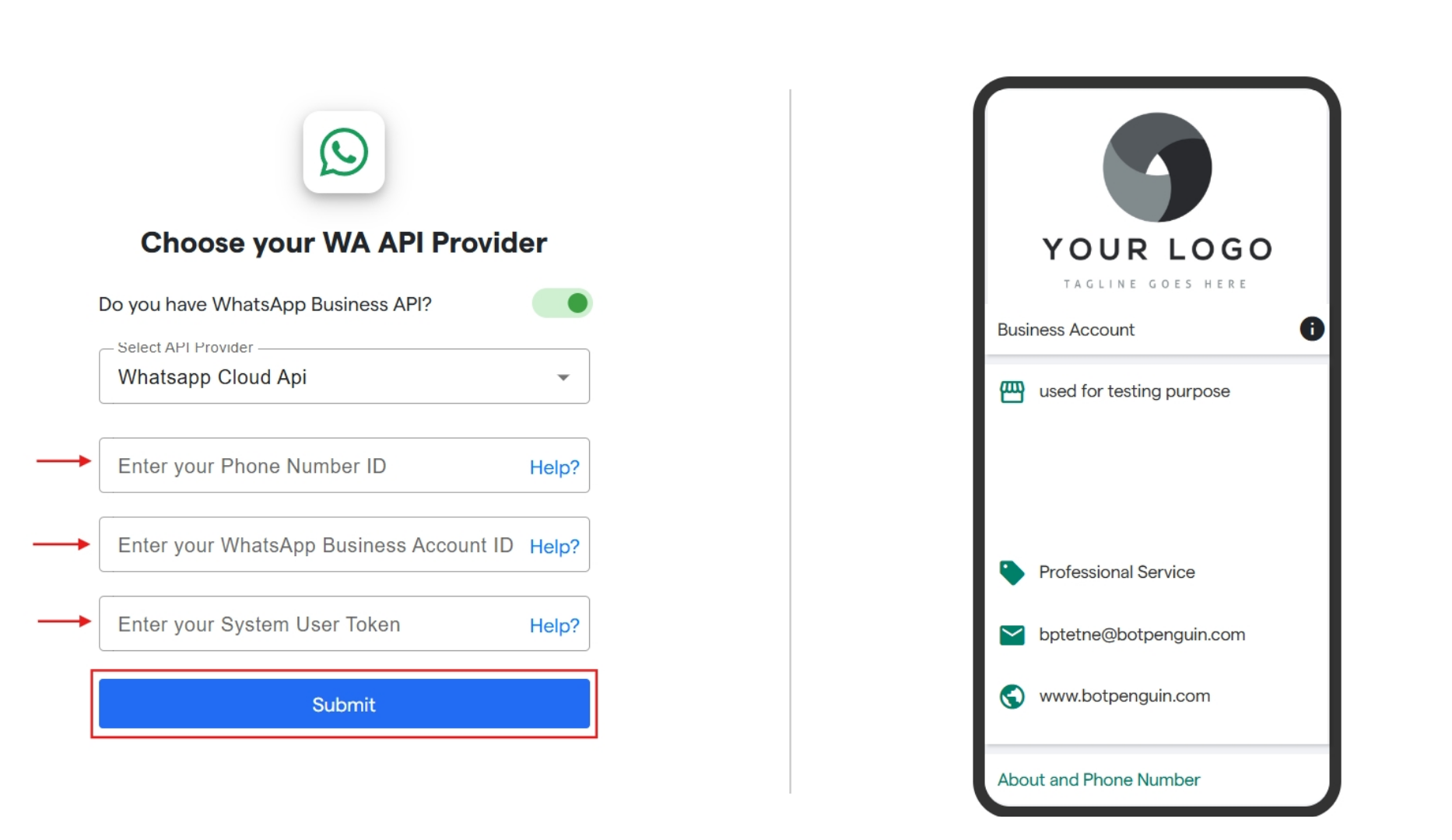
 10. Now choose your Whatsapp API provider.
11. Turn on the toggle that you have Whatsapp business API
12. Click on "Select API Provider" to select from the drop down. Here, we have selected Whatsapp Cloud API.
10. Now choose your Whatsapp API provider.
11. Turn on the toggle that you have Whatsapp business API
12. Click on "Select API Provider" to select from the drop down. Here, we have selected Whatsapp Cloud API.
 13. Once API Provider is selected. You have to fill the requested information.
14. Here, we have to enter phone number ID, enter your WhatsApp Business Account ID and System User Token.
13. Once API Provider is selected. You have to fill the requested information.
14. Here, we have to enter phone number ID, enter your WhatsApp Business Account ID and System User Token.
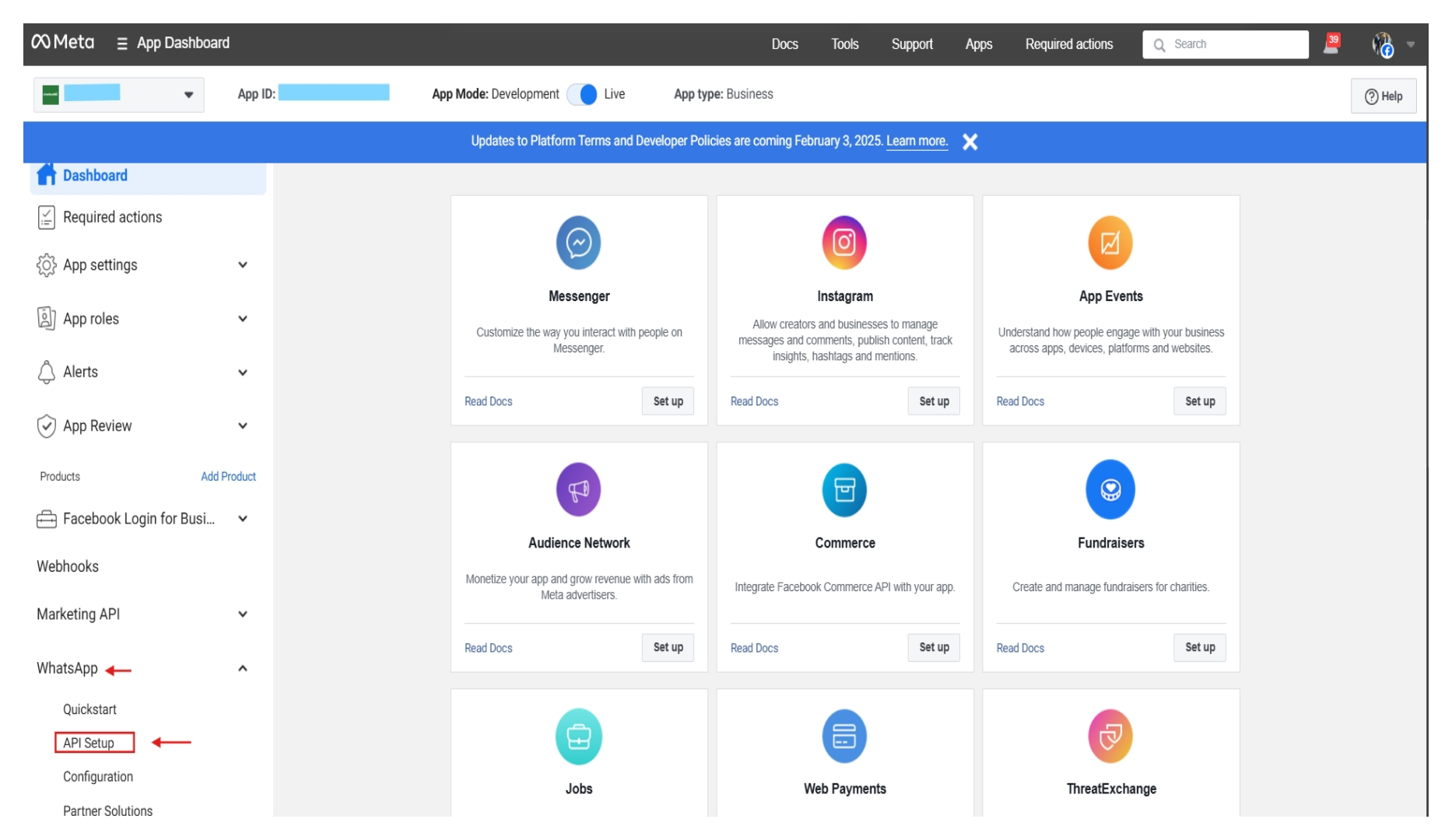
 15. Now to gather the required details. Open your Meta account and login with your Meta Business Account.
16. Now on Dashboard, click on Whatsapp and then select "API Setup".
15. Now to gather the required details. Open your Meta account and login with your Meta Business Account.
16. Now on Dashboard, click on Whatsapp and then select "API Setup".
 17. Now in API Setup, firstly select the whatsapp number you want to reconnect with.
18. Then copy the phone number ID and Whatsapp Business Account ID and paste the same in Converse.
17. Now in API Setup, firstly select the whatsapp number you want to reconnect with.
18. Then copy the phone number ID and Whatsapp Business Account ID and paste the same in Converse.
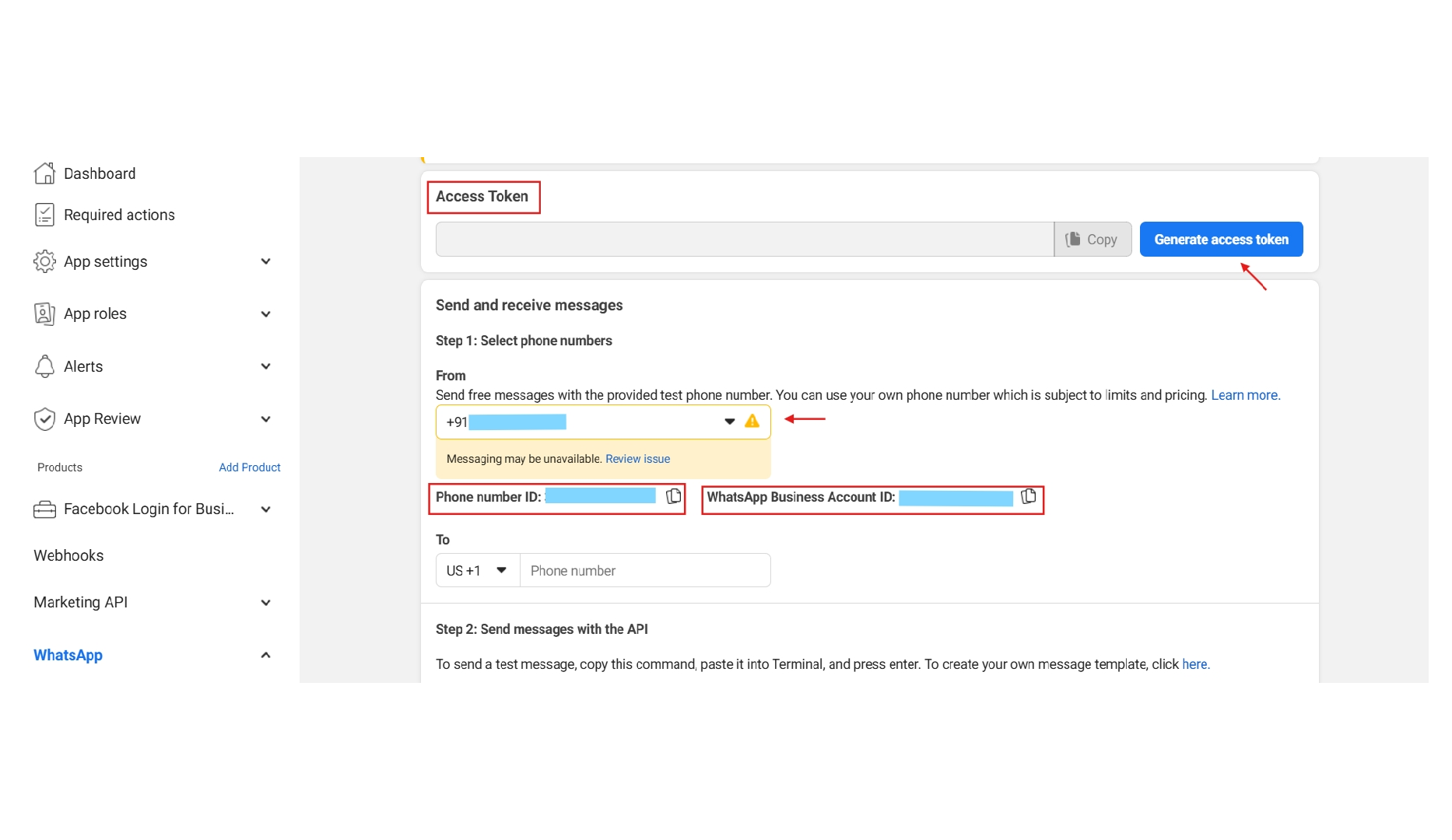 19. Click on "Generate Access Token" and this will give you a new access token. Copy the same and paste in Converse.
20. After completing all the steps and filling the required information. Click on "Submit".
Done! You have successfully reconnected WhatsApp Bot into Converse.
19. Click on "Generate Access Token" and this will give you a new access token. Copy the same and paste in Converse.
20. After completing all the steps and filling the required information. Click on "Submit".
Done! You have successfully reconnected WhatsApp Bot into Converse.