> ## Documentation Index
> Fetch the complete documentation index at: https://docs.converse.vitxi.ai/llms.txt
> Use this file to discover all available pages before exploring further.
# File Upload
> Upload files to train your chatbot. Use PDF, DOCX, CSV, PPT and much more
### **How to train your AI Chatbot on File Upload?**
1. Log into your Converse, and choose the bot you wish to train.
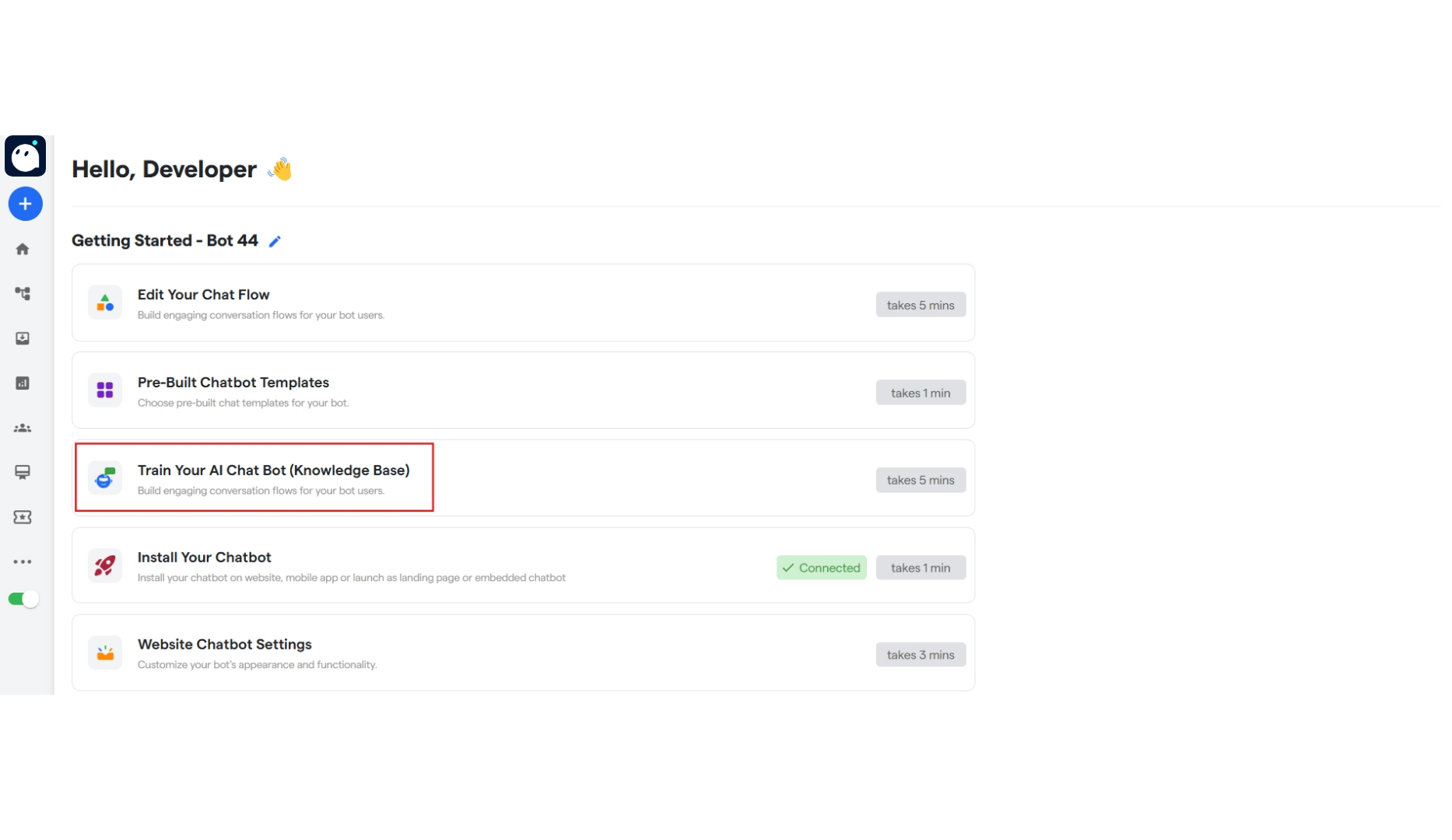 2. Click on **“Train Your AI Chat Bot”** and start training your AI Chat Bot.
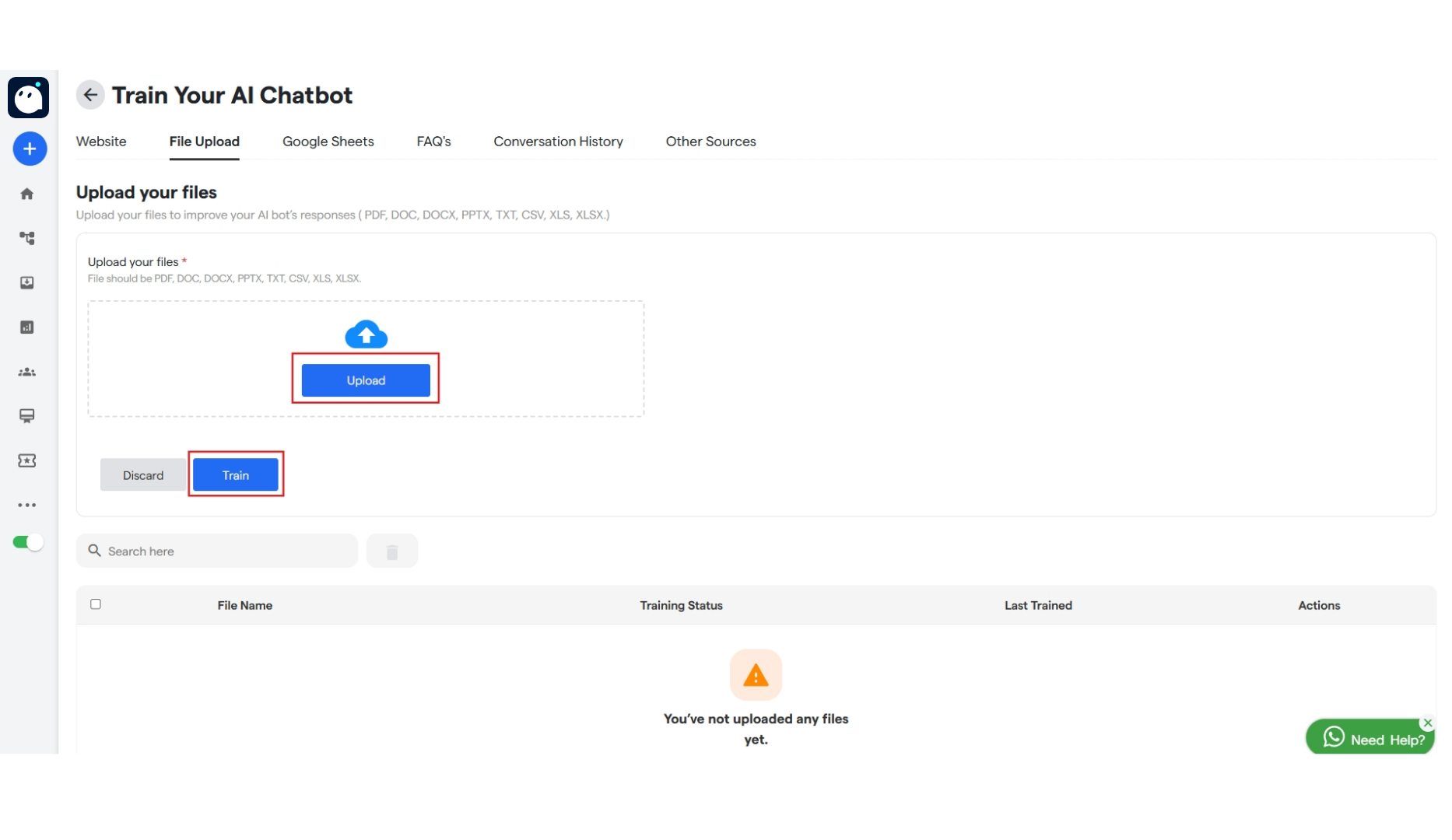 3. Click on the "**File Upload**' tab to add the file.
#### **File Upload**
1. Click on **“File Upload”** to add the file according to which you want to train your AI Chat Bot.
2. Upload the file from your device.
3. And click on **“Train”** to train your AI Chat Bot with this file.
3. Click on the "**File Upload**' tab to add the file.
#### **File Upload**
1. Click on **“File Upload”** to add the file according to which you want to train your AI Chat Bot.
2. Upload the file from your device.
3. And click on **“Train”** to train your AI Chat Bot with this file.
 ### **FAQ's:**
Here are some common FAQ's regarding upload of files:
Once your file or website data is uploaded, the system typically marks the training as "complete" within a few seconds to a couple of minutes. After that, your chatbot can start using the data.
“Training complete” means the data has been processed and stored. However, depending on the AI model you’re using, it might still take a few minutes to generate smart responses based on that data.
The GPT-4o model is the fastest — it usually gives responses in under a minute. It’s ideal for speed and efficiency.
GPT-4o responds almost instantly. The Assistant model (used by default) takes about **2–5 minutes** to fully reflect changes and provide optimized answers from the newly trained data.
For the most accurate and stable responses based on your trained data, we recommend using the **Assistant model**, even though it may take slightly longer to respond.
There is essentially no limit on the number of documents you can train your bot on. It depends on the size of the document, your plan, and the time taken for the training.
### **FAQ's:**
Here are some common FAQ's regarding upload of files:
Once your file or website data is uploaded, the system typically marks the training as "complete" within a few seconds to a couple of minutes. After that, your chatbot can start using the data.
“Training complete” means the data has been processed and stored. However, depending on the AI model you’re using, it might still take a few minutes to generate smart responses based on that data.
The GPT-4o model is the fastest — it usually gives responses in under a minute. It’s ideal for speed and efficiency.
GPT-4o responds almost instantly. The Assistant model (used by default) takes about **2–5 minutes** to fully reflect changes and provide optimized answers from the newly trained data.
For the most accurate and stable responses based on your trained data, we recommend using the **Assistant model**, even though it may take slightly longer to respond.
There is essentially no limit on the number of documents you can train your bot on. It depends on the size of the document, your plan, and the time taken for the training.