> ## Documentation Index
> Fetch the complete documentation index at: https://docs.converse.vitxi.ai/llms.txt
> Use this file to discover all available pages before exploring further.
> Here is the information for using the settings done inside teams in your bot to assign chat.
# Using Teams in Chatflow
## **Setting up Assign Chat logics**
Step 1: Select a bot.
Step 2: Click on "Edit your Chat Flow".
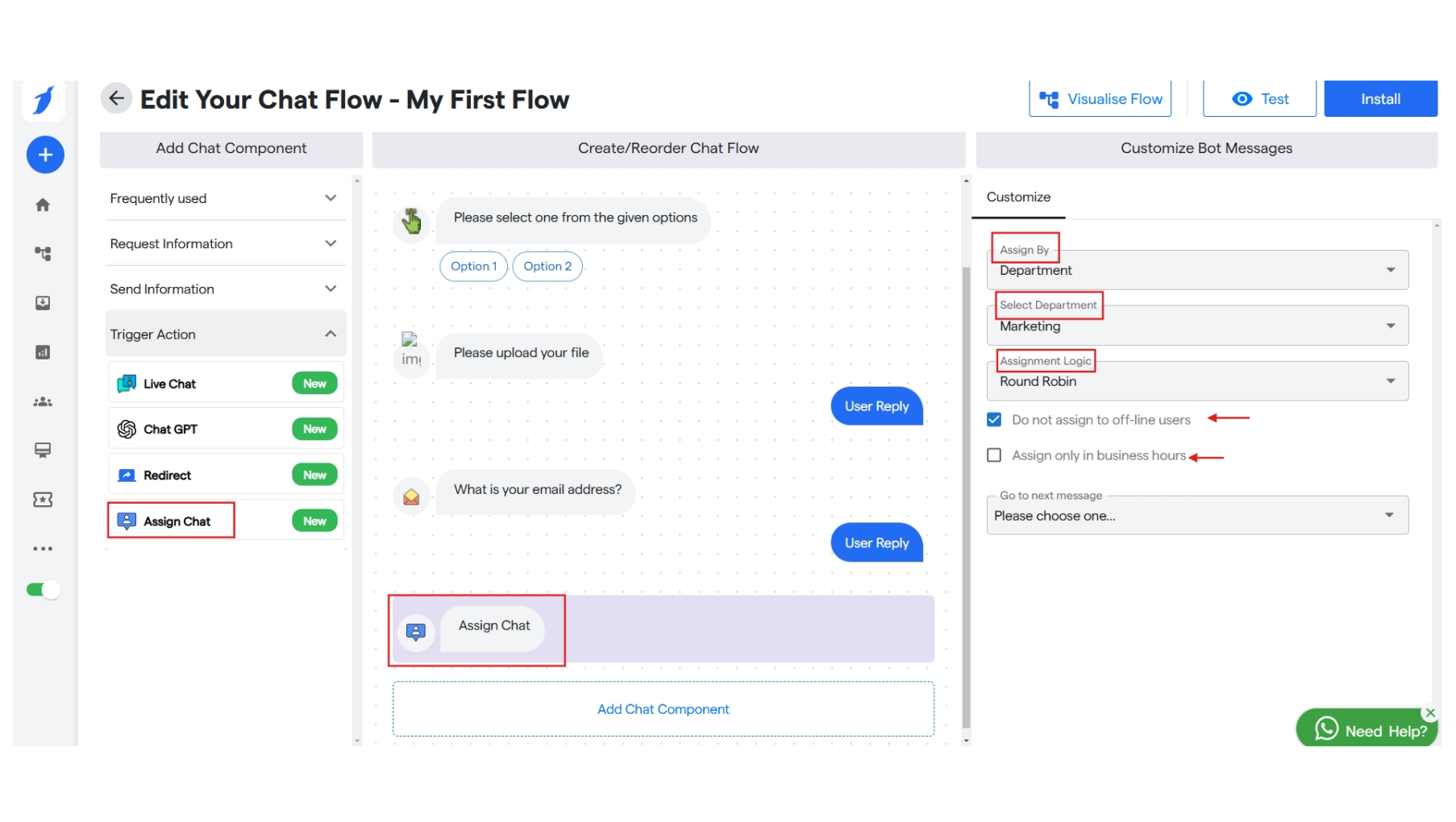
Step 3: Inside canvas, search for "Assign Chat" and select the same to customize in your bot.
Step 4: Customize "Assign Chat" by selecting an option to assign chat based on Department or based on Team Members.
Step 5: Now select a department from the drop down.
Step 6: Now select an Assignment Logic according to which chat will be assigned. Currently we have one option which is "Round Robin".
Round-robin is the method used to distribute incoming conversations across a team. It automatically assigns conversations to selected coworkers on a cyclical basis. It basically rotates incoming conversations in the order they are received.
Step 7: Select a checkbox which best suits you to filter out assignment rules. You can select "Do not assign to offline agents" and "Assign only in business hours".
Step 8: Select "go to next message". And you are done setting up the assignment rules.