> ## Documentation Index
> Fetch the complete documentation index at: https://docs.converse.vitxi.ai/llms.txt
> Use this file to discover all available pages before exploring further.
# Chatbot User Authentication
> This page contains all the necessary information regrading how you can authenticate users which are coming to your chatbot.
### **Phone Number Authentication Setup**
This guide walks you through integrating an API for phone number verification within your flow. You’ll set up two APIs—one to send the OTP and another to verify it. Follow these steps carefully.
**Step 1: Create the API for Sending OTP**
1. **Navigate to Developer Section**
Go to your platform's **Developer Section**.
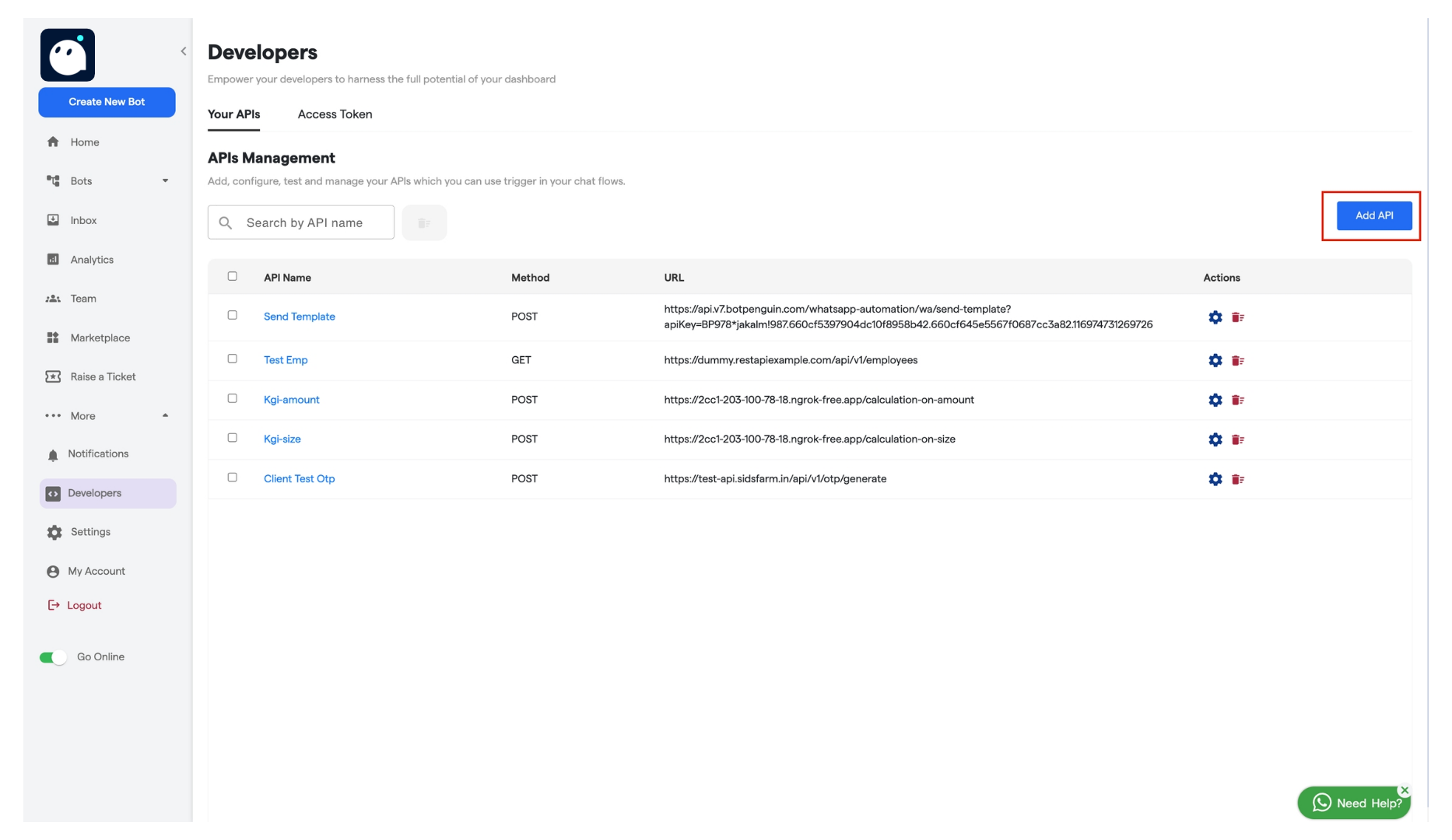
2. **Add a New API**
Click on the **Add API** button as shown in the screenshot
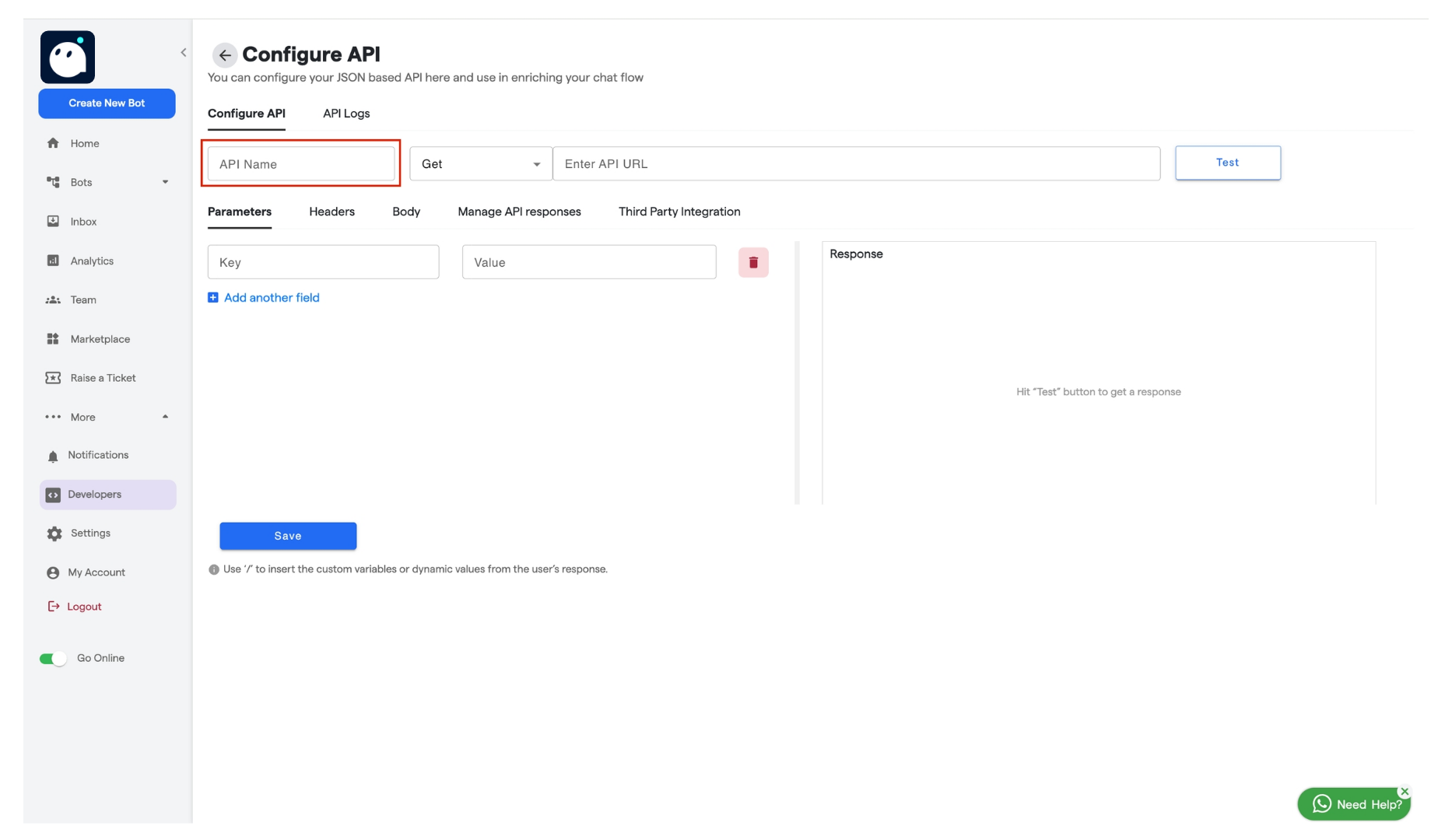
 3. Enter an **API Name** (e.g., "Send OTP").
 4. **Configure API Details**
* Choose the appropriate **Method** from the dropdown that is POST
4. **Configure API Details**
* Choose the appropriate **Method** from the dropdown that is POST
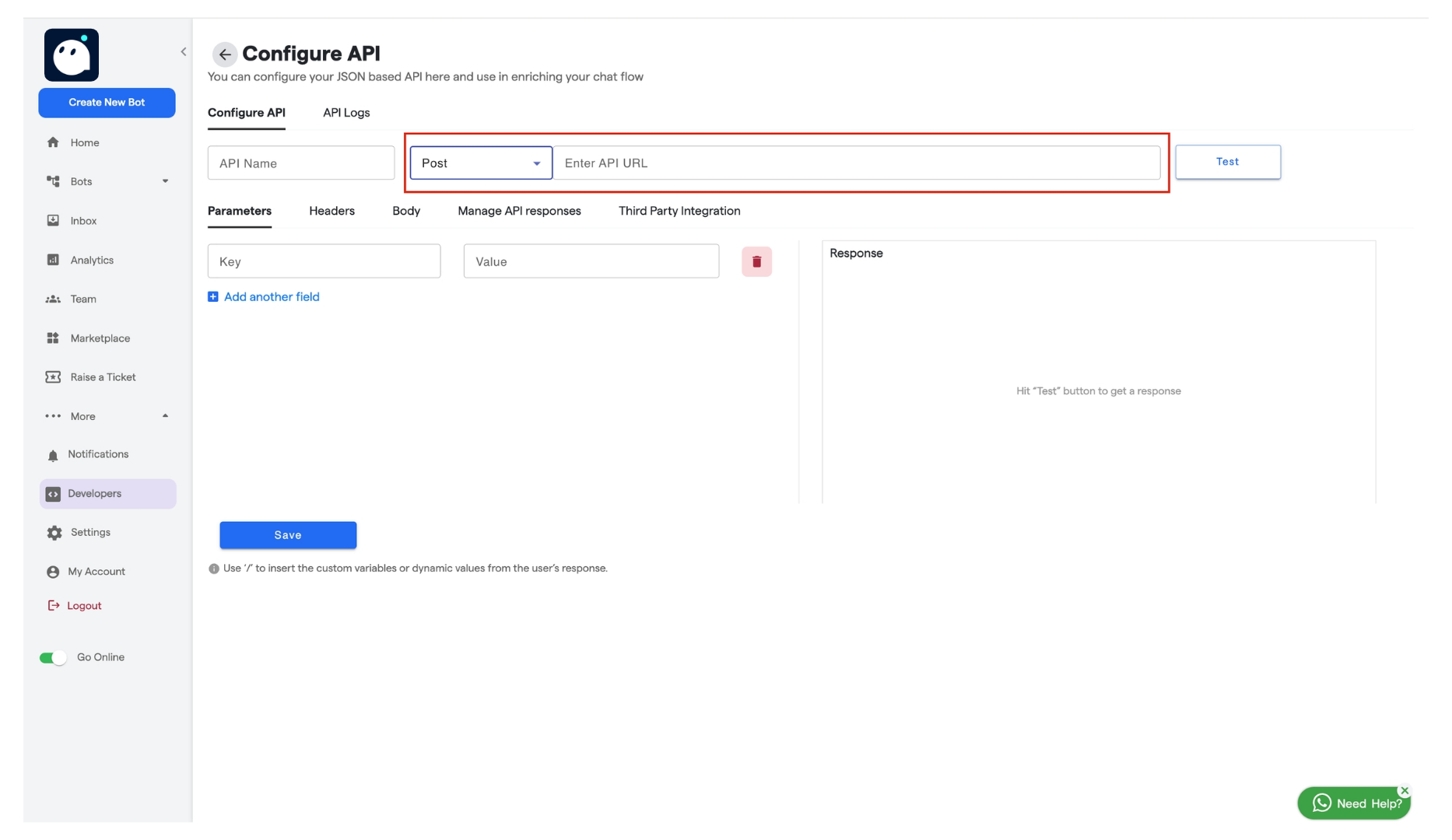 * In the **API URL** field, enter the API endpoint provided for sending OTP.
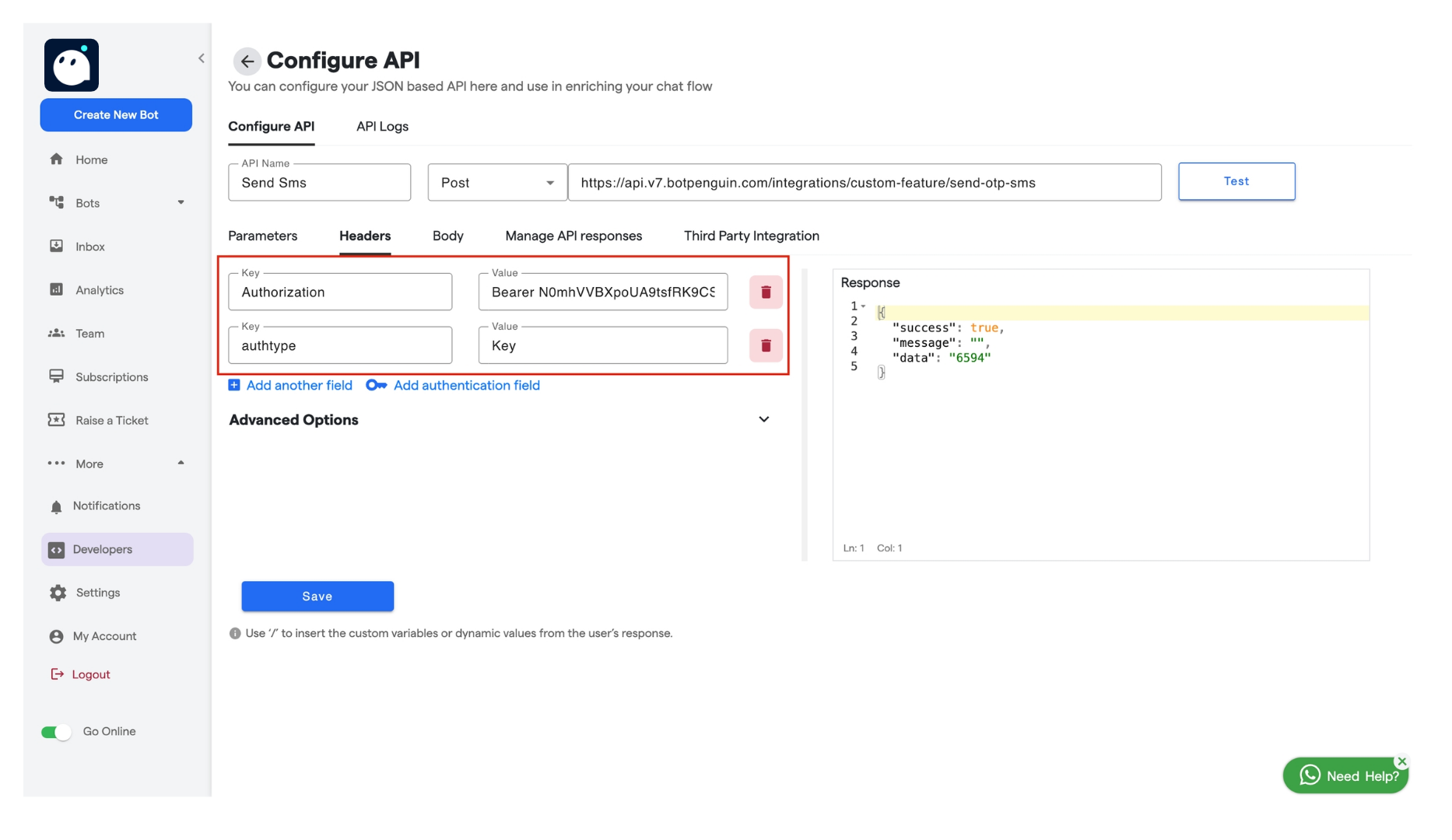
5. **Set Headers**
* Go to the **Headers** section.
* Add the required authorization fields:
* **Authorization Key**: Enter the authorization key provided by the service.
* **Value**: Your token or key.
* In the **API URL** field, enter the API endpoint provided for sending OTP.
5. **Set Headers**
* Go to the **Headers** section.
* Add the required authorization fields:
* **Authorization Key**: Enter the authorization key provided by the service.
* **Value**: Your token or key.
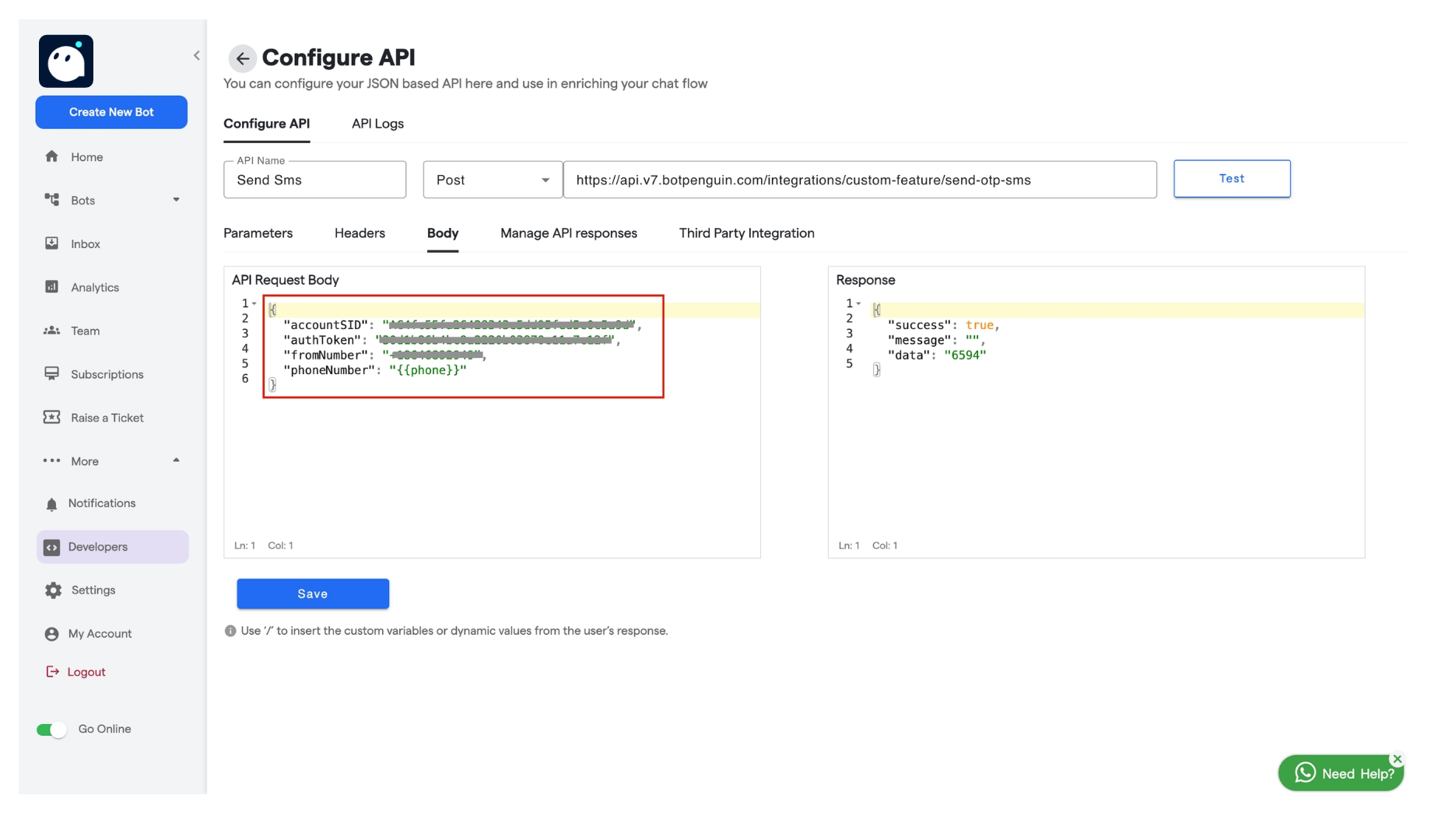
 6. **Define Request Body Parameters**
* In the **Body** section, enter the parameters as shown in the screenshot:
* **accountSID**: Obtain from Twilio.
* **authToken**: Obtain from Twilio.
* **fromNumber**: Your Twilio phone number.
* **toNumber**: Map this to the user’s phone number attribute.
6. **Define Request Body Parameters**
* In the **Body** section, enter the parameters as shown in the screenshot:
* **accountSID**: Obtain from Twilio.
* **authToken**: Obtain from Twilio.
* **fromNumber**: Your Twilio phone number.
* **toNumber**: Map this to the user’s phone number attribute.
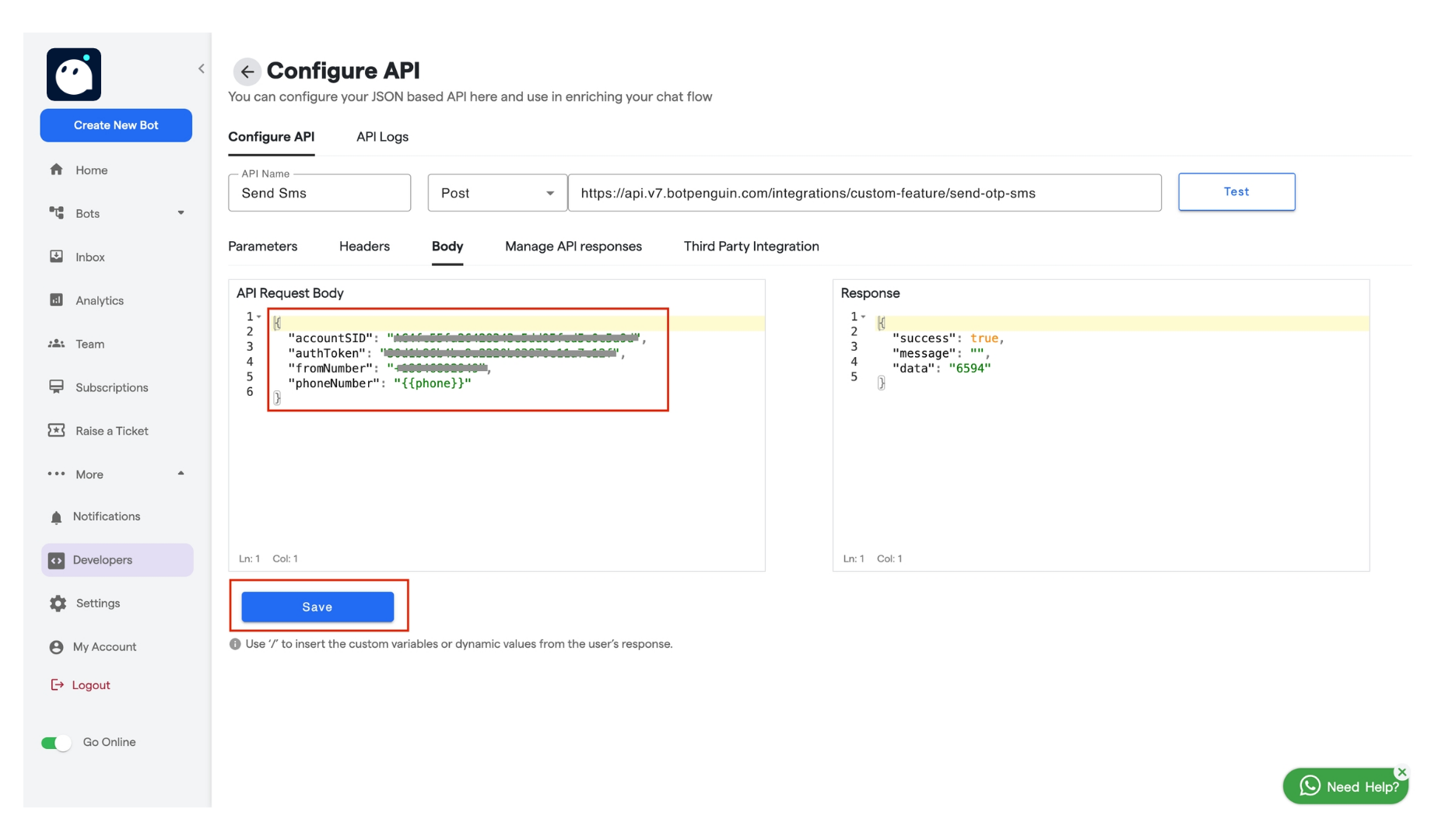
 7. **Save API**
* Click **Save** to store the API configuration.
7. **Save API**
* Click **Save** to store the API configuration.
 8. **Map Phone Number Attribute**
* In the **Attributes** section, select the user’s phone number attribute.
1. **Save Custom Attribute**
* In the **Manage API Response** section, choose **Save to Custom Attribute**.
8. **Map Phone Number Attribute**
* In the **Attributes** section, select the user’s phone number attribute.
1. **Save Custom Attribute**
* In the **Manage API Response** section, choose **Save to Custom Attribute**.
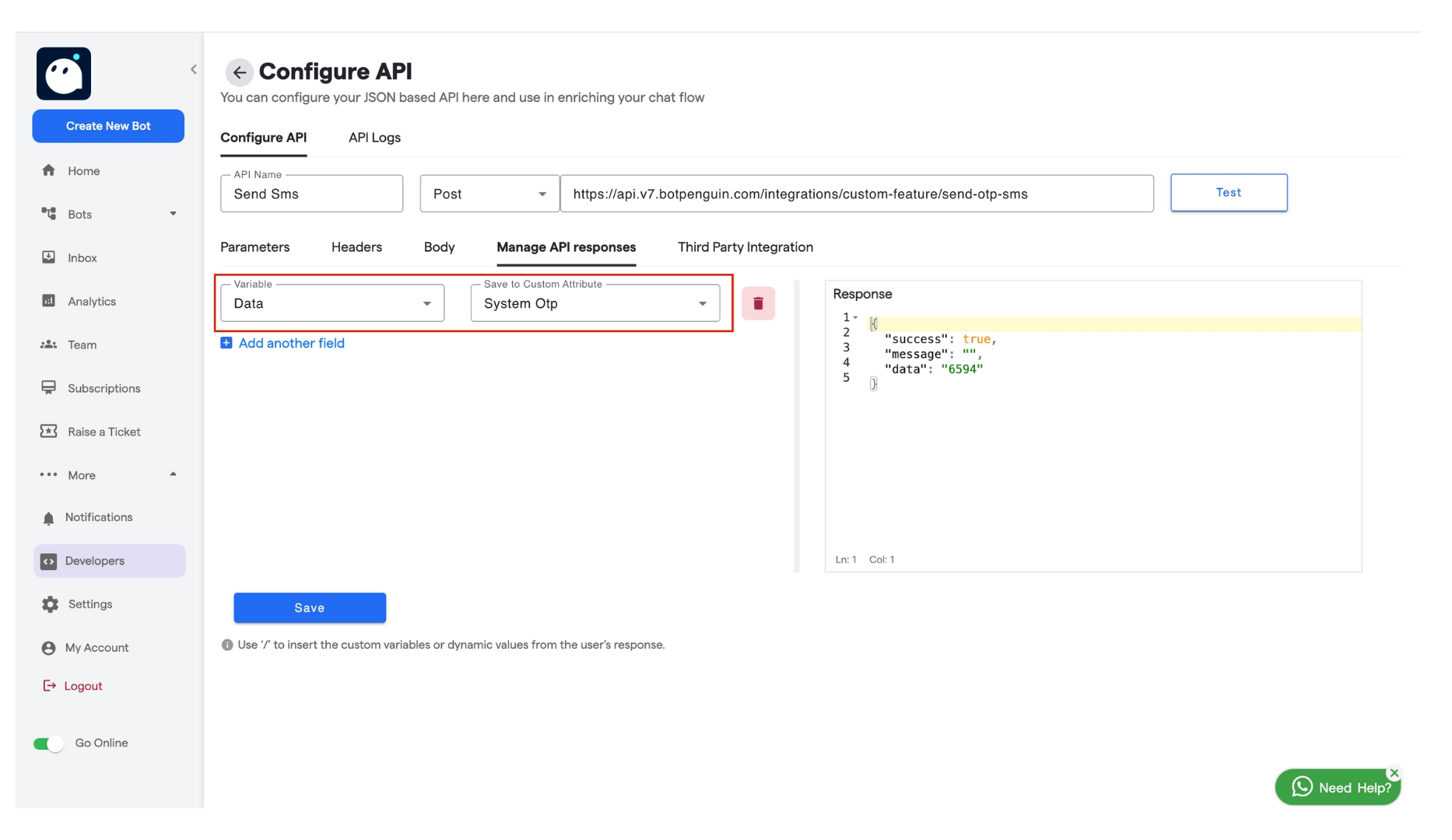 * If not already created, create a custom attribute to store the verification status or OTP code.
**Step 2: Create the API for OTP Verification**
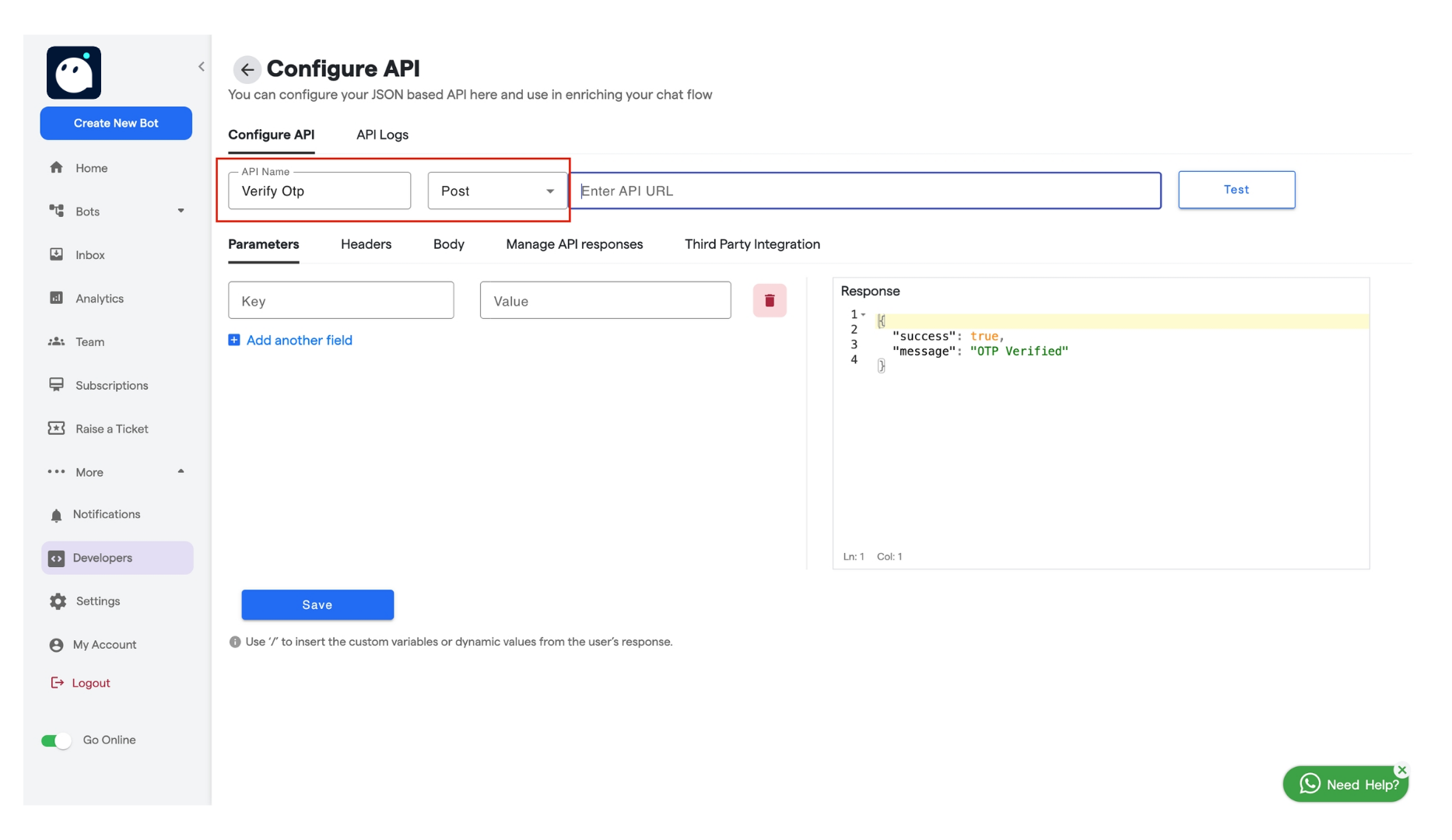
1. **Add Another API for OTP Verification**
* Click **Add API** again.
* Name this API (e.g., "Verify OTP").
* If not already created, create a custom attribute to store the verification status or OTP code.
**Step 2: Create the API for OTP Verification**
1. **Add Another API for OTP Verification**
* Click **Add API** again.
* Name this API (e.g., "Verify OTP").
 2. **Set Method and URL**
* Choose the appropriate **Method** (POST).
* Enter the **API URL** for verifying OTP.
2. **Set Method and URL**
* Choose the appropriate **Method** (POST).
* Enter the **API URL** for verifying OTP.
 API : [https://api.v7](https://api.v7). Converse.com/integrations/custom-feature/verify-user-otp
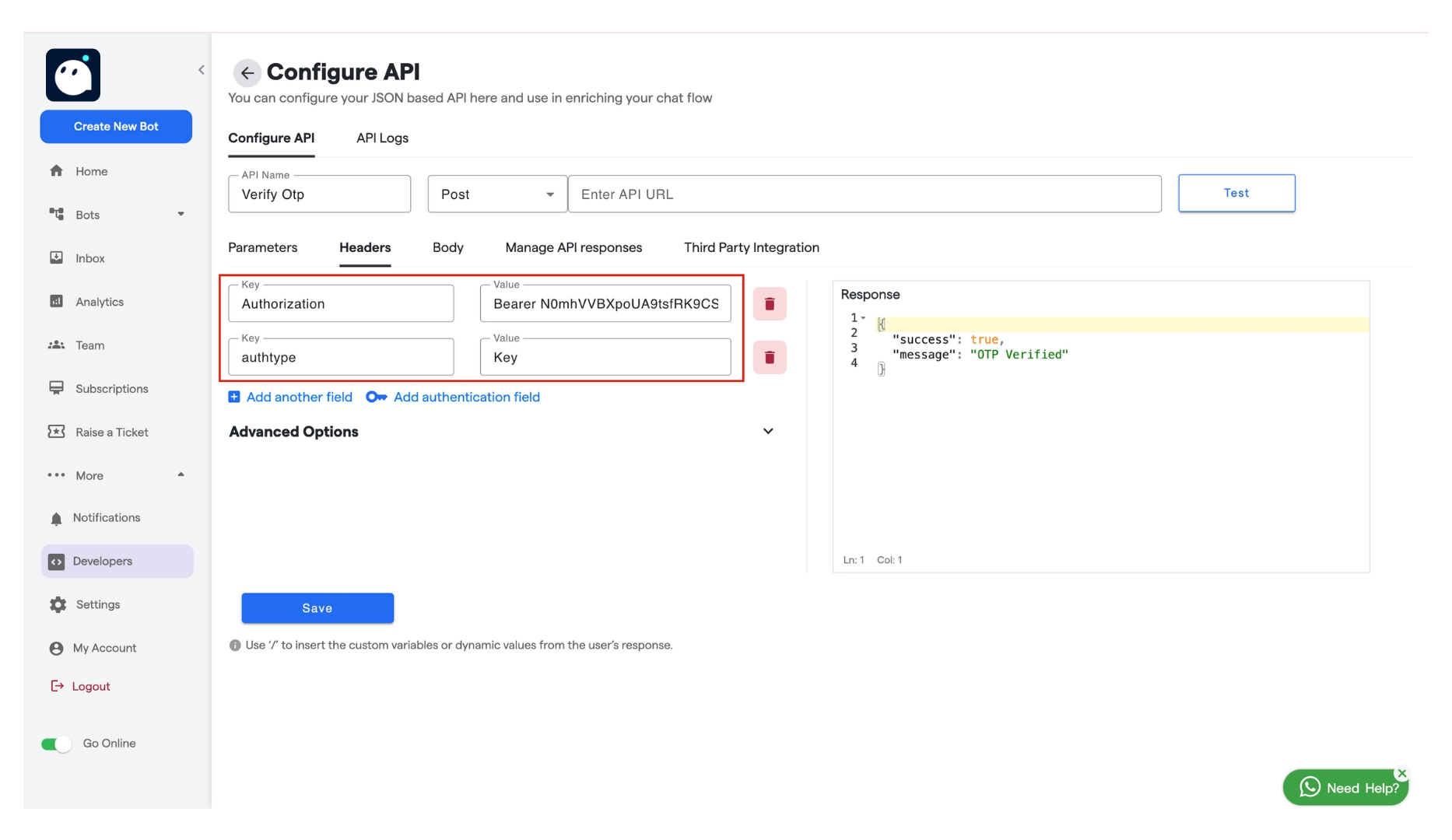
3. **Set Headers**
* Fill in the header details similar to Step 1.
API : [https://api.v7](https://api.v7). Converse.com/integrations/custom-feature/verify-user-otp
3. **Set Headers**
* Fill in the header details similar to Step 1.
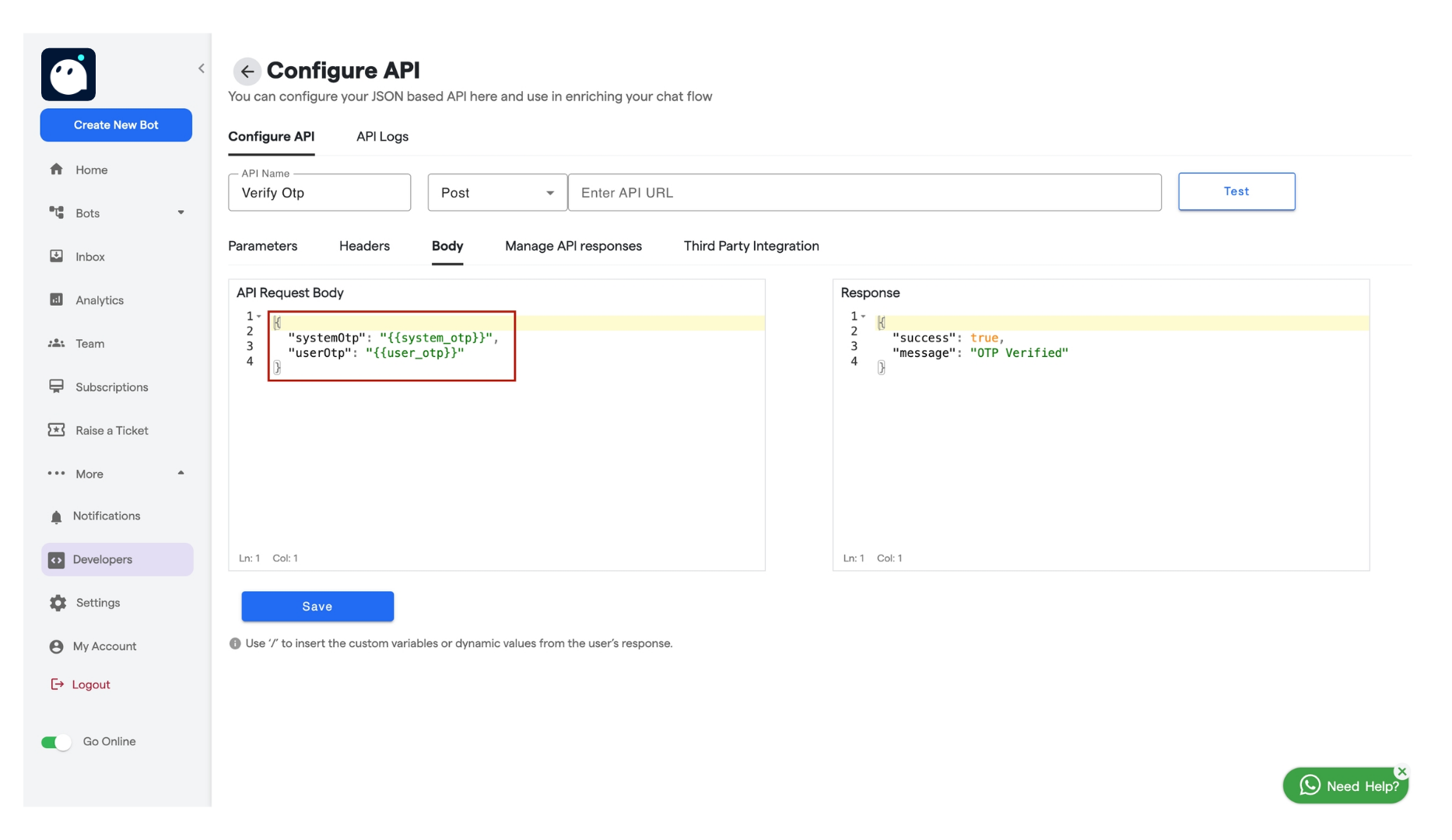
 4. **Define Request Body Parameters**
* In the **Body** section, pass:
* **systemOtp**: The OTP sent to the user.
* **userOtp**: The OTP entered by the user.
4. **Define Request Body Parameters**
* In the **Body** section, pass:
* **systemOtp**: The OTP sent to the user.
* **userOtp**: The OTP entered by the user.
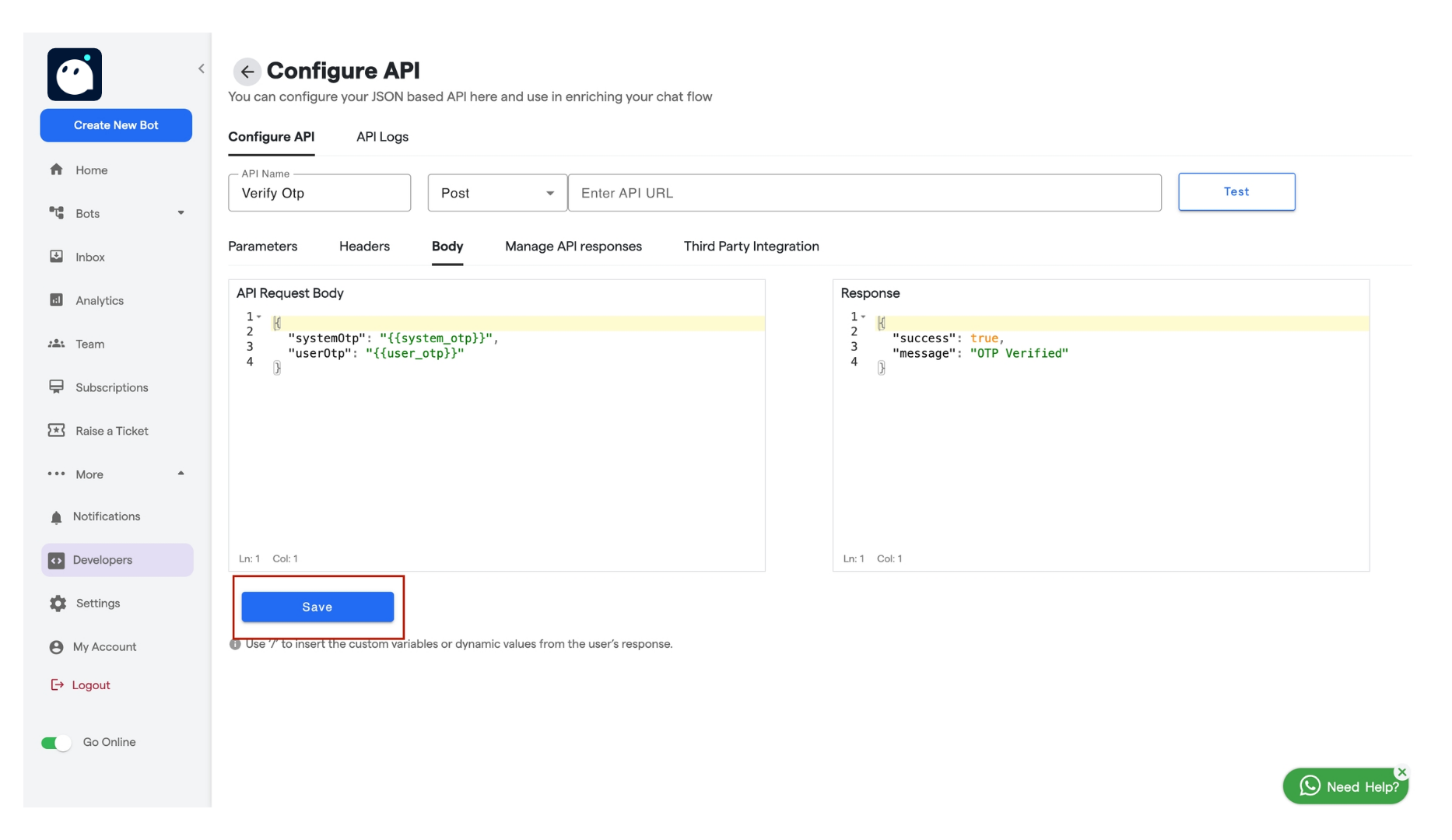
 5. **Save API**
* Click **Save**.
5. **Save API**
* Click **Save**.
 ### **Step 3: Integrate APIs into the Chat Flow**
1. **Edit the Chat Flow**
* Go to **Edit Flow** and open the chat flow you want to edit.
2. **Add API Components**
* **Send OTP** API:
* Add the **API component** and select the API created in Step 1.
**Phone Number Input**:
* Add a component to capture the user’s phone number.
**Verify OTP** API:
* Add the **API component** again and select the **Verify OTP** API from Step 2.
3. **Add Delays**
* Add a delay of 5 seconds between sending and verifying OTP, and 2 seconds if re-verifying.
* Configure messages to display whether the OTP was verified successfully or if the user should re-enter it.
This setup enables you to authenticate a user’s phone number seamlessly by sending and verifying an OTP.
### **Step 3: Integrate APIs into the Chat Flow**
1. **Edit the Chat Flow**
* Go to **Edit Flow** and open the chat flow you want to edit.
2. **Add API Components**
* **Send OTP** API:
* Add the **API component** and select the API created in Step 1.
**Phone Number Input**:
* Add a component to capture the user’s phone number.
**Verify OTP** API:
* Add the **API component** again and select the **Verify OTP** API from Step 2.
3. **Add Delays**
* Add a delay of 5 seconds between sending and verifying OTP, and 2 seconds if re-verifying.
* Configure messages to display whether the OTP was verified successfully or if the user should re-enter it.
This setup enables you to authenticate a user’s phone number seamlessly by sending and verifying an OTP.