> ## Documentation Index
> Fetch the complete documentation index at: https://docs.converse.vitxi.ai/llms.txt
> Use this file to discover all available pages before exploring further.
# Install Website Chatbot on Squarespace
> This section contains step by step process of how you can install website chatbot on the Squarespace.
Once you have built your e-commerce website on Squarespace, you can elevate the user experience with the Converse chatbot.
### **Why Squarespace Chatbot?**
Creating a Squarespace chatbot offers several benefits that can significantly enhance your online presence and business operations:
* **24/7 Customer Support:** You can respond instantly to customer inquiries at any time of the day.
* **Increased Engagement**: Chatbots can engage with your audience in real time, sending personalized messages, updates, and promotions.
* **Lead Generation**: By interacting with visitors and taking essential information, chatbots can help generate leads, making it easier to convert potential customers into actual customers.
* **Scalability**: Unlike human agents, chatbots can handle multiple conversations simultaneously.
To create your Squarespace chatbot and manage all your chatbots, you first need to visit the Converse Dashboard.
### **How to Create Your Squarespace Chatbot?**
1. Follow these quick steps to create your Squarespace chatbot:-
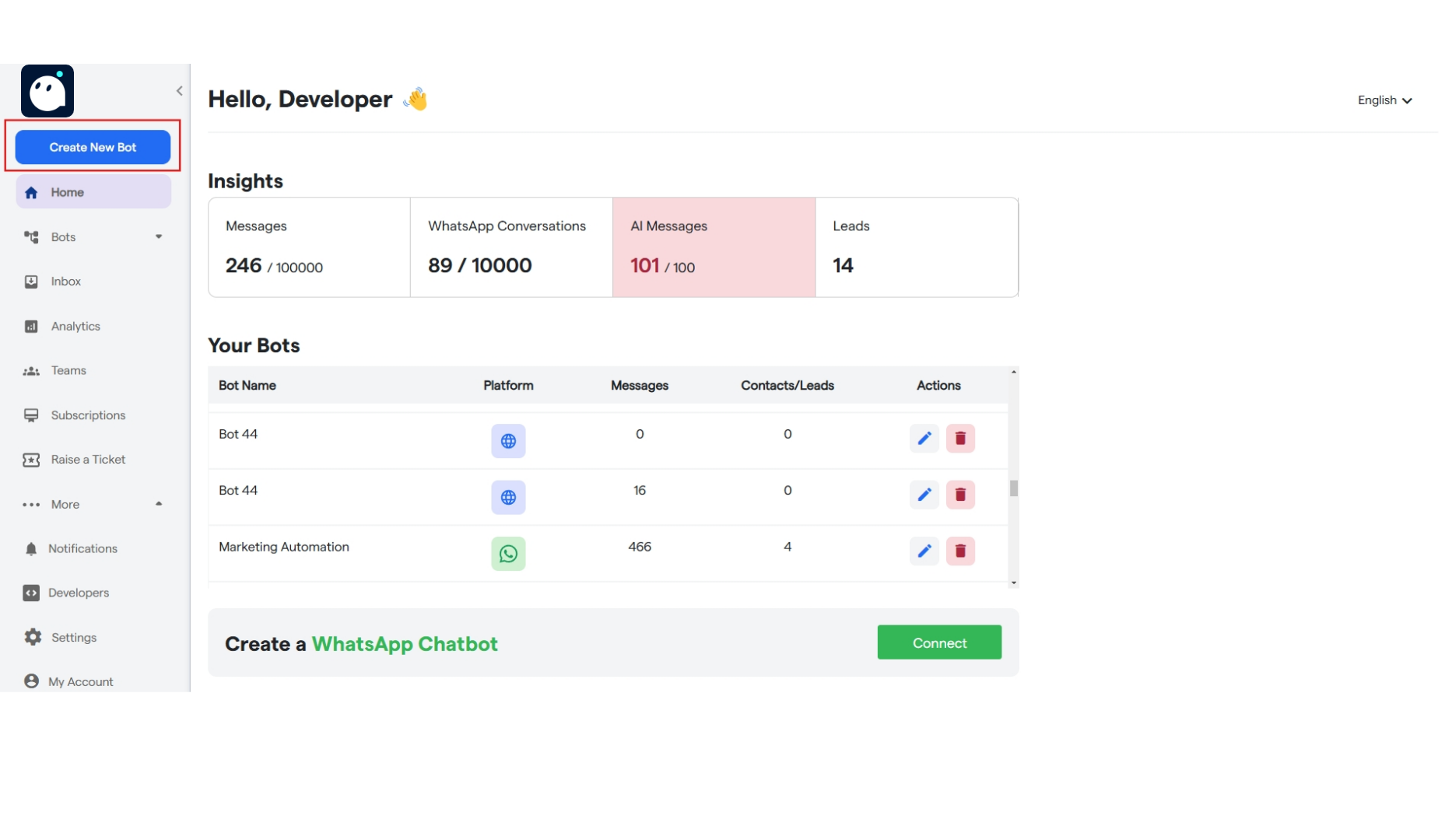
2. To start creating your new chatbot, click **"Create New Bot."**
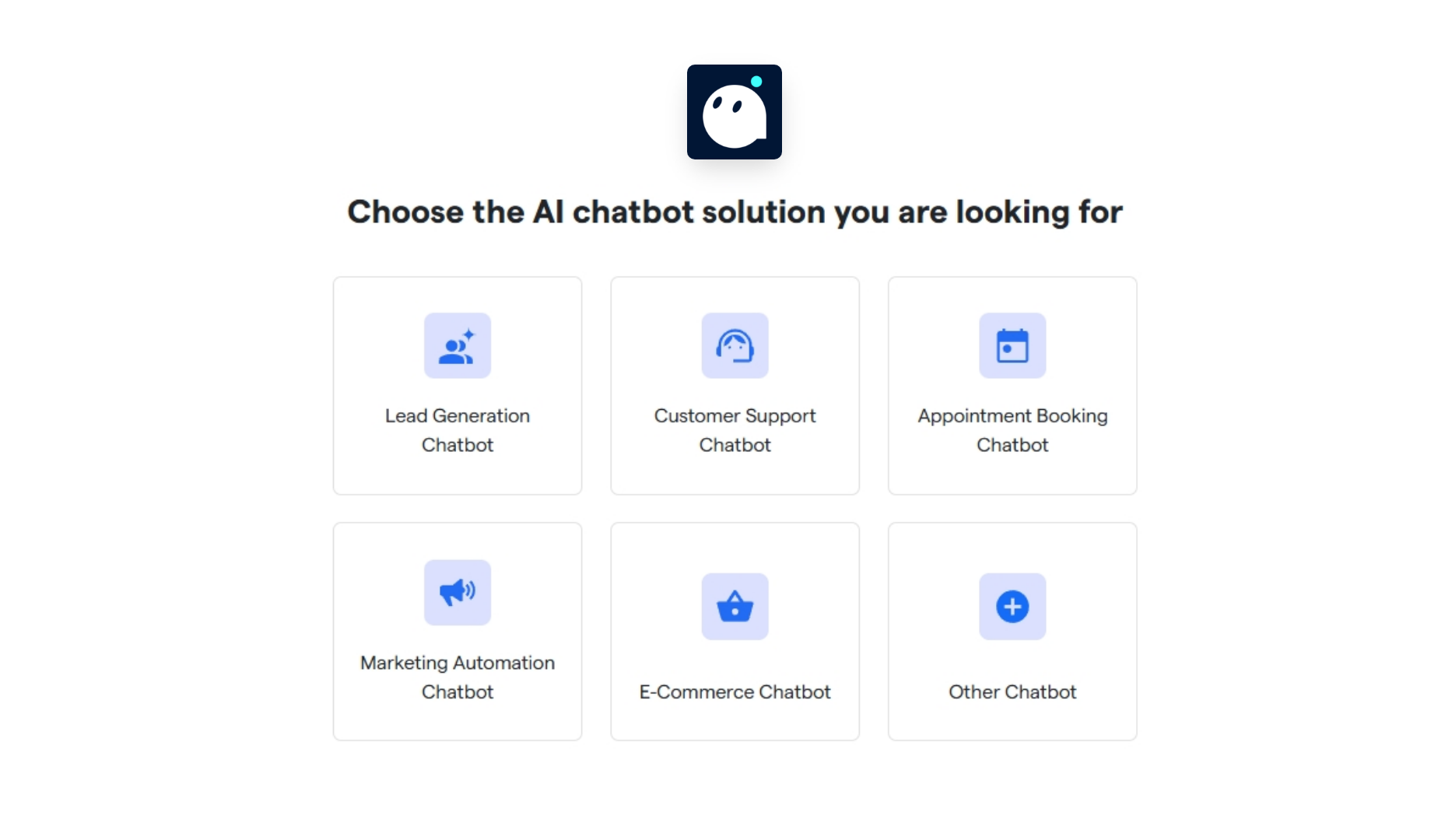
 3. Select the primary purpose for creating your bot and proceed further.
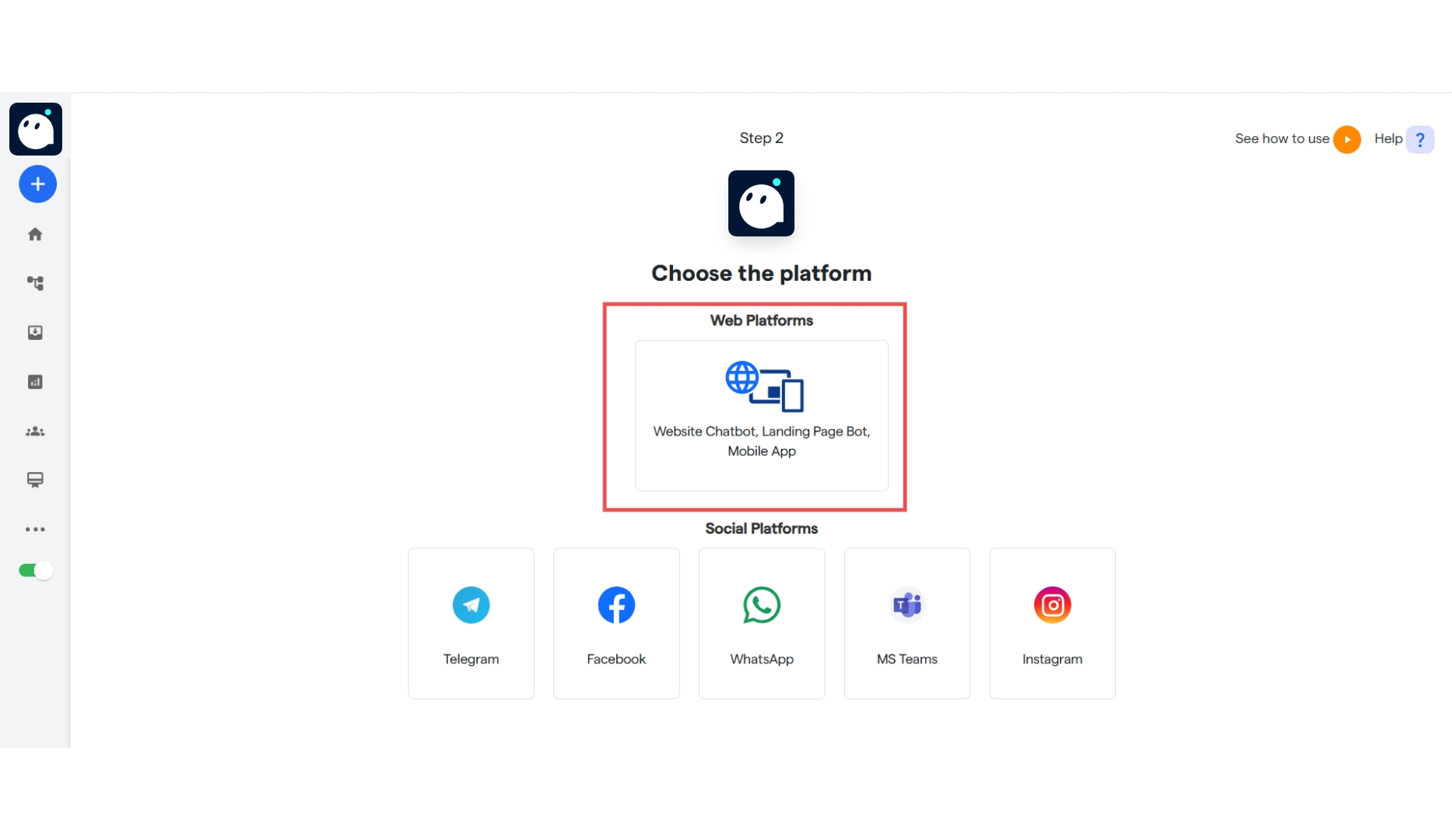
 4. Select the platform: **“Website Chatbot”**
 5. You will see a notification: **"Bot has been successfully created.”**
6. Your bot has been successfully created.
7. Now you need to deploy this chatbot to your Squarespace website.
### **How to Install a Chatbot on Squarespace?**
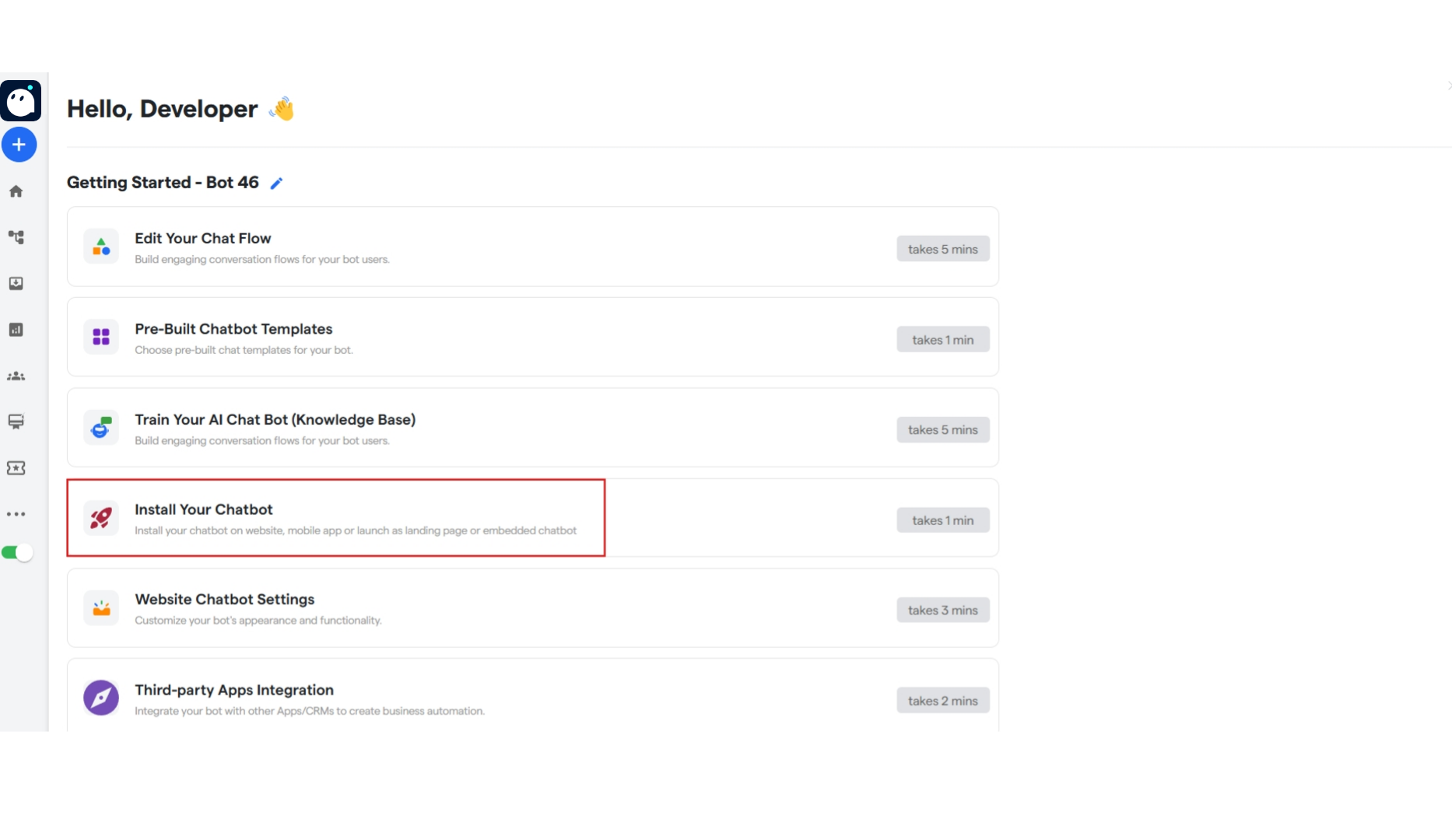
1. To manage your bot, select it from the left sidebar.
2. Now click on **“Install Your Chatbot.”**
5. You will see a notification: **"Bot has been successfully created.”**
6. Your bot has been successfully created.
7. Now you need to deploy this chatbot to your Squarespace website.
### **How to Install a Chatbot on Squarespace?**
1. To manage your bot, select it from the left sidebar.
2. Now click on **“Install Your Chatbot.”**
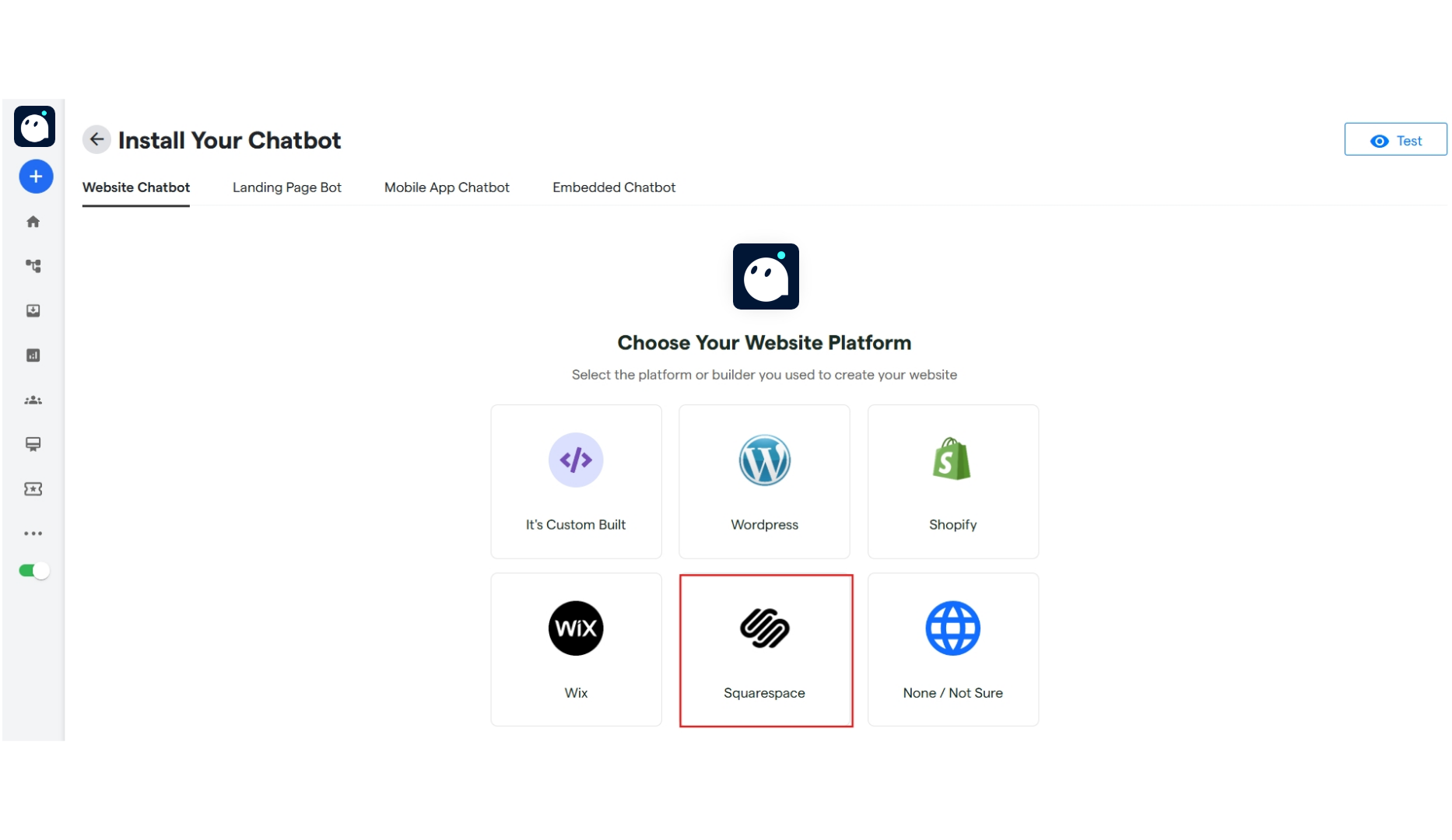
 3. You can select the platform where you need to deploy your chatbot.
4. Click on **“Squarespace”** to install your chatbot on your Squarespace website.
3. You can select the platform where you need to deploy your chatbot.
4. Click on **“Squarespace”** to install your chatbot on your Squarespace website.
 #### **Test Your Chatbot**
5. To see how your chatbot will function and appear on your Squarespace website and landing page, click the **"Test"** button and select whether you want to test the Website or Landing Page bot.
6. Now let’s move ahead with the installing part.
**Get Chatbot Installation code:** From this section, you can directly copy the script code for your chatbot.
**Share Installation code: I**nstallation code will be sent directly to your development team via email.
**Ask Converse Support:** Our team will assist you in installing your chatbot.
7. Copy the provided snippet and enter your Squarespace website URL for verification. Then, click **“Verify”** to complete the process.
8. Now, paste the copied code into your Squarespace website. Here are the quick steps to follow.
9. Go to your Squarespace website and click on **“ADD SECTION”**
#### **Test Your Chatbot**
5. To see how your chatbot will function and appear on your Squarespace website and landing page, click the **"Test"** button and select whether you want to test the Website or Landing Page bot.
6. Now let’s move ahead with the installing part.
**Get Chatbot Installation code:** From this section, you can directly copy the script code for your chatbot.
**Share Installation code: I**nstallation code will be sent directly to your development team via email.
**Ask Converse Support:** Our team will assist you in installing your chatbot.
7. Copy the provided snippet and enter your Squarespace website URL for verification. Then, click **“Verify”** to complete the process.
8. Now, paste the copied code into your Squarespace website. Here are the quick steps to follow.
9. Go to your Squarespace website and click on **“ADD SECTION”**
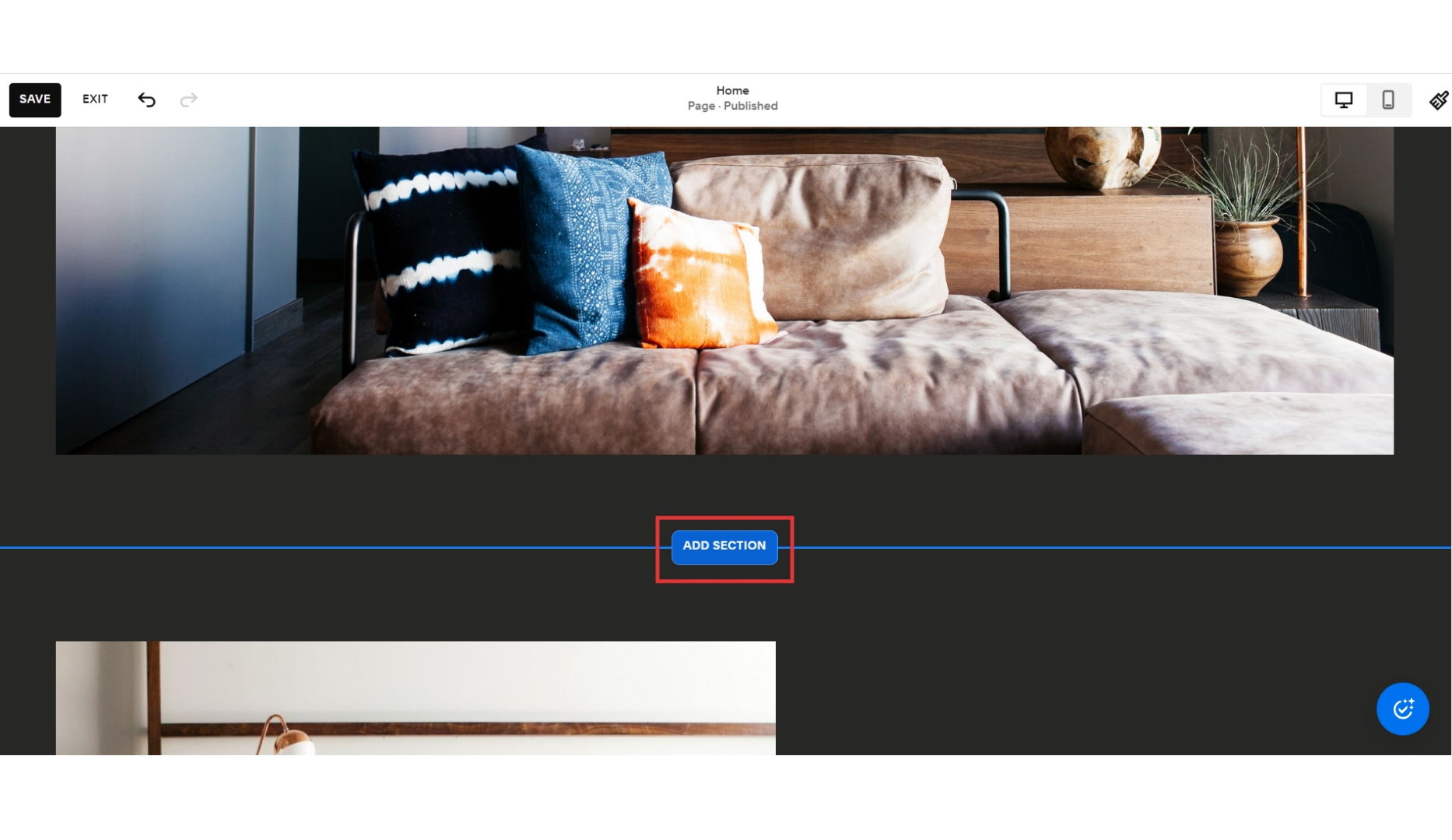 10. Then, click on **“ADD BLOCK”**
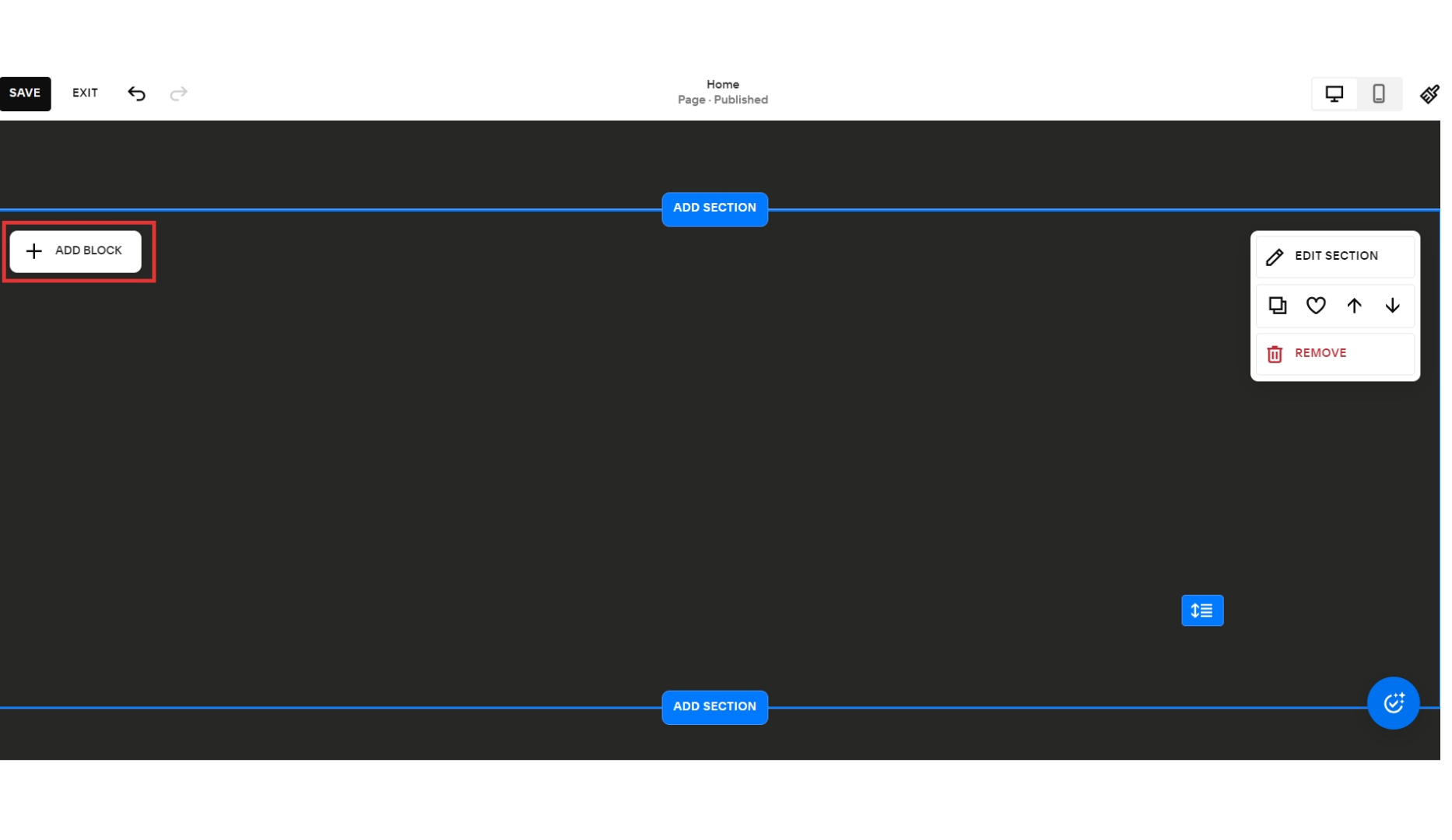 11. Select the **“Code”** block, to start entering your copied code.
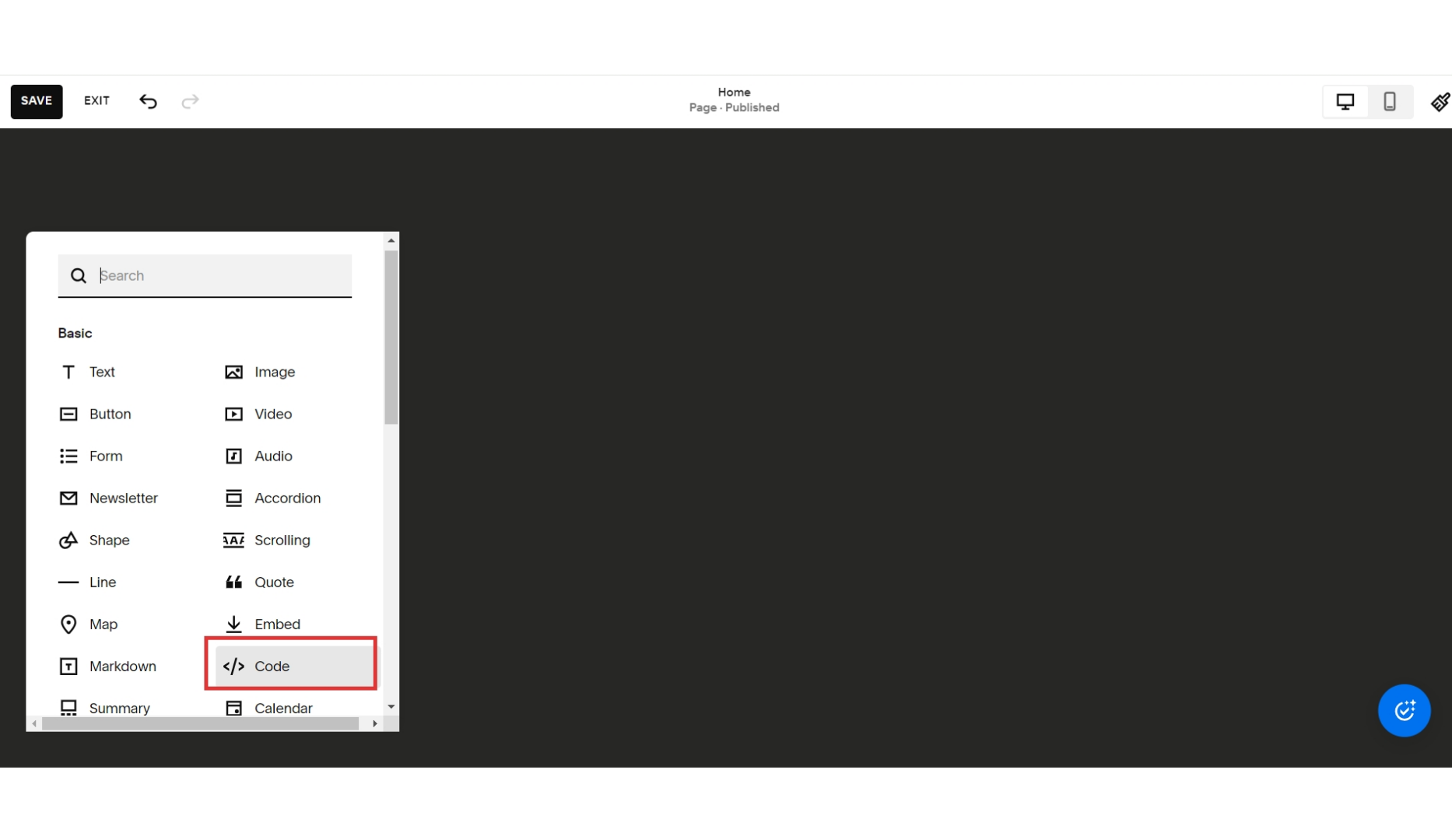 12. Add your copied HTML code here.
And you have successfully added your chatbot to your Squarespace website.
12. Add your copied HTML code here.
And you have successfully added your chatbot to your Squarespace website.