> ## Documentation Index
> Fetch the complete documentation index at: https://docs.converse.vitxi.ai/llms.txt
> Use this file to discover all available pages before exploring further.
# Telegram Chatbot
> This section contains a tutorial on how to create a Telegram Chatbot, edit the bot's chat flow and bot's settings.
1. *Select* the "Telegram Chatbot" at platform selection. Then:
1. You will be asked to enter your phone number which is connected with telegram.
2. You will receive a `Login code` in your Telegram account. Enter the Login Code here and click to login to your Telegram Account.
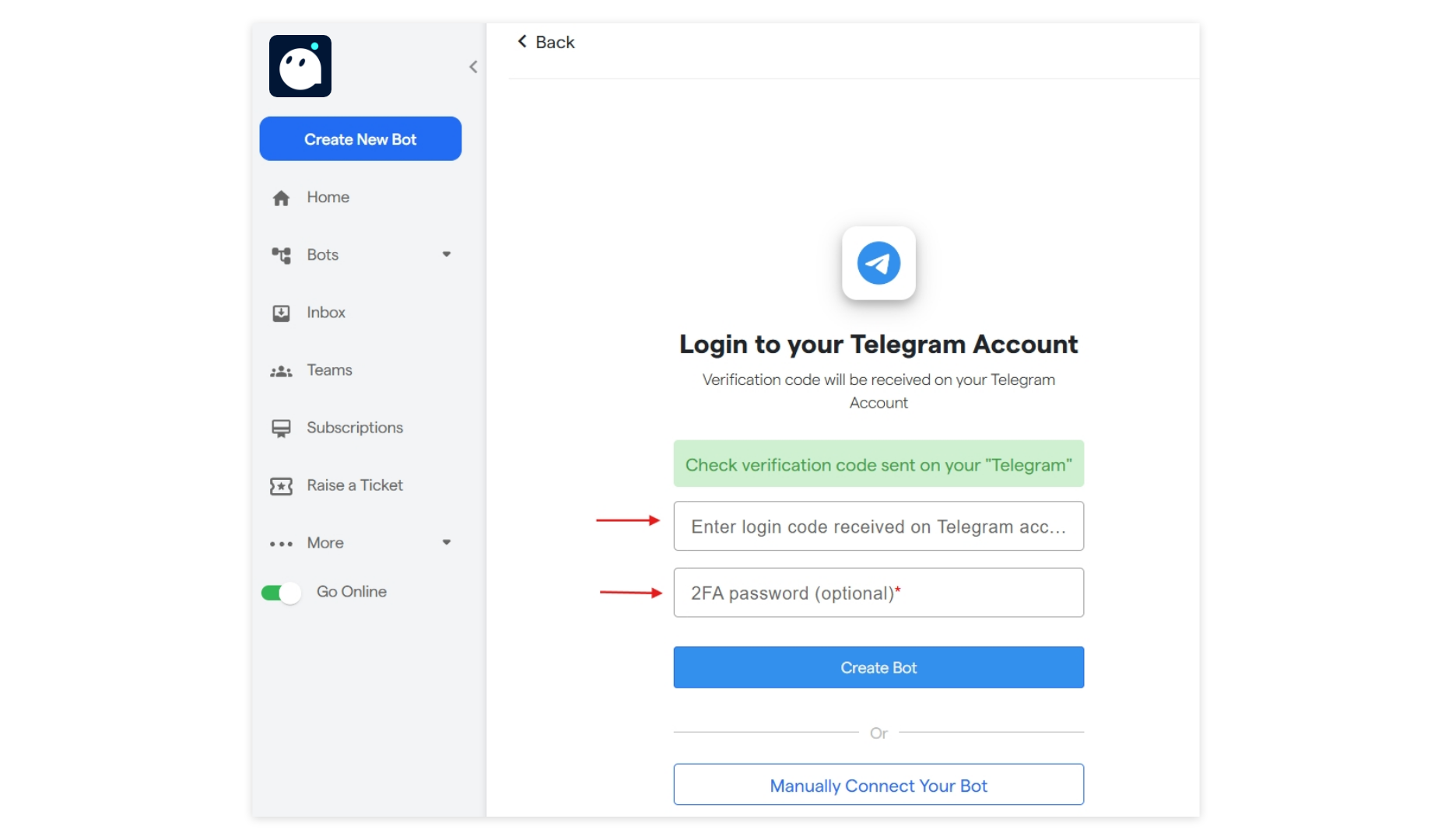 3. You may click to `resend` code in case you haven\`t received it. If still not received the login code, please verify the Telegram mobile number and re-enter it by clicking`Change number`.
### **Manually Connect Your Bot**
1. Enter the Bot name which you want to connect.
2. Enter the Bot user name which you want to connect
3. Enter the Bot Authentication Token recieved on telegram from "BotFather".
4. Click on Connect Bot.
### **Create Your Bot**
1. You may choose an existing Telegram bot to connect with Converse or you can select "manually connect to bot". Then enter :
1. Name of your new bot,
2. Username. Username should end with `bot`. example: abc\_bot or abcbot.
3. You may click to `resend` code in case you haven\`t received it. If still not received the login code, please verify the Telegram mobile number and re-enter it by clicking`Change number`.
### **Manually Connect Your Bot**
1. Enter the Bot name which you want to connect.
2. Enter the Bot user name which you want to connect
3. Enter the Bot Authentication Token recieved on telegram from "BotFather".
4. Click on Connect Bot.
### **Create Your Bot**
1. You may choose an existing Telegram bot to connect with Converse or you can select "manually connect to bot". Then enter :
1. Name of your new bot,
2. Username. Username should end with `bot`. example: abc\_bot or abcbot.
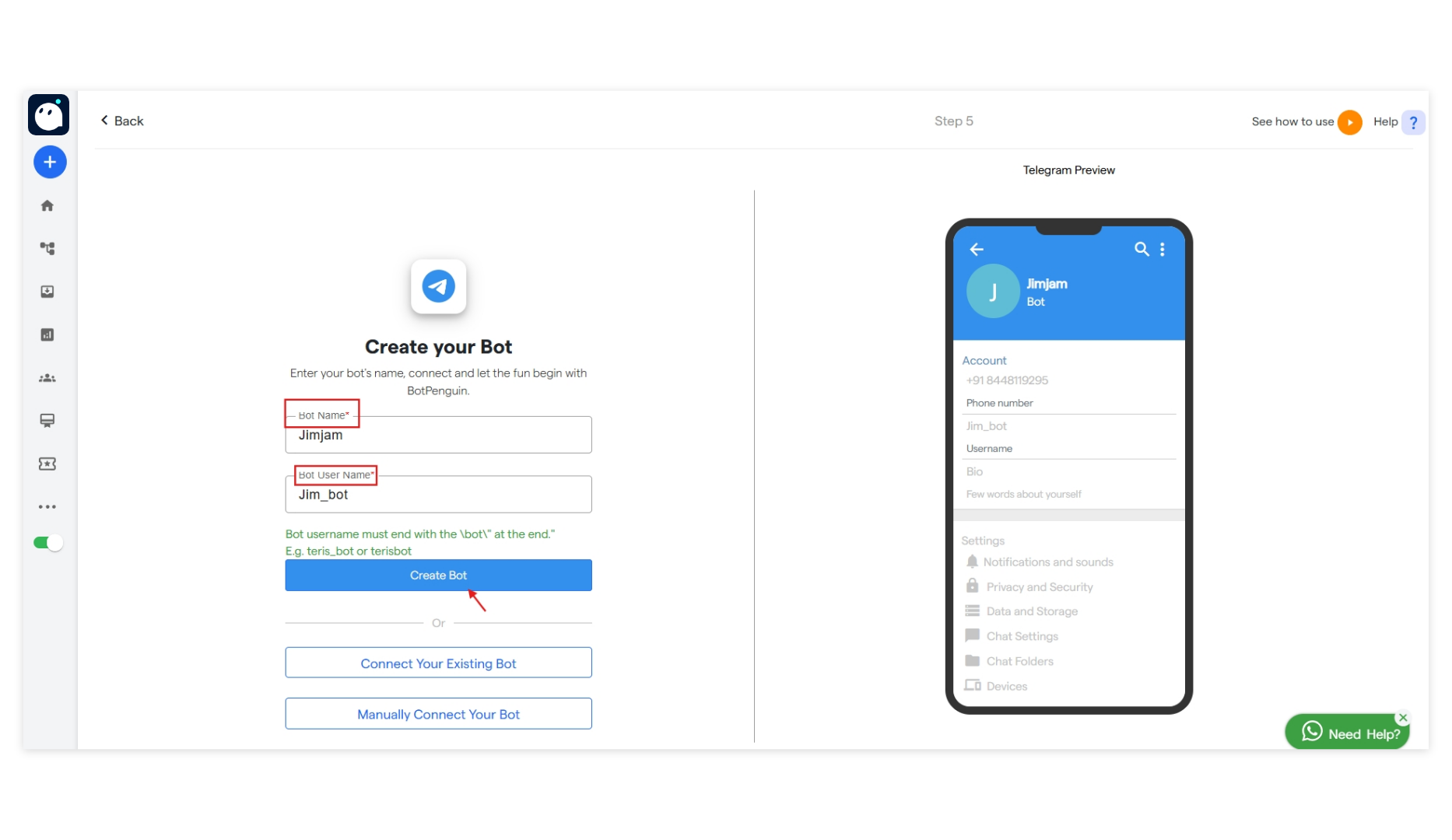 2. Enter the details and click `Connect` and you will be directed to the dashboard section where you can `Edit your chat flow` and `Telegram Bot Settings`.
### **Edit Your Chat Flow**
1. A chat flow is a structure of messages that determines how a conversation will take place between your chatbot and the user. Click on the `Edit Your Chat Flow` tab to customize your chat flow.
2. Enter the details and click `Connect` and you will be directed to the dashboard section where you can `Edit your chat flow` and `Telegram Bot Settings`.
### **Edit Your Chat Flow**
1. A chat flow is a structure of messages that determines how a conversation will take place between your chatbot and the user. Click on the `Edit Your Chat Flow` tab to customize your chat flow.
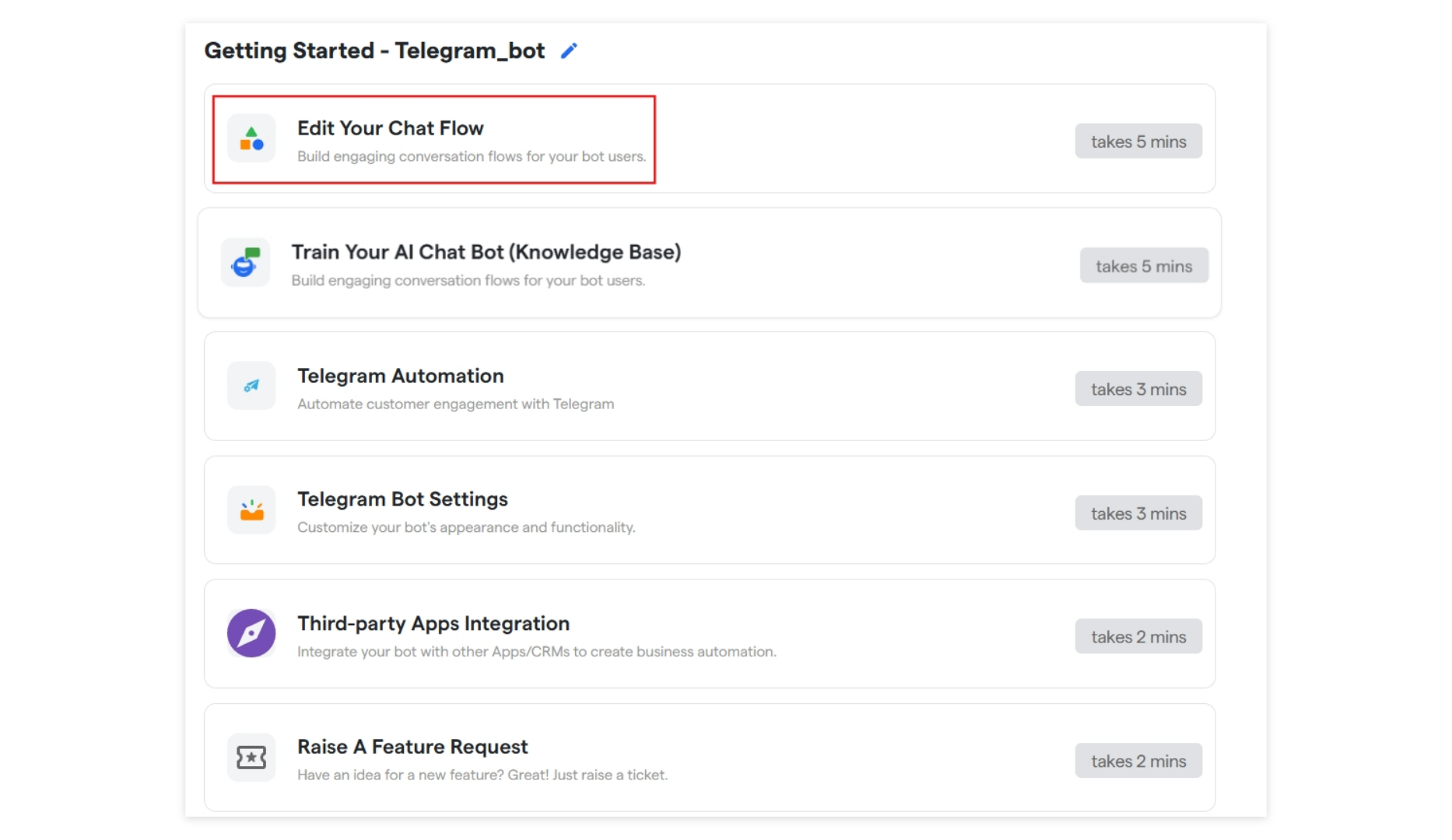 2. Here, you will find a pre-created template of a chat flow that you can customize as per your business needs. It is very easy and quick to customize the chat flow.
### **Telegram Automation**
Here you can configure automation settings for your telegram bot
### **Chat Flows**
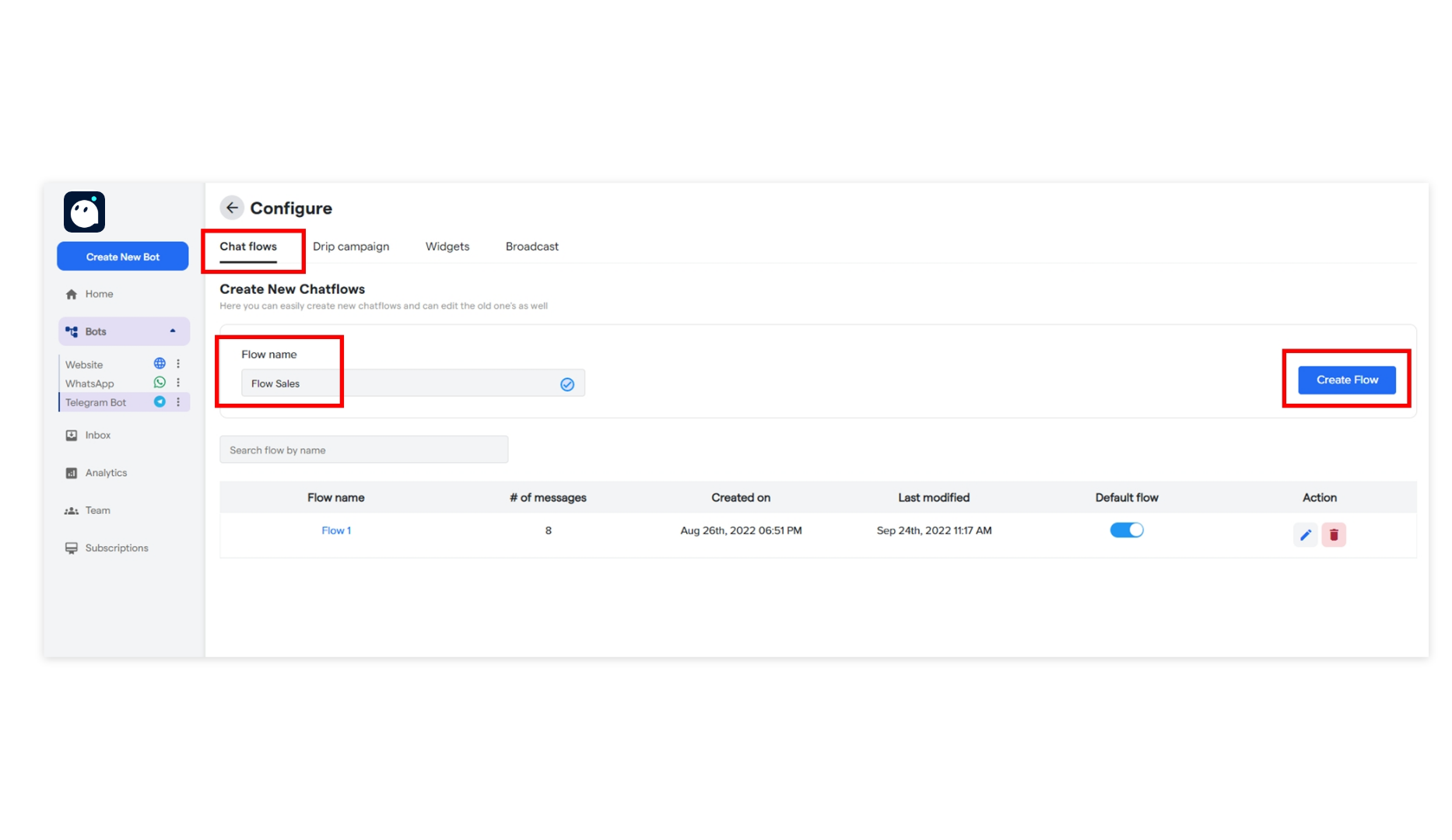
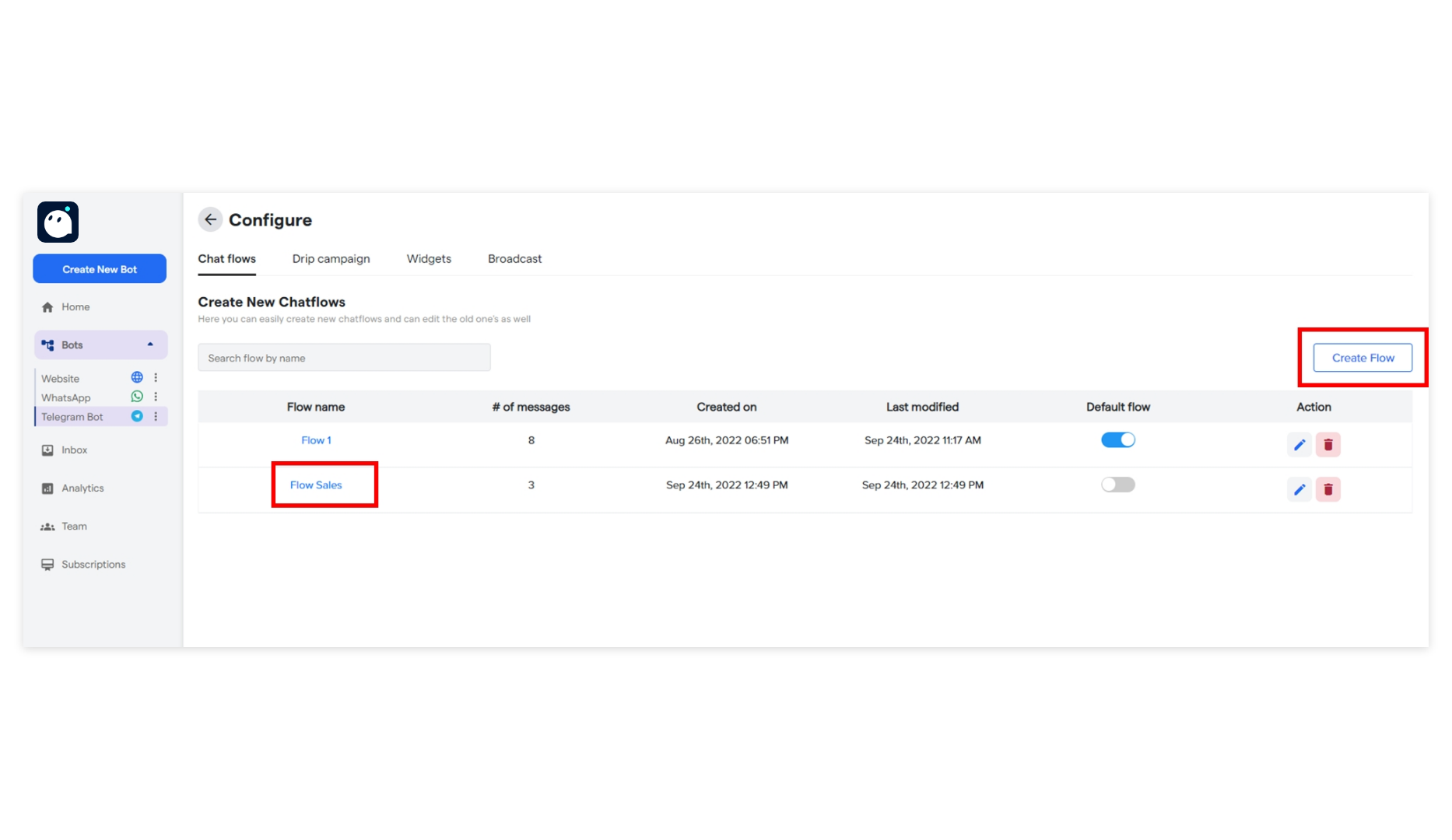
Here, you can also create multiple chat flows from the `Create flow` option by adding the name of the flow. Once a flow is added, it will be listed under `Flow name`. This way you can add any number of flows.
2. Here, you will find a pre-created template of a chat flow that you can customize as per your business needs. It is very easy and quick to customize the chat flow.
### **Telegram Automation**
Here you can configure automation settings for your telegram bot
### **Chat Flows**
Here, you can also create multiple chat flows from the `Create flow` option by adding the name of the flow. Once a flow is added, it will be listed under `Flow name`. This way you can add any number of flows.
 ### **Drip Campaigns**
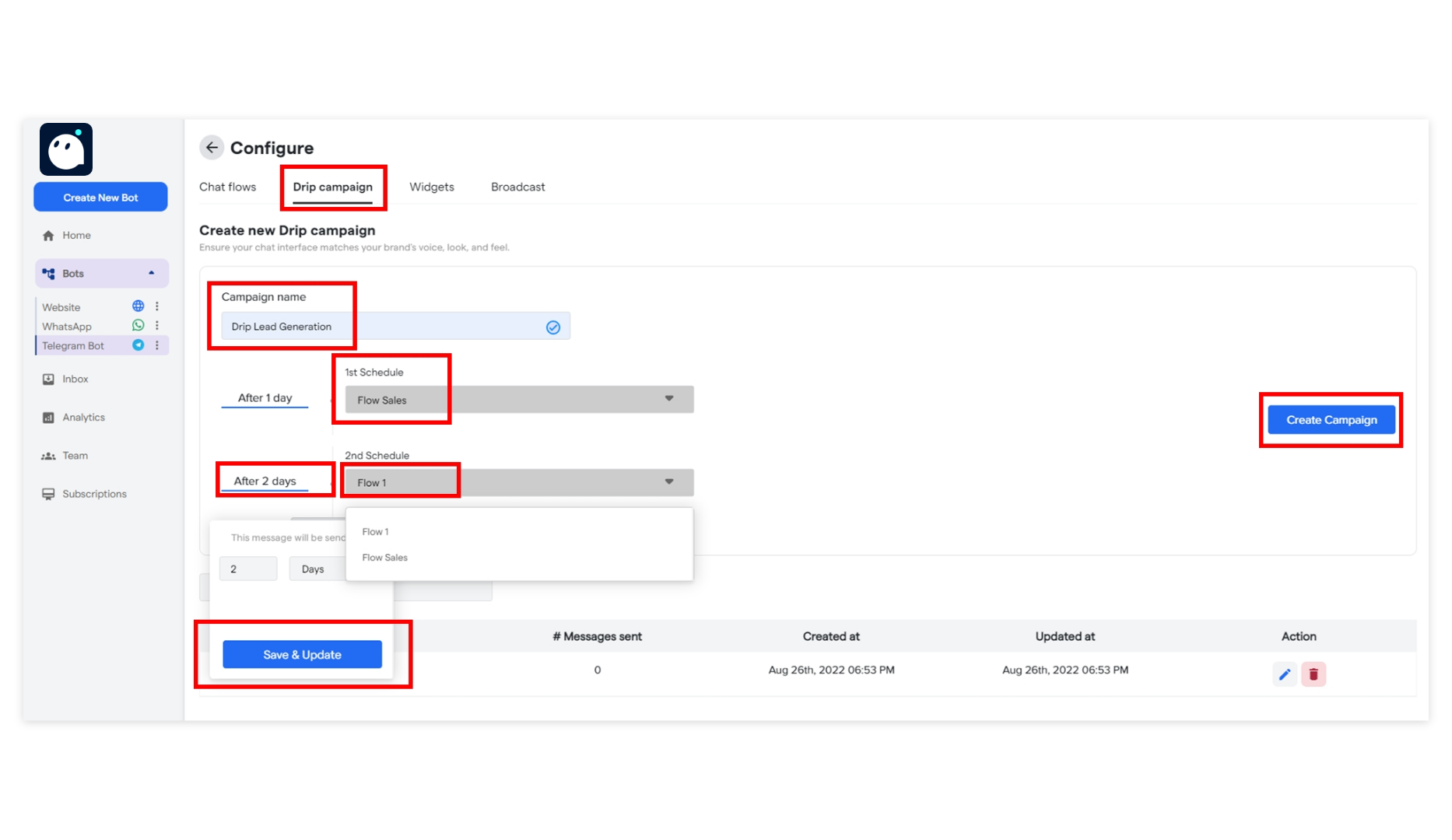
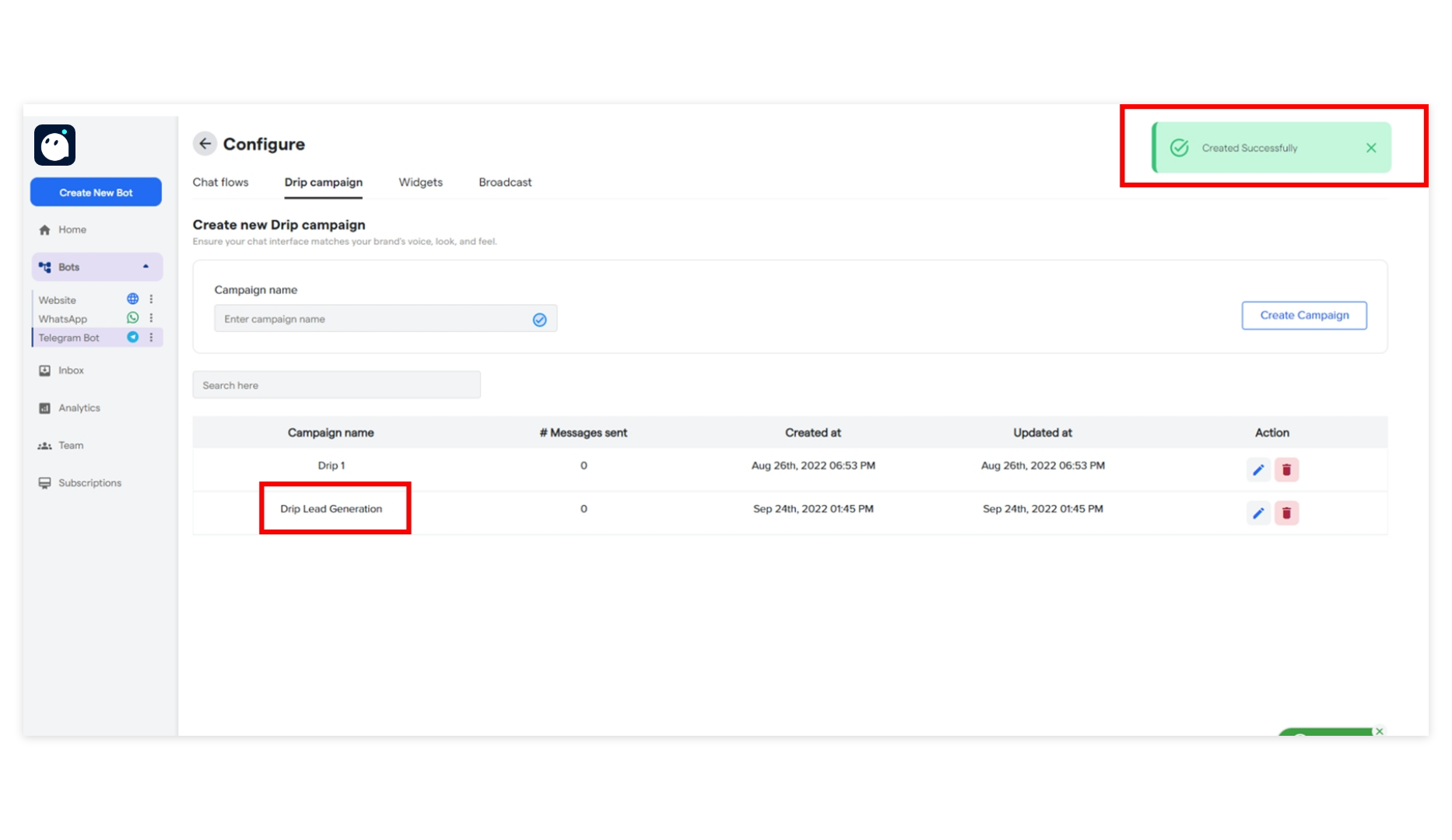
Drip Campaign is a scheduled and structured flow of messages created for customer onboarding journeys. To create one, go to the `Drip Campaigns` tab and click `Create Campaign`.
### **Drip Campaigns**
Drip Campaign is a scheduled and structured flow of messages created for customer onboarding journeys. To create one, go to the `Drip Campaigns` tab and click `Create Campaign`.
 ### **Widgets**
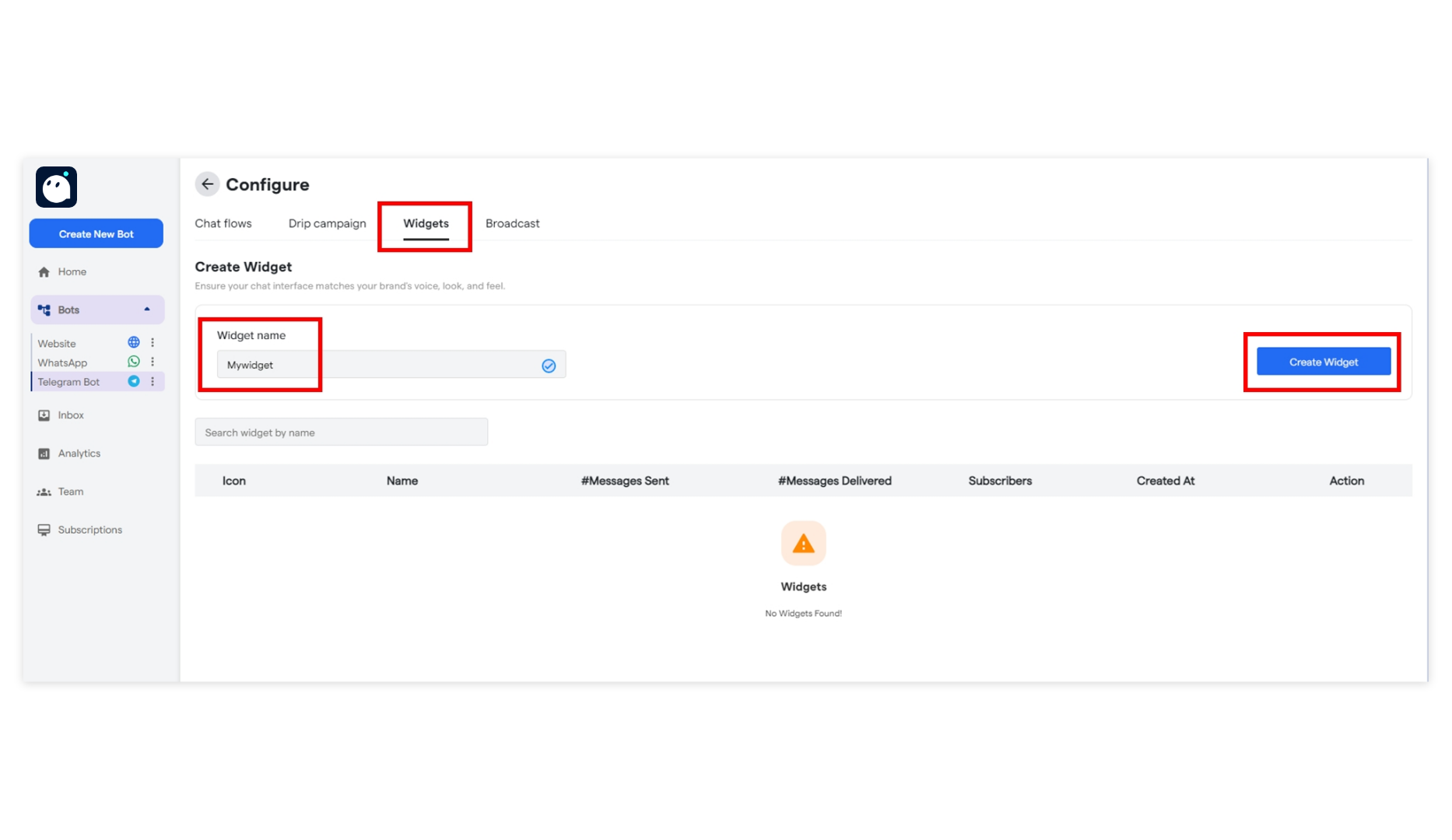
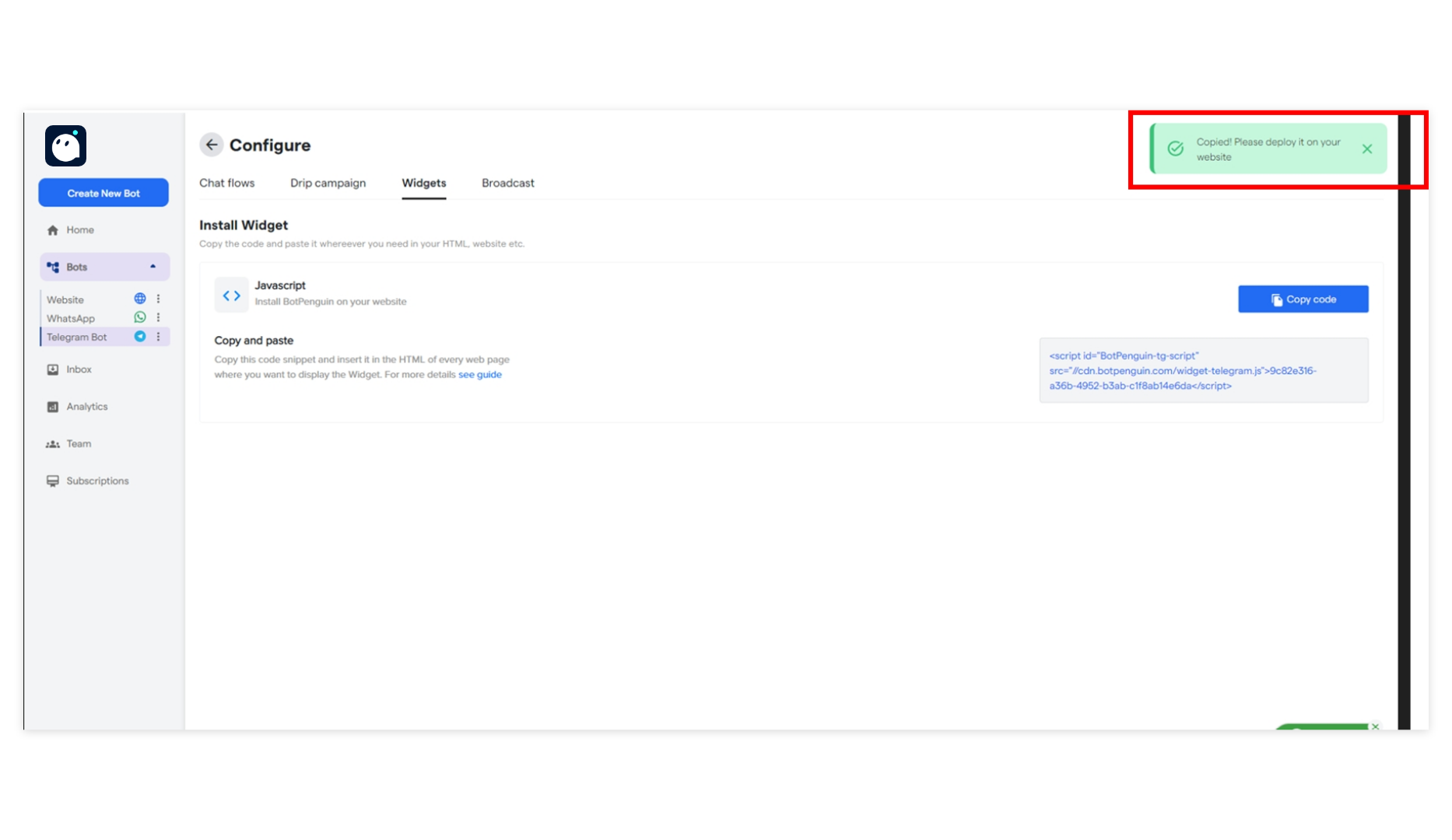
A Widget is a chat interface that can be installed in your website, ads, blogs or any promotional content to route subscribers to your Chatbot. You can create multiple widgets by following a few easy steps on the Converse dashboard. To create one, go to the `Widgets` tab in `Bot Settings` and click `Create Widget` on the extreme right.
### **Widgets**
A Widget is a chat interface that can be installed in your website, ads, blogs or any promotional content to route subscribers to your Chatbot. You can create multiple widgets by following a few easy steps on the Converse dashboard. To create one, go to the `Widgets` tab in `Bot Settings` and click `Create Widget` on the extreme right.
 ### **Broadcast**
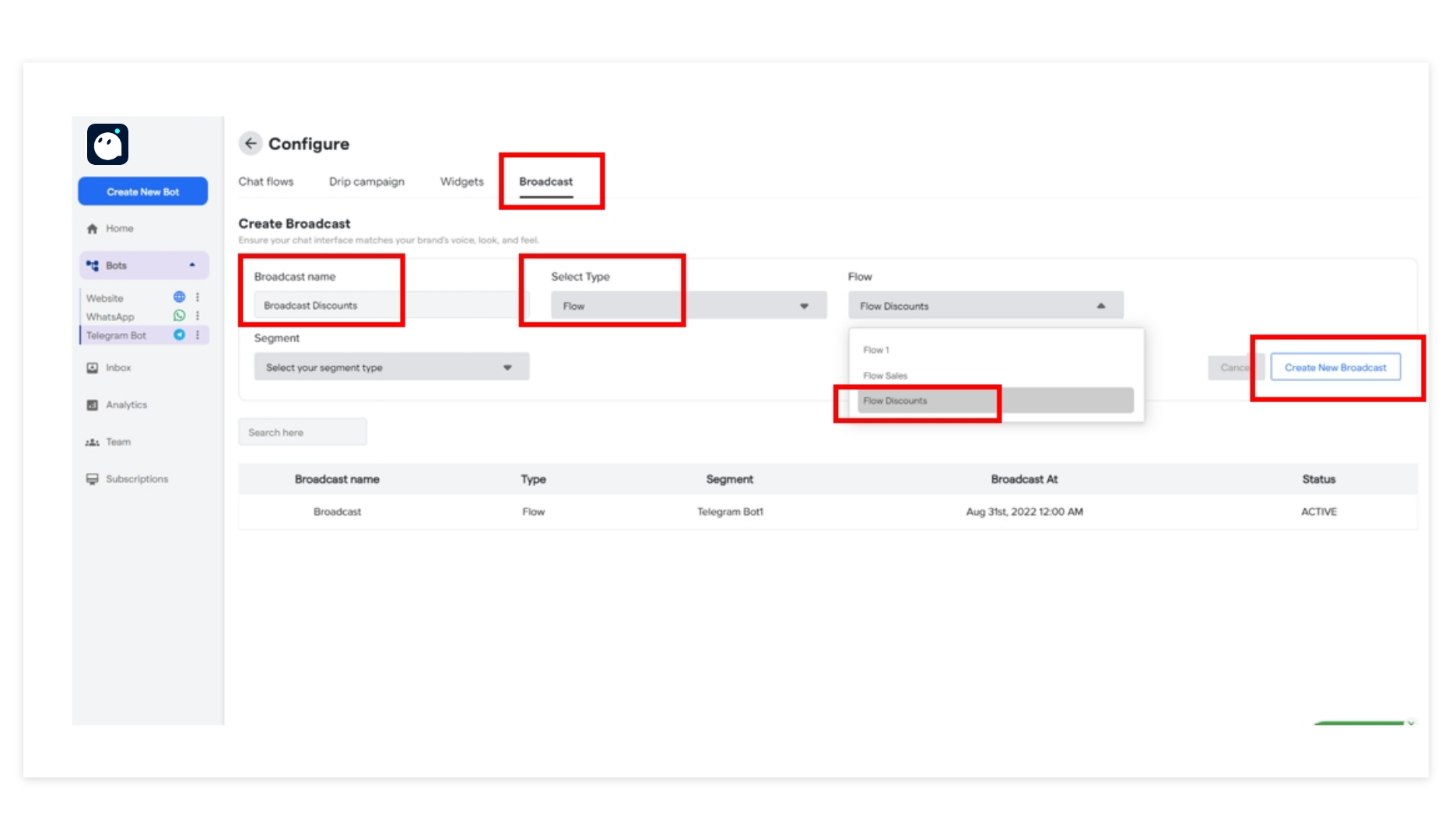
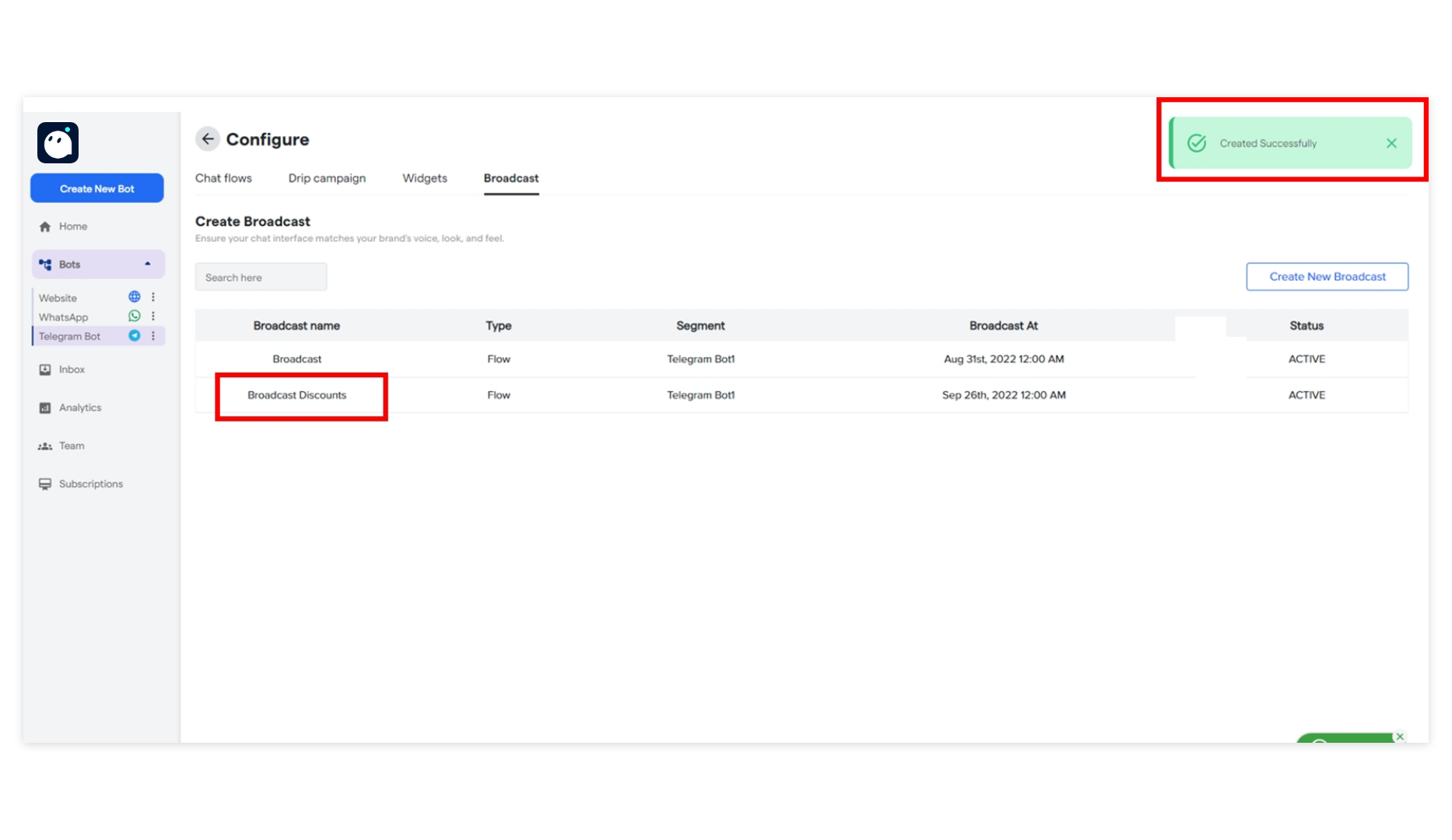
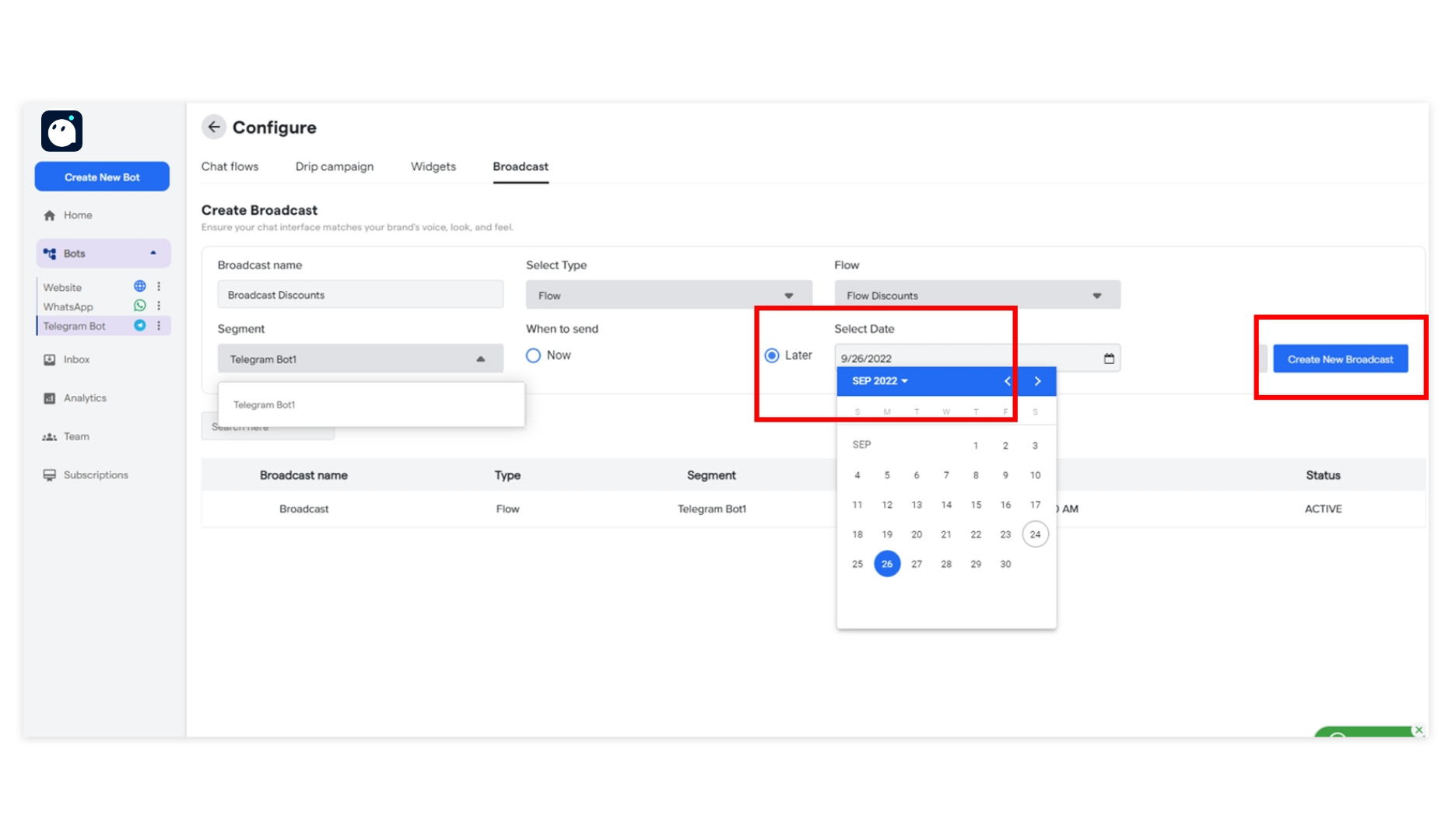
A Broadcast is a chat flow or a message that can be blasted in one click, to the targeted segment or group of contacts. To create one, go to the `Broadcast` tab in the `Bot Settings` and click the `Create New Broadcast` on the extreme right.
### **Broadcast**
A Broadcast is a chat flow or a message that can be blasted in one click, to the targeted segment or group of contacts. To create one, go to the `Broadcast` tab in the `Bot Settings` and click the `Create New Broadcast` on the extreme right.