> ## Documentation Index
> Fetch the complete documentation index at: https://docs.converse.vitxi.ai/llms.txt
> Use this file to discover all available pages before exploring further.
# Landing Page Chatbot
> Landing page like never before, get started. This guide will walk you through the steps to create your Landing Page chatbot.
To create your Landing page chatbot and manage all your chatbots, you first need to visit the Converse Dashboard
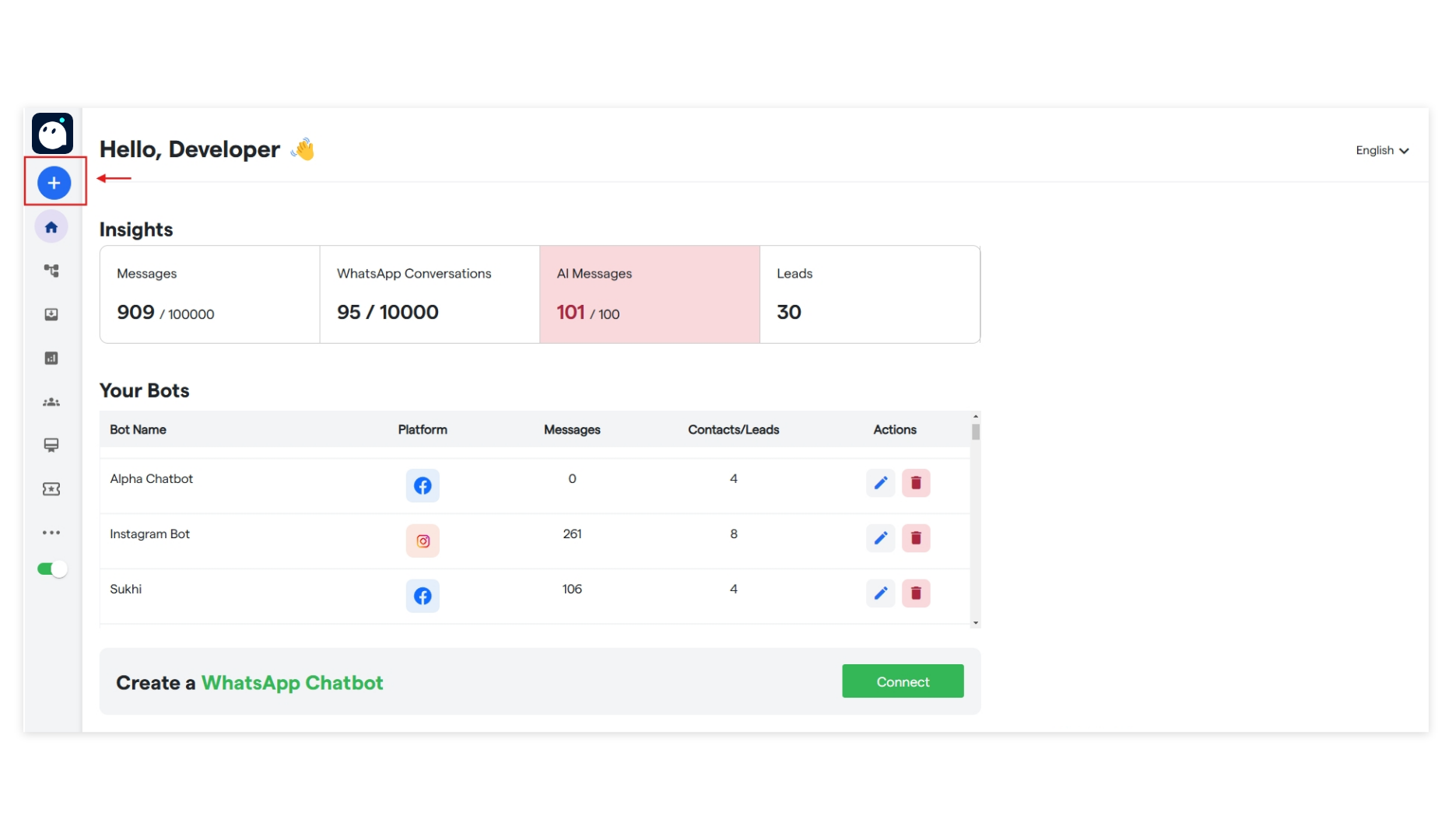 To start creating your new chatbot, click **"Create New Bot."**
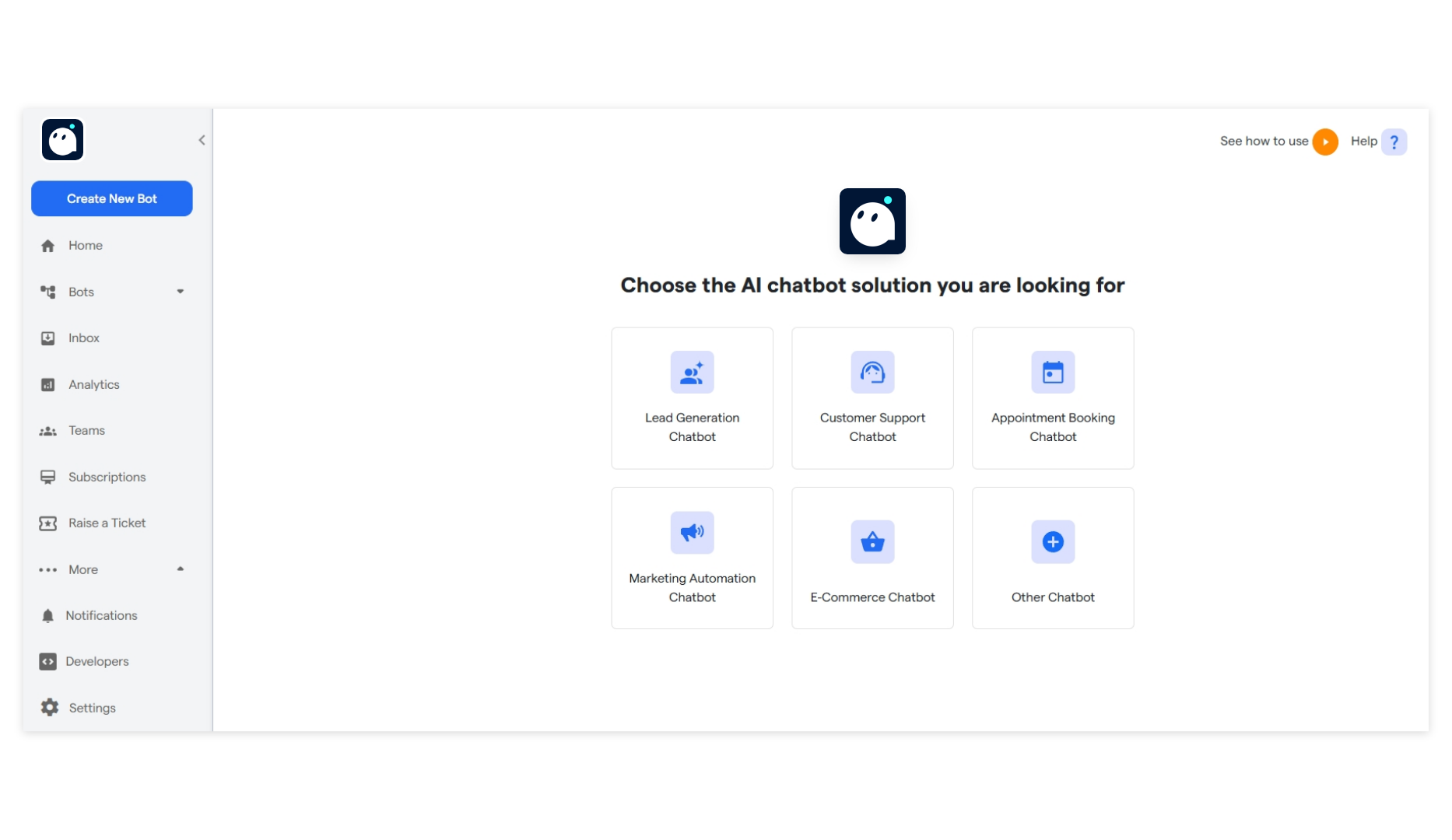
Select the primary purpose for creating your bot and proceed further.
To start creating your new chatbot, click **"Create New Bot."**
Select the primary purpose for creating your bot and proceed further.
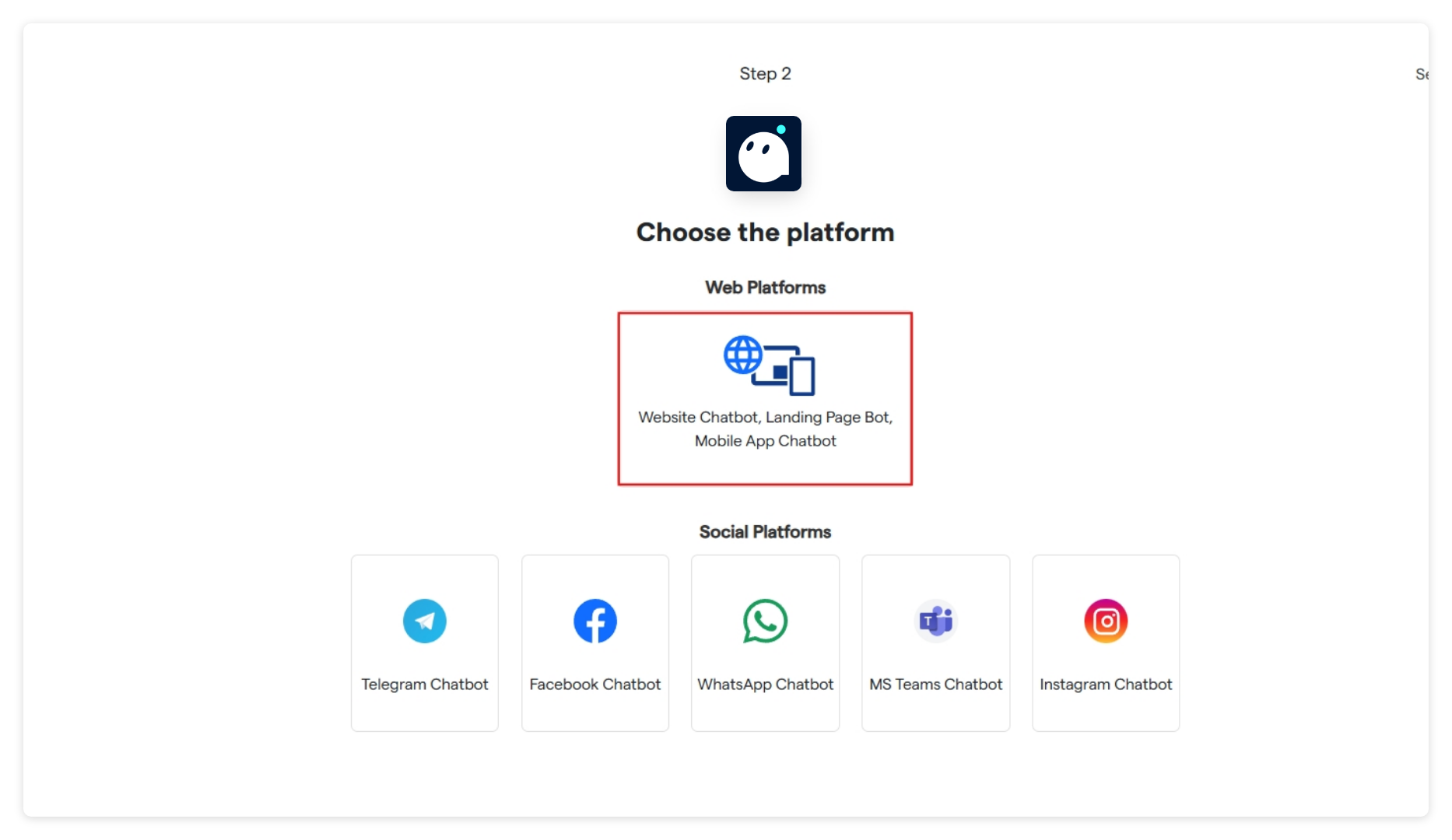
 Select the platform: **“Website Chatbot”**
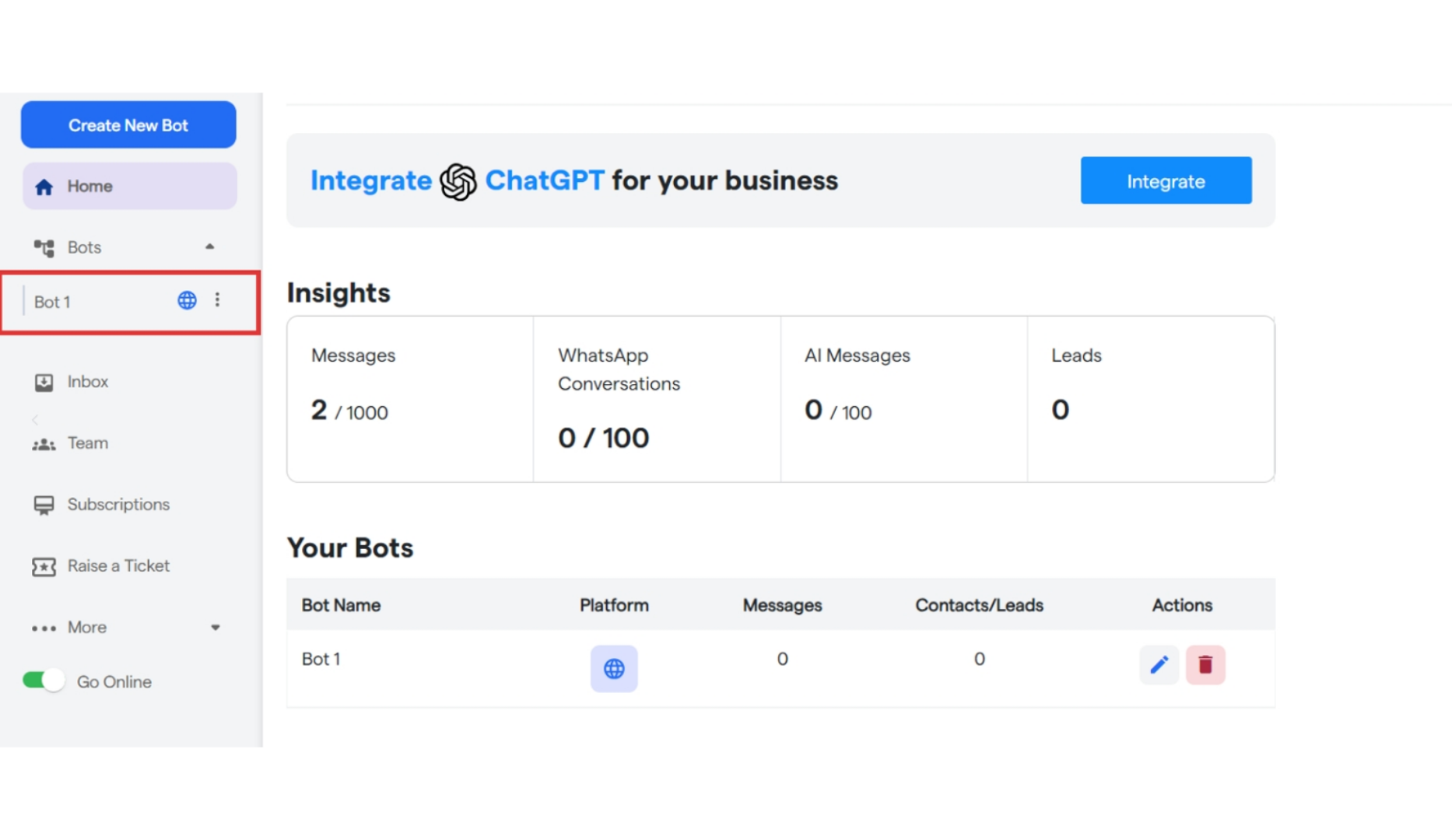
 You will see a notification: **"Bot has been successfully created.”**
Select the website chatbot you have created from sidebar.
You will see a notification: **"Bot has been successfully created.”**
Select the website chatbot you have created from sidebar.
 Click on **“Install Your Chatbot”.**
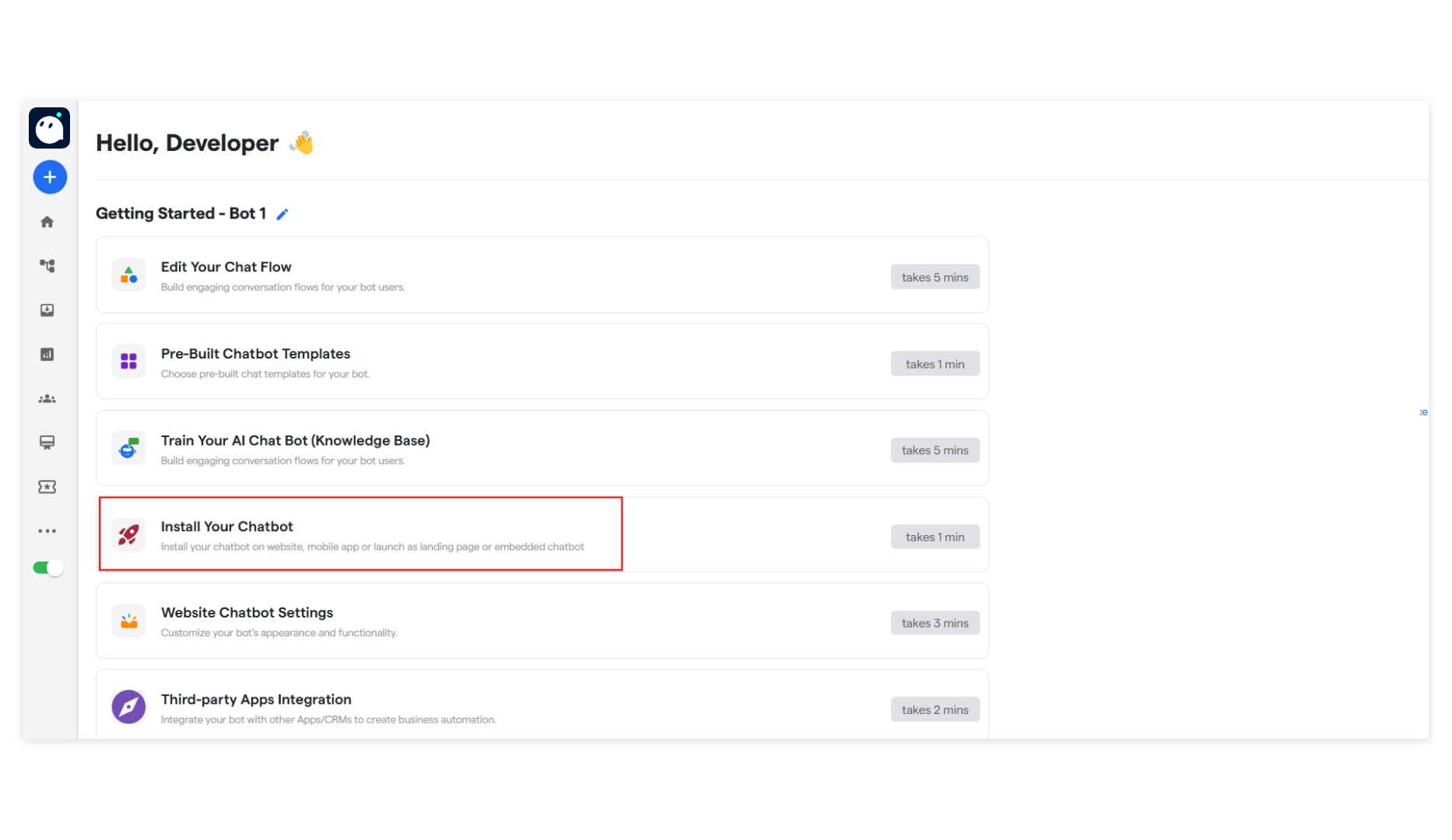 Select the **“Landing Page Bot”.**
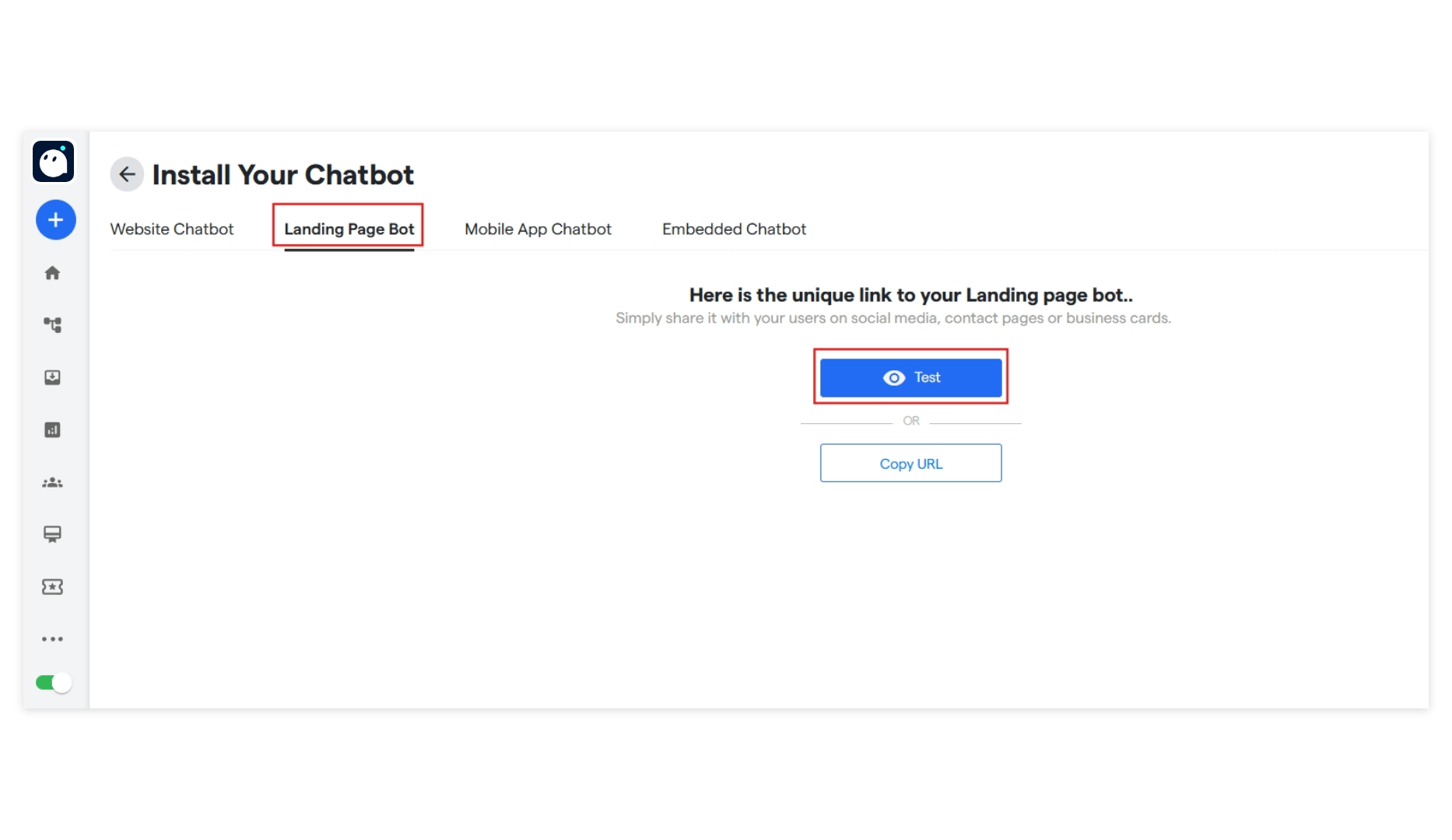 **Test:** To see how your chatbot will function and appear on your Landing page, click on the **"Test"** button.
Copy URL: Click on **“Copy URL”** and you can share this URL with your users.
**Test:** To see how your chatbot will function and appear on your Landing page, click on the **"Test"** button.
Copy URL: Click on **“Copy URL”** and you can share this URL with your users.
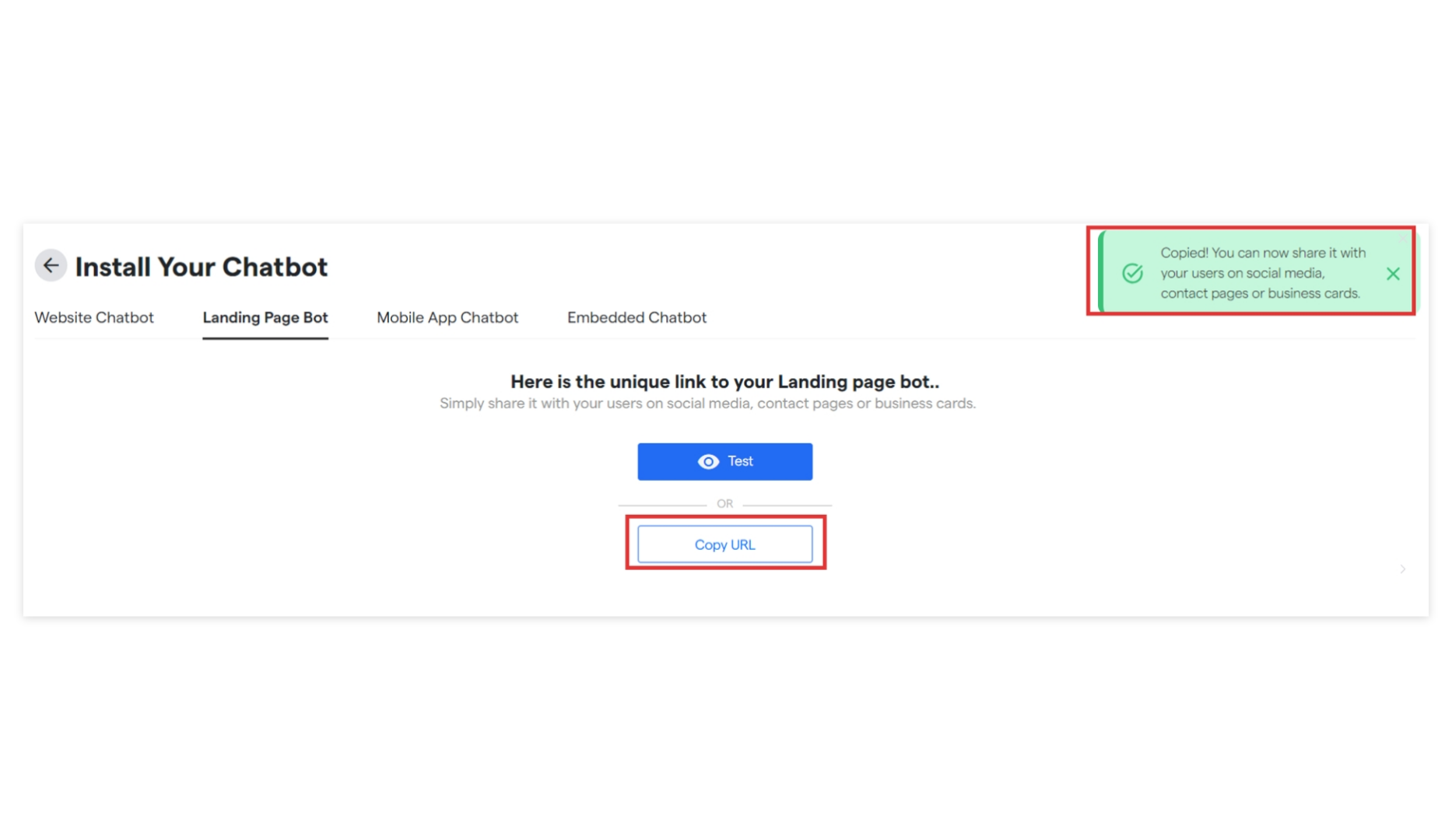 #### **You have created your Landing Page Chatbot.**
### **Embedded Chatbot**
Now, if you want to add a chatbot to your landing page, click on **“Embedded Chatbot”**
* **Get Chatbot Installation code:** From this section, you can directly copy the script code for your chatbot.
* **Share Installation code: I**nstallation code will be sent directly to your development team via email.
* **Ask Converse Support:** Our team will assist you in installing your chatbot.
Copy the provided script code and find the HTML file such as the header and paste the code that you copied inside the body tag.
Paste the code inside the body tag, then save and deploy your updated code.
#### **You have created your Landing Page Chatbot.**
### **Embedded Chatbot**
Now, if you want to add a chatbot to your landing page, click on **“Embedded Chatbot”**
* **Get Chatbot Installation code:** From this section, you can directly copy the script code for your chatbot.
* **Share Installation code: I**nstallation code will be sent directly to your development team via email.
* **Ask Converse Support:** Our team will assist you in installing your chatbot.
Copy the provided script code and find the HTML file such as the header and paste the code that you copied inside the body tag.
Paste the code inside the body tag, then save and deploy your updated code.