> ## Documentation Index
> Fetch the complete documentation index at: https://docs.converse.vitxi.ai/llms.txt
> Use this file to discover all available pages before exploring further.
# Webhooks
> Learn all about webhooks in Vitxi Converse
## **What are Webhooks?**
A **webhook** is a way for one app to automatically send data to another app when something happens. Instead of checking for updates all the time, the receiving app gives a special URL, and the sending app sends information to that URL as soon as the event occurs. This helps automate tasks, keep data updated in real-time, and connect different systems without manual work.
***
### **Benefits of Using Webhooks in Vitxi Converse**
The following are the benefits of using webhooks on Vitxi Converse:
1. **Receive instant alerts** on message failures, subscription expiries, and account issues.
2. **Trigger automated workflows** based on real-time message and account events.
3. **Monitor platform activity** with actionable insights on usage and performance.
4. **Integrate seamlessly** with CRMs, marketing tools, and internal systems.
***
### **How to use Webhooks on Converse:**
1. Log into your Vitxi Converse account, and then go **Developer** section under the More section.
2. Click on the third tab to access the "Webhooks" section.
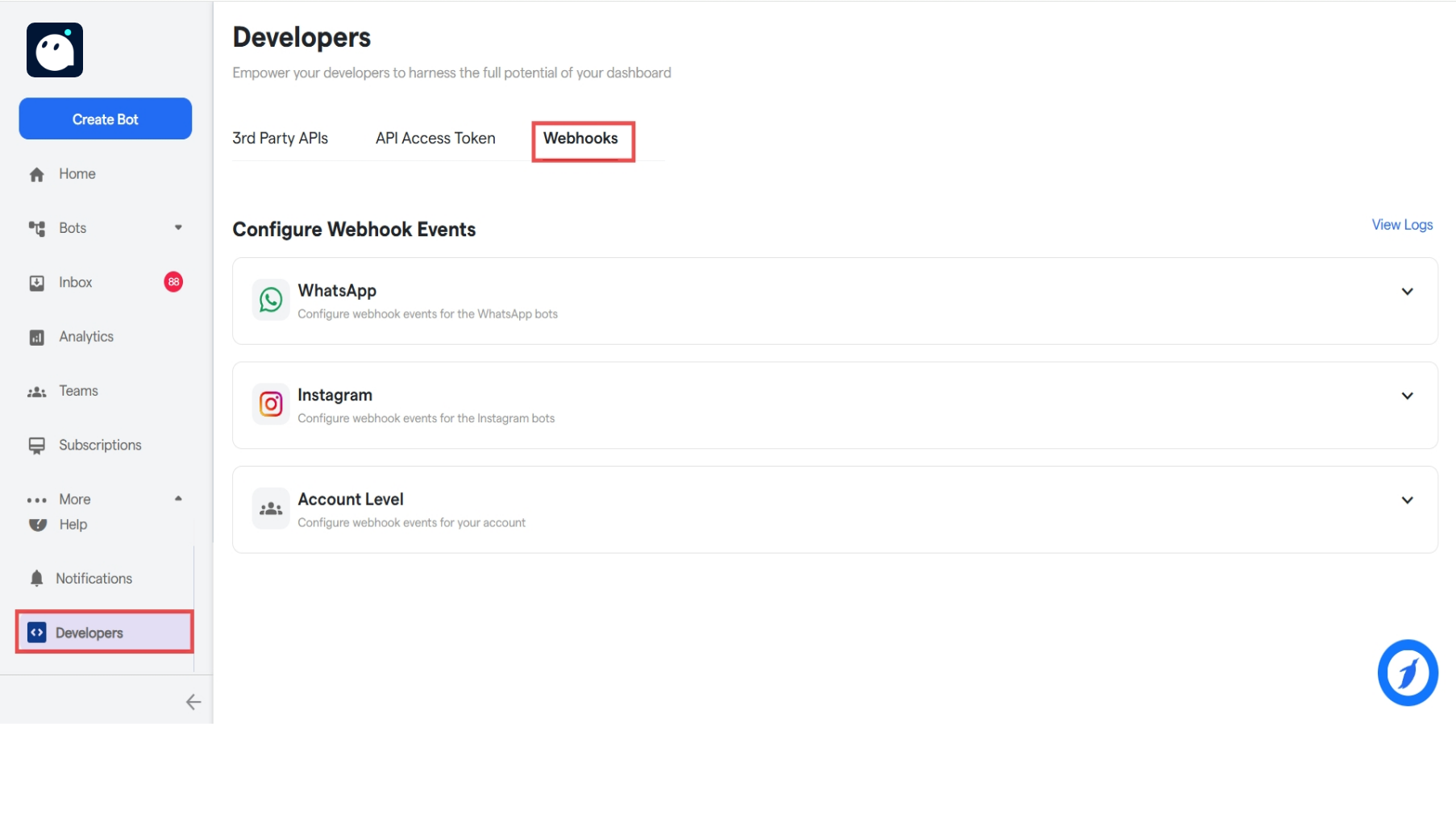 3. Here, the user has the options to configure webhooks for 3 types, WhatsApp, Instagram and Account Level.
4. Click on a card(WhatsApp, Instagram or Account Level) to configure the section.
5. Click on "Subscribe Webhooks".
3. Here, the user has the options to configure webhooks for 3 types, WhatsApp, Instagram and Account Level.
4. Click on a card(WhatsApp, Instagram or Account Level) to configure the section.
5. Click on "Subscribe Webhooks".
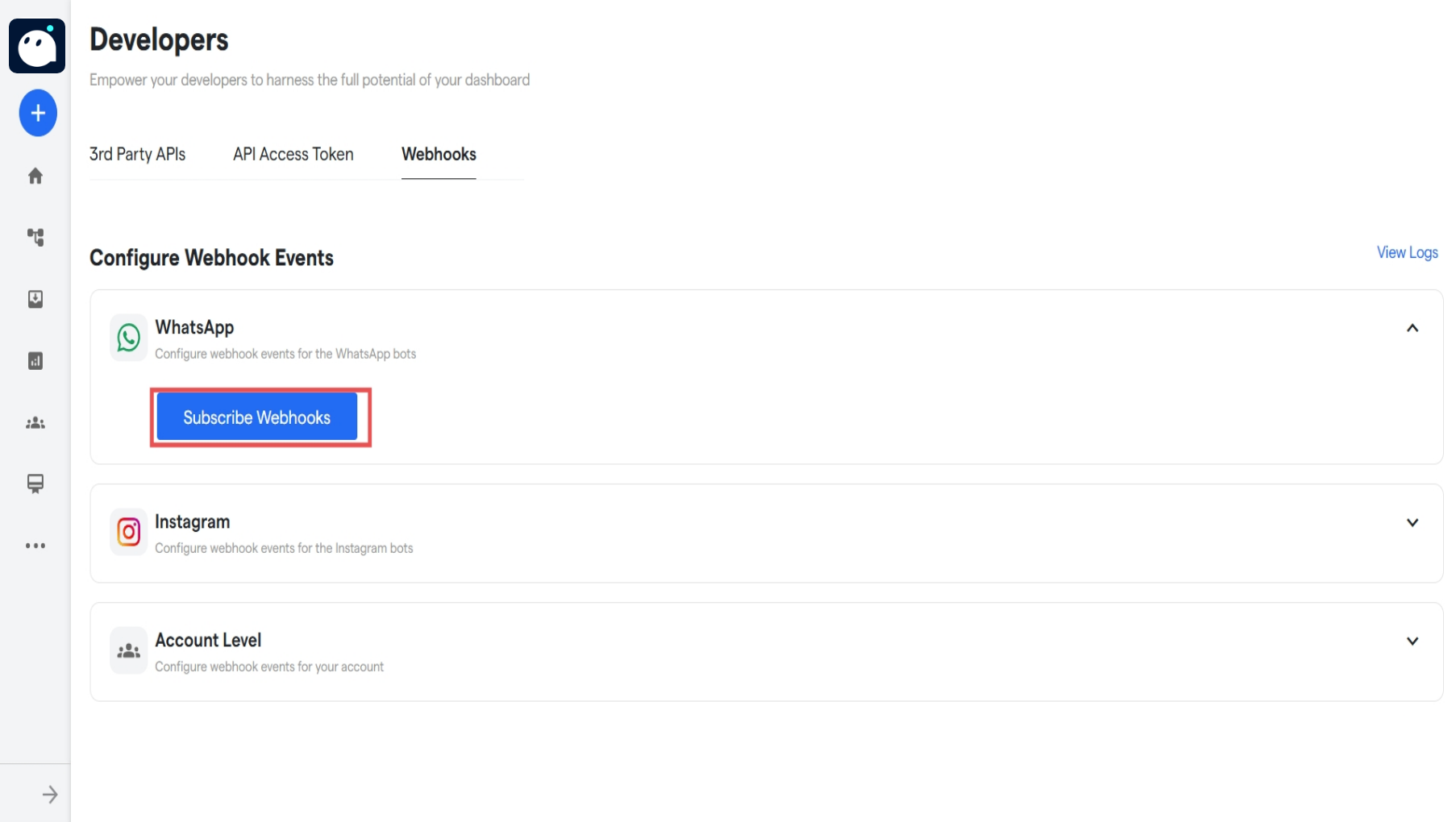 6. A small popup window will open up. Enter your Webhook Endpoint, and verification key. Then, select the bots that you want the webhooks to be triggered for.
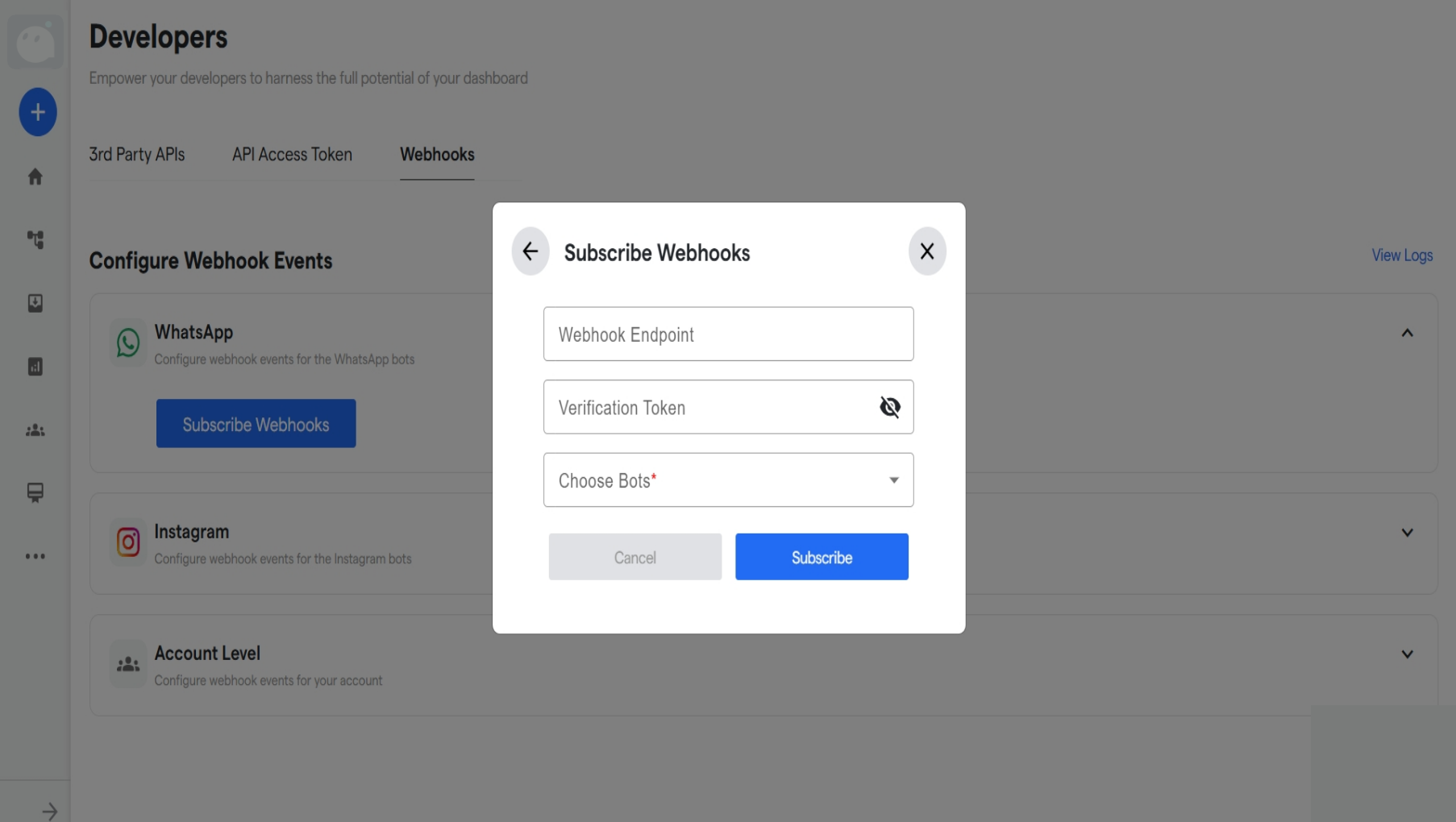 7. Once selected, the webhooks will be configured. Now, we can go into the specifics of each and select the ones to turn on.
***
### **WhatsApp Webhook's**
7. Once selected, the webhooks will be configured. Now, we can go into the specifics of each and select the ones to turn on.
***
### **WhatsApp Webhook's**
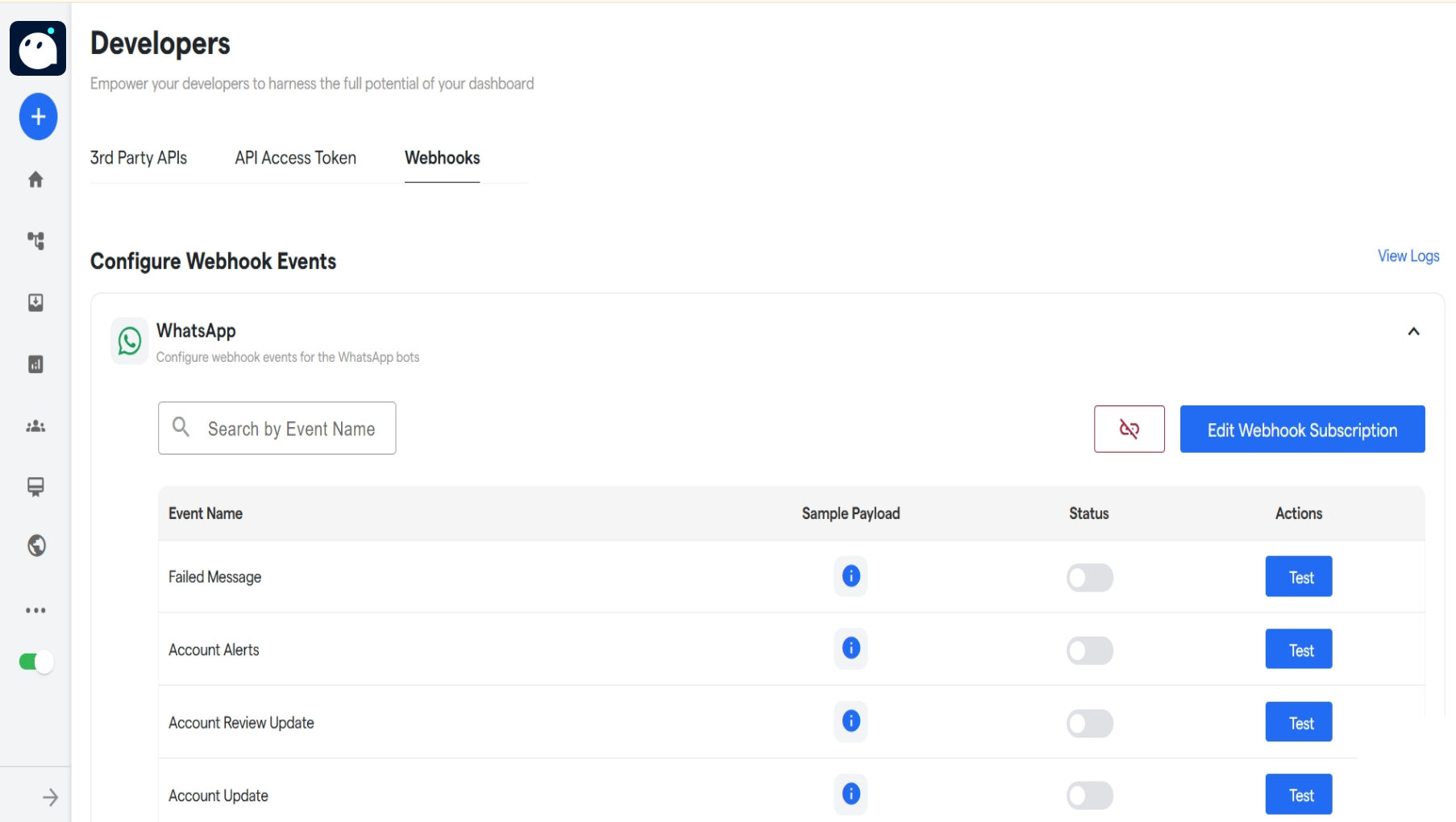 1. There are many webhooks that have been created for WhatsApp. Some of them are as follows:
| Failed Message |
1. There are many webhooks that have been created for WhatsApp. Some of them are as follows:
| Failed Message |
Tells when a message could not be delivered |
| --------------------------- | ------------------------------------------------------------------------------------------------------------------------------------------ |
| Account Alerts | Tells when your account does not meet our notability requirements. You can edit the display name and submit another request after 30 days. |
| Account Review Update | Tells when account review request gets approved. |
| Account Update | Update on the business verification of the WhatsApp account. |
| Business Capability Update | Updates on the max daily limits per day |
| Business Status Update | Updates the status of the business |
| Template Quality Update | Updates on the template quality. |
| Template Status Update | Tells of the approval status of the template. |
| Messages |
Tells of the messages that are recieved. |
| Phone Number Name Update | Updates you when the name related to a phone number is updated |
| Phone Number Quality Update | Tells of the plan quality of a new user. |
| Security |
Tells information regarding the security of the PIN's. |
| Template Category Update | Updates the template category. |
2. To edit any webhook, click on the "Edit Webhook Subscription" button.
3. To disconnect the webhook, turn off the status of the webhook. To disconnect all the webhooks status, click on the "Unsubscribe Webhooks" button and confirm the unhook process.
### **Instagram Webhook**
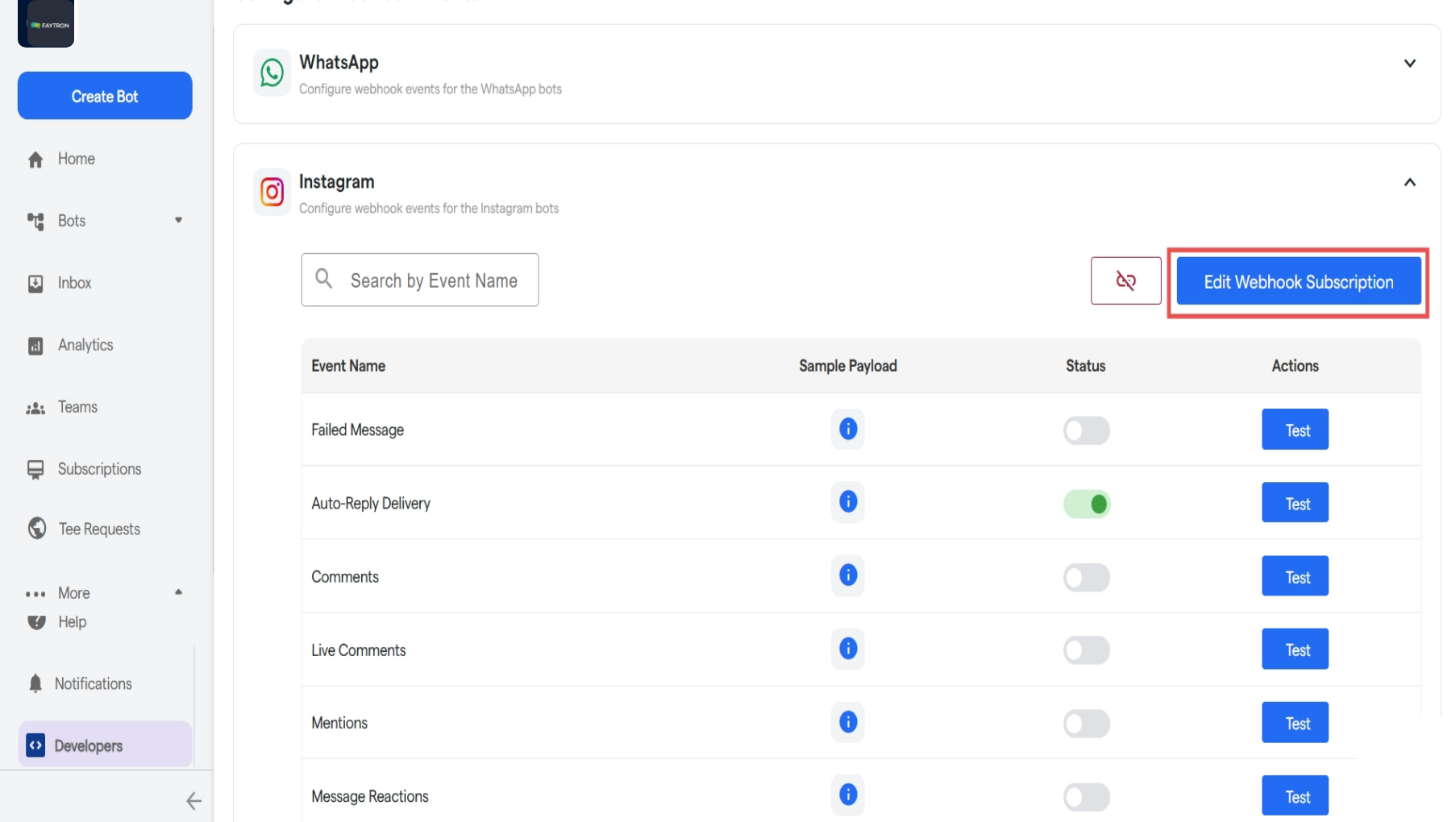 1. Instagram webhooks work similar in manner to WhatsApp Webhooks.
2. To edit any webhook subscripton, click on the "Edit Webhook Subscription" button.
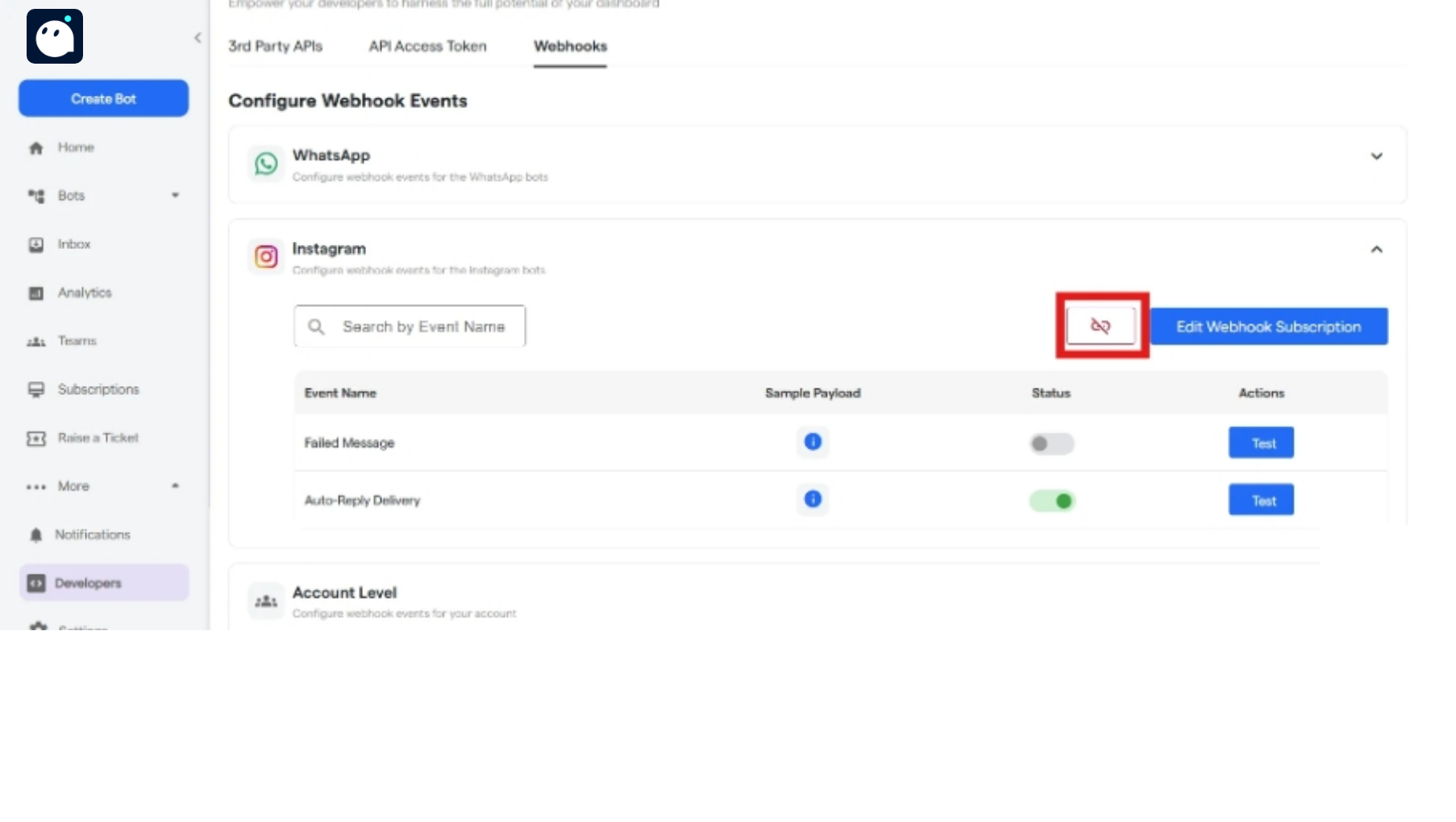
3. To disconnect the webhook, turn off the status of the webhook. To disconnect all the webhooks status, click on the "Unsubscribe Webhooks" button and confirm the unhook process.
1. Instagram webhooks work similar in manner to WhatsApp Webhooks.
2. To edit any webhook subscripton, click on the "Edit Webhook Subscription" button.
3. To disconnect the webhook, turn off the status of the webhook. To disconnect all the webhooks status, click on the "Unsubscribe Webhooks" button and confirm the unhook process.
 ### **Account Level Webhooks**
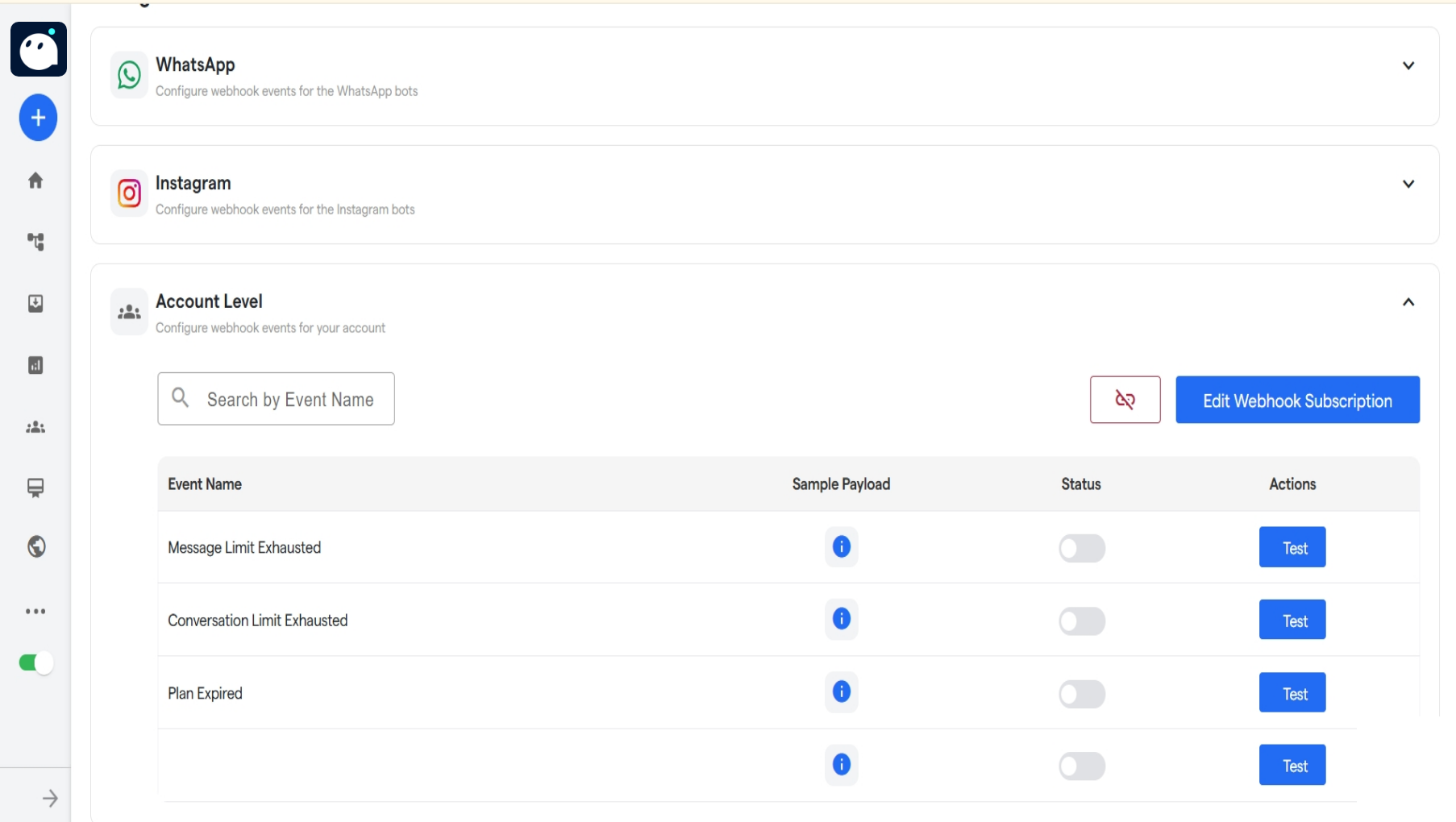 | **Webhook Name** |
**Use Case** |
| ---------------------------- | -------------------------------------------------------------------------------------------------------------------------------------------------------------------------------------------------------- |
| Message limit exhausted |
Notifies the customer when their available message quota has been fully utilized. Customers can customize this notification to trigger when a certain percentage of their plan has been exhausted. |
| Conversation limit exhausted | Alerts the customer when their WhatsApp conversation limit is reached. |
| Plan expired | Sends a notification when the customer's subscription plan has expired. |
| Account freeze | Notifies the customer when their account is temporarily frozen due to non-payment or policy violations. |
### **FAQ's**
These are the commonly asked questions regarding Webhooks:
Webhooks are automated callbacks that notify your system in real-time when specific events occur on Converse, such as message delivery failures or subscription changes.
Webhooks are supported for WhatsApp, Instagram, and application-level events within the Converse ecosystem.
Events include failed message delivery, auto-reply execution, message limit exhaustion, conversation usage updates, subscription expiry, and account freezes.
Yes. Converse webhooks are designed to send event notifications immediately as they occur.
Webhook payloads are sent in JSON format, containing structured data about the triggered event.
Converse provides testing options within the webhook configuration section, allowing you to simulate event triggers and validate your endpoint setup.
Ensure your endpoint URL is active and accessible. Converse may retry failed deliveries, but persistent failures will require you to debug and update your configuration.