> ## Documentation Index
> Fetch the complete documentation index at: https://docs.converse.vitxi.ai/llms.txt
> Use this file to discover all available pages before exploring further.
> This Page contains the information about configuring WA Templates.
# WhatsApp Template Setup
### To setup yours Whatsapp Templates
Step 1: Navigate to your Whatsapp Bot.
Step 2: Click on WhatsApp Automation.
Step 3: Select Templates.
Step 4: You will get option to select pre-defined Templates. You can either select from chatflow template or message templates.
#### **CHATFLOW TEMPLATE**
Step 5: When you hover your mouse on any of the template you will get option to take a preview or use template.
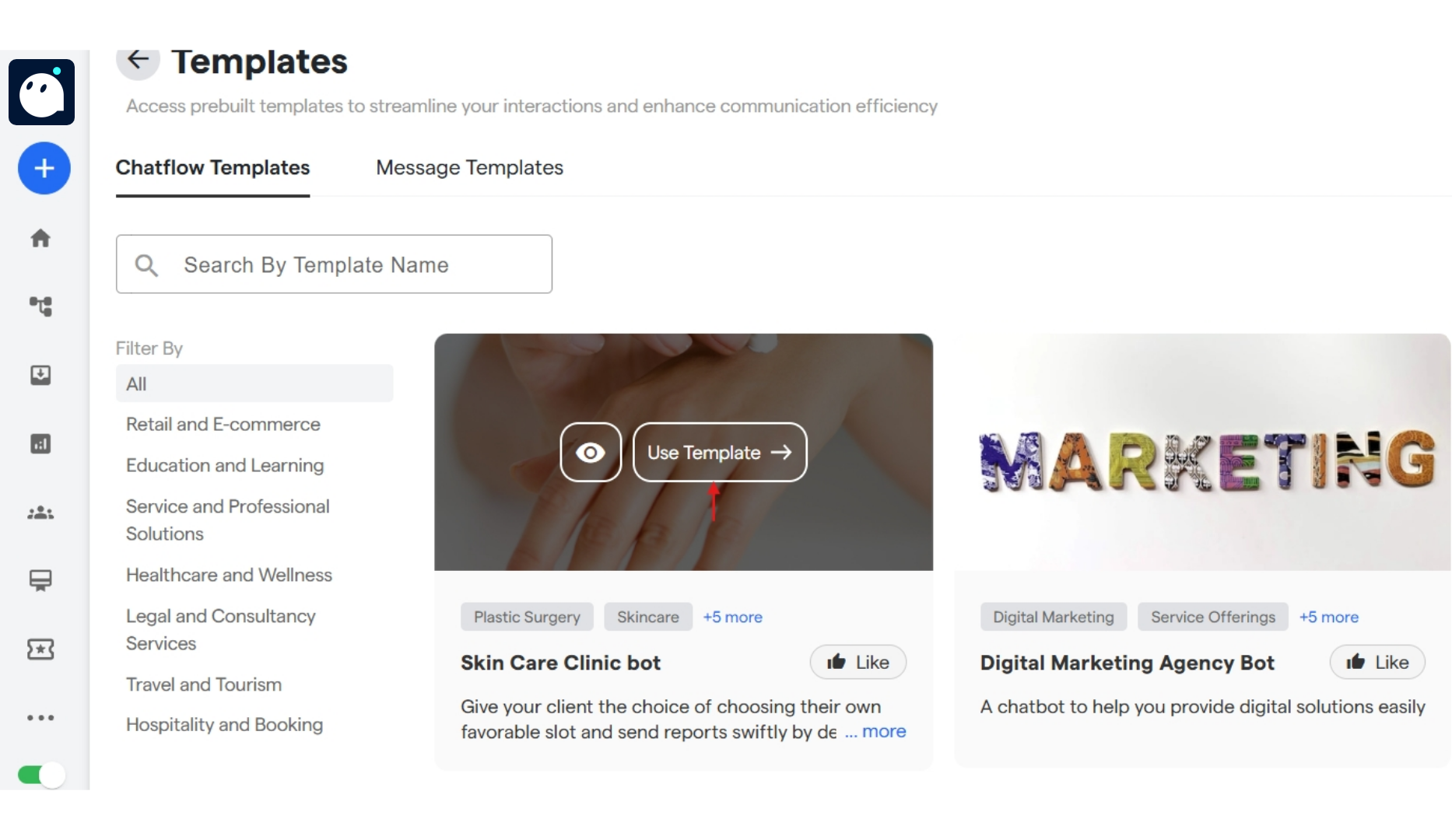 Step 6: While taking a preview you can click on Use Template to directly use it in your chatflow.
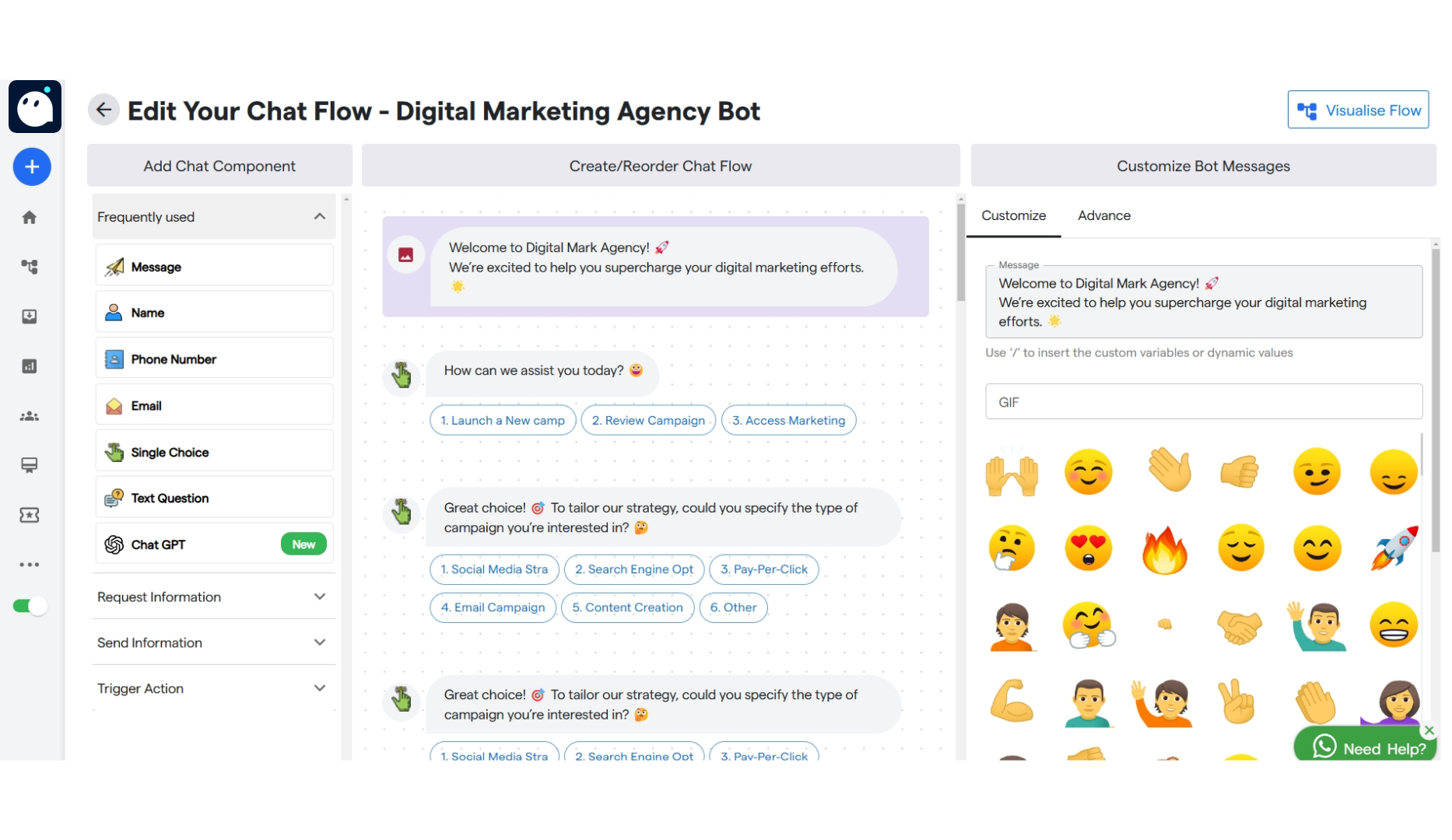
Step 7: Once clicked on "Use Template" your chatflow template will be ready to be used and edited inside "Edit Your Chat Flow". You can customize it according to your requirements.
Step 6: While taking a preview you can click on Use Template to directly use it in your chatflow.
Step 7: Once clicked on "Use Template" your chatflow template will be ready to be used and edited inside "Edit Your Chat Flow". You can customize it according to your requirements.
 #### **MESSAGE TEMPLATE**
Step 8: Click on Message Templates to select a pre-defined template form "Templates Gallery" or create and customize your personalised template by selecting "Your Templates".
Step 9: When you hover on any of the pre-defined templates you can either take a preview first or directly click on Use Template.
#### **MESSAGE TEMPLATE**
Step 8: Click on Message Templates to select a pre-defined template form "Templates Gallery" or create and customize your personalised template by selecting "Your Templates".
Step 9: When you hover on any of the pre-defined templates you can either take a preview first or directly click on Use Template.
 ### **With Regular Template**
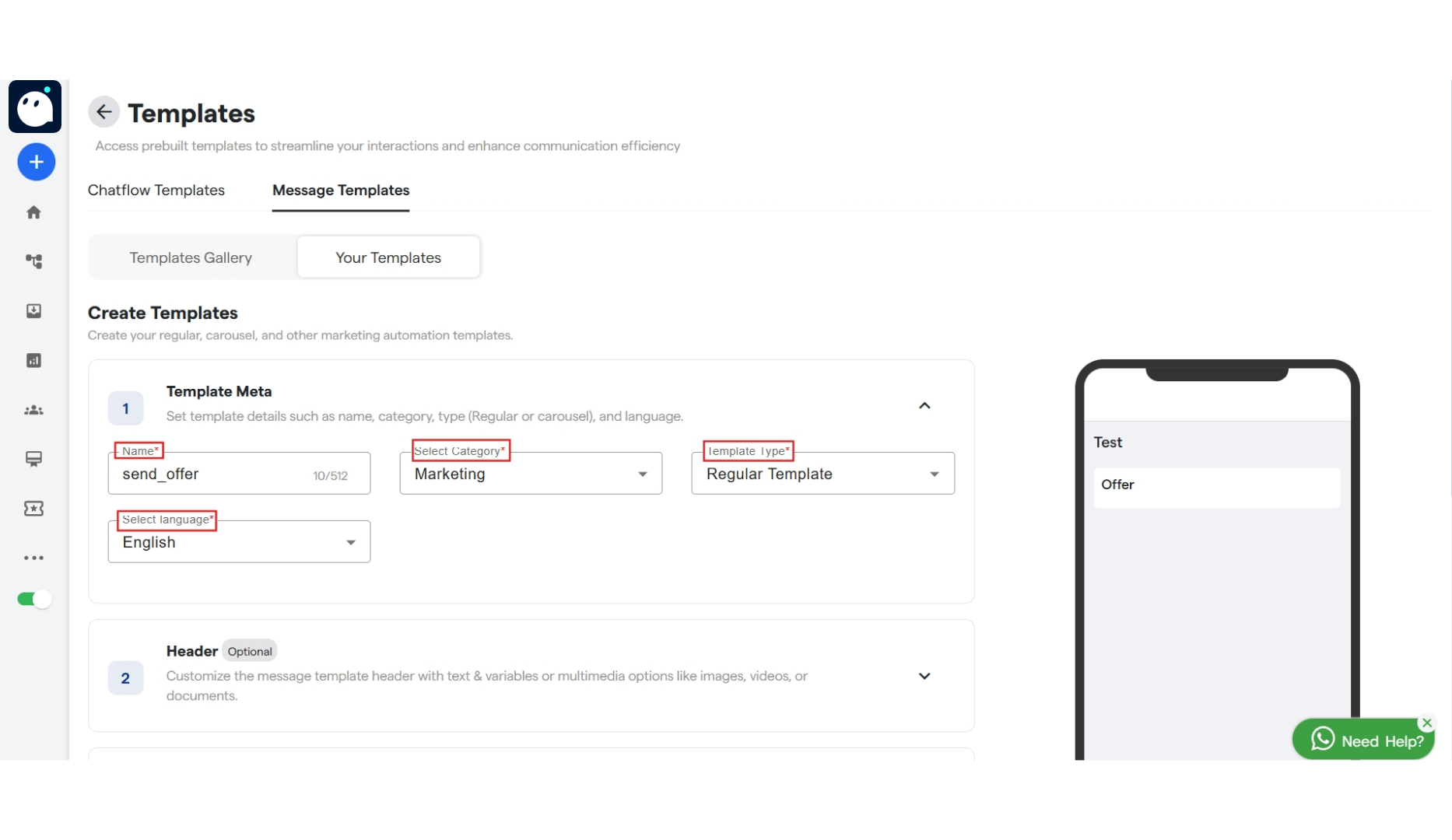
Step 10: You can create a new template in Your Template section. By selecting "Create Template".
Step 11: Under Create Templates section, enter name/title and category for your template. And also select a language for the same. You can select a type for your template by clicking on the drop down.
### **With Regular Template**
Step 10: You can create a new template in Your Template section. By selecting "Create Template".
Step 11: Under Create Templates section, enter name/title and category for your template. And also select a language for the same. You can select a type for your template by clicking on the drop down.
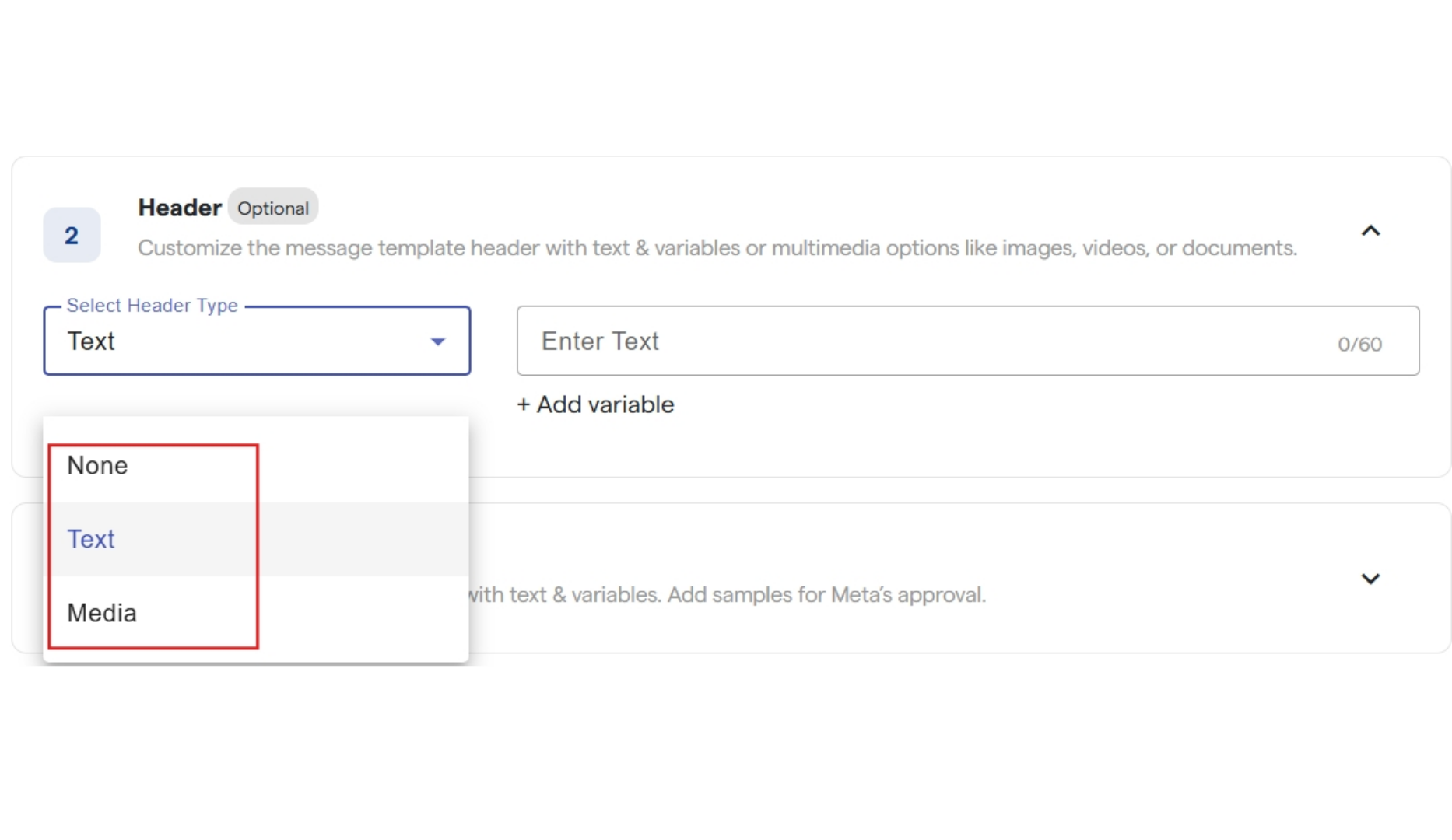
 Step 12: Now to configure your template, select a format for you header from the drop down and enter the header text you want to display to your customer. Or you can select a media file you wish to share, it can be either an image, video or a document.
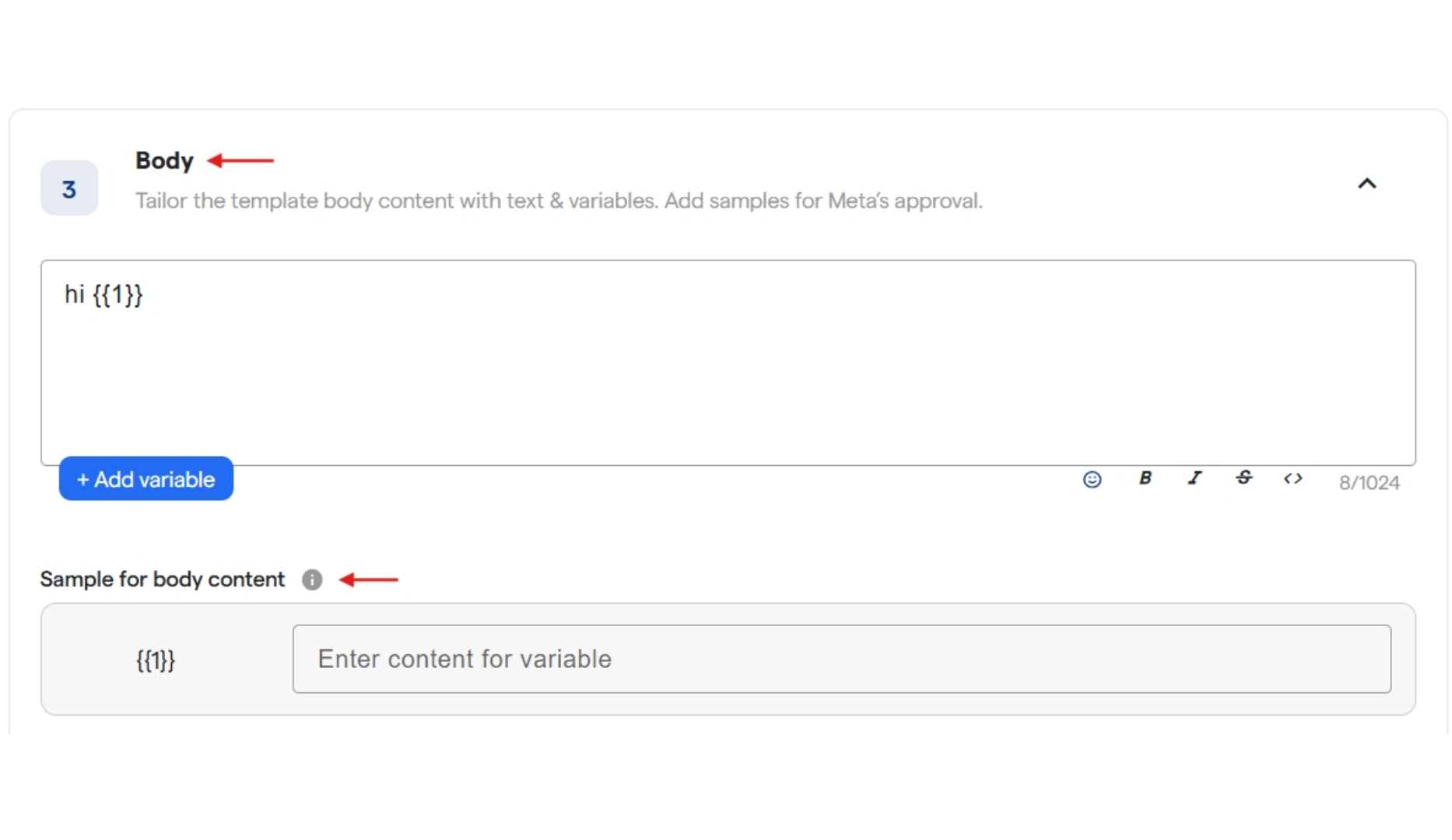
 Step 13: Enter the content for your template inside the box named body. You can use to create a variable in the body and configure that later.
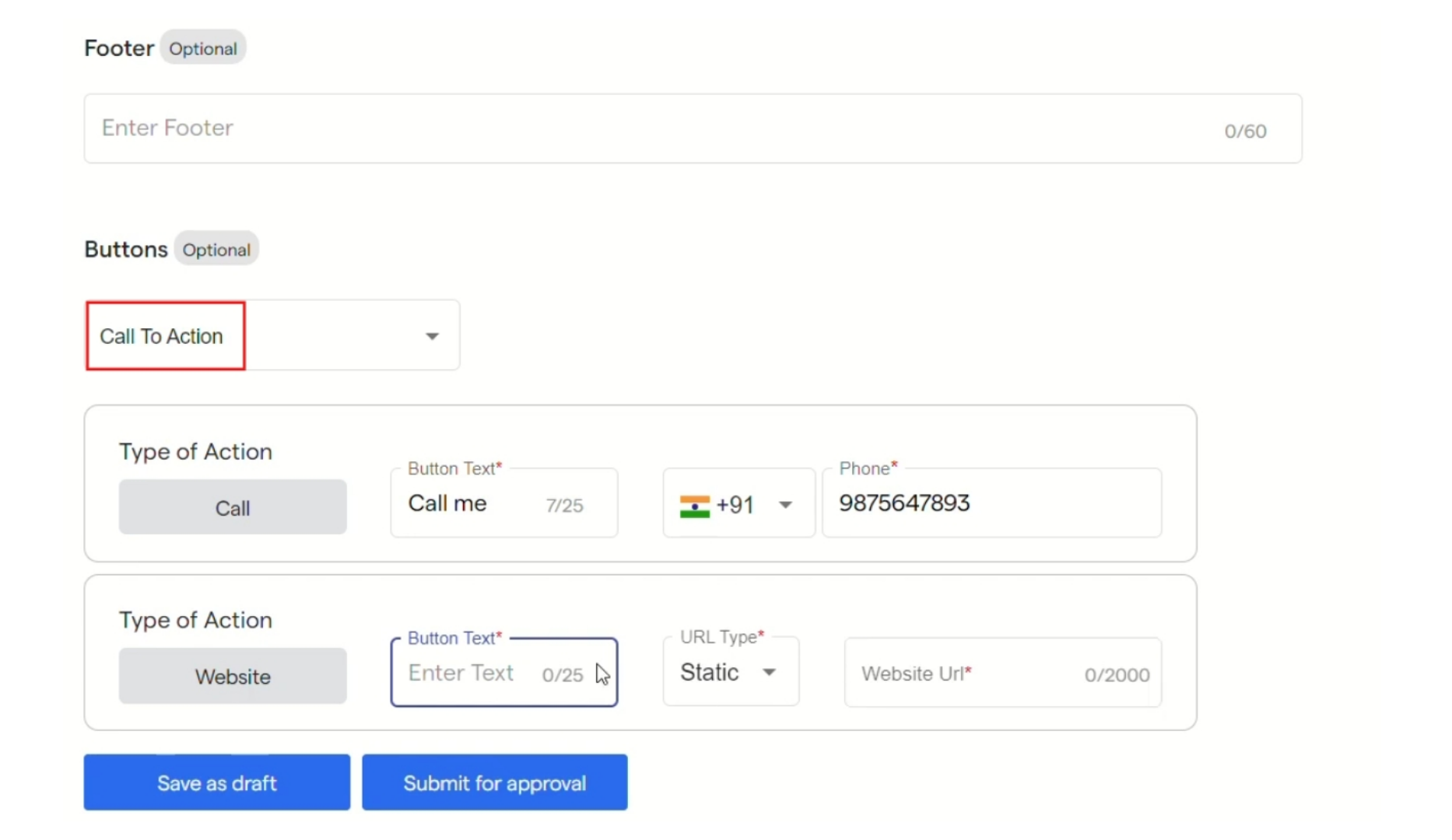
 Step 14: Enter the content for Footer that will be displayed in your template.
Step 15: You can also add Buttons in your templates. After selecting the type for buttons from the drop down you can configure them as shown below.
Step 16: Click on "save as draft" if you want to do changes later and click on "Submit for approval" if your are done creating the template.
Step 14: Enter the content for Footer that will be displayed in your template.
Step 15: You can also add Buttons in your templates. After selecting the type for buttons from the drop down you can configure them as shown below.
Step 16: Click on "save as draft" if you want to do changes later and click on "Submit for approval" if your are done creating the template.
 Step 17: In "Manage Templates" your template will be visible. It will get approved by WhatsApp once submitted for approval.
Step 18: Under actions, you have options to copy template id, to delete the template and select a flow for your buttons inside the template.
Step 19: Similarly you can configure flows for your template reply using buttons added in it.
### **With Carousel Template**
Step 20: When you select "Carousel" as Template Type. You will get options namely:
Step 21: "Bubble Text" in which you can add text for the template and add variable for the same.
Step 22: "Carousel Setup" in which you can set up cards and configure their media and add CTA buttons
Step 17: In "Manage Templates" your template will be visible. It will get approved by WhatsApp once submitted for approval.
Step 18: Under actions, you have options to copy template id, to delete the template and select a flow for your buttons inside the template.
Step 19: Similarly you can configure flows for your template reply using buttons added in it.
### **With Carousel Template**
Step 20: When you select "Carousel" as Template Type. You will get options namely:
Step 21: "Bubble Text" in which you can add text for the template and add variable for the same.
Step 22: "Carousel Setup" in which you can set up cards and configure their media and add CTA buttons
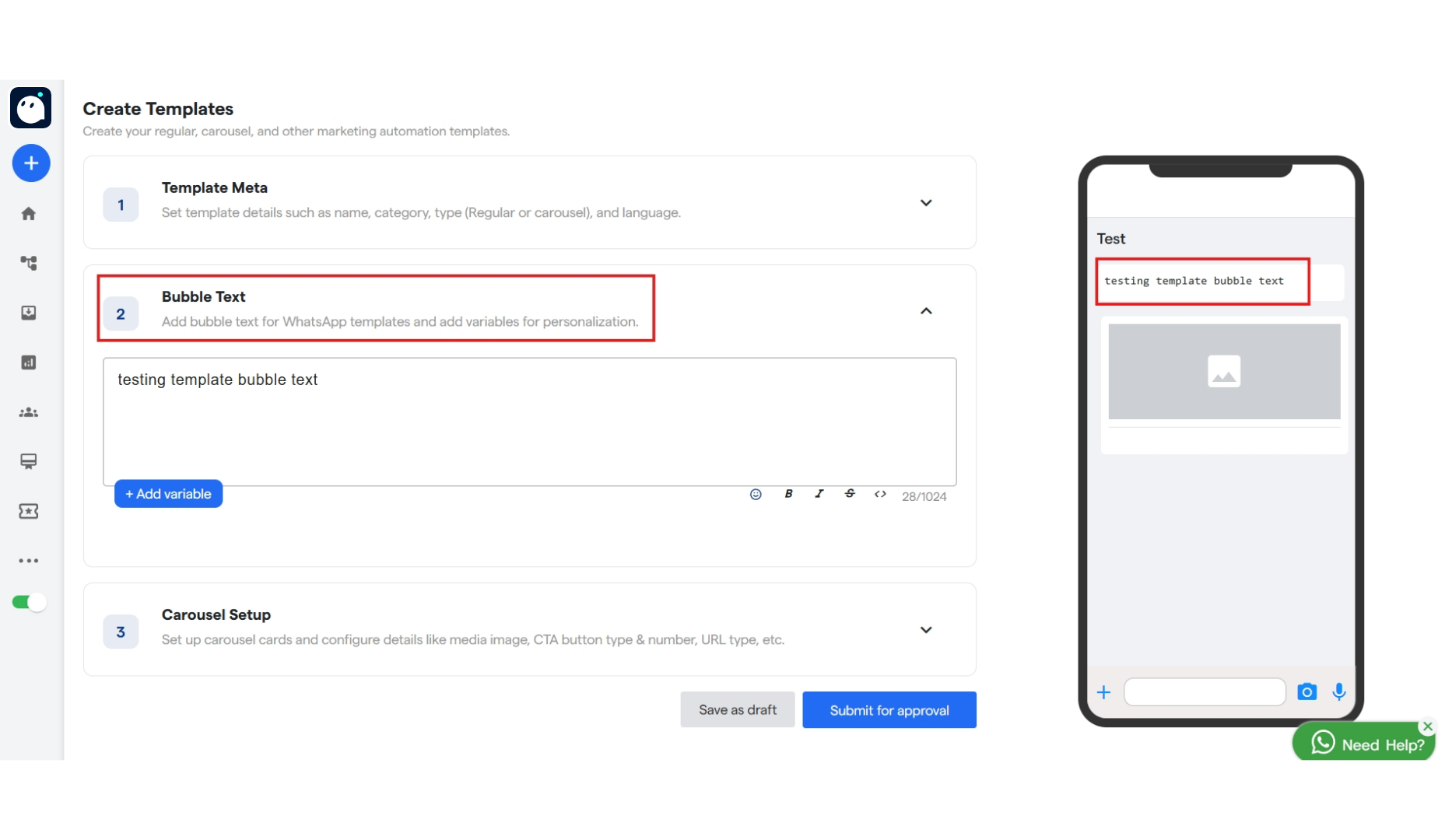
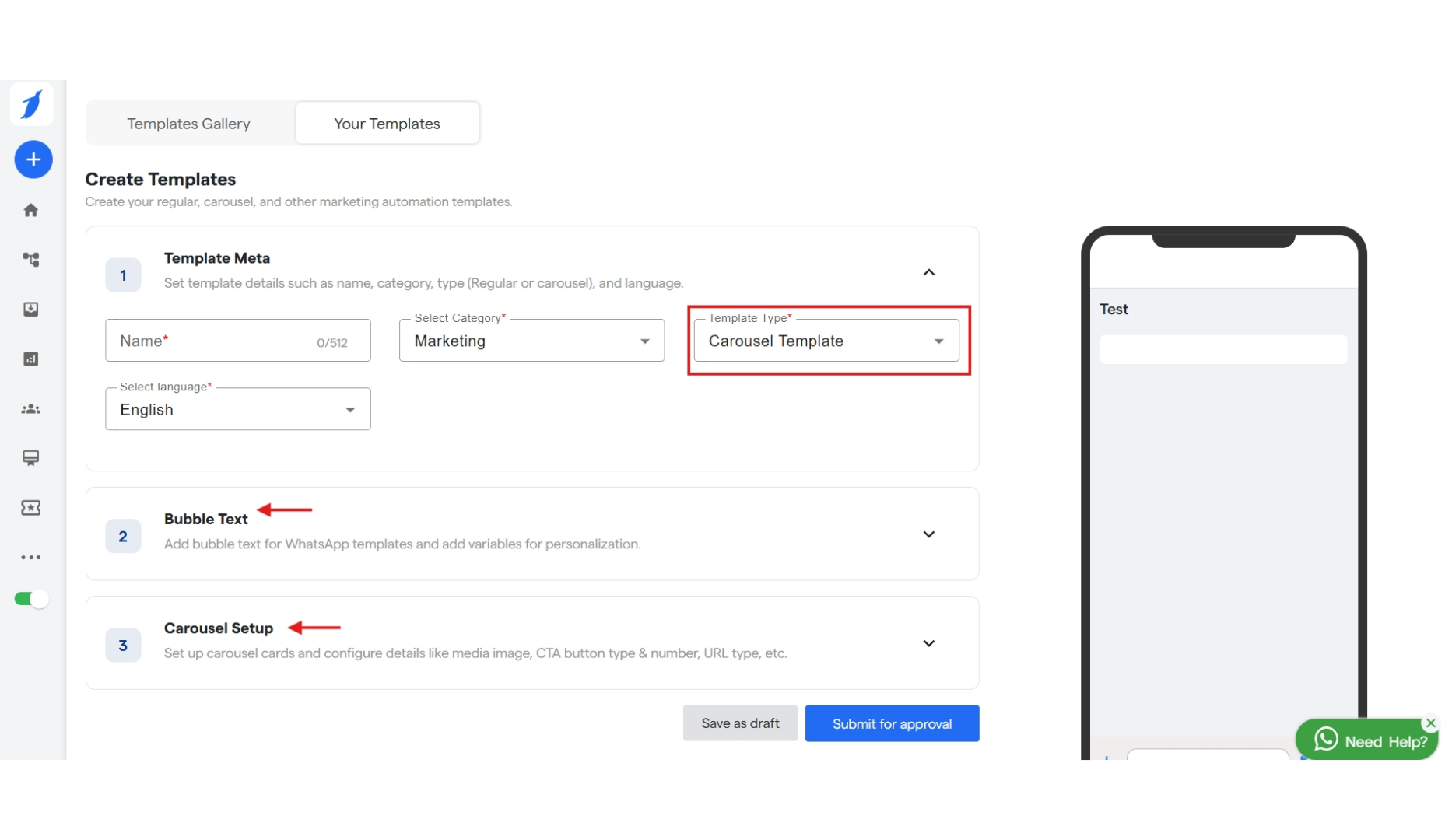 Step 23: Inside "Bubble Text" you will get a text box in which you can enter your text and can click on "Add Variable" to add a variable inside your text.
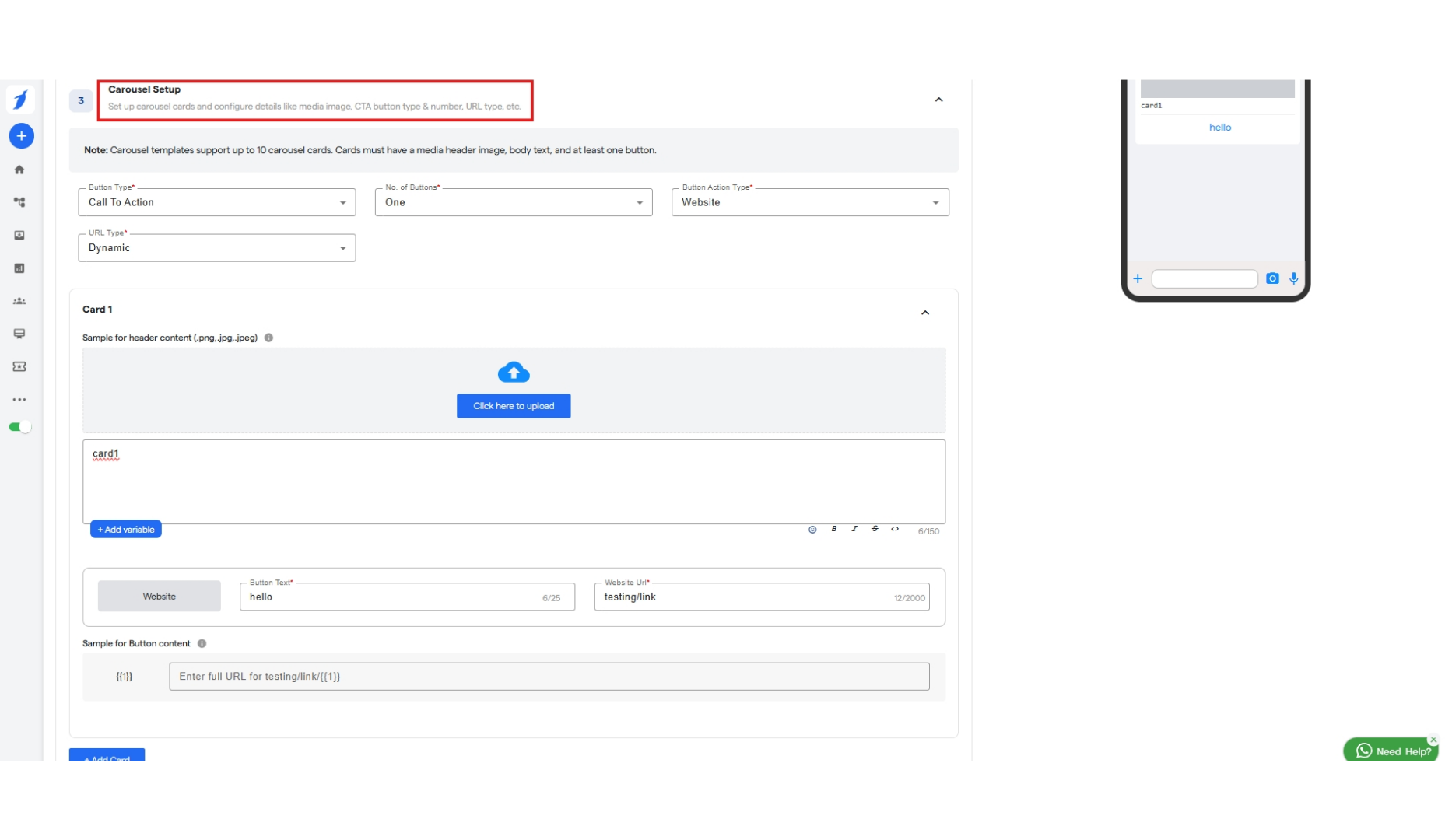
 Step 24: Inside "Carousel Setup" you can select a button type which can be "Call to Action" or "Quick Reply". And accordingly you can fill the following details as asked.
Step 25: After that create card for your carousel. Add an image and type something about it.
Step 26: Then add a button just below the card. Which will be functional and clickable.
Similarly you can add up to 10 cards for your carousel.
Step 24: Inside "Carousel Setup" you can select a button type which can be "Call to Action" or "Quick Reply". And accordingly you can fill the following details as asked.
Step 25: After that create card for your carousel. Add an image and type something about it.
Step 26: Then add a button just below the card. Which will be functional and clickable.
Similarly you can add up to 10 cards for your carousel.
 Step 28: Then click on "Save as draft" or "Submit for approval".
Done! You have created your WhatsApp Template. Now wait for getting it approved by meta.
Step 28: Then click on "Save as draft" or "Submit for approval".
Done! You have created your WhatsApp Template. Now wait for getting it approved by meta.