> ## Documentation Index
> Fetch the complete documentation index at: https://docs.converse.vitxi.ai/llms.txt
> Use this file to discover all available pages before exploring further.
> This page contains the detailed description of the forms setup in Converse.
# WhatsApp Flows (Forms) Setup
### **What are WhatsApp Flows:**
**WhatsApp Flows** are interactive forms built directly inside WhatsApp chats, allowing businesses to collect information from users quickly and smoothly. Instead of asking multiple back-and-forth questions, businesses can present a simple form where users can fill in details like name, email, preferences, or feedback all in one go. Flows make the experience faster, more organized, and user-friendly, helping businesses generate leads, take orders, book appointments, or gather customer inputs without needing users to leave the chat. They are extremely useful for improving response rates, reducing manual effort, and offering a professional and seamless customer experience.
***
### **Benefits of Having WhatsApp Flows:**
* **Simplify data collection** by allowing users to submit structured information directly within WhatsApp chats.
* **Accelerate lead generation** with easy-to-complete, guided forms that reduce user drop-offs.
* **Enhance customer experience** by offering fast, intuitive interactions without switching apps.
* **Improve operational efficiency** by automating repetitive input gathering and minimizing manual follow-ups.
***
### **How to Setup WhatsApp Flows:**
1. Navigate to your Whatsapp Bot.
2. Click on WhatsApp Automation.
3. Select WA Flow (Forms).
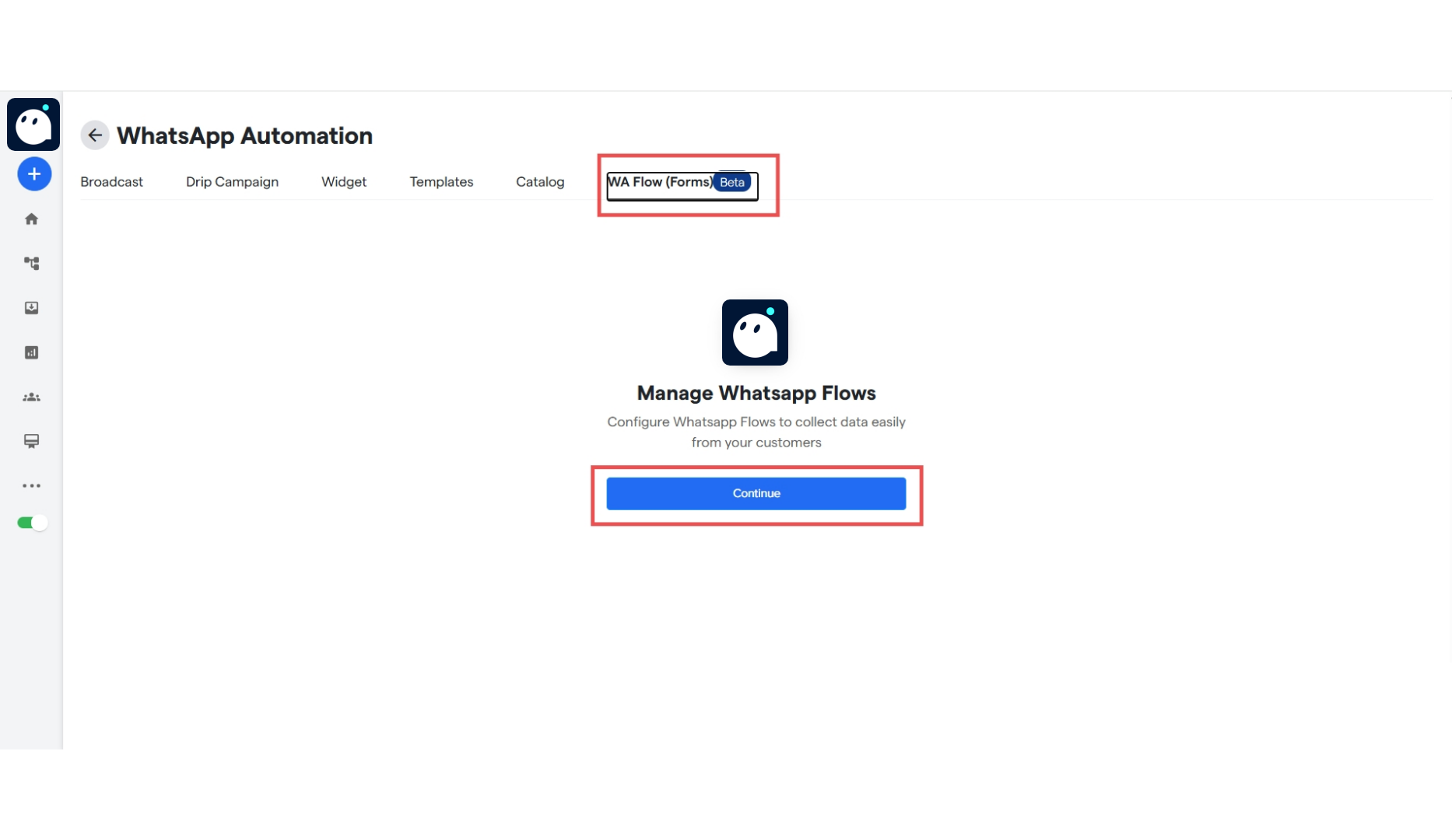 4. Click on "Continue" to make your first Form.
5. Click on the "Choose Flow" drop down and select your created flow.
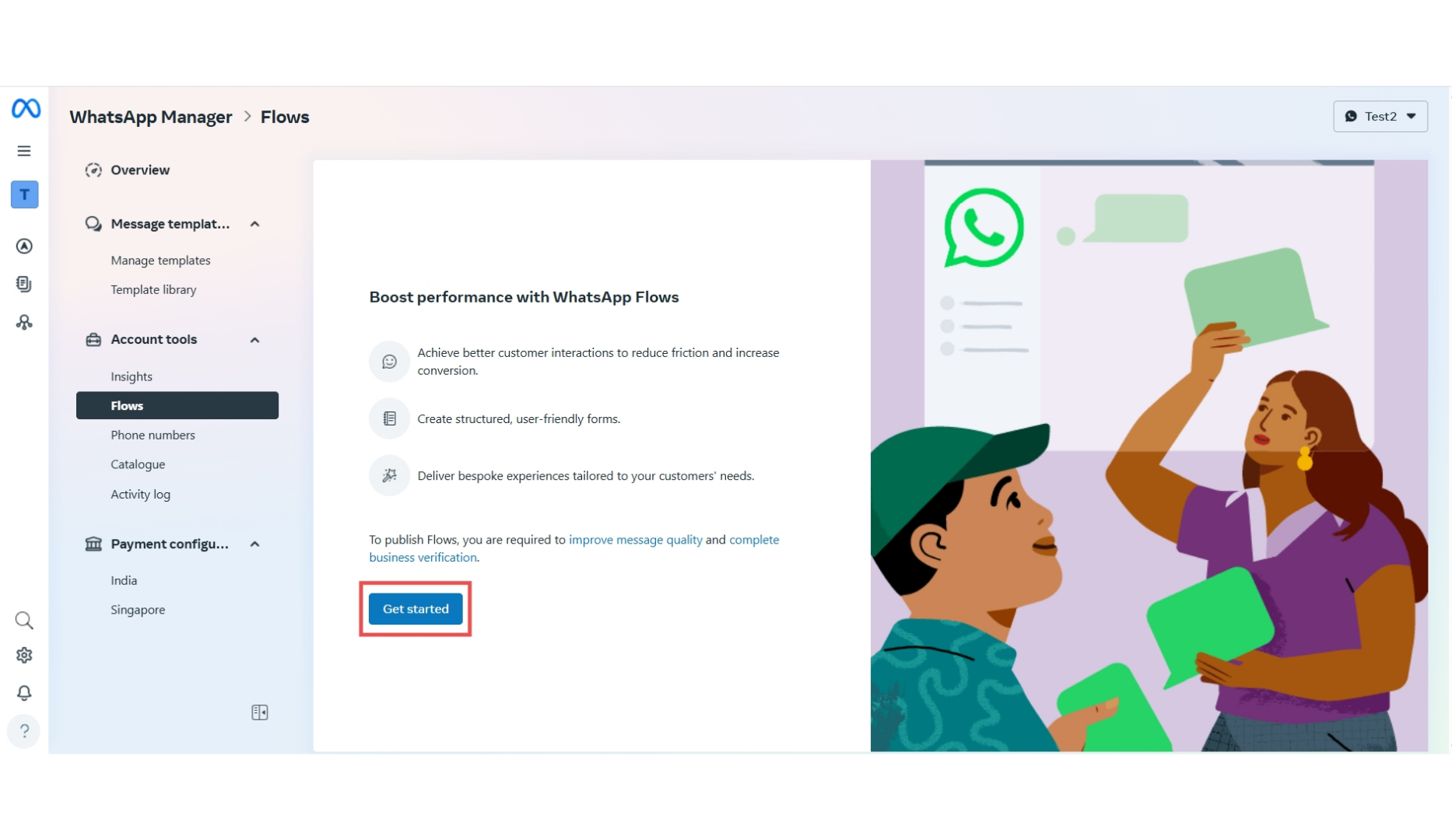
6. If you want to create a new WA Flow, click the button shown in the box. You will be redirected to "[business.facebook.com](http://business.facebook.com)", the site where Facebook allows users to create flows for their WA accounts. You will be opening up the WA Flows Page directly.
7. Click on "Get Started" to create your WhatsApp flow.
4. Click on "Continue" to make your first Form.
5. Click on the "Choose Flow" drop down and select your created flow.
6. If you want to create a new WA Flow, click the button shown in the box. You will be redirected to "[business.facebook.com](http://business.facebook.com)", the site where Facebook allows users to create flows for their WA accounts. You will be opening up the WA Flows Page directly.
7. Click on "Get Started" to create your WhatsApp flow.
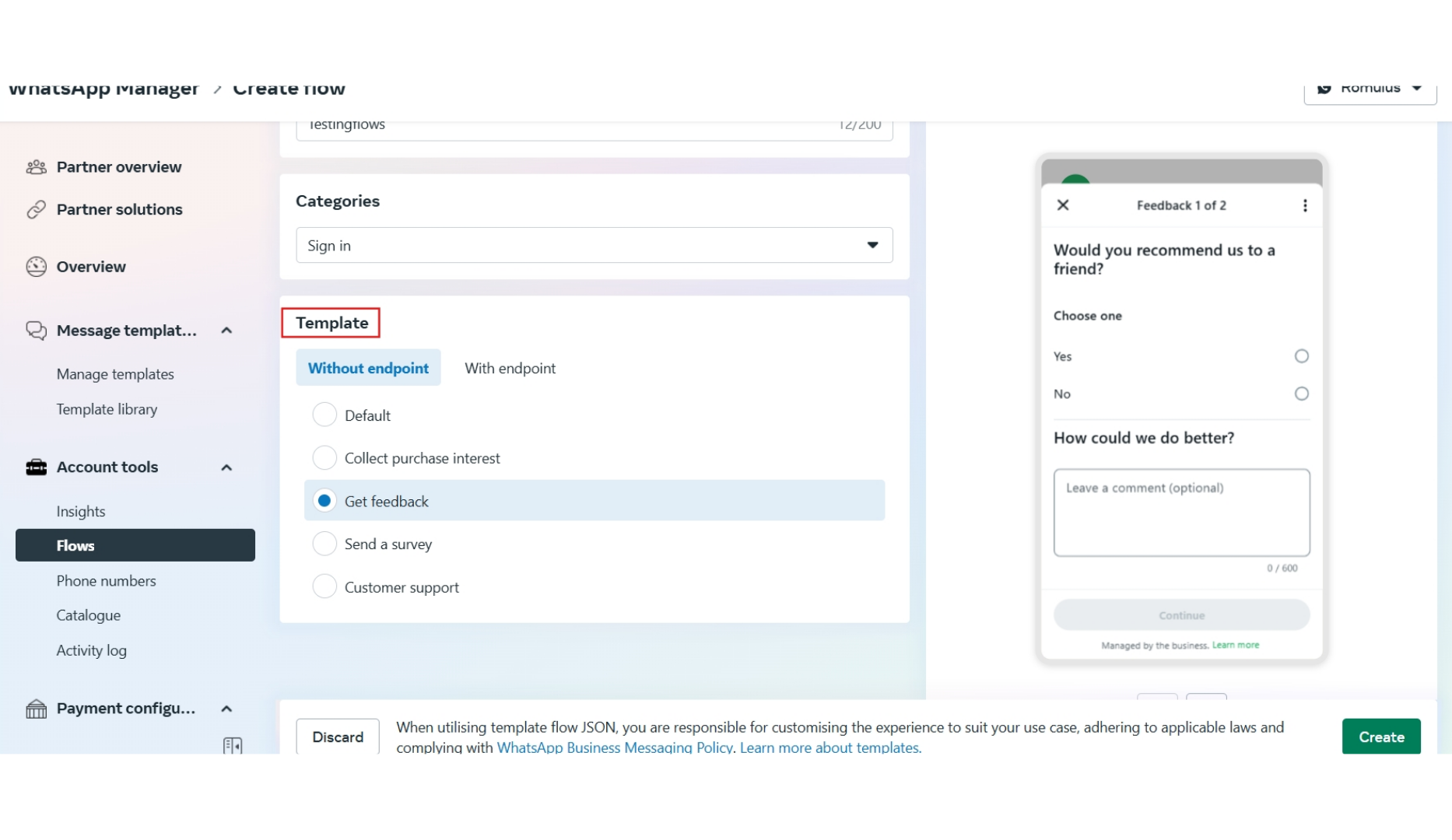
 8. Fill the given details, including your flow Name, Category, Template, etc. You can set the flow to have an endpoint, or a place where it sends its data other than WA.
If unsure about the category, set as "Default" for now.
8. Fill the given details, including your flow Name, Category, Template, etc. You can set the flow to have an endpoint, or a place where it sends its data other than WA.
If unsure about the category, set as "Default" for now.
 9. After clicking on the "**Create**" button, the flow will be created. It can be edited by replacing the JSON code with the code of your own flow.
Users can use the site "[https://developers.facebook.com/docs/whatsapp/flows/playground/](https://developers.facebook.com/docs/whatsapp/flows/playground/)" to create their flows.
10. After that, in Manage Flow Response. Enter User Response Variable and select an option in Save to Custom Attribute from the drop down.
11. You can click on Add Another Field for adding more flow responses.
9. After clicking on the "**Create**" button, the flow will be created. It can be edited by replacing the JSON code with the code of your own flow.
Users can use the site "[https://developers.facebook.com/docs/whatsapp/flows/playground/](https://developers.facebook.com/docs/whatsapp/flows/playground/)" to create their flows.
10. After that, in Manage Flow Response. Enter User Response Variable and select an option in Save to Custom Attribute from the drop down.
11. You can click on Add Another Field for adding more flow responses.
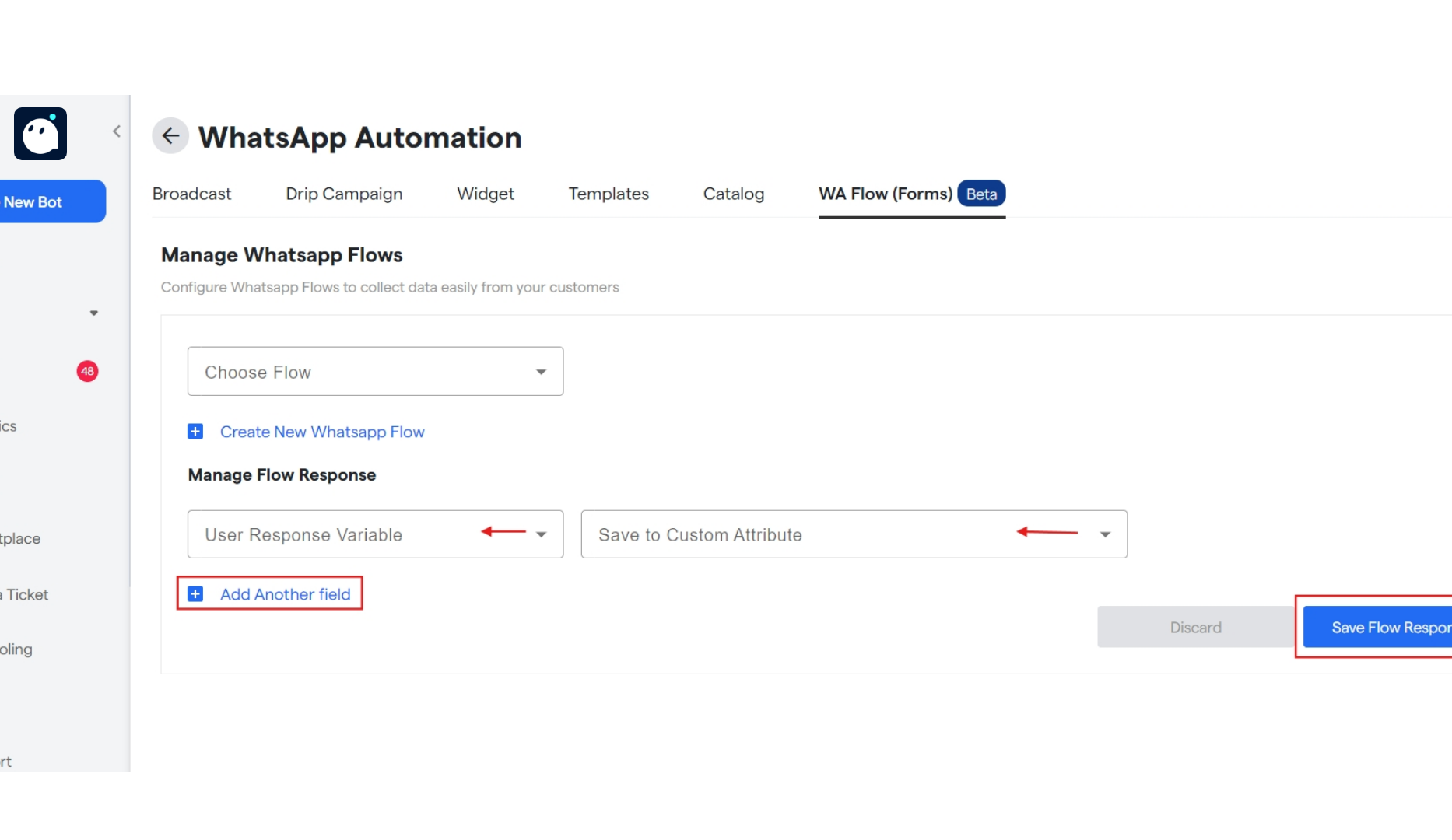 12. After that click on "Save Flow Response" to create and save the WA Flow (Form).
### **FAQ's:**
Here are some common FAQ's regarding WA flows:
We collect user details, service needs, order information, and feedback using WhatsApp Flows.
Yes, we can design a WhatsApp Flow to book demo calls automatically without human intervention. Just set your flow to direct customers to the form, and start collecting!
Yes, full product orders including quantity, size, and address can be captured through a Flow.
Go to "[https://developers.facebook.com/docs/whatsapp/flows/playground/](https://developers.facebook.com/docs/whatsapp/flows/playground/)" to make the flows using interactive buttons, all without using any coding.
12. After that click on "Save Flow Response" to create and save the WA Flow (Form).
### **FAQ's:**
Here are some common FAQ's regarding WA flows:
We collect user details, service needs, order information, and feedback using WhatsApp Flows.
Yes, we can design a WhatsApp Flow to book demo calls automatically without human intervention. Just set your flow to direct customers to the form, and start collecting!
Yes, full product orders including quantity, size, and address can be captured through a Flow.
Go to "[https://developers.facebook.com/docs/whatsapp/flows/playground/](https://developers.facebook.com/docs/whatsapp/flows/playground/)" to make the flows using interactive buttons, all without using any coding.