> ## Documentation Index
> Fetch the complete documentation index at: https://docs.converse.vitxi.ai/llms.txt
> Use this file to discover all available pages before exploring further.

# WhatsApp Catalog Setup

### **To setup yours Whatsapp Catalog**

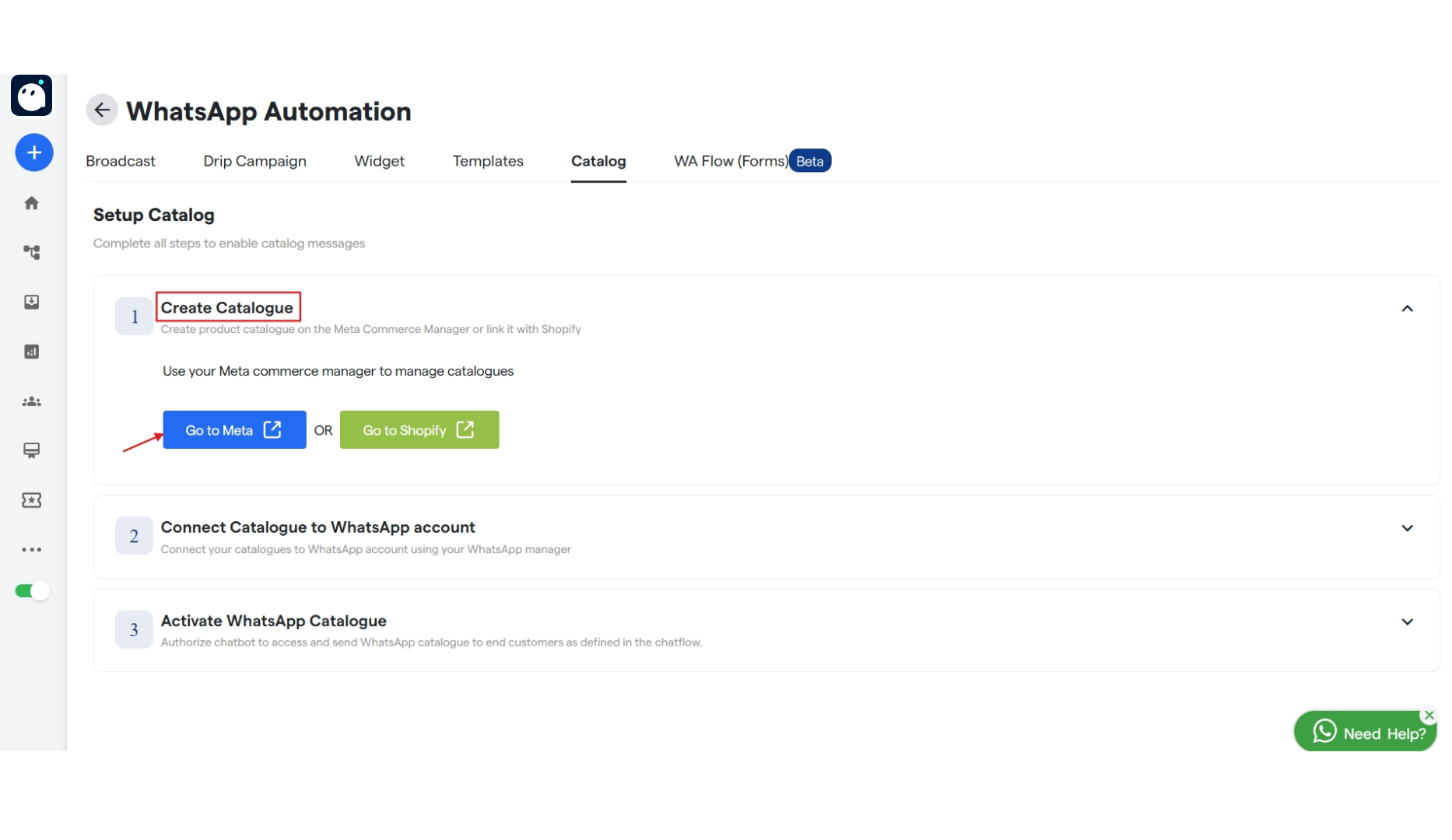
1. Go to your Whatsapp Bot.
2. Click on WhatsApp Automation.
3. Select Catalog.
4. Click on "Create Catalog" to create a new catalog.
   <img src="https://mintcdn.com/vitxiconverse/L8_UDa8-CY-yY9Bf/images/how-botpenguin-works/whatsapp-catalog-setup/39.whatsapp_catalog_setup__Converse_resource_centre-1.png?fit=max&auto=format&n=L8_UDa8-CY-yY9Bf&q=85&s=0dda3ec3944985c38f45863a3cbd4bca" alt="39 Whatsapp Catalog Setup  Converse Resource Centre 1 Pn" width="1866" height="1080" data-path="images/how-botpenguin-works/whatsapp-catalog-setup/39.whatsapp_catalog_setup__Converse_resource_centre-1.png" />
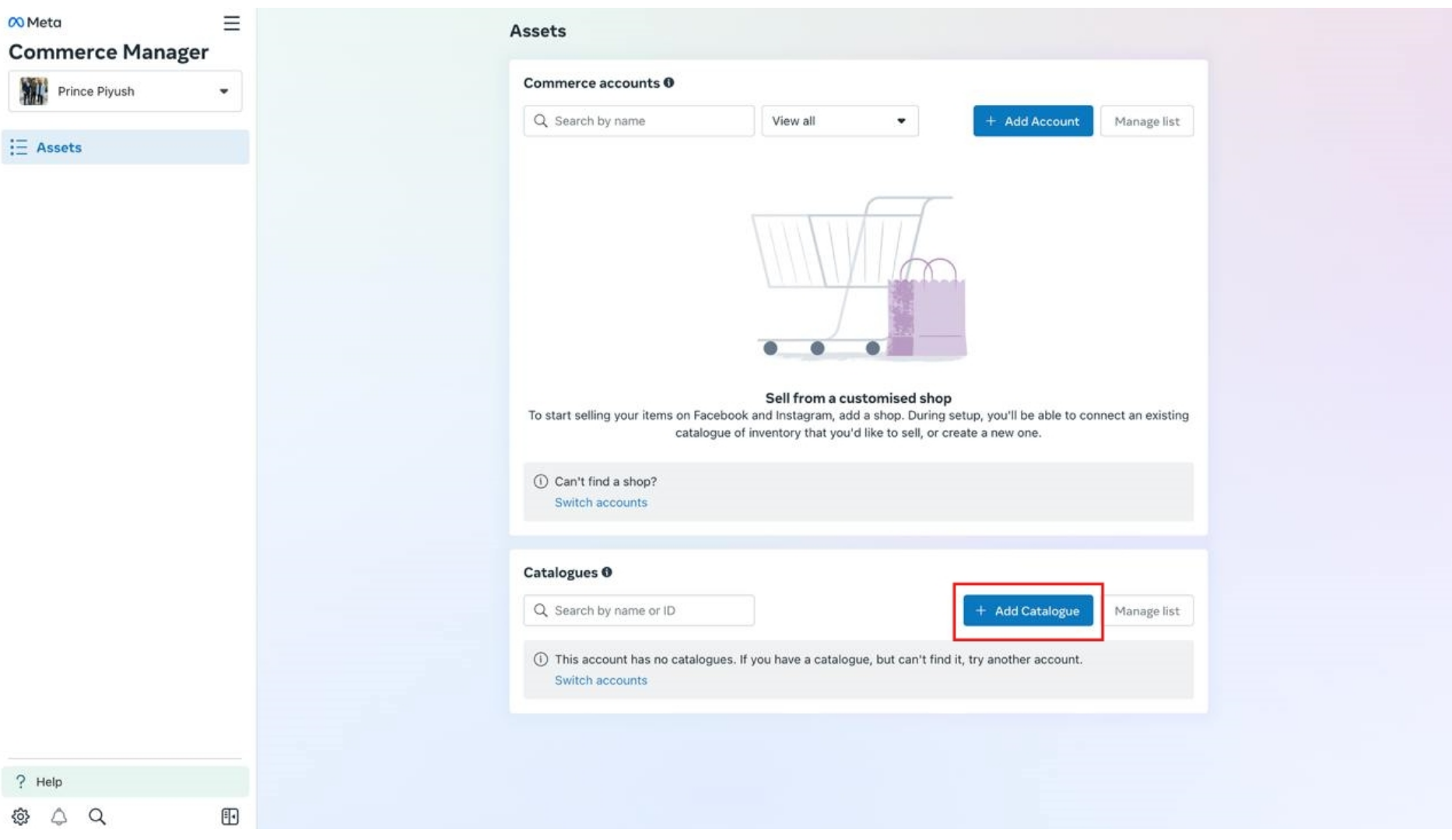
5. Click on "Go to Meta" to create a product catalog on Meta Commerce Manager.
   <img src="https://mintcdn.com/vitxiconverse/L8_UDa8-CY-yY9Bf/images/how-botpenguin-works/whatsapp-catalog-setup/39.whatsapp_catalog_setup__Converse_resource_centre-2.png?fit=max&auto=format&n=L8_UDa8-CY-yY9Bf&q=85&s=3a6edc834cfeae09e230f1bf7fa3546f" alt="39 Whatsapp Catalog Setup  Converse Resource Centre 2 Pn" width="1866" height="1080" data-path="images/how-botpenguin-works/whatsapp-catalog-setup/39.whatsapp_catalog_setup__Converse_resource_centre-2.png" />
6. Now click on "Add Catalog" to create a catalog.
   <img src="https://mintcdn.com/vitxiconverse/L8_UDa8-CY-yY9Bf/images/how-botpenguin-works/whatsapp-catalog-setup/39.whatsapp_catalog_setup__Converse_resource_centre-3.png?fit=max&auto=format&n=L8_UDa8-CY-yY9Bf&q=85&s=de530891be3e1e21a2c4e495a131d8f8" alt="39 Whatsapp Catalog Setup  Converse Resource Centre 3 Pn" width="1866" height="1080" data-path="images/how-botpenguin-works/whatsapp-catalog-setup/39.whatsapp_catalog_setup__Converse_resource_centre-3.png" />
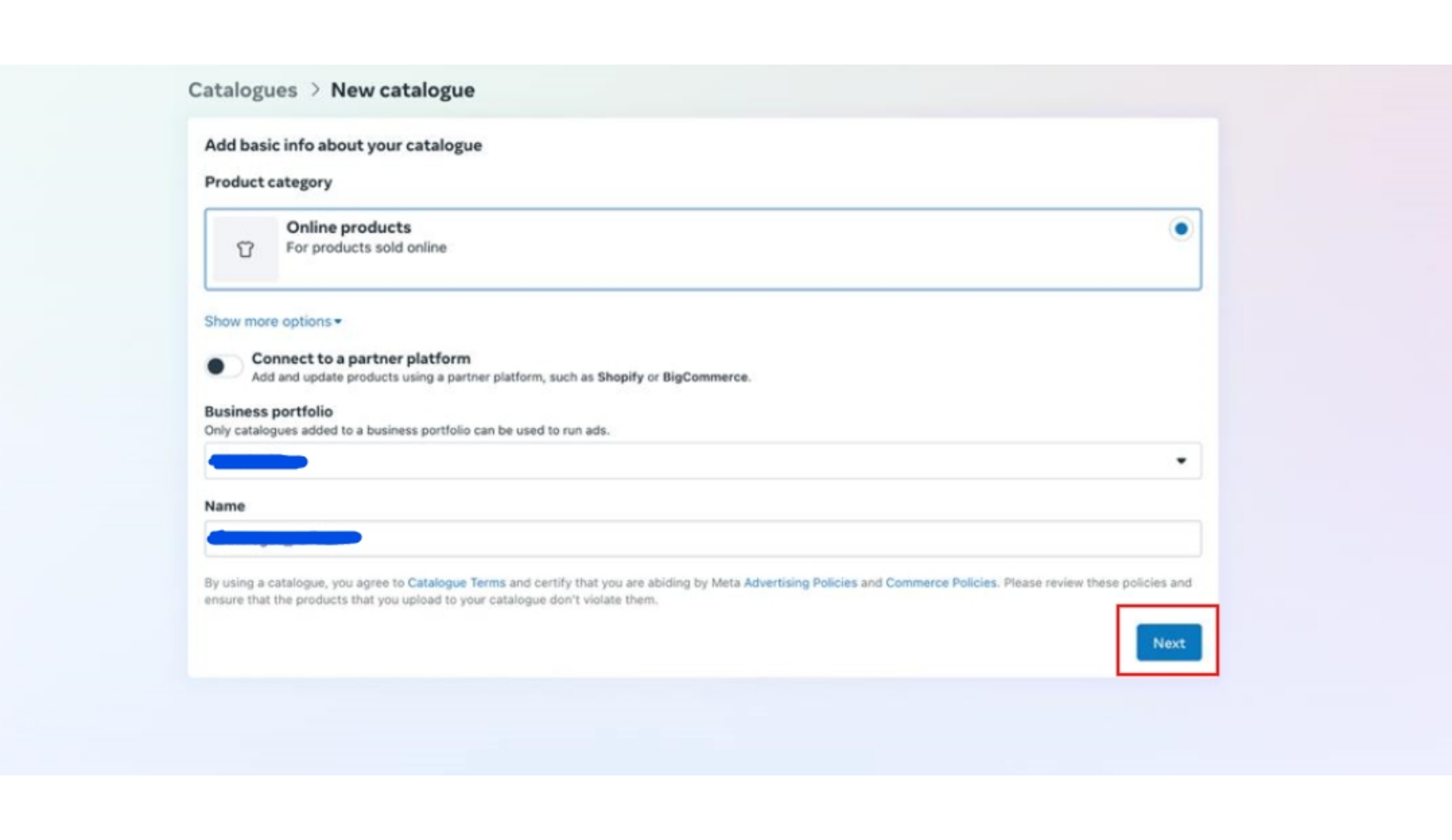
7. Select a business portfolio from the drop down and enter a name and after that click on "Next".
   <img src="https://mintcdn.com/vitxiconverse/L8_UDa8-CY-yY9Bf/images/how-botpenguin-works/whatsapp-catalog-setup/39.whatsapp_catalog_setup__Converse_resource_centre-4.png?fit=max&auto=format&n=L8_UDa8-CY-yY9Bf&q=85&s=65f5da703072ae2cd6e109015af531ee" alt="39 Whatsapp Catalog Setup  Converse Resource Centre 4 Pn" width="1866" height="1080" data-path="images/how-botpenguin-works/whatsapp-catalog-setup/39.whatsapp_catalog_setup__Converse_resource_centre-4.png" />
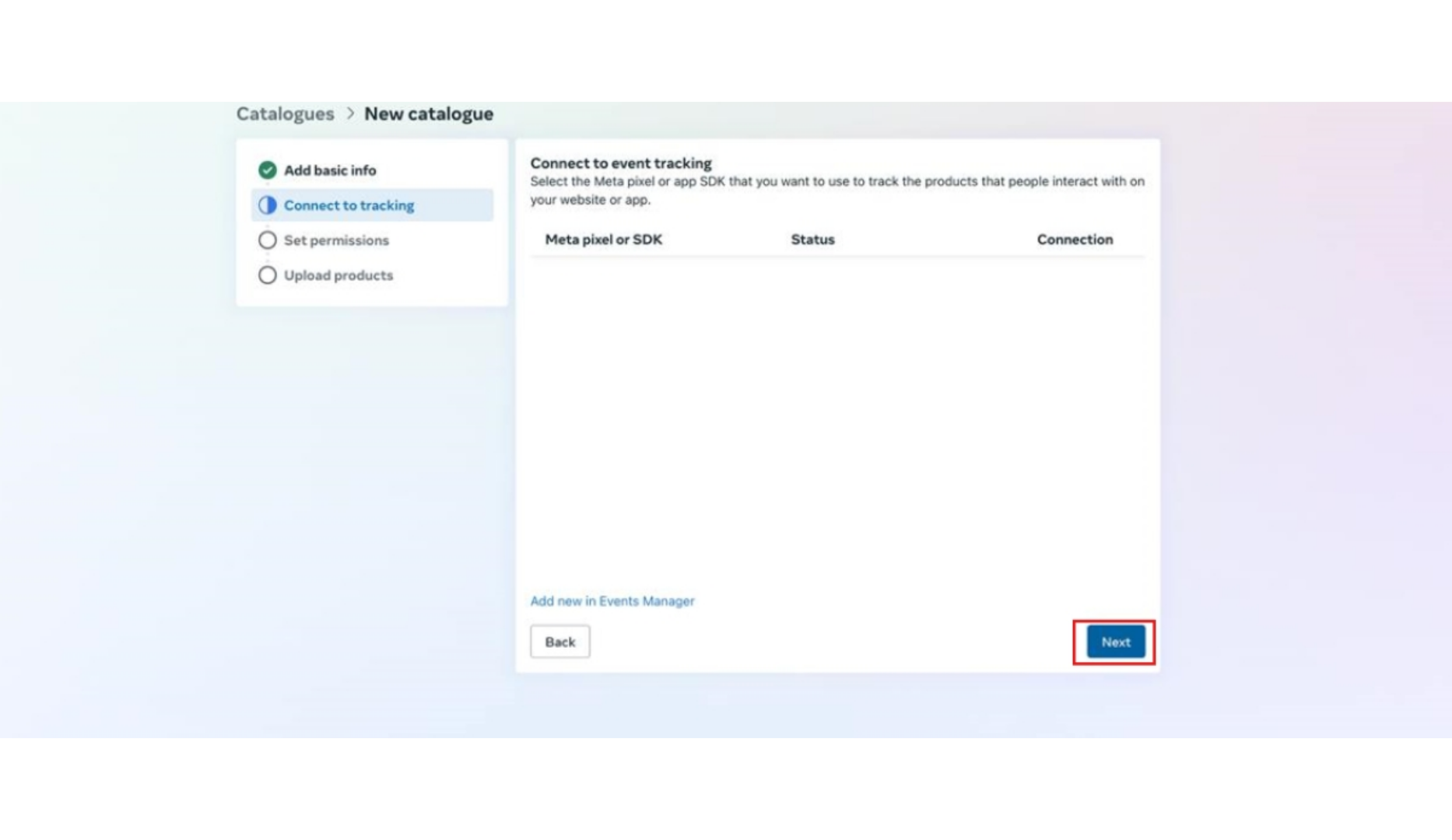
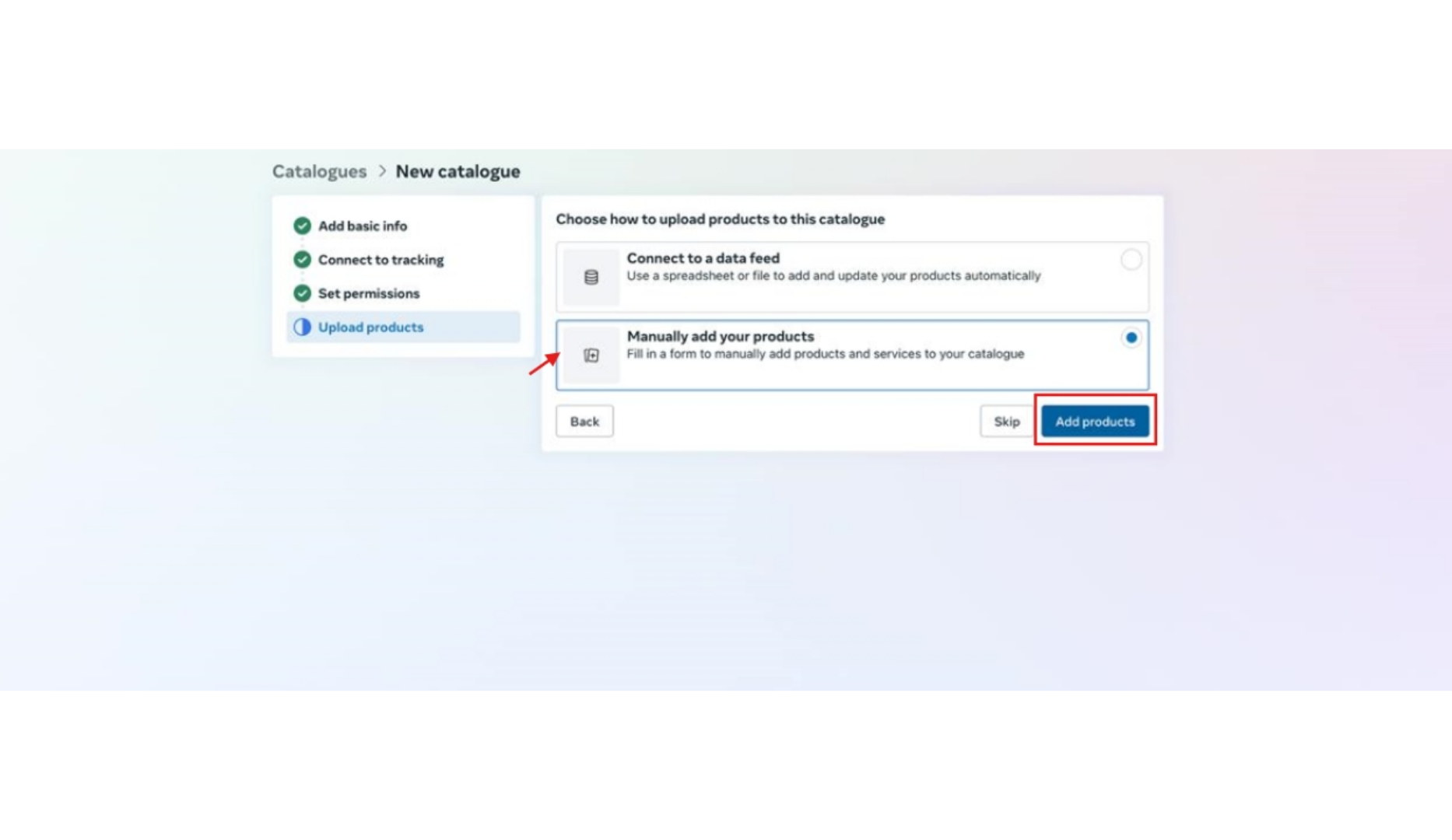
8. After adding basic info click on "Next" in event tracking.
9. In set permissions you can assign people and then click on "Next".
   <img src="https://mintcdn.com/vitxiconverse/L8_UDa8-CY-yY9Bf/images/how-botpenguin-works/whatsapp-catalog-setup/39.whatsapp_catalog_setup__Converse_resource_centre-6.png?fit=max&auto=format&n=L8_UDa8-CY-yY9Bf&q=85&s=f90c3a6087fb0cf2741a344cff53bedf" alt="39 Whatsapp Catalog Setup  Converse Resource Centre 6 Pn" width="1866" height="1080" data-path="images/how-botpenguin-works/whatsapp-catalog-setup/39.whatsapp_catalog_setup__Converse_resource_centre-6.png" />
10. After selecting Manually add your products, click on "Add Products".
    <img src="https://mintcdn.com/vitxiconverse/L8_UDa8-CY-yY9Bf/images/how-botpenguin-works/whatsapp-catalog-setup/39.whatsapp_catalog_setup__Converse_resource_centre-7.png?fit=max&auto=format&n=L8_UDa8-CY-yY9Bf&q=85&s=9b3abf6346f114b46b7f57960e2ec9f8" alt="39 Whatsapp Catalog Setup  Converse Resource Centre 7 Pn" width="1866" height="1080" data-path="images/how-botpenguin-works/whatsapp-catalog-setup/39.whatsapp_catalog_setup__Converse_resource_centre-7.png" />
11. Add Product details such as images, title, description, web link, price etc. and if required click on "New Item" to add more products.
12. After filling all the details click on "Upload Items" this will create a new product catalog.
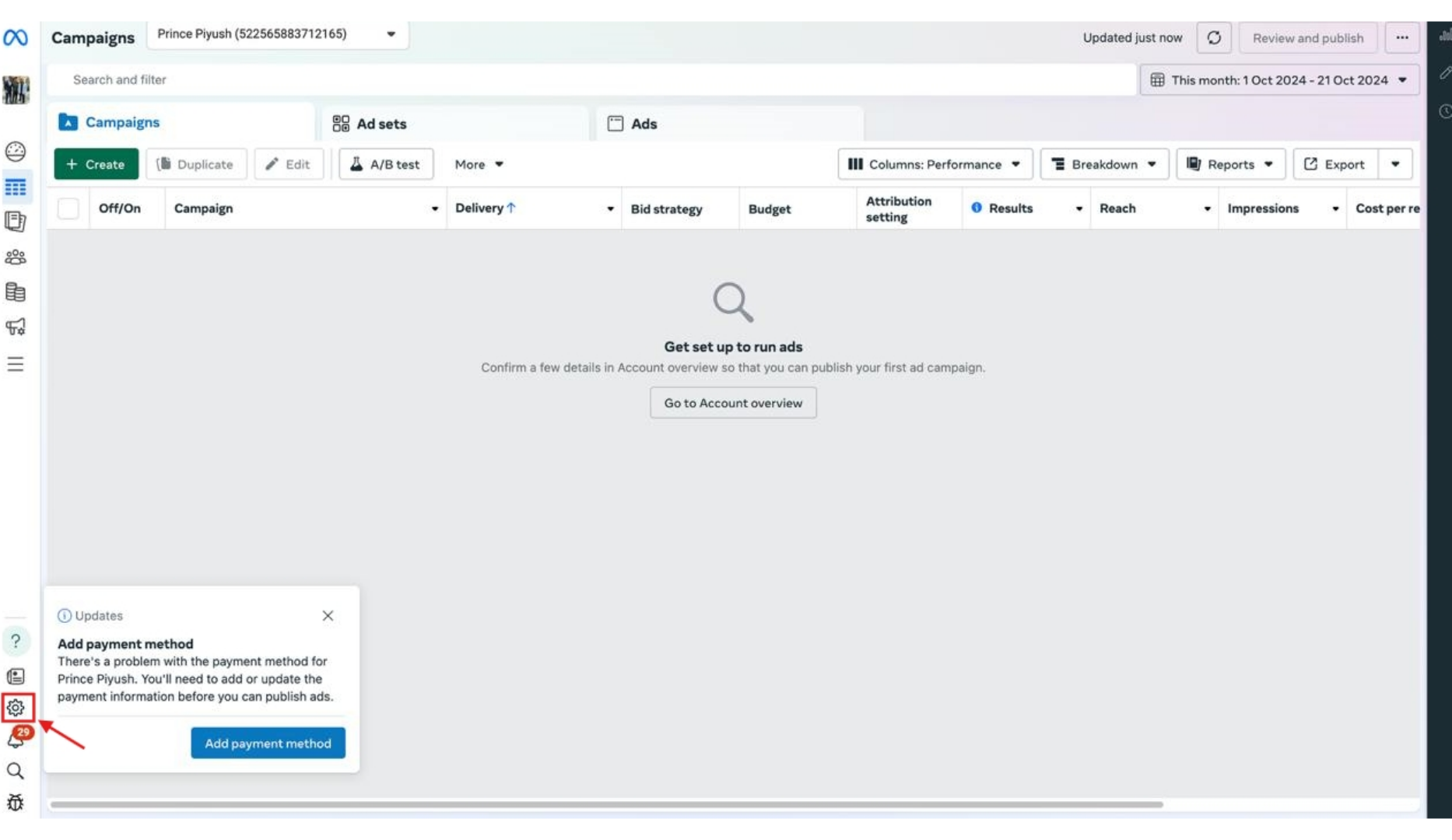
13. After that go back to WA Automation Page and select "Connect Catalog to Whatsapp Account". And click on "Go to Meta".
    <img src="https://mintcdn.com/vitxiconverse/L8_UDa8-CY-yY9Bf/images/how-botpenguin-works/whatsapp-catalog-setup/39.whatsapp_catalog_setup__Converse_resource_centre-8.png?fit=max&auto=format&n=L8_UDa8-CY-yY9Bf&q=85&s=b221b4df1b6718bcf0c2c79e359c2625" alt="39 Whatsapp Catalog Setup  Converse Resource Centre 8 Pn" width="1866" height="1080" data-path="images/how-botpenguin-works/whatsapp-catalog-setup/39.whatsapp_catalog_setup__Converse_resource_centre-8.png" />
14. After that login to your meta account and click on settings button in the bottom left of the panel.
    <img src="https://mintcdn.com/vitxiconverse/L8_UDa8-CY-yY9Bf/images/how-botpenguin-works/whatsapp-catalog-setup/39.whatsapp_catalog_setup__Converse_resource_centre-9.png?fit=max&auto=format&n=L8_UDa8-CY-yY9Bf&q=85&s=2700f041ca0d414f92974409dbe5de35" alt="39 Whatsapp Catalog Setup  Converse Resource Centre 9 Pn" width="1866" height="1080" data-path="images/how-botpenguin-works/whatsapp-catalog-setup/39.whatsapp_catalog_setup__Converse_resource_centre-9.png" />
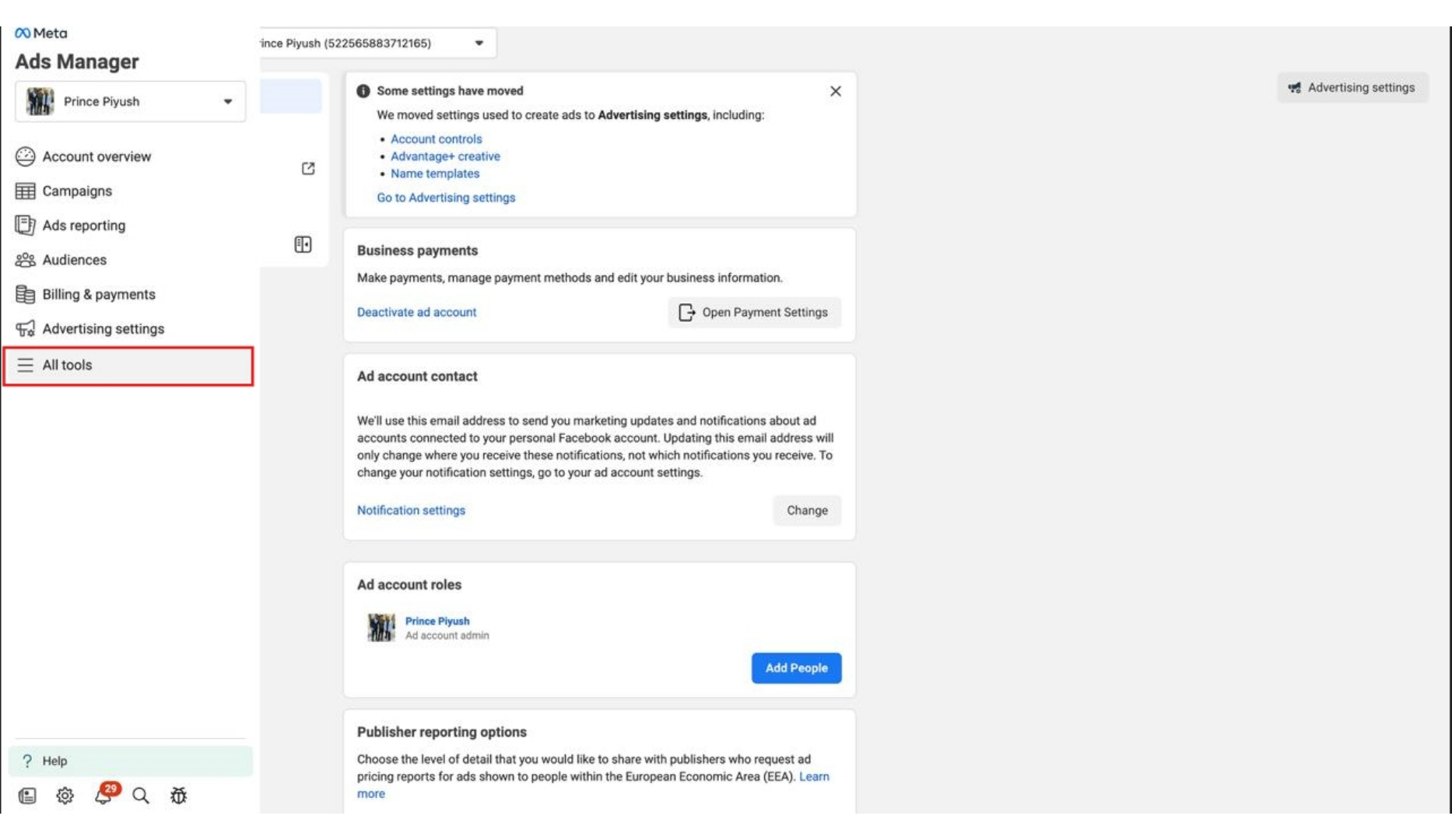
15. Then click on "All Tools" as shown down below.
    <img src="https://mintcdn.com/vitxiconverse/L8_UDa8-CY-yY9Bf/images/how-botpenguin-works/whatsapp-catalog-setup/39.whatsapp_catalog_setup__Converse_resource_centre-10.png?fit=max&auto=format&n=L8_UDa8-CY-yY9Bf&q=85&s=a429fd887a5415898a49d6272a5b47ec" alt="39 Whatsapp Catalog Setup  Converse Resource Centre 10 Pn" width="1866" height="1080" data-path="images/how-botpenguin-works/whatsapp-catalog-setup/39.whatsapp_catalog_setup__Converse_resource_centre-10.png" />
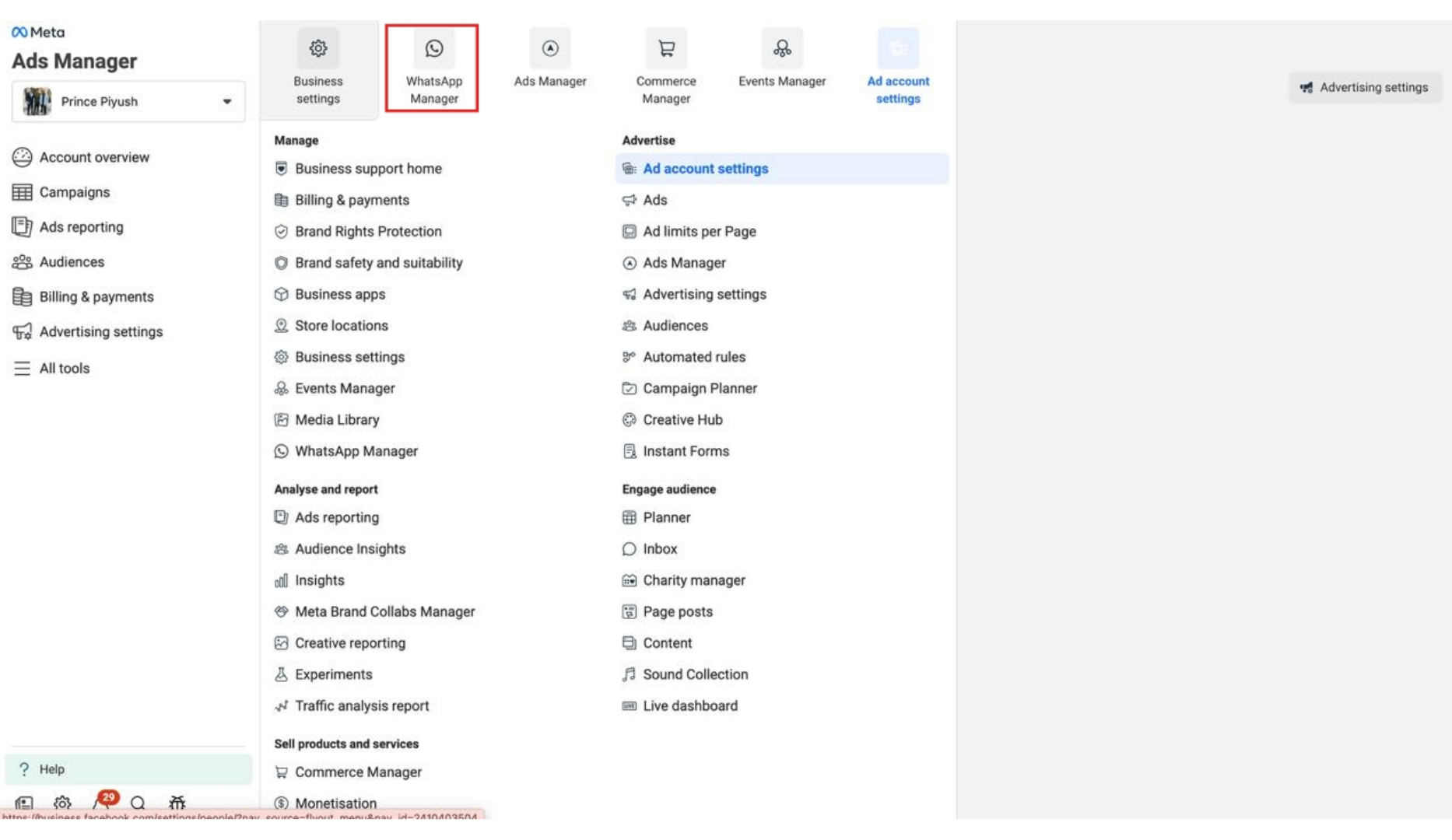
16. After that click on "WhatsApp Manager".
    <img src="https://mintcdn.com/vitxiconverse/L8_UDa8-CY-yY9Bf/images/how-botpenguin-works/whatsapp-catalog-setup/39.whatsapp_catalog_setup__Converse_resource_centre-11.png?fit=max&auto=format&n=L8_UDa8-CY-yY9Bf&q=85&s=7059b8d43a35eec2bb0296f964e834fa" alt="39 Whatsapp Catalog Setup  Converse Resource Centre 11 Pn" width="1866" height="1080" data-path="images/how-botpenguin-works/whatsapp-catalog-setup/39.whatsapp_catalog_setup__Converse_resource_centre-11.png" />
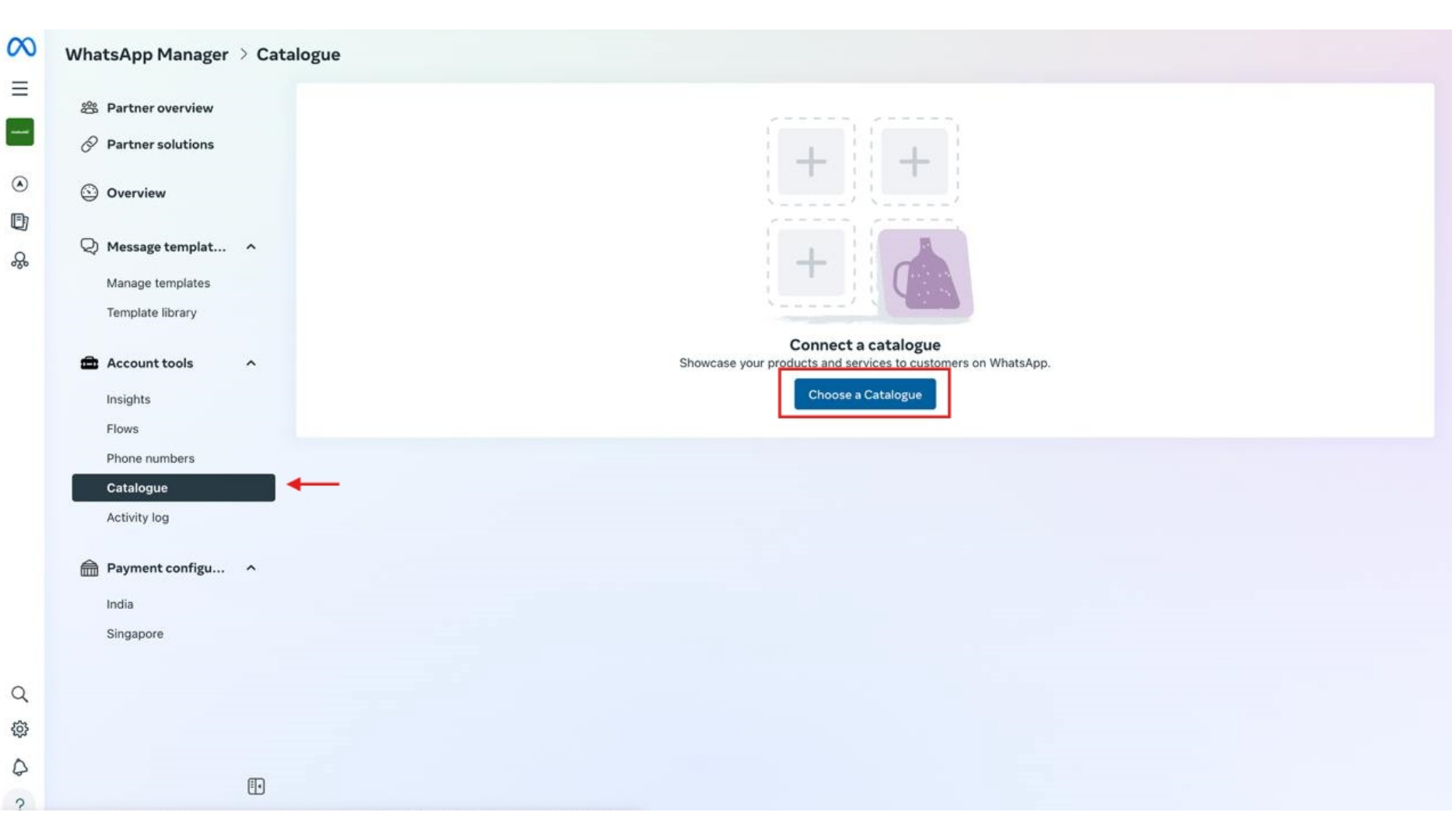
17. After that click on "Catalogue" and then select "Choose a Catalogue". This will open a pop up box to select catalog that you want to connect.
    <img src="https://mintcdn.com/vitxiconverse/L8_UDa8-CY-yY9Bf/images/how-botpenguin-works/whatsapp-catalog-setup/39.whatsapp_catalog_setup__Converse_resource_centre-12.png?fit=max&auto=format&n=L8_UDa8-CY-yY9Bf&q=85&s=8ea09759638e730a554c73151afb25a3" alt="39 Whatsapp Catalog Setup  Converse Resource Centre 12 Pn" width="1866" height="1080" data-path="images/how-botpenguin-works/whatsapp-catalog-setup/39.whatsapp_catalog_setup__Converse_resource_centre-12.png" />
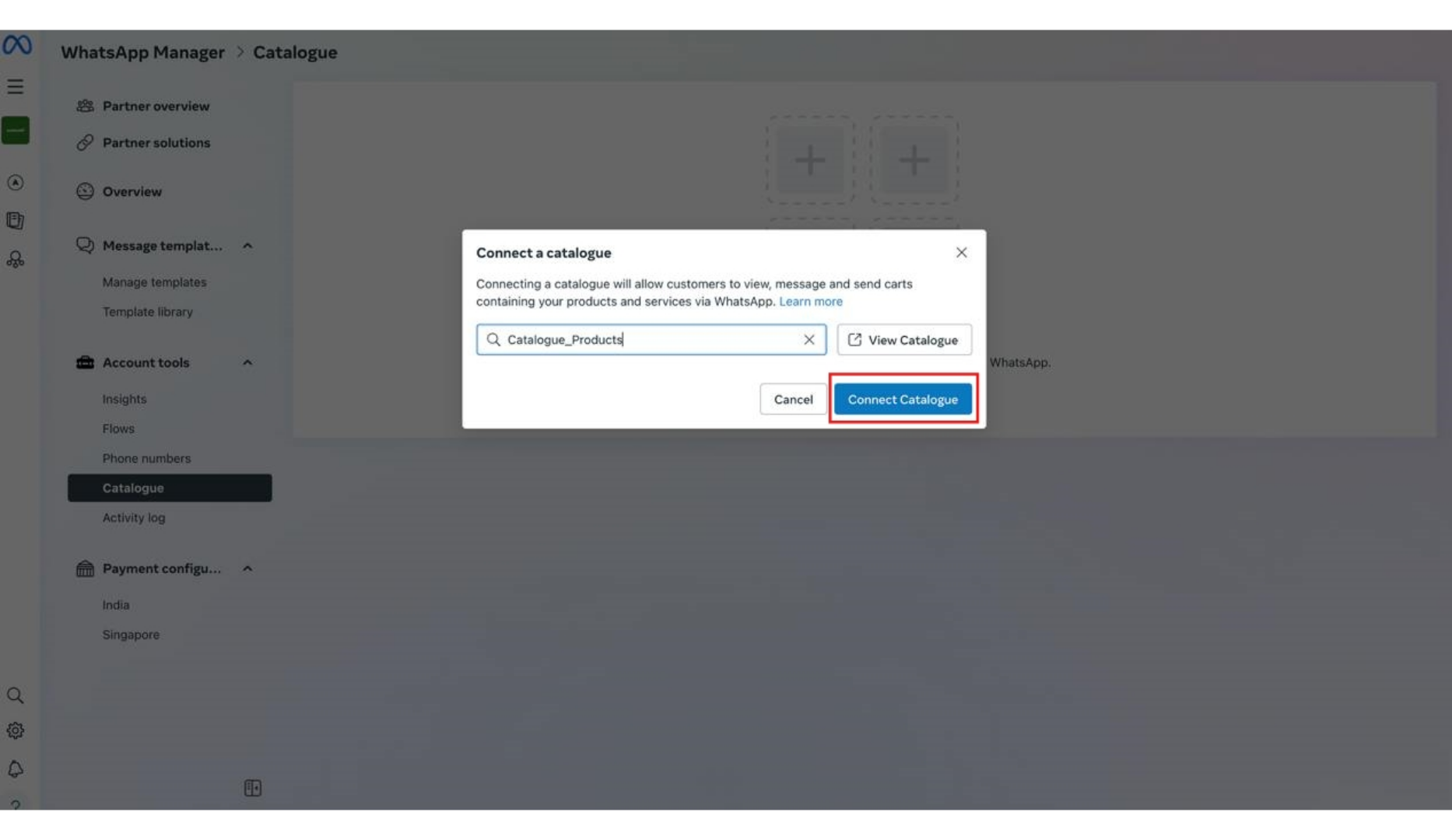
18. After selecting the catalog that you wish to connect click on "Connect Catalogue" and your catalog will be connected to your bot.
    <img src="https://mintcdn.com/vitxiconverse/L8_UDa8-CY-yY9Bf/images/how-botpenguin-works/whatsapp-catalog-setup/39.whatsapp_catalog_setup__Converse_resource_centre-13.png?fit=max&auto=format&n=L8_UDa8-CY-yY9Bf&q=85&s=039ee8984a1d7ae6104d2ce0258c4c40" alt="39 Whatsapp Catalog Setup  Converse Resource Centre 13 Pn" width="1866" height="1080" data-path="images/how-botpenguin-works/whatsapp-catalog-setup/39.whatsapp_catalog_setup__Converse_resource_centre-13.png" />
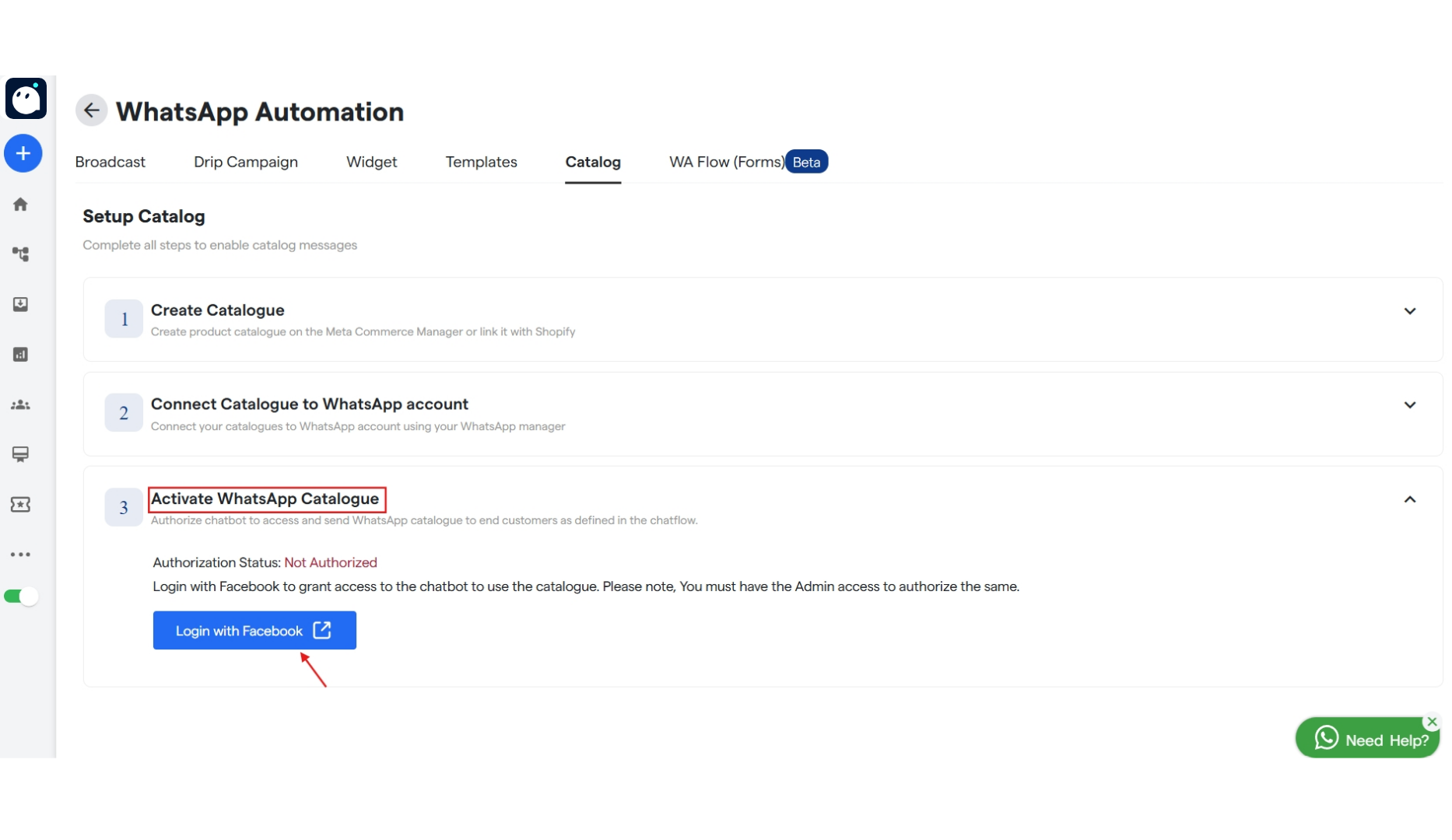
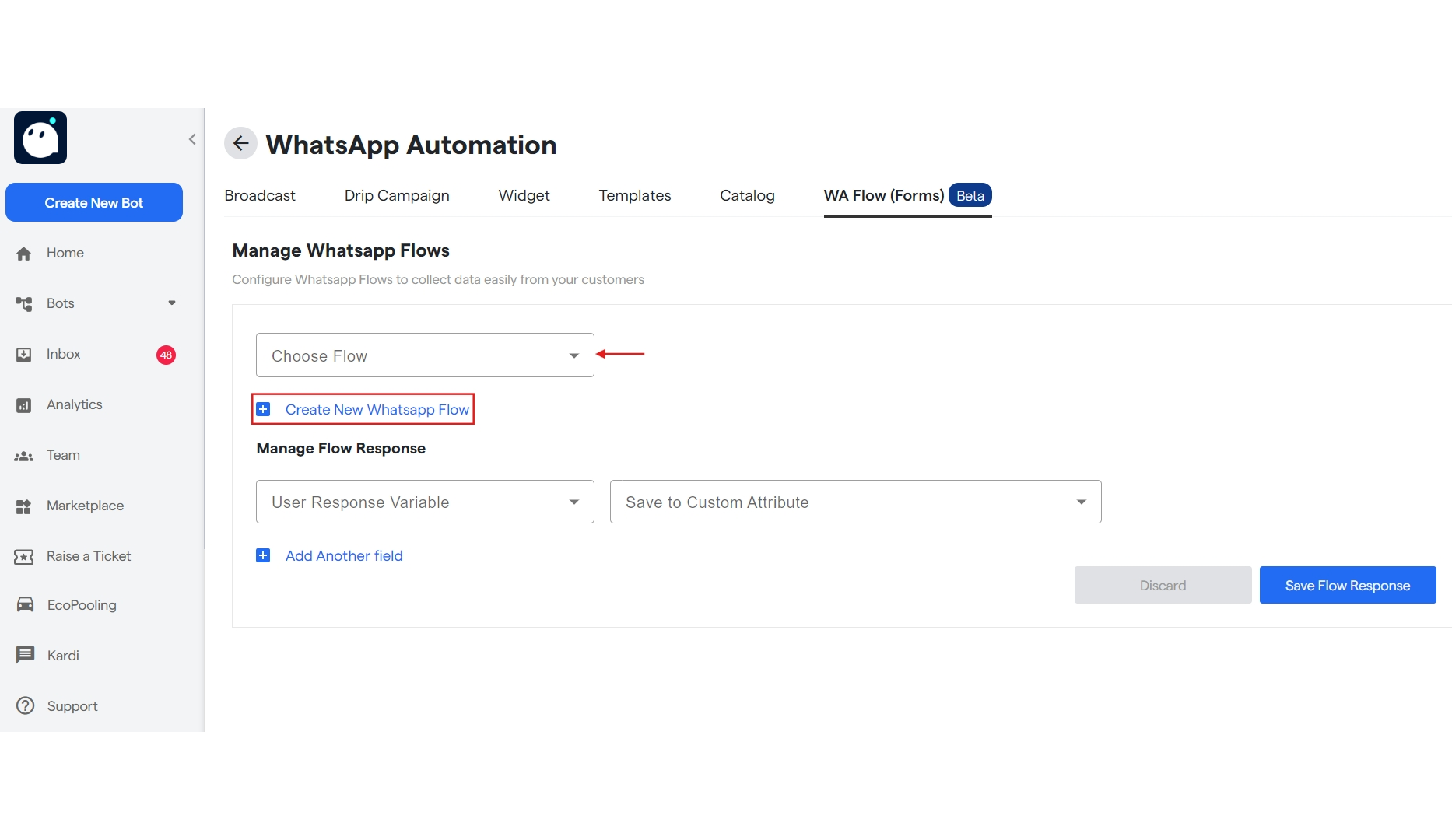
19. To activate your whatsapp catalog just login with facebook by clicking on "Login with Facebook" under "Activate Whatsapp Catalogue".
    <img src="https://mintcdn.com/vitxiconverse/L8_UDa8-CY-yY9Bf/images/how-botpenguin-works/whatsapp-catalog-setup/39.whatsapp_catalog_setup__Converse_resource_centre-14.png?fit=max&auto=format&n=L8_UDa8-CY-yY9Bf&q=85&s=f4bbeab699b8e0dd2b204ed335632704" alt="39 Whatsapp Catalog Setup  Converse Resource Centre 14 Pn" width="1866" height="1080" data-path="images/how-botpenguin-works/whatsapp-catalog-setup/39.whatsapp_catalog_setup__Converse_resource_centre-14.png" />
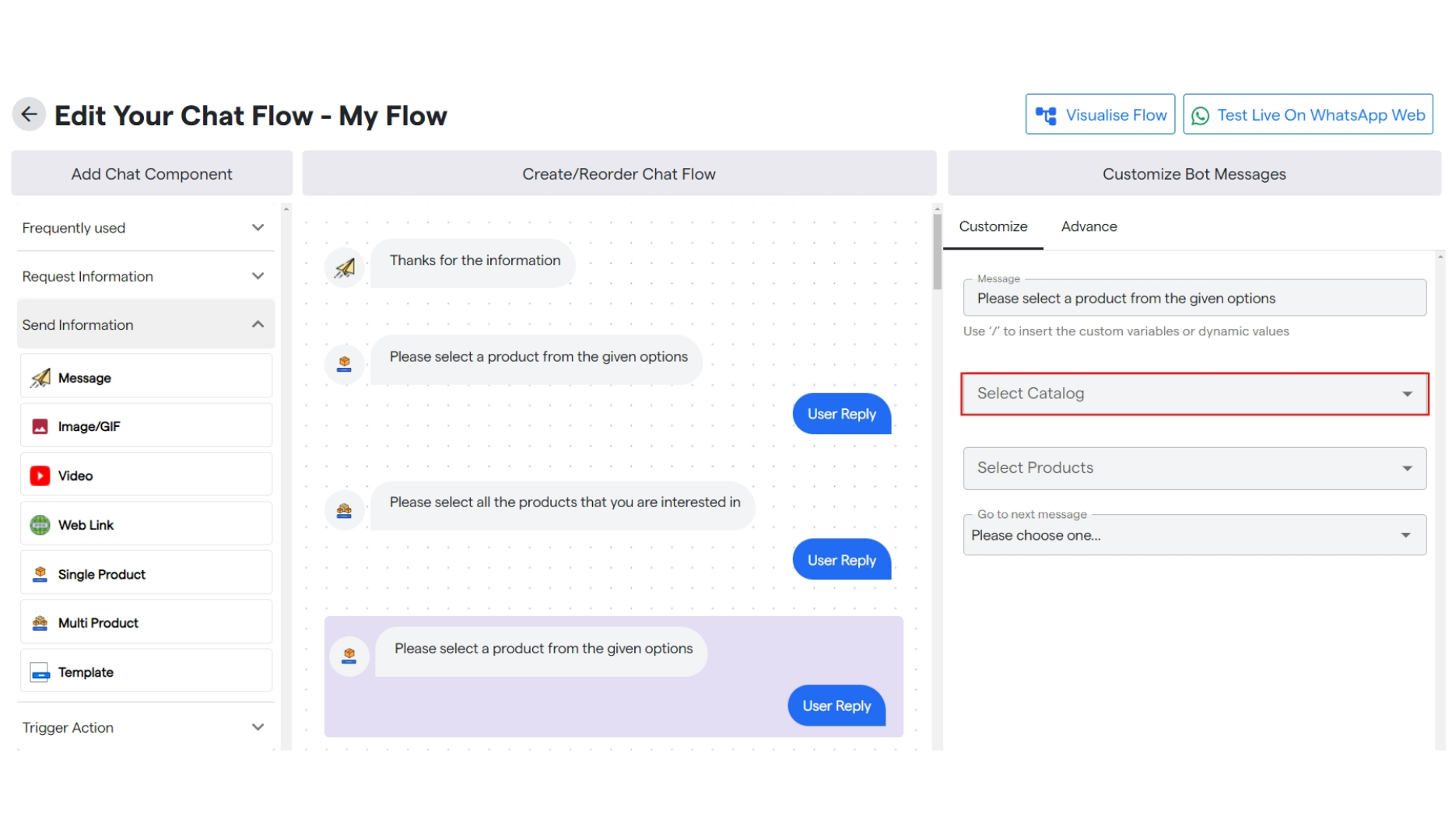
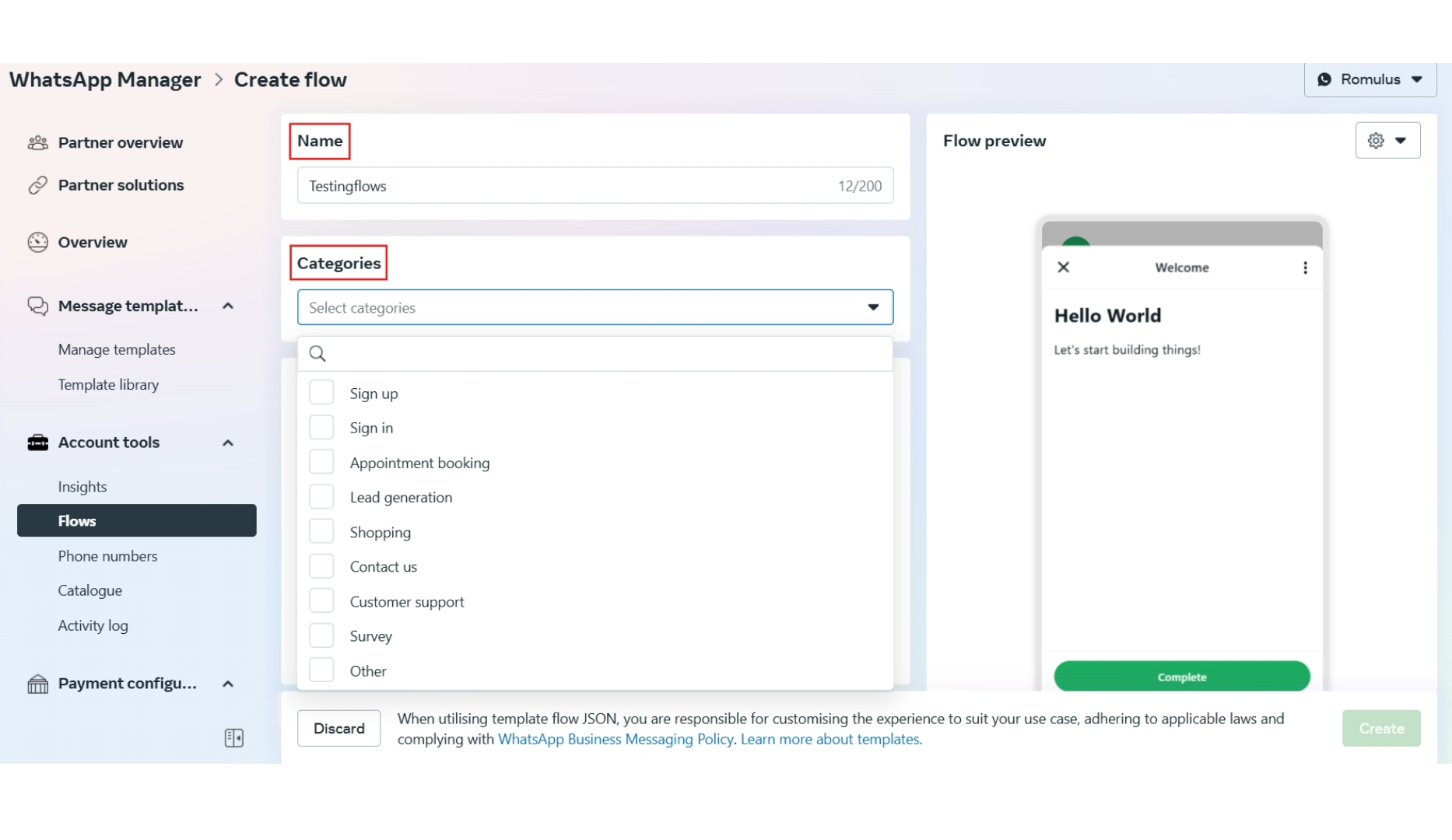
20. And finally you can select your catalog by clicking on the drop down which you want to use in your chat flow inside "Edit Your Chat Flow".
    <img src="https://mintcdn.com/vitxiconverse/L8_UDa8-CY-yY9Bf/images/how-botpenguin-works/whatsapp-catalog-setup/39.whatsapp_catalog_setup__Converse_resource_centre-15.png?fit=max&auto=format&n=L8_UDa8-CY-yY9Bf&q=85&s=fc8f94ddb4ead2658aa005a0faeee066" alt="39 Whatsapp Catalog Setup  Converse Resource Centre 15 Pn" width="1866" height="1080" data-path="images/how-botpenguin-works/whatsapp-catalog-setup/39.whatsapp_catalog_setup__Converse_resource_centre-15.png" />
