> ## Documentation Index
> Fetch the complete documentation index at: https://docs.converse.vitxi.ai/llms.txt
> Use this file to discover all available pages before exploring further.
# Instagram Broadcast
> Want to Broadcast Messages using Instagram? You've come to the right spot.
### **What are Instagram Broadcasts?**
Instagram Broadcasts are a way for businesses or influencers to send messages directly to a group of people on Instagram. These messages appear in the Direct Messages section and are a great way to share important updates, offers, or news with followers in a personal and easy way.
***
### **Why to use Instagram Broadcasts?**
* **Direct Communication**: Send messages directly to your followers' inbox, ensuring higher visibility.
* **Targeted Messaging**: Reach specific groups of followers with personalized content.
* **Promote Offers and Updates**: Share time-sensitive news, promotions, or new products.
* **Stronger Engagement**: Messages feel more personal, encouraging followers to take action.
***
### **How to setup Instagram Broadcasts?**
1. Log into your Converse and go to the Instagram Bot.
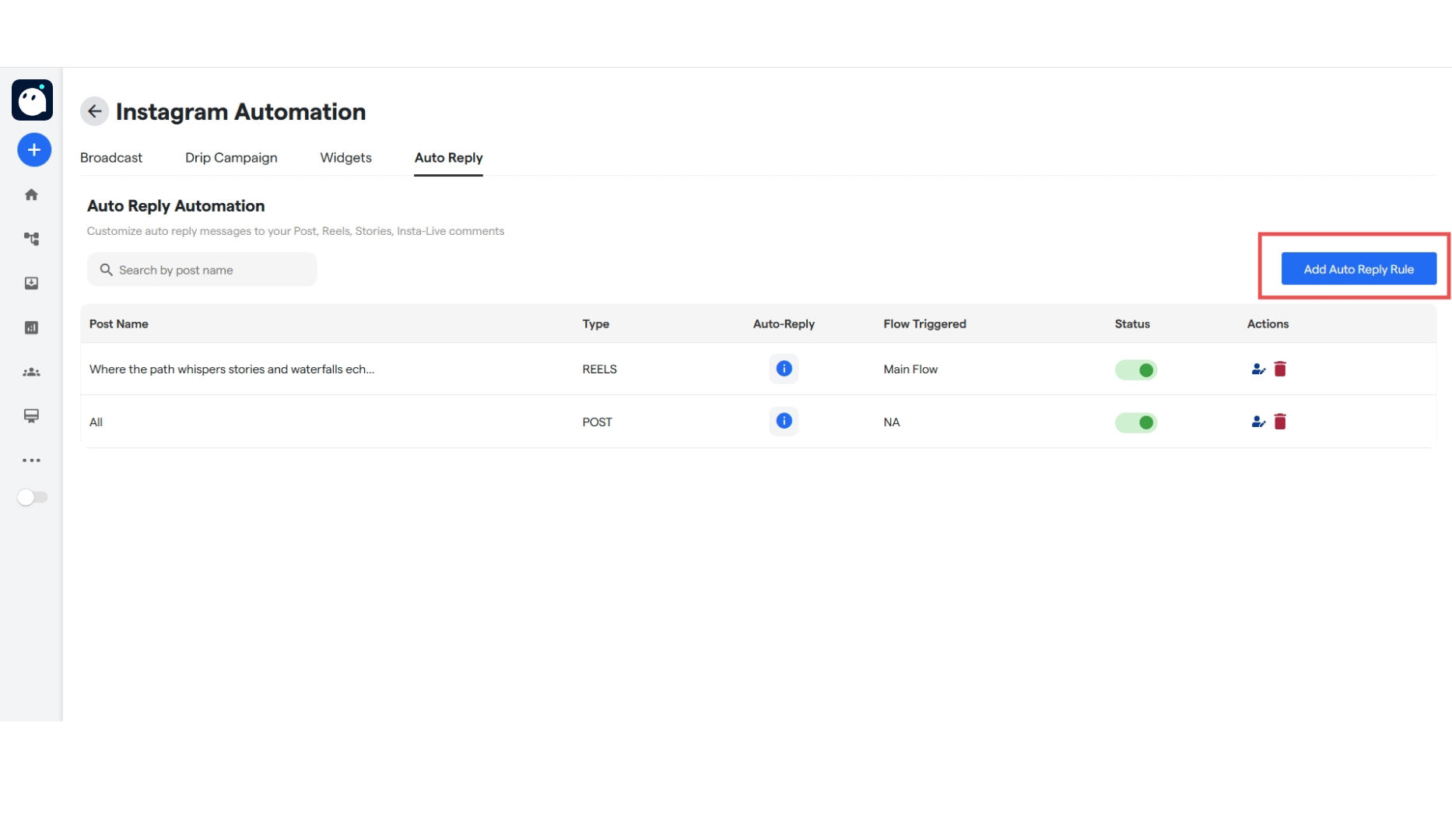 2. Go to "**Instagram Automation**".
3. You will automatically be on the Broadcast page. Give the broadcast a name and then click "**Continue**".
2. Go to "**Instagram Automation**".
3. You will automatically be on the Broadcast page. Give the broadcast a name and then click "**Continue**".
 4. Fill all the details in the a shown on the form:
* Broadcast Name: The name of the broadcast.
* Flow: The flow that will be broadcasted(recommended to keep the flow small)
* Groups: The Groups to which the broadcast will be sent.
* When to Send: Can send now, or select date and time slot to send broadcast.
4. Fill all the details in the a shown on the form:
* Broadcast Name: The name of the broadcast.
* Flow: The flow that will be broadcasted(recommended to keep the flow small)
* Groups: The Groups to which the broadcast will be sent.
* When to Send: Can send now, or select date and time slot to send broadcast.
 5. Click on the "**Create Broadcast**" to create the Broadcast.
 And that's it, the broadcast has been created! When the broadcast finishes, it will show "COMPLETED" under the Status heading.
### **FAQ's:**
Here are some common FAQ's that are seen in the Instagram Broadcast section:
You can only add the people in the broadcast that are in your configured group. You can add people in the group using the Group subtab in the Inbox.
Broadcasts can fail to deliver due to:
* Users not falling into the selected group
* User inactivity (no interaction within 24h window)
* Instagram restrictions on promotional messaging
* Errors in flow (broken nodes, media not loading)
Always test with a small internal group first.
Yes. Under **"When to Send"**, you can select a specific **date and time**. Make sure your time zone settings in Converse are correctly configured to avoid mismatches.
Yes, you can edit the broadcast by clicking on the edit button, as well as changing the flow of the connect chatflow.
Yes, you can configure your chatflow to send whatever you want!
And that's it, the broadcast has been created! When the broadcast finishes, it will show "COMPLETED" under the Status heading.
### **FAQ's:**
Here are some common FAQ's that are seen in the Instagram Broadcast section:
You can only add the people in the broadcast that are in your configured group. You can add people in the group using the Group subtab in the Inbox.
Broadcasts can fail to deliver due to:
* Users not falling into the selected group
* User inactivity (no interaction within 24h window)
* Instagram restrictions on promotional messaging
* Errors in flow (broken nodes, media not loading)
Always test with a small internal group first.
Yes. Under **"When to Send"**, you can select a specific **date and time**. Make sure your time zone settings in Converse are correctly configured to avoid mismatches.
Yes, you can edit the broadcast by clicking on the edit button, as well as changing the flow of the connect chatflow.
Yes, you can configure your chatflow to send whatever you want!